
GPT Image 2.6
00:00
00:00
00:00
00:00
Key Features of GPT Image 2.6
00:00
00:00
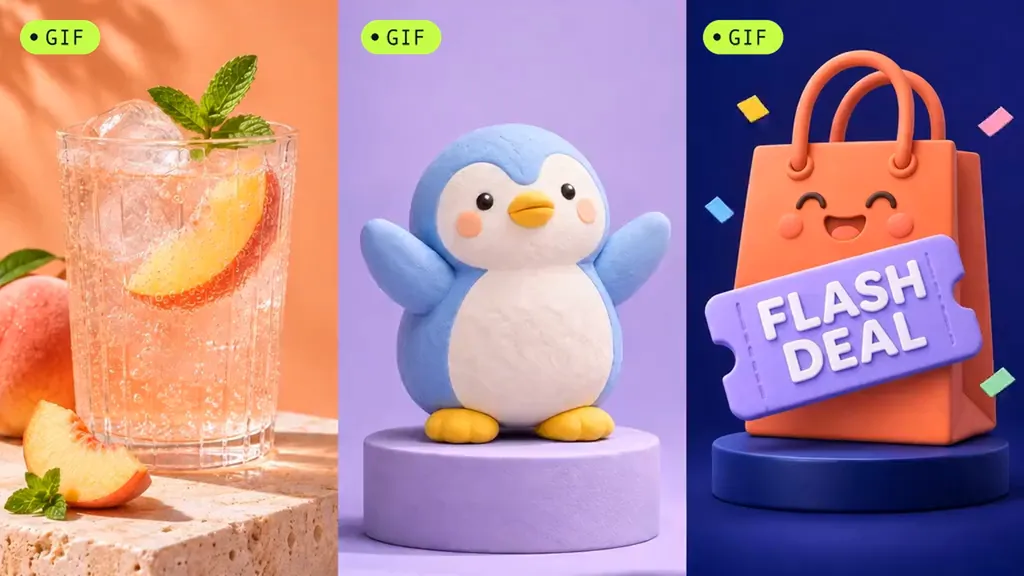
Bring Still Images to Life with GIF Animation
Explore More Ideas with Flare
Bring Out Fine Details with Sunburst
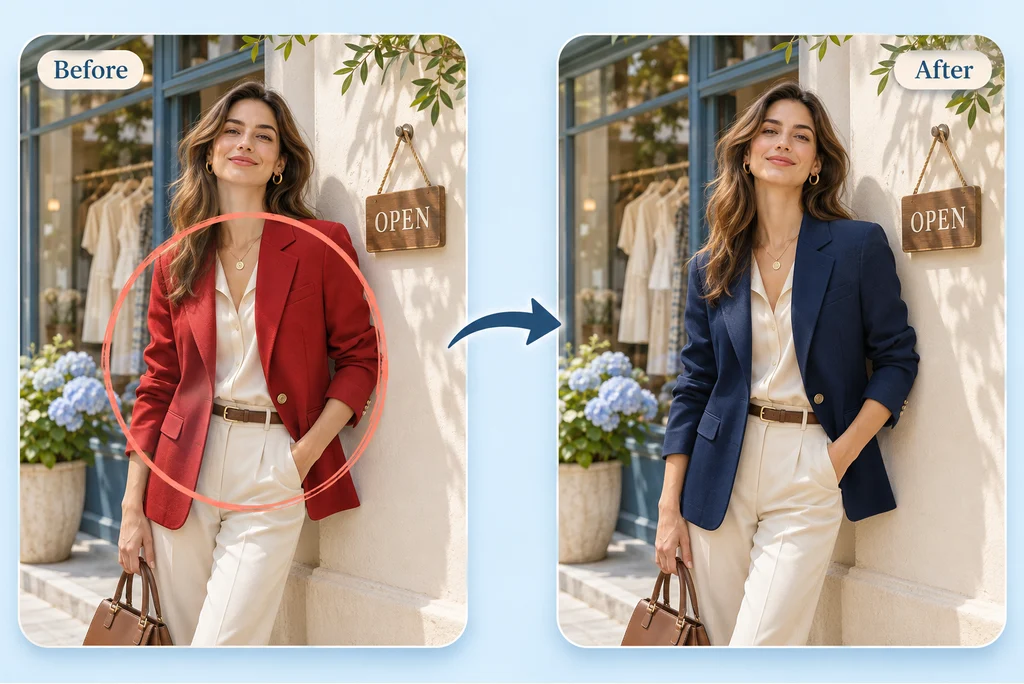
Edit a Specific Part of Your Image
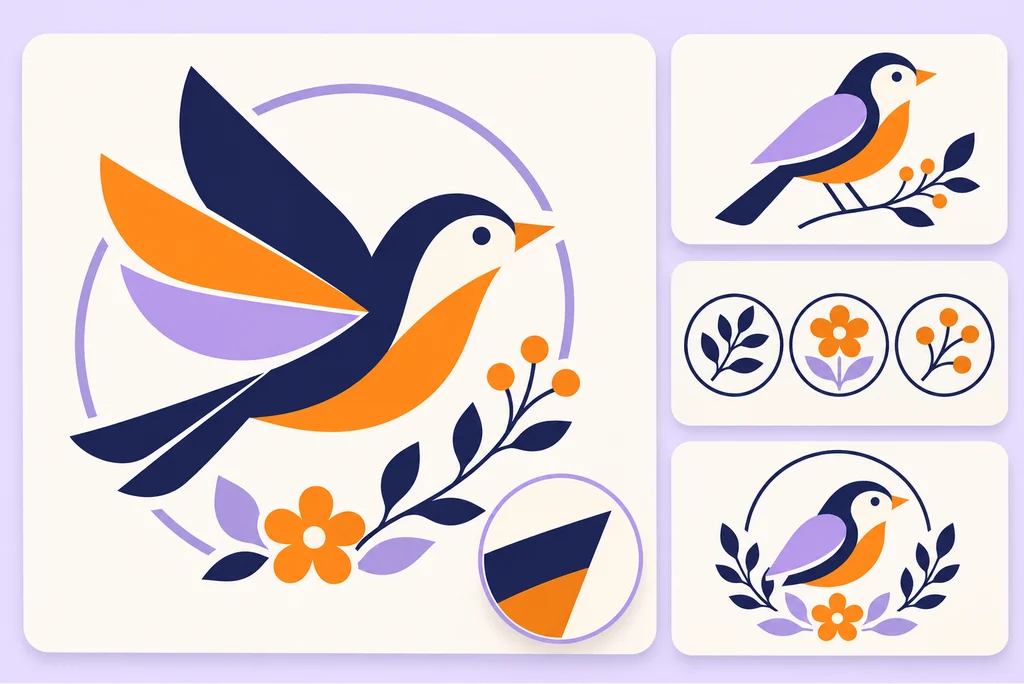
Create Scalable Graphics with SVG
How to Start Creating Images on insMind
Begin with a prompt or reference image, then refine the result step by step.
Step 1: Start with an Idea
Open GPT Image 2.6 on insMind. Write down what you want to create, or choose a reference image to guide the result.
Step 2: Describe the Image
Explain the subject, style, composition, and wording. If you add references, say what each one should guide and which details should stay recognizable.
Step 3: Generate and Refine
Generate an image, then describe any changes you want. For a focused revision, identify the area and keep the request specific.
Step 4: Review and Download
Check the lettering, edges, colors, and composition. Make any final adjustments, then download the result in an available format.
What Can You Create with GPT Image 2.6?
Explore six ideas for product promotions, social content, brand graphics, and visual storytelling.
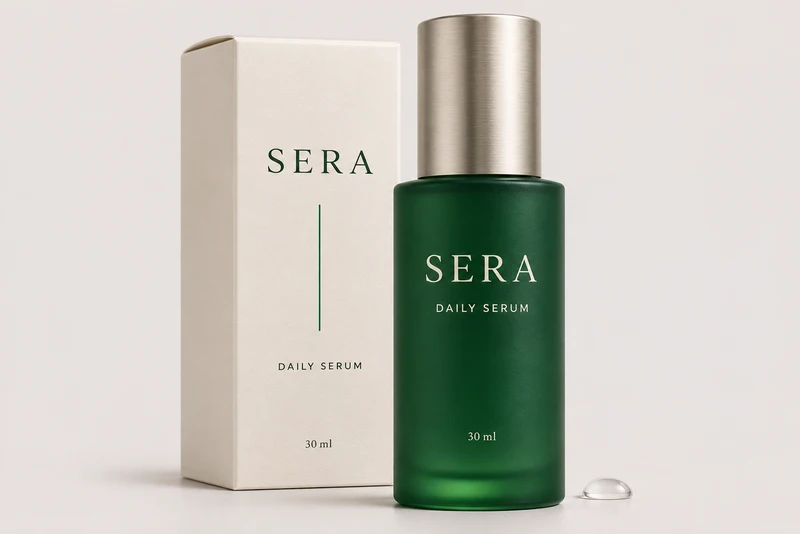
Product Photos for Online Stores
Give an existing product photo a fresh setting for a new launch or seasonal collection. Use image-to-image to guide the look, then describe the lighting, props, and mood you want for a product page or campaign.
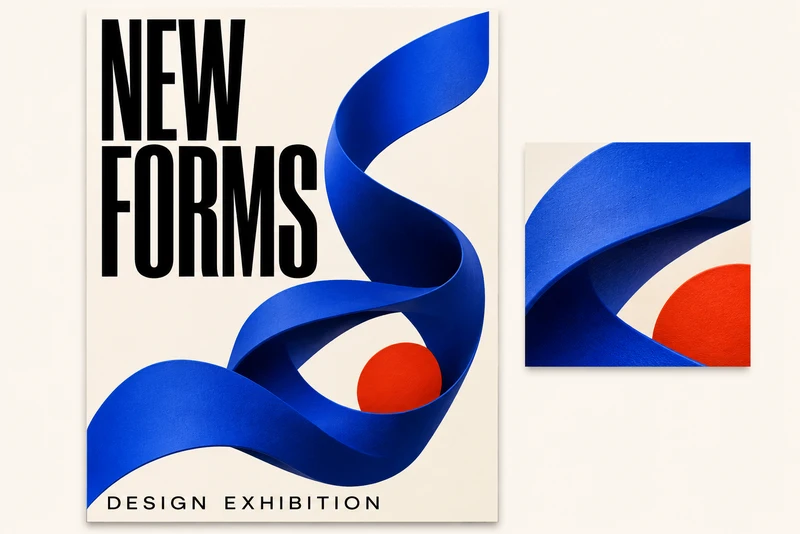
Posters for Events and Promotions
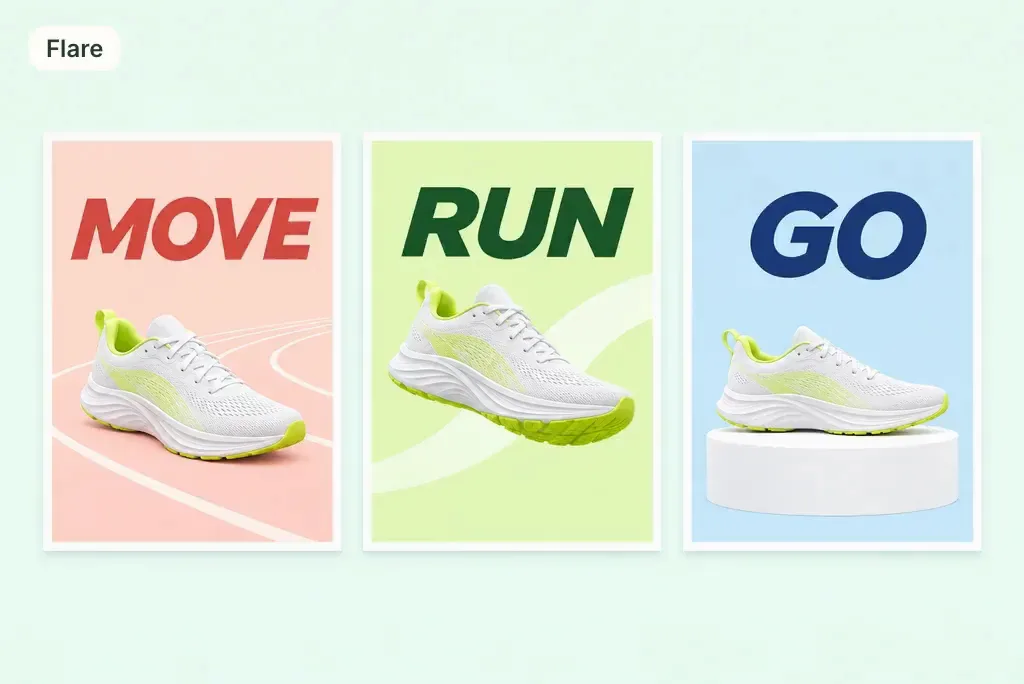
Turn an event brief into a poster with a clear headline, a strong color palette, and room for the essential details. Try several directions with Flare, then refine your favorite for social posts, announcements, or an in-store display.
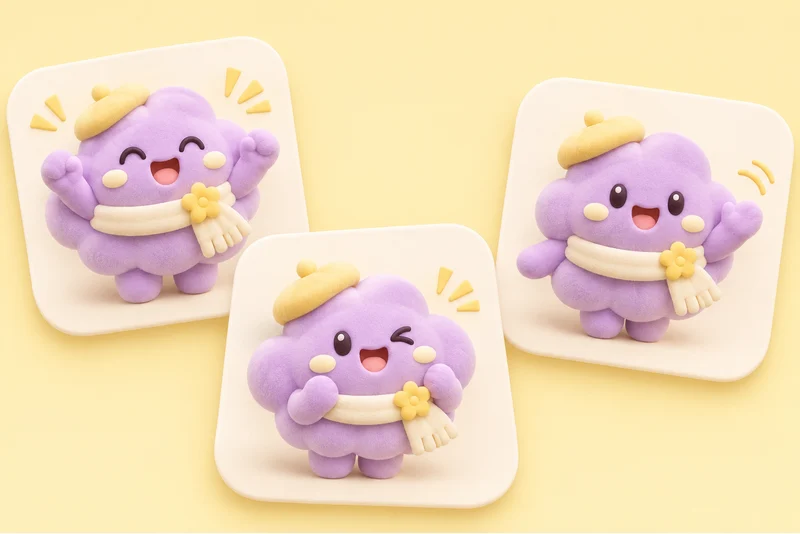
Character Stickers for Social Posts
Give your mascot a new expression or pose for a reply, announcement, or community post. For an animated reaction, describe a small repeating gesture and create a GIF that adds personality to the message.
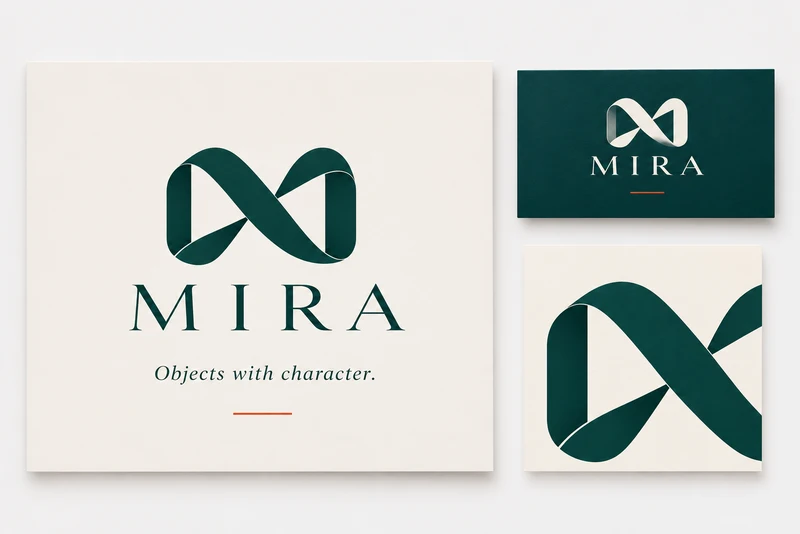
Brand Graphics for Websites
Create a coordinated set of marks, icons, and decorative graphics for a new brand idea. SVG suits artwork that needs to stay sharp at different sizes, from a small website icon to a large presentation graphic.
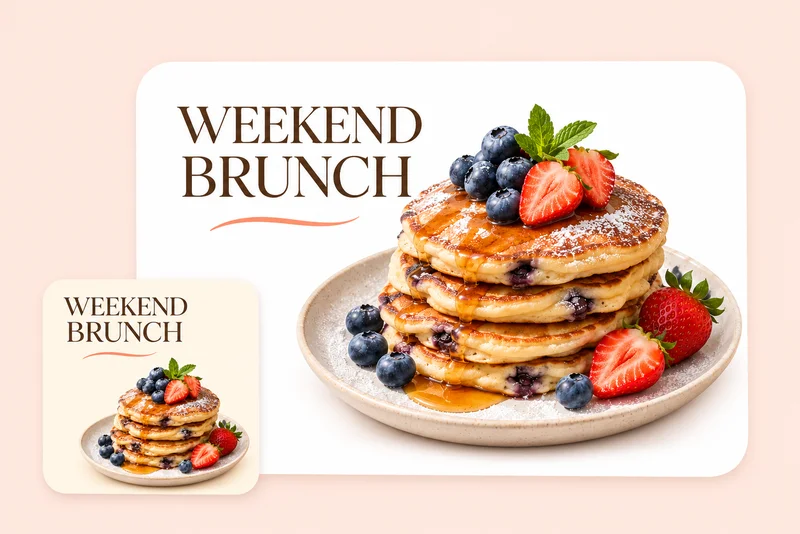
Food and Drink Promotions
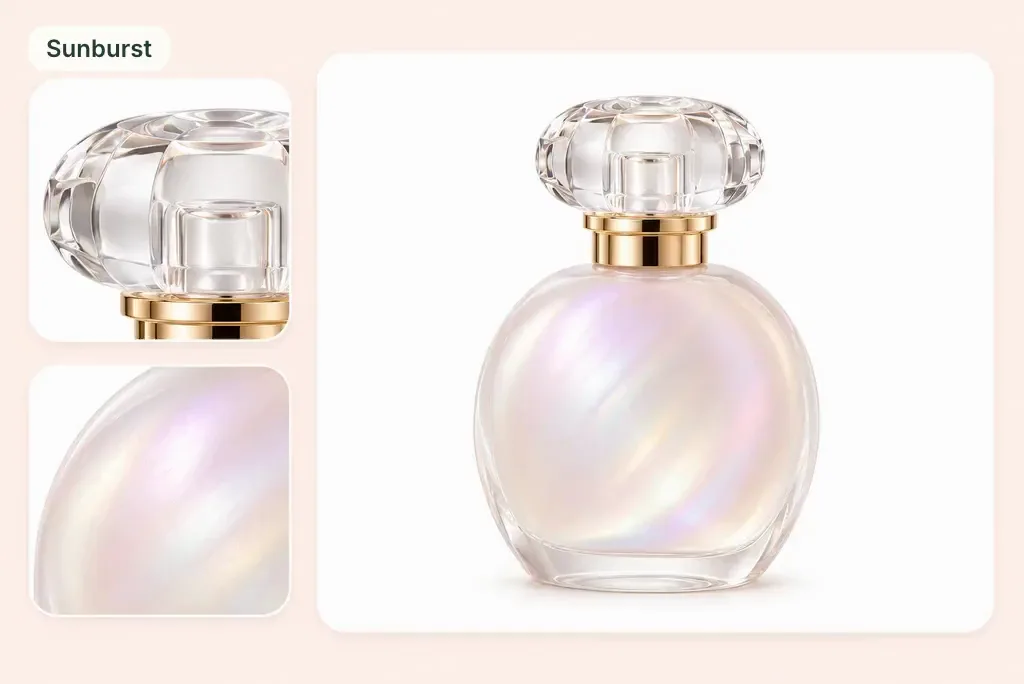
Build an appetizing image around a cafe special, a new menu item, or a weekend offer. Describe the dish, table setting, and headline, then refine the textures and lighting with Sunburst for a polished promotional design.
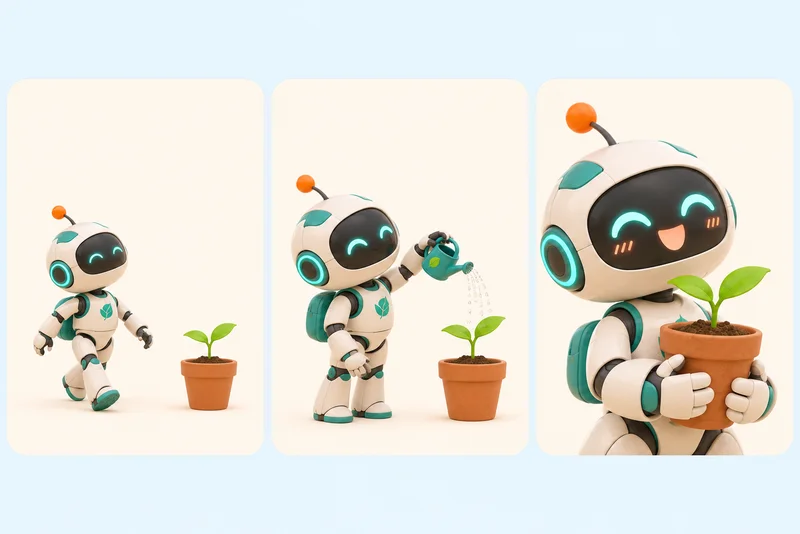
Storyboards for Creative Pitches
Show a story idea through a set of still frames before planning a shoot. Describe the setting and camera angle for each shot, then use targeted edits to revise a prop or background as the concept develops.
Why Create with GPT Image 2.6 on insMind?

Find Your Direction with Flare
Use Flare to try different compositions and visual styles quickly, then spend more time on the ideas you like most.

Focus on Detail with Sunburst
Choose Sunburst for images that call for careful lighting, rich textures, and more attention to the details of an edit.

Add Personality with GIFs
Bring a simple gesture or product detail into motion for a social post, campaign message, or playful character reaction.

Edit the Part You Choose
Point to an area and describe the change, whether you want a different color, a new object, or revised lettering.

Keep Graphics Sharp with SVG
Create vector graphics for designs that appear at different sizes, from compact website icons to larger posters and presentations.

Create Right in Your Browser
Start from a prompt or reference image on insMind, explore your idea, and keep refining it without installing design software.
FAQs About GPT Image 2.6
What is GPT Image 2.6?


GPT Image 2.6 is OpenAI’s image generation and editing model family. It turns text prompts and reference images into visuals, with Flare for fast iteration and Sunburst for detailed creative work.
What is new compared with GPT Image 2.5?
GPT Image 2.6 introduces faster image generation, improved consistency across edits, animated GIFs, SVG output, and more control over specific changes. It also adds a complexity setting to guide how much planning goes into an image.
How do Flare and Sunburst differ?
Choose Flare to explore ideas, create variations, and generate everyday visuals quickly. Choose Sunburst when your project calls for finer textures, detailed compositions, or precise image edits.
Can GPT Image 2.6 edit only one part of an image?
Yes. You can guide a focused edit by marking an area and describing the change. Try recoloring clothing, replacing a prop, or revising lettering, and specify which surrounding details to keep.
Can GPT Image 2.6 generate looping GIFs?
Yes. GPT Image 2.6 supports animated GIF generation for character gestures, reactions, brand mascots, and product animations. Describe the motion, keep the scene consistent, and ask the subject to return to its starting pose for a looping result.
Does GPT Image 2.6 support SVG output?
Yes. GPT Image 2.6 supports SVG output for logos, icons, and vector illustrations. SVG graphics stay sharp when resized, making them useful for websites, presentations, and printed designs.
Can I use reference images?
Yes. Upload a photo, sketch, or design reference to guide the subject, composition, or visual style. For multiple references, explain what each image contributes and describe the result you want.
What do quality and complexity change?
Quality controls the visual detail and finish of an image. Complexity controls how much planning the model applies to your request. Lower complexity suits straightforward edits, while higher complexity helps with detailed layouts and scenes involving several elements.
How do I get started with GPT Image 2.6 on insMind?
Enter a prompt or upload a reference image, choose Flare or Sunburst, and generate your image. Describe the subject, style, and details you want, then refine the result with a follow-up edit.
What can I create with GPT Image 2.6?
Create product visuals, social posts, posters, illustrations, character concepts, and brand graphics. Start with a text idea or an existing image, then explore colors, compositions, and styles for your project.
More Image Tools for GPT Image 2.6 Projects
00:00
00:00
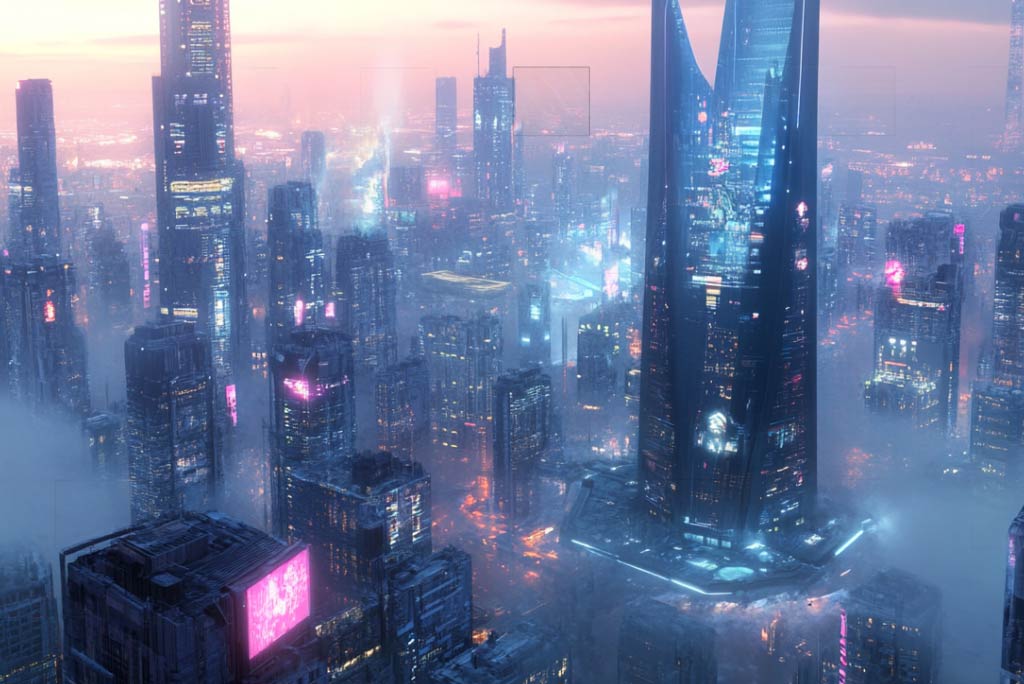
AI Image Generator
Create new visual ideas from a text prompt.
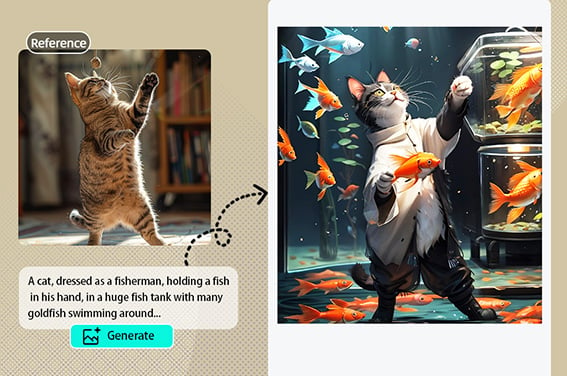
Image to Image
Use a reference photo to guide a new image.
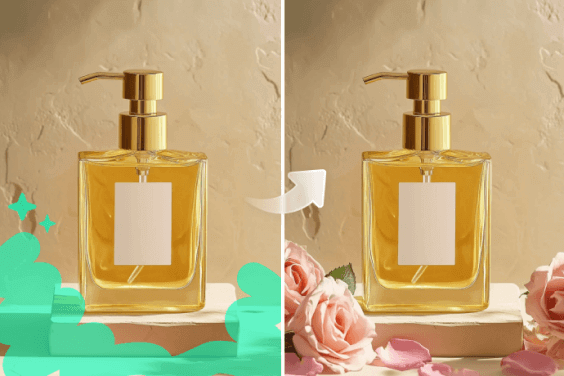
Generative Fill
Refine selected areas with new visual content.
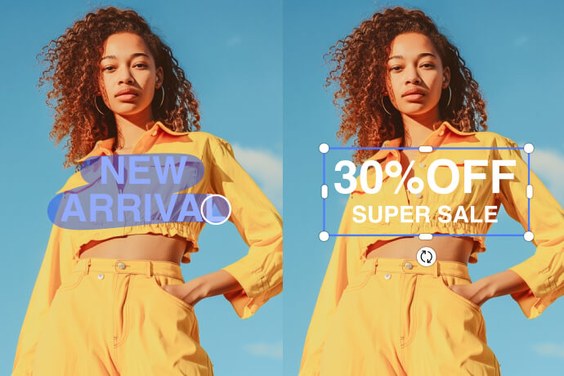
Edit Text in Image
Continue working on wording inside an image.
00:00
00:00
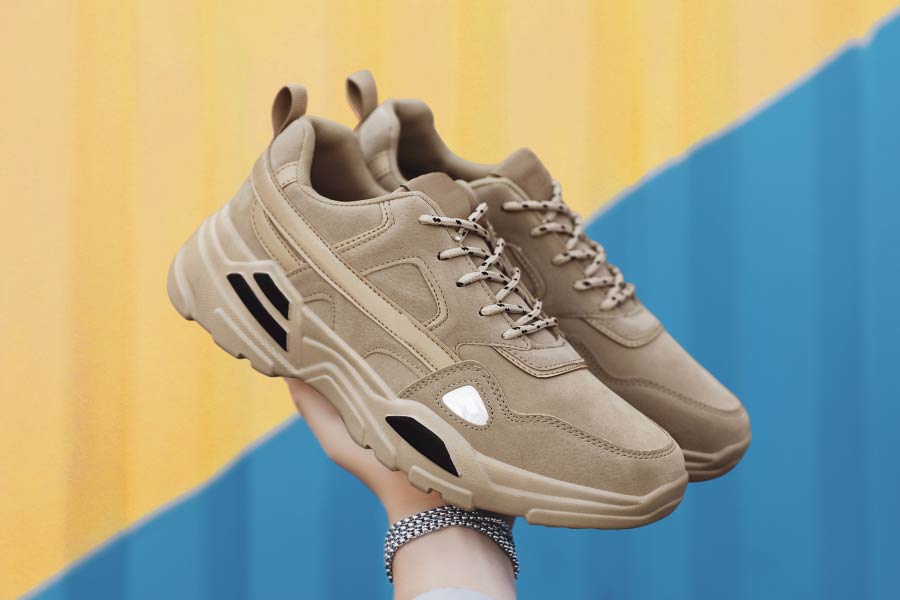
Background Remover
Prepare isolated subjects for new layouts.
00:00
00:00
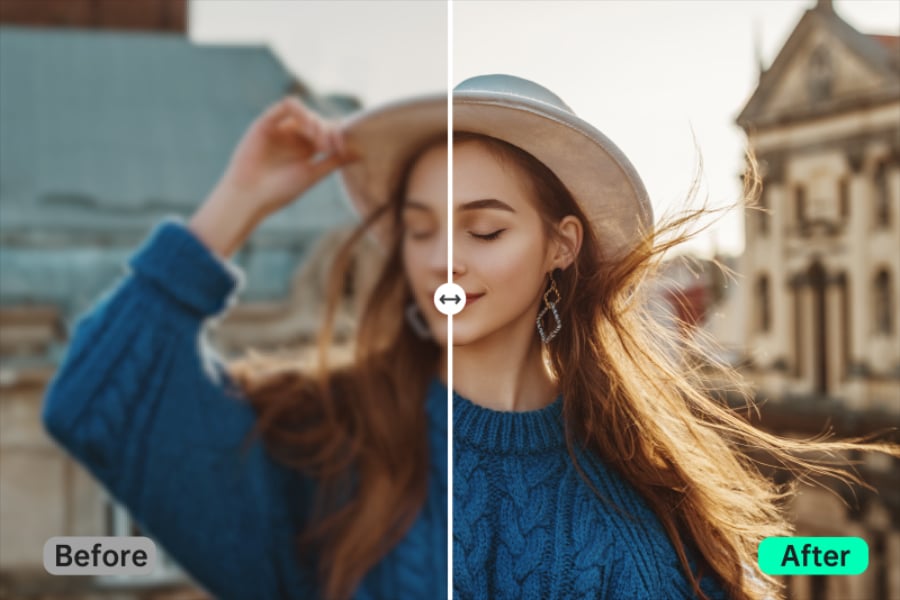
AI Image Enhancer
Improve the presentation of image details.
00:00
00:00
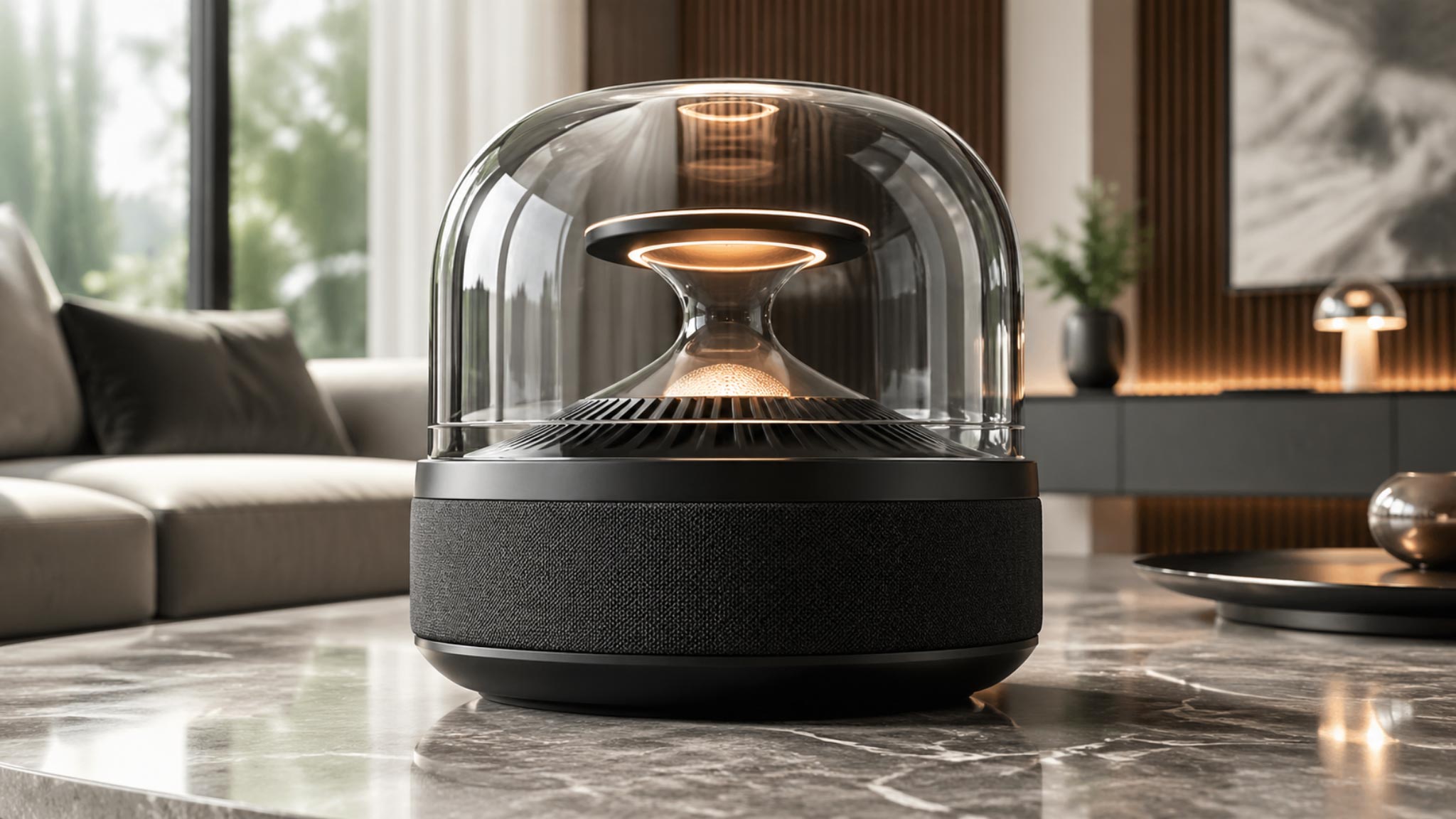
Image to Video
Explore motion beyond a static image.
GPT Image 2.5
Create and edit images with an earlier GPT image model.