Qwen Image 3.0 AI Image Generator and Editor

Create detailed images from long prompts, render multilingual text, edit with references, and upscale finished visuals with Qwen Image 3.0.

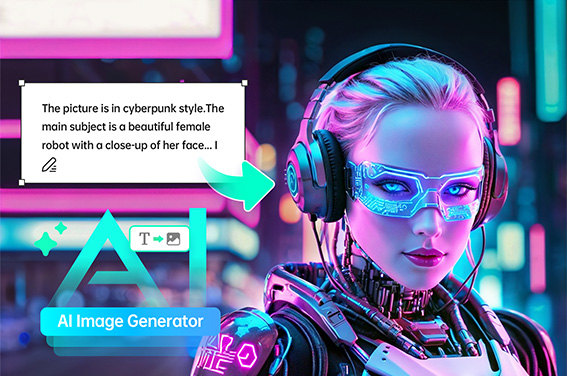
Turn a Long Creative Brief into One Structured Image

Turn a Long Creative Brief into One Structured Image

Give Qwen Image 3.0 the whole brief: the subject, layout, sections, visual hierarchy, palette, labels, and where each element belongs. It can turn a dense idea into one organized composition, which is useful when a poster, explainer, or campaign board needs more than a single isolated subject.
Try Qwen Image 3.0
Render Clear Multilingual Text in Complex Designs

Render Clear Multilingual Text in Complex Designs

Build posters, menus, infographics, and interface concepts with headlines, labels, and short copy inside the image. Qwen Image 3.0 is designed for text-rich and multilingual layouts, so you can explore English, Chinese, Japanese, Korean, Spanish, and other language combinations while still checking every word before publishing.

Try Qwen Image 3.0
Edit Images Precisely with Visual References

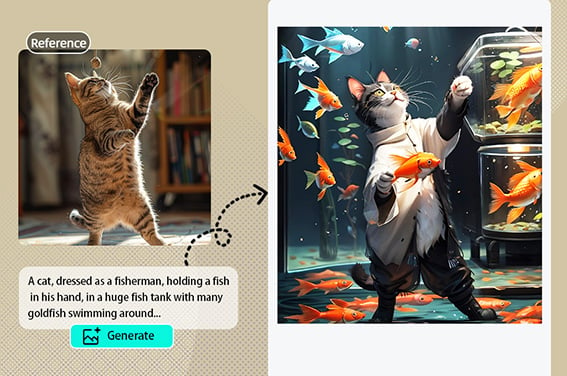
Edit Images Precisely with Visual References

Start from a product photo, character sketch, mood board, or existing design. Add a focused instruction for what should change and what must stay recognizable, such as the product shape, subject, color palette, or composition. For a wider reference-led workflow, try insMind's image-to-image workflow.
Edit with References
Keep Fine Details Sharp at Larger Sizes

Keep Fine Details Sharp at Larger Sizes

Use Qwen Image 3.0 to make a detailed high-resolution draft, then prepare the selected image for larger output when the project calls for it. insMind's AI image upscaler can help enlarge and sharpen the final asset for presentations, campaign files, and product visuals.
Upscale Your Image

What Can You Create with Qwen Image 3.0?

From campaign graphics to knowledge cards, turn a detailed visual idea into a layout you can review and refine.

Infographics and Carousel Posts

Infographics and Carousel Posts

Turn a process, comparison, timeline, or lesson into a sequence of visual panels. Qwen Image 3.0 helps you plan the hierarchy, labels, and supporting illustrations in one brief, giving social and education teams a strong first draft to check.
Posters and Campaign Concepts

Posters and Campaign Concepts

Explore a campaign direction before handing it to design. Describe the subject, headline placement, mood, colors, and supporting objects, then compare several poster ideas for an event, product launch, seasonal offer, or social campaign.
UI Mockups and Product Visuals

UI Mockups and Product Visuals

Sketch a dashboard, mobile screen, landing page, or product feature board without opening a design file first. Use a prompt to set the sections and visual system, then review the result for layout ideas, spacing, and interface direction.
Storyboards and Knowledge Cards

Storyboards and Knowledge Cards

Plan a short story, lesson, comic sequence, or editorial page with multiple moments on one canvas. Describe the order of scenes and the text each panel needs, then use the generated board to spot missing beats before producing the final artwork.
Multilingual Ecommerce Product Visuals

Multilingual Ecommerce Product Visuals

Create product cards, localized campaign graphics, and marketplace visuals for multiple regions from one detailed brief. Define the product, layout, exact text, currency, and language for each version, then review every label before publishing.

Interior Design and Spatial Concepts

Interior Design and Spatial Concepts

Visualize a room, retail corner, or exhibition concept from one detailed brief. Specify the layout, materials, lighting, furniture, and viewpoints, then review a coordinated concept board before moving into final design or rendering.

How to Use Qwen Image 3.0 Online in insMind

Step 1: Choose Qwen Image 3.0

Open the insMind AI image workspace and select Qwen Image 3.0 from the available image models. Start with a clear goal, such as a poster, infographic, product visual, interface concept, or storyboard.

Step 2: Write the Prompt and Add References

Enter a prompt that covers the subject, canvas, layout, exact text, visual style, and elements to preserve. If the image should follow an existing product, character, or composition, upload a reference image before generating.

Step 3: Generate and Inspect the Result

Click the send button to start generating. Preview the image at full size and check the details that matter for the project: spelling, numbers, faces, product shape, alignment, and whether the layout follows your brief.

Step 4: Refine and Download

Send a focused follow-up prompt when one area needs work, such as changing the background, fixing a label, or adjusting a product detail. Once the result is ready, download the image for your next design step.

Why Choose insMind for Qwen Image 3.0?

More Models in One Place

More Models in One Place

Try Qwen Image 3.0 alongside other image models when one prompt needs a different visual direction.
Prompt-Led Control

Prompt-Led Control

Describe the layout, copy, subject, palette, and details instead of assembling every element by hand.
Reference-Friendly Editing

Reference-Friendly Editing

Keep a product, character, or visual direction in view while asking for a specific change.
Review Before You Commit

Review Before You Commit

Preview the whole composition, catch weak text or alignment, and refine the image before downloading it.
Useful Image Tools Nearby

Useful Image Tools Nearby

After generation, continue with adjacent tools such as the AI image generator for cleanup, enlargement, or final image preparation in the same workspace.
Free to Try Online

Free to Try Online

Try the core Qwen Image 3.0 workflow online with available credits before deciding which visual direction to keep.

Frequently Asked Questions

What is Qwen Image 3.0?

insmind expand icon
Qwen Image 3.0 is an AI image model for generating and editing visuals from text prompts and reference images. It is especially useful for detailed compositions, text-rich designs, multilingual concepts, and layouts with several connected elements. Output still needs a human review, particularly when the image contains important words, numbers, or data.

What can I create with the Qwen Image 3.0 image generator?

insmind expand icon
You can use it for posters, campaign concepts, infographics, carousel posts, UI mockups, product visuals, storyboards, comics, and knowledge cards. The more structure the image needs, the more helpful it is to describe the order, hierarchy, and placement of each part in the prompt.

Can I use Qwen Image 3.0 online in insMind?

insmind expand icon
Yes. Select Qwen Image 3.0 in the insMind AI image workspace, write your prompt, and generate the image in your browser. Model availability and access can change, so use the model options currently shown in your workspace.

Does Qwen Image 3.0 support text rendering?

insmind expand icon
Qwen Image 3.0 is designed to handle text inside visual layouts, including headlines, labels, and short multilingual copy. Image models can still make spelling or character errors, so proofread every word before using the result in a public design.

Can Qwen Image 3.0 edit an existing image?

insmind expand icon
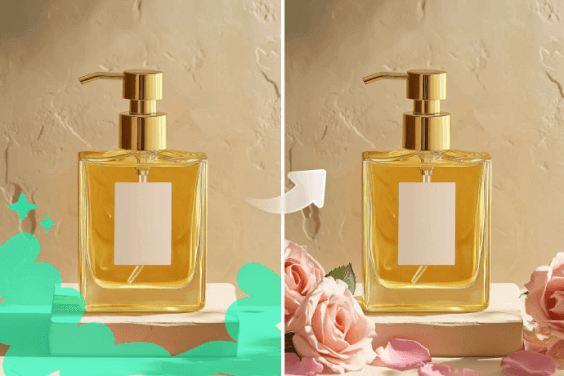
Yes, when the reference-image workflow is available. Upload the source image, explain the change you want, and state what should remain recognizable. Focused instructions such as 'replace the background but keep the product shape and label placement' are easier to review than a vague request to redesign everything.

How should I write a Qwen Image 3.0 prompt?

insmind expand icon
Start with the image goal, then describe the subject, canvas, composition, hierarchy, exact text, style, lighting, and elements to preserve. For a poster or infographic, also say how many sections or panels you need and where the reader should look first.

Is Qwen Image 3.0 better than Qwen Image 2.0?

insmind expand icon
The better choice depends on the brief. Qwen Image 3.0 is a natural starting point for longer instructions, dense layouts, multilingual concepts, and reference-led edits. Qwen Image 2.0 can still be a good fit for shorter prompts and straightforward image creation. Compare both when the result matters.

Is Qwen Image 3.0 free?

insmind expand icon
insMind offers core features to try with available credits. The exact number of generations and model access depends on current account rules and pricing. Users may also earn free credits through platform activities; this is not an unlimited-free-use promise.

Can I generate 2K images and upscale them to 4K?

insmind expand icon
Qwen Image 3.0 can be used for detailed high-resolution image generation when the option is available in insMind. For a larger final asset, use insMind's image upscaler after selecting the best draft. Check the current model and export options before promising a specific resolution to a client.

Can Qwen Image 3.0 create multilingual images?

insmind expand icon
It can be used to explore designs that combine languages such as English, Chinese, Japanese, Korean, or Spanish. Keep copy short and check each writing system carefully. For customer-facing materials, a fluent speaker should review the wording before publication.

Explore More AI Image Models and Tools