
Kling O1 Video Model Overview: A Simple Guide to Creating and Editing Videos
Try Kling O1 on insMind Today

The Kling O1 video model is a new, simple way to make videos without needing many tools or steps. You can use words, pictures, or short clips to start, and the system helps you join them into explicit, cohesive scenes. With features such as Kling O1 text to video and Kling O1 image to video, it's possible to turn your ideas into reality within a few clicks. It also lets you edit parts of a video, add new content, or fix what you don't like in one spot. You do not have to switch between different programs. Everything is completed in a single, easy-to-work-with workflow. You can try the Kling O1 AI video model directly on insMind and get started right away.
Table of Contents
What Is Kling O1?
Kling video O1 - an easy-to-use tool that helps you make videos in many different ways. It can understand text that you type, pictures that you upload, start and end frames, and even full video clips. This makes it simple to start work with whatever you have on hand. The Kling O1 video generator supports Kling O1 text to video, Kling O1 image to video, and full video editing so that you can create new scenes or repair old scenes.
One of the best parts is that you have all things in one place. You don't need to hop from one tool or program to another to get the look you want. The workflow remains smooth right to the end. Characters, objects, and styles remain steady, even though the camera moves or the scene changes. This makes your videos look clean and consistent, no matter what you make.
What's New? Kling O1 Features & Improvements
Kling O1 offers a wealth of new features that make it easy and fun to create videos. Everything works in one place; you don't have to change tools or learn complicated things.
Unified Multimodal Video Model
Kling O1 can work with text, images, frames, and videos simultaneously. You can combine these inputs however you like, and the system composes them into one silky-smooth video.
Multimodal Input Understanding
It reads text, pictures, and video clips together, helping you understand what you want better and achieving better results.
Reference & Transformation Tools
You can add/subtract objects, change backgrounds, colours/ clothes, change styles, and you can even change the weather in your scene. It also allows you to create completely new scenes from simple inputs.
Start & End Frame Mode
If you have uploaded a starting frame and an ending frame, Kling O1 has created a smooth motion between them. It also gives you simple control of camera moves, which is excellent for storytelling or brand videos.
Text-to-Video
With a short sentence, you can turn text into video. The motion seems tidy and consistent; the characters never vary from one frame to the next.
Multi-Element Editing
You can edit objects, restyle scenes, or update tiny details in any video clip without additional tools.
Creative Freedom & Length Control
You have the freedom to extend or condense the video from 3 to 10 seconds, thereby controlling the pacing and mood.
How to Use Kling O1 on insMind?
Step 1: Provide Your Input
Start out by picking what you are going to give the tool. You might write a brief sentence to describe the scene, make connections between one or a combination of photos, or a brief video clip. If you have two pictures, use them as start and end frames, and the system can build the motion in between. You can even upload a clip to complete a change or better it.
For even more control, combine both text and images: write what should happen, and add a photo that shows the major subject. This helps the system to be close to your idea. Pick the simplest input that you've got and start; you can always change things later.
Step 2: Adjust Video Settings
Then, select a couple of simple settings. Choose how long the clip is to be - 3-10 seconds. Choose between the square, tall, or wide video shape, depending on where you are going to post it. Set the quality or resolution to HD or a smaller file. These choices help your final video look right, be social media-friendly, or presentation-friendly.
Step 3: Generate & Edit
You make the first version by pressing the generate button. Once it has been generated, use the editing tools to tinker with the video. You can substitute the character, remove a distracting object, remove distracting background, change the angle at which you are shooting a scene, or add a new style to a scene.
The tools give you the ability to make these changes in easy steps. Edit one at a time, see how it looks after editing each edit. There is no need for complicated masking and tracking; changes are made with easy controls, so you may make the process smooth and fast.
Step 4: Preview & Download
When the video looks correct, then proceed to preview the video for the full motion. Make small fixes if necessary (for example, times, trimming a clip, etc). When you are happy, download the video in HD. Use the exported file for social posting, YouTube, websites, or brand material. Save a copy for later edits so that you can alter the style or length of a text later without having to rewrite it.
What You Can Create with Kling: Real-World Use Cases That Inspire
Marketing & Promotional Videos
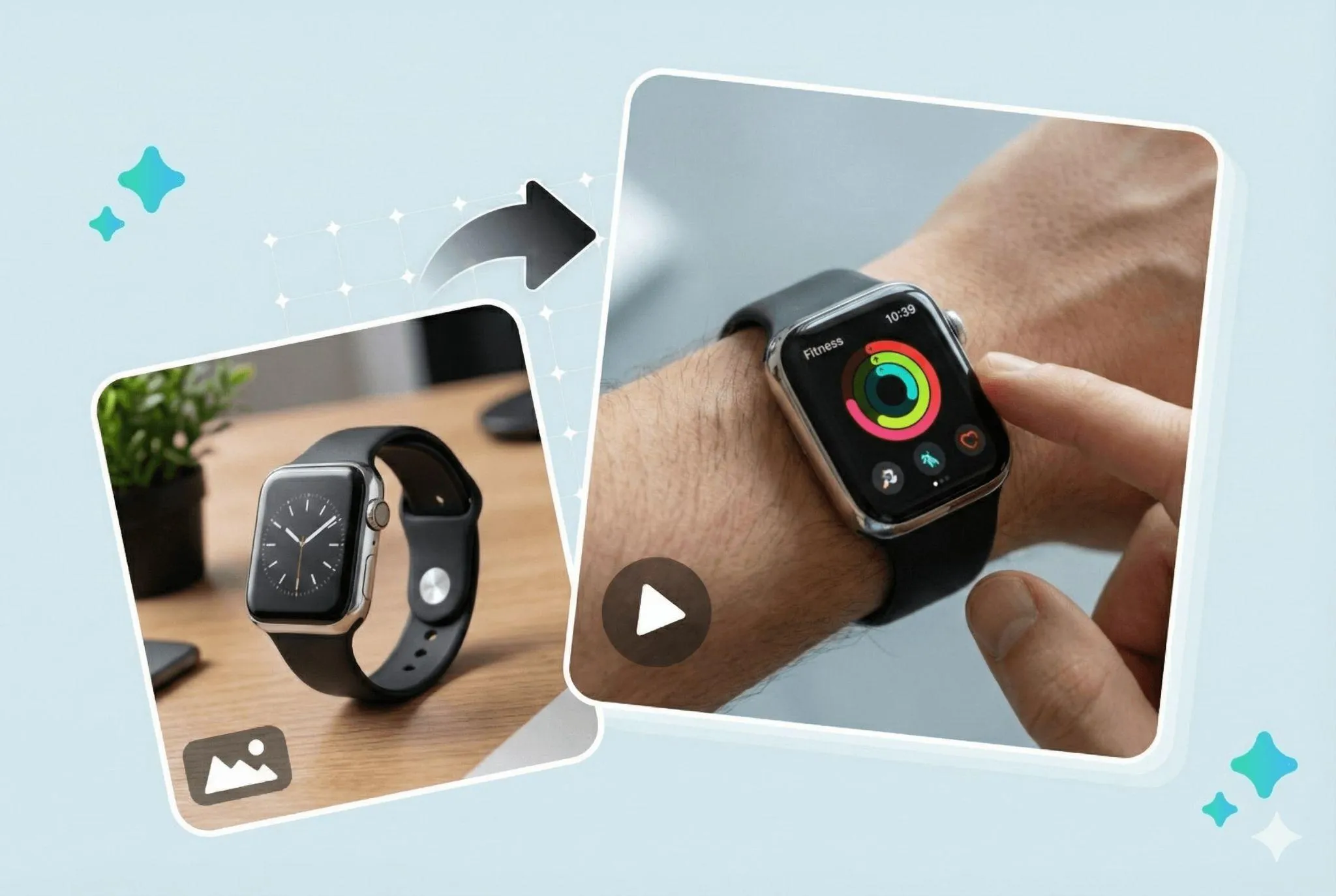
Make short product demos and ads that clearly display features. Be consistent in the style so that each clip feels like the same brand. Prompt example: Show product spinning with a simple text callout and soft lighting.
Educational & Tutorial Videos
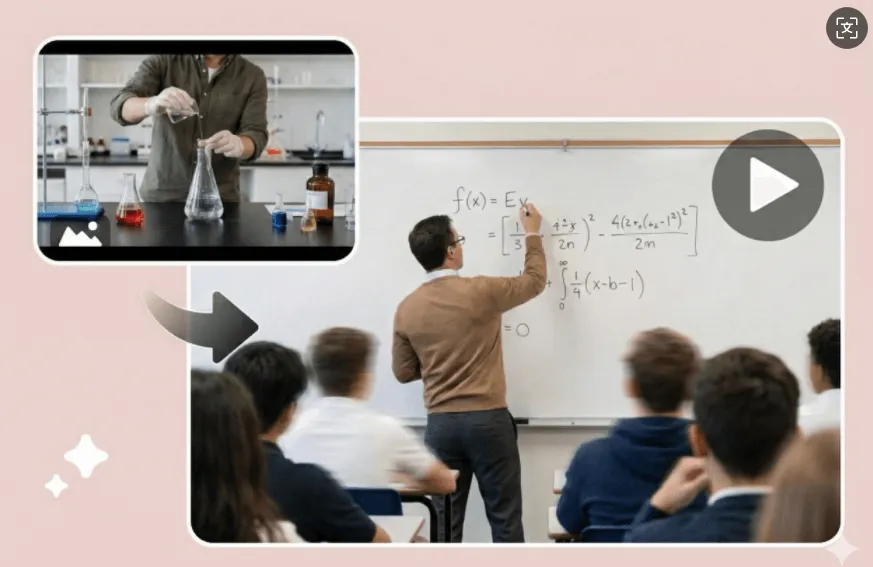
Turn lessons into simple, easy-to-follow visual steps. Pictures and brief notes to illustrate how things work. Prompt example: Describe three steps on how to plant a seed using close-up images.
Entertainment & Short Films
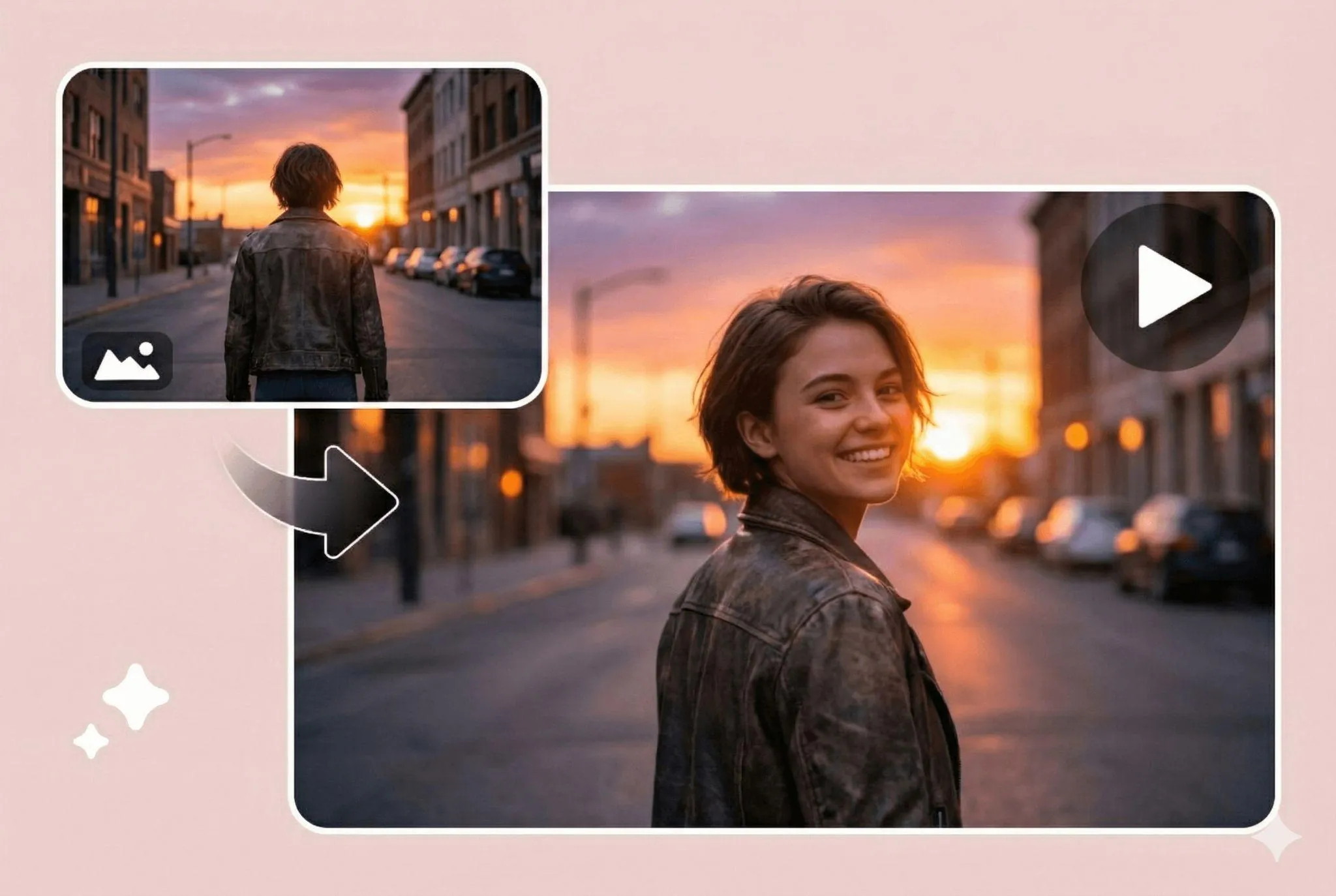
Create small story scenes complete with characters and obvious camera movements. For smooth action, use frame-to-frame control. Prompt example: Young hero walks down a sunset, turns, and smiles.
Social Media Content
Make short clips for TikTok, Instagram, or YouTube that fit each site's shape and time limit. Keep them bright and fast. Prompt example: pop-up text and upbeat motion in 30-second tip video.
Product Visualizations
Turn product photos into brief videos for use or detail. Great for online retailers as well as advertising. Prompt example: Animate a spinning shoe, zoom in on the logo, and show the material in close-up.
Personalized Messages
Make birthday/greeting clips that are special. Add a name, Basic scene, or crazy effect. Prompt example: Birthday card video name balloons confetti bursting.
Branding Videos
Keep it all aesthetically the same for lots of clips to make your brand easy to find. Sticking to the same colors and style all the time. Prompt example: Three brand clips - same color palette and logo - reeled.
Animation Prototyping
Quickly write down ideas for animation to develop and test out scenes or character moves before going into production. Prompt example: Write a two-shot scene of a character talking, then walking off-screen.
Conclusion
Kling O1 makes it easy and quick to work with video. And you can take anything to start from - words, pictures, frames, or a short clip and make it into clear video scenes. It works for both beginners and those who make videos for a job. Use it to create ads, lessons, short films, social clips, product demos, or even personal greetings.
The tool keeps style and characters steady to keep your videos looking clean. Quickly try out ideas, fix small things fast, and get ready-to-share clips in a few steps. Check out Kling O1 Features and discover how easy it is to create videos.

Ryan Barnett
I'm a tech enthusiast and writer who loves exploring AI, digital tools, and the latest tech trends. I break down complex topics to make them simple and useful for everyone.


![How to Add Logo to Photos Online for Free [The Simplest Method]](https://static.xsbapp.com/market-operations/market/side/1718795949162.jpg?x-oss-process=image/resize,w_690,h_460,type_6/interlace,1,image/format,webp "How to Add Logo to Photos Online for Free [The Simplest Method]")
![How to Remove Tattoos from Photos [Ultimate Guide 2025]](https://static.xsbapp.com/market-operations/market/side/1718787534476.jpg?x-oss-process=image/resize,w_690,h_460,type_6/interlace,1,image/format,webp "How to Remove Tattoos from Photos [Ultimate Guide 2025]")


