


Making videos is becoming easier by the day, and an increasing number of people are using easy-to-use tools to bring ideas to life in short videos. Text-to-video and image-to-video tools are gaining massive popularity, and Google Veo 3.1 is among the best options for creating smooth, clear, and cinematic scenes.
You can use Veo 3.1 text-to-video to bring a simple line of text to life, or try Veo 3.1 image-to-video, which can bring any picture to life. It also has a Veo 3.1 start-end frame generator to help define the start and end of your scene. The best part is that Google Veo 3.1 is now available on insMind with no setup required, so anyone can get started creating in just a few steps.
Table of Contents
What Is Google Veo 3.1?
Google Veo 3.1 is an easy-to-use tool that lets you transform your ideas into fluid, understandable videos without special skills. It was created to fix common problems people encounter when making videos, such as choppy motion, stiff characters, or scenes that don't match from one moment to the next. With Google Veo 3.1, you do not have to worry about lengthy, cinematic clips that are realistic and work well from one segment to the next.
You can take a short prompt and use the text-to-video feature in Veo 3.1 to create a full scene. You can use Veo 3.1 image-to-video to make a life. The Veo 3.1 start-end frame generator makes it easy to control how the video starts and ends. It also allows smooth movement and prevents camera shake, so every clip looks professional.
Even though it can make quality videos, it is still easy enough for common people. Professionals can use it for ads or films, while beginners can use it for fun or school projects. You can access Google Veo 3.1 directly in insMind, so it's very simple to get up and running.
What's New? Veo 3.1 vs Veo 3
Google Veo 3.1 introduces several upgrades to the software that make videos appear smoother and more realistic. The key improvements are explained below in simple terms.
Video Realism Upgrades
Veo 3.1 produces improved faces, smoother motion, and cleaner lighting and shadows. Scenes are more natural and closer to real life.
Consistency of Motion Enhancements
Step-to-step movement is steadier. There are fewer sudden jumps, helping to play the videos smoothly.
Texture, Lighting & Physics Accuracy
Textures appear in a clearer way, and lighting fits in with the scene (and objects move more naturally).
Better Understanding of Prompts
Whether you write a short line or a long description, Veo 3.1 follows your instructions more closely.
Faster Results
Previews and final videos will look faster, so you can test and improve upon your idea faster.
Longer Clip Stability
Longer videos maintain a steady pace with less drifting, which allows stories to flow better.
Simple Comparison
The following is an easy way to understand the difference between the two versions:
Veo 3: early, rougher, and less cinematic
Veo 3.1: smoother, more real, more powerful scenes
These upgrades demonstrate why Veo 3.1 vs Veo 3 is a huge step up for those who are looking for clean and professional-looking video results.
How to Use Google Veo 3.1 on insMind
A Quick Step-by-Step Guide to Get You Started at Making Videos with Google Veo 3.1.
Step 1: Enter the insMind Video Generator
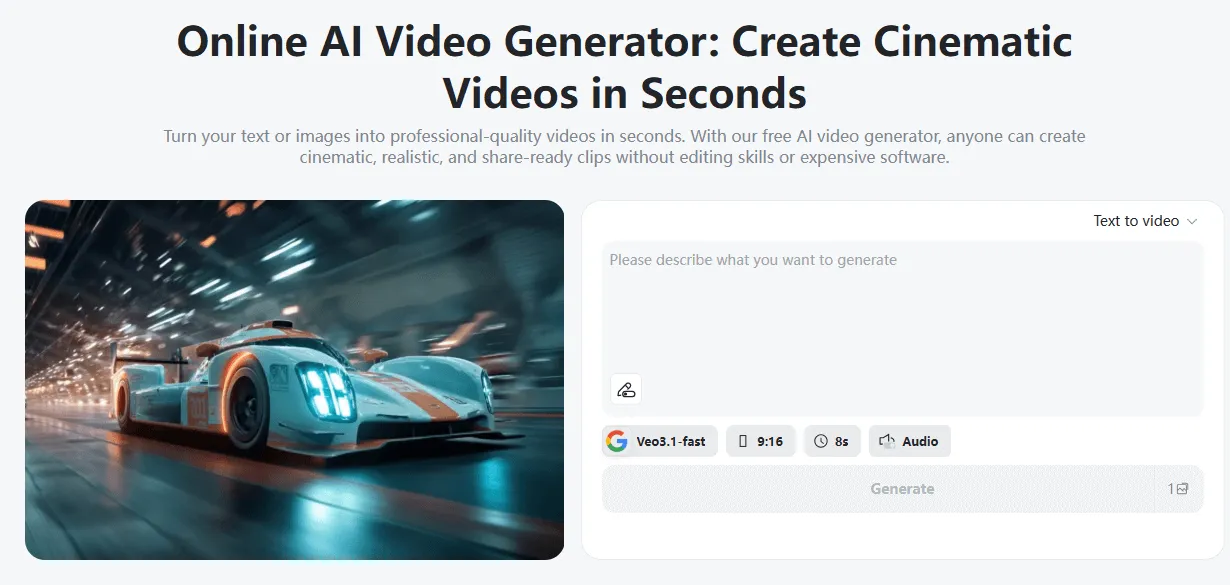
Go to the insMind website and open the video generator page. Look out for a list of video models and select Google Veo 3.1. You don't require any setup or special tools. Just click on the model, and you are now ready to start. Everything you need is within the same workspace, and therefore, it is easy to go from one step to the next.
Step 2: Choose the Veo 3.1 Model
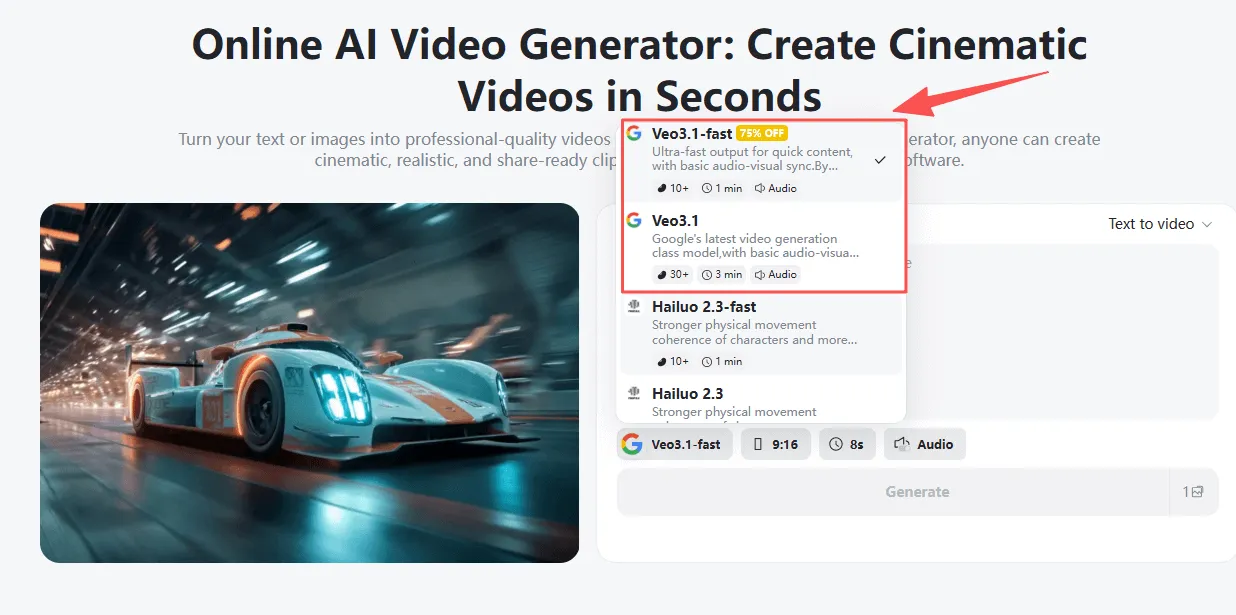
You will find two versions of the model.
Veo 3.1
This is the best version for ads, brand videos, and film-style types of scenes. It produces more realistic results and smoother motion. Being of a higher quality, it is a little more expensive to use.
Veo 3.1-Fast
This version can perform faster with a lower number of credits. It is great for fast drafts, social media clips, and quick testing.
You can also select your size for the video:
9:16 for vertical videos
16:9 for widescreen
Step 3: Select Text to Video or Image to Video
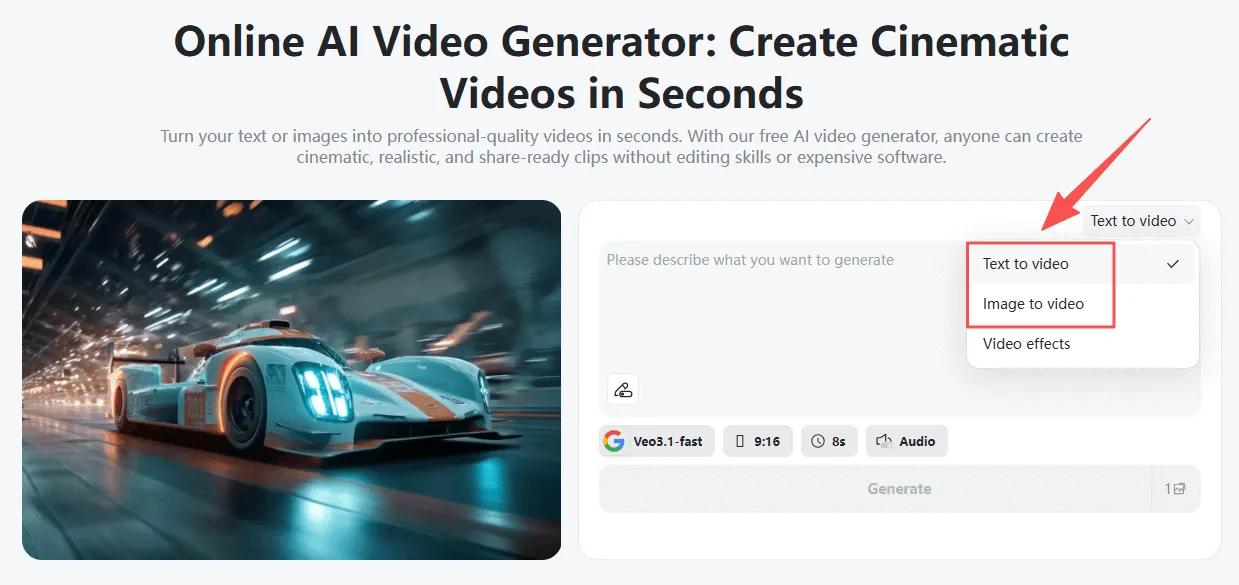
Veo 3.1 Text-to-Video
Type one short prompt or a full script. You can create a description of the scene, how the camera should move, what the lighting should look like, and what the characters should do.
Veo 3.1 Image-to-Video
Upload a picture and use it as the first frame. This is good for products, portraits, and artwork. You may also upload a start frame and an end frame, and the tool will generate motion to join both images.
Step 4: Generate, Preview & Download
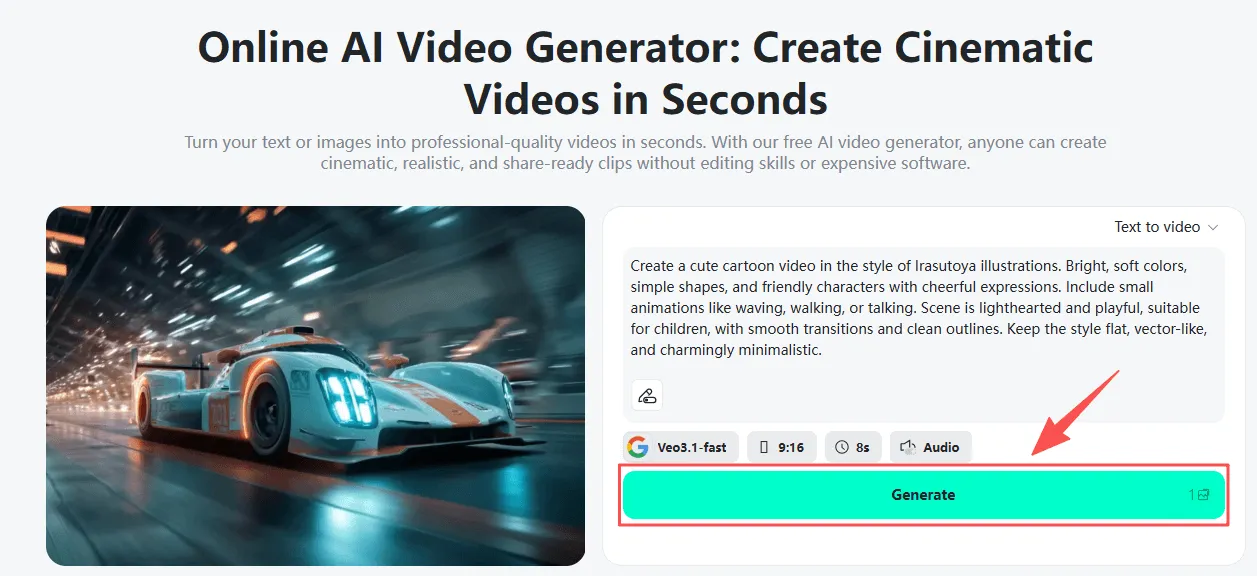
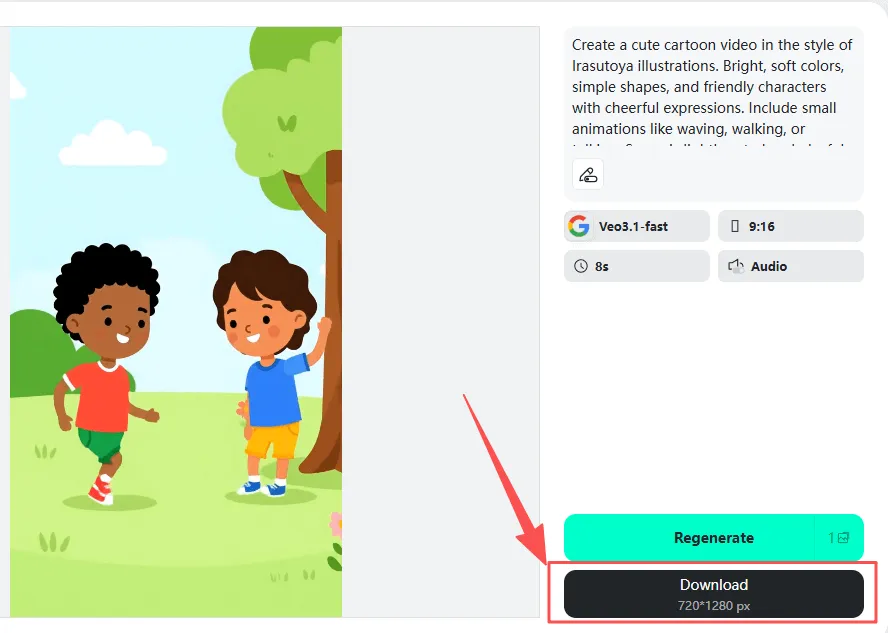
Press the Generate button and wait for your preview. Watch the video and make any minor changes if needed. For when you are happy, download the video in HD. You can use it for social media and websites, ads, and projects.
Veo 3.1 vs OpenAI Sora 2
Video Realism
Both tools are good at creating strong visuals, but Google Veo 3.1 is often better at producing smoother, more natural-looking motion. Sora 2 can look powerful, but it does not come as easily to access.
Prompt Following
Written prompts are followed more clearly by Veo 3.1, so beginners get what they want faster. Sora 2 understands prompts well, but sometimes needs more detail.
Ease of Use
Veo 3.1 on insMind is simple enough for daily creators, and Sora 2 is still limited and harder for many people to have a go.
Image-to-Video Control
Veo 3.1 offers better controls for starting and ending frames. Sora 2 can make nice results, but it has fewer easy tools for this.
Who It Fits Best
Veo 3.1 is more suitable for everyday users, students, small teams, and quick projects. Sora 2 fits the Big Ideas studio level.
This is the reason many people compare Veo 3.1 vs OpenAI Sora 2 when it comes to choosing a tool.
Real-World Use Cases of Veo 3.1
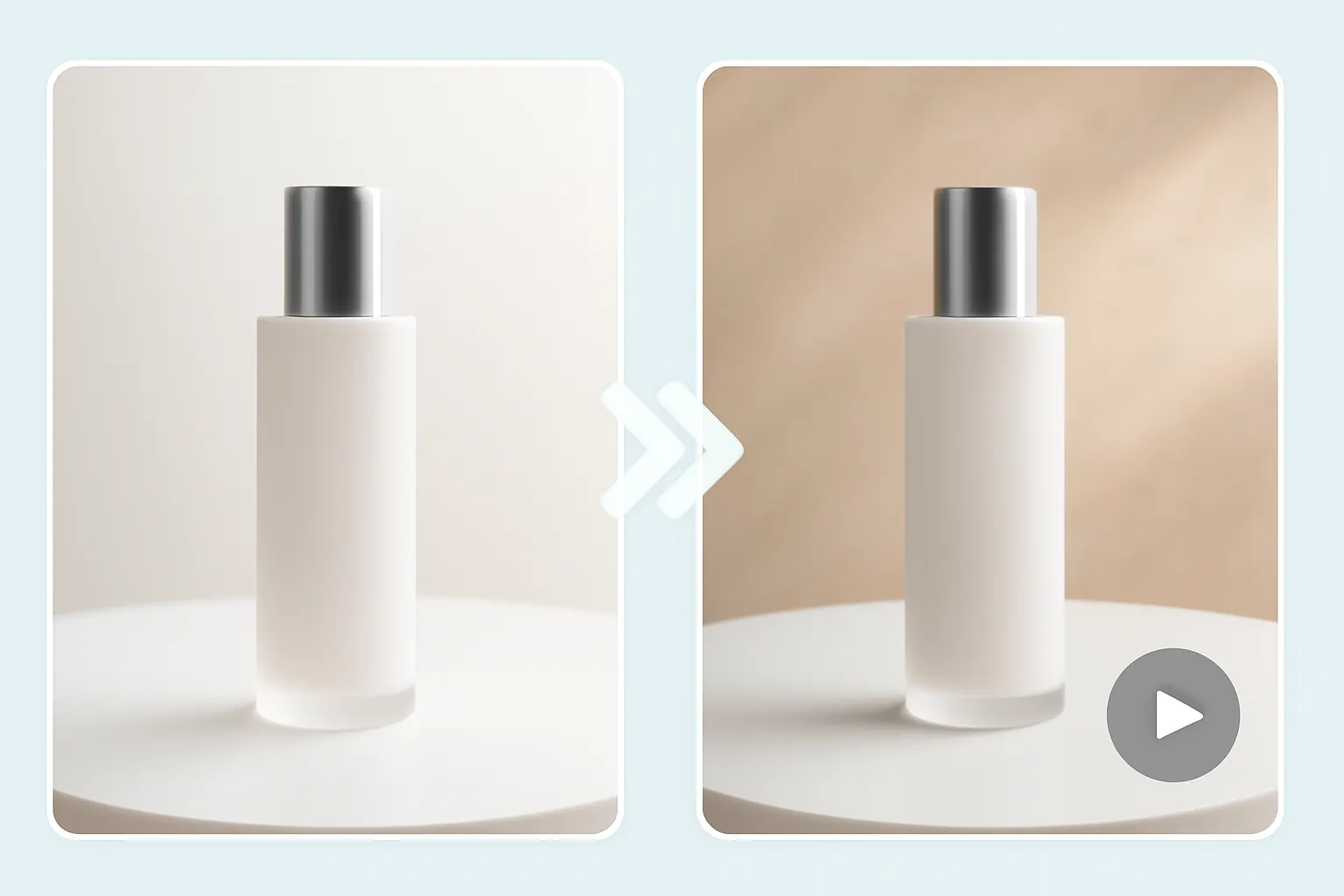
Product Marketing Videos
Great for brands and small shops that need clean and simple clips of their products. Veo 3.1 features an addition of soft light and smooth movement to help the item look its best.
Prompt: Clean product showcase under soft lighting. Smooth rotating camera around a modern skincare bottle on a minimal white table. Light reflections, gentle shadows, premium look, slow elegant movement.
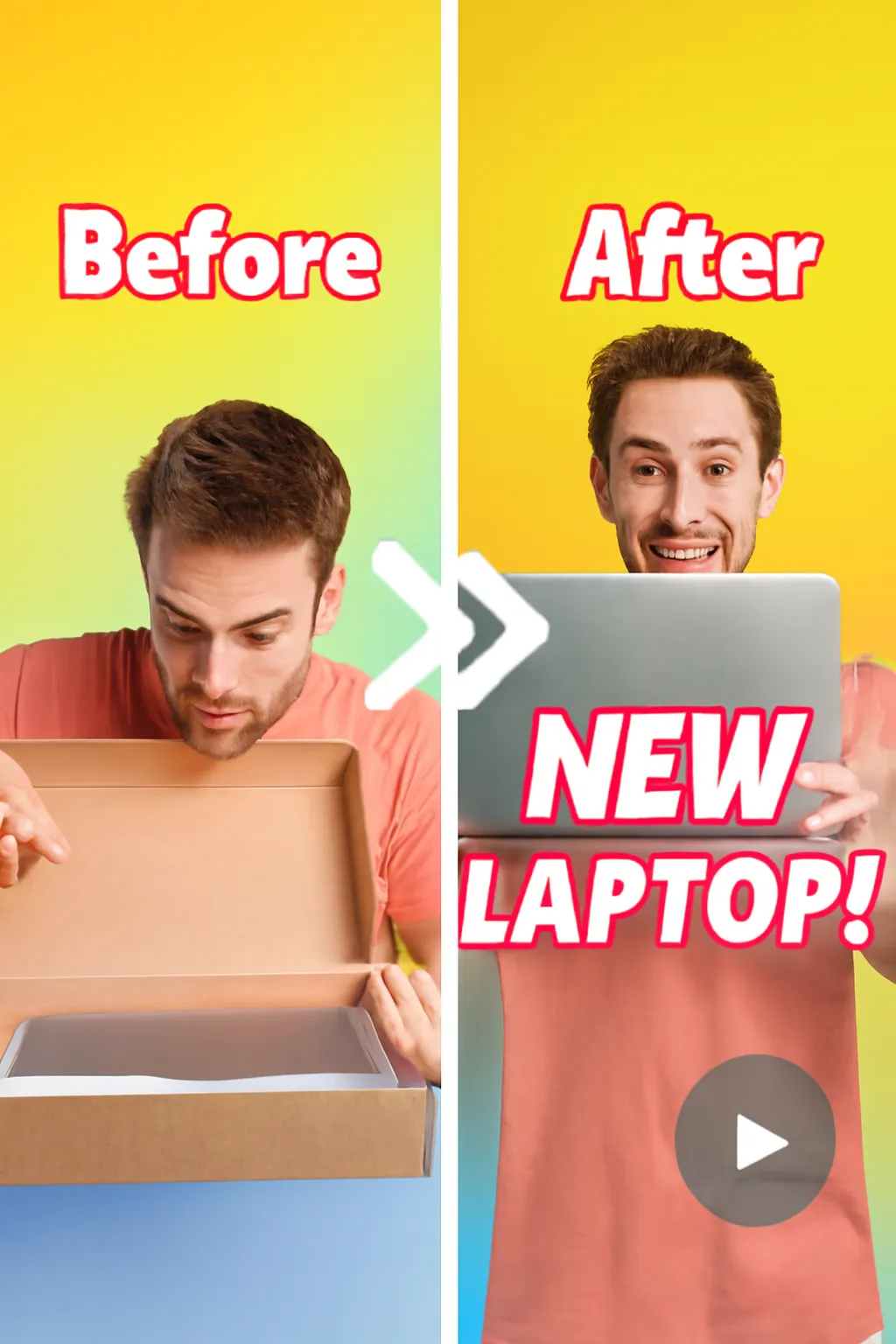
Social Media Shorts
Perfect for creators looking for fast, eye-grabbing quick clips to share on TikTok or Instagram. Veo 3.1 makes short videos look bright, smooth, and attention-grabbing.
Prompt: Fast-paced vertical short with bold colors and smooth punchy transitions. A creator unboxes a gadget, quick zoom-ins, playful captions, bright lighting, upbeat and energetic mood.
Educational Explainer Videos
Teachers and students can prepare lessons into brief and easy-to-understand visuals.
Prompt: Simple educational explainer showing “how rain forms.” Minimal flat graphics, clouds rising, condensation forming droplets, smooth arrows and text labels, calm soft background, gentle animation flow.
Brand Commercials
Good for companies that need to warm and feel about the scene in ads or stories.
Prompt: Warm cinematic commercial scene of a family morning. Soft sunlight through windows, slow-motion moments, gentle camera glide, cozy tones, emotional storytelling atmosphere that highlights brand values.
AI Storytelling & Short Films
Writers and hobby makers can create short scenes using gentle movements.
Prompt: Short narrative scene in gentle cinematic style. A character walking through a quiet evening street, soft light reflections, slow panning shot, emotional subtle expressions, smooth film-like movement.
Conclusion
Google Veo 3.1 is a powerful video production tool for newbies and useful for experts. It plays with text, pictures, frames, and full clips, making it good for ads, lessons, stories, and things that people may encounter on a day-to-day basis! You can use it right away on insMind and begin to create in a couple of quick steps.

Jayson Harrington
I am the Chief Editor of insMind. I provide tips and skills to help users design better photos with insMind, whether for e-commerce, social media, or any other use.


![How to Add Logo to Photos Online for Free [The Simplest Method]](https://static.xsbapp.com/market-operations/market/side/1718795949162.jpg?x-oss-process=image/resize,w_690,h_460,type_6/interlace,1,image/format,webp "How to Add Logo to Photos Online for Free [The Simplest Method]")
![How to Remove Tattoos from Photos [Ultimate Guide 2025]](https://static.xsbapp.com/market-operations/market/side/1718787534476.jpg?x-oss-process=image/resize,w_690,h_460,type_6/interlace,1,image/format,webp "How to Remove Tattoos from Photos [Ultimate Guide 2025]")


