MiniMax H3 AI Video Generator

Turn text and multimodal references into 2K videos with native stereo sound, reference-led edits, and multi-shot storytelling.

00:00
00:00

What Is MiniMax H3?

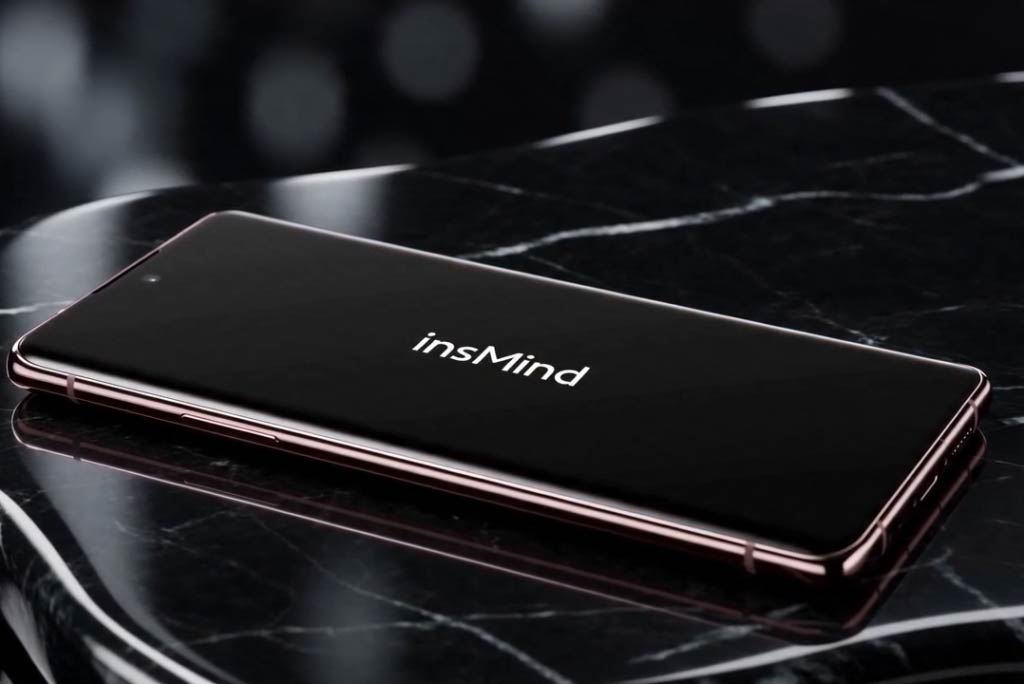
MiniMax H3 is a general-purpose multimodal video model for creating and editing video with natural-language direction. It can start from a prompt, an opening image, or a set of references, then produce video and sound together. Use the MiniMax H3 AI video generator in insMind without setting up a separate model environment.
00:00
00:00

Combine Multiple Images, Video Clips, Audio, and Text in One Generation

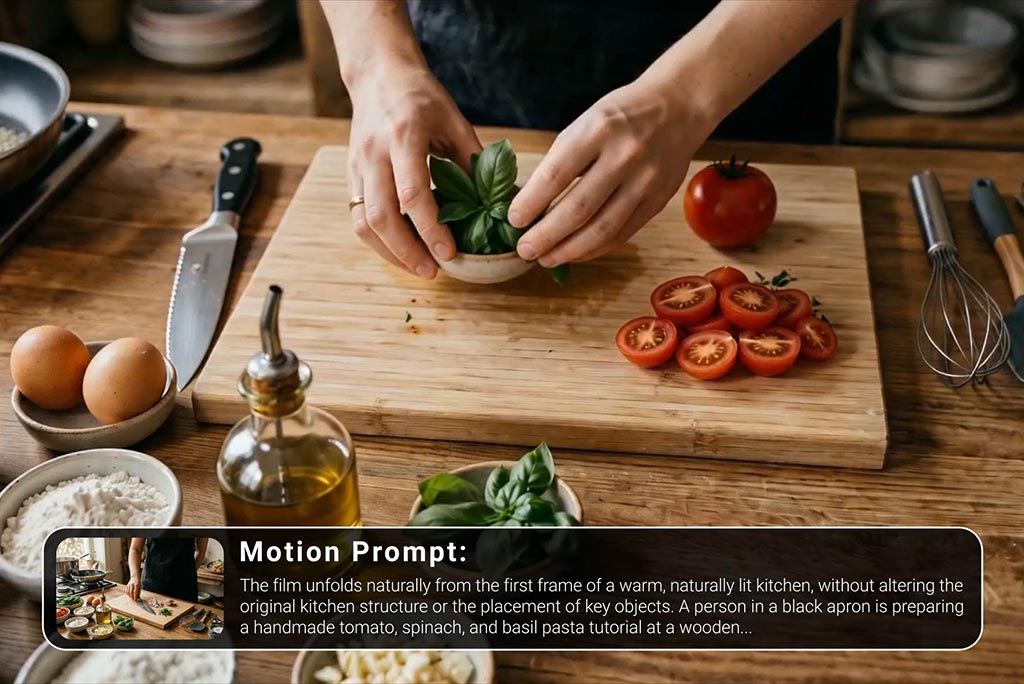
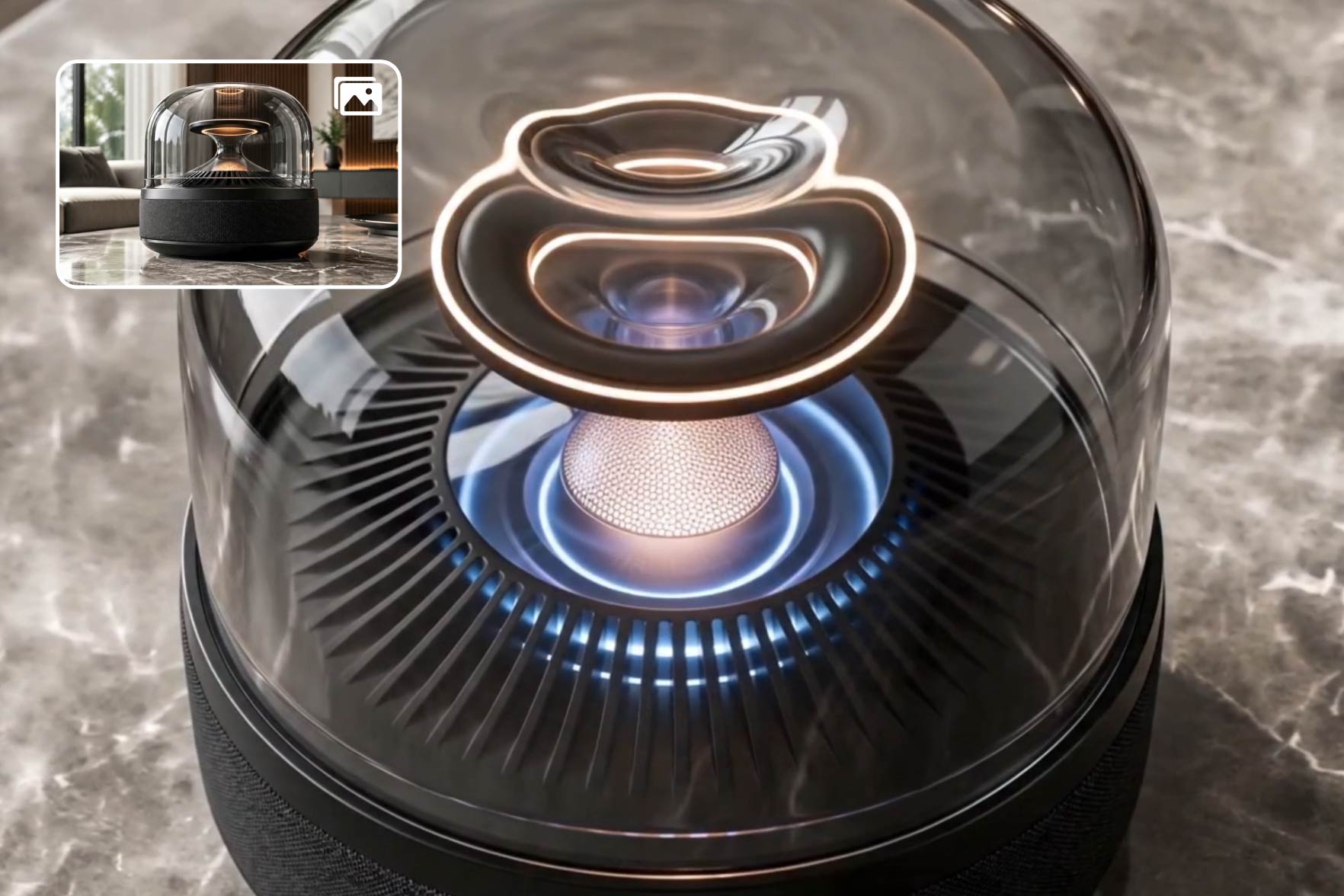
Add multiple images, video clips, audio tracks, and a text prompt to the same generation. Use the images to establish a character or product, the video to guide movement, and the audio to set the delivery or atmosphere. MiniMax H3 brings those pieces together instead of making you build the scene one tool at a time.
00:00
00:00

Keep Your Videos Consistent with Reference-to-Video Generation

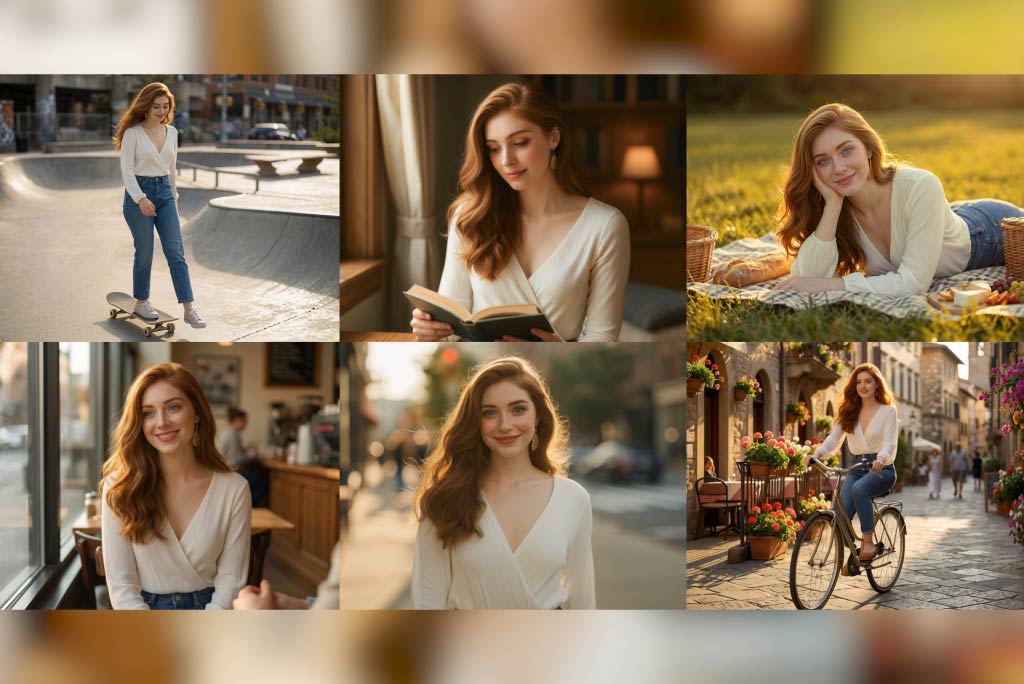
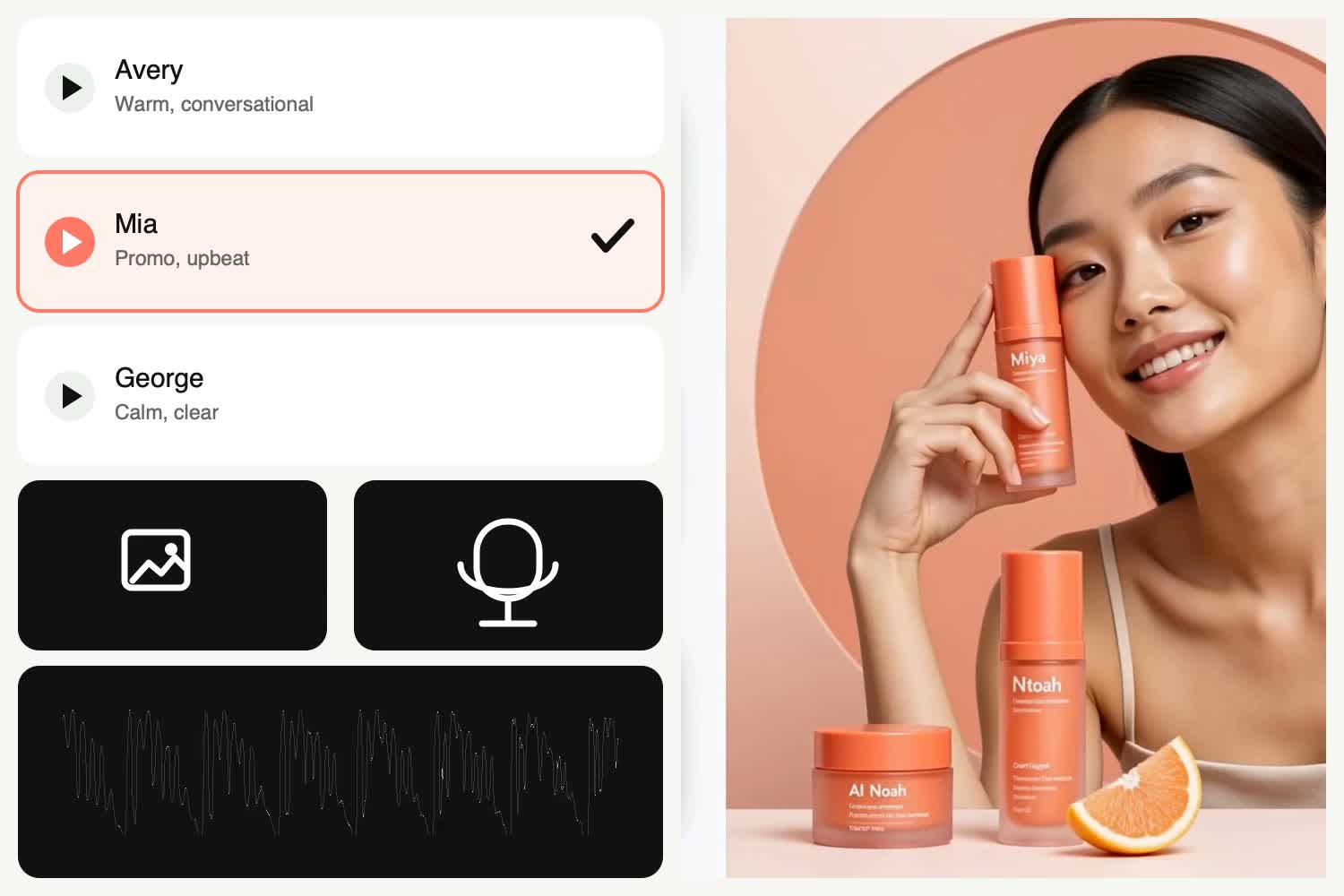
When a prompt alone cannot capture the whole idea, use MiniMax H3 reference to video generation. Add an image for the character or product, a video for movement and camera work, and audio for delivery or atmosphere. Tell MiniMax H3 what to take from each reference, then let it bring the pieces together in a new scene.
00:00
00:00

Create Video with Sound That Follows the Scene

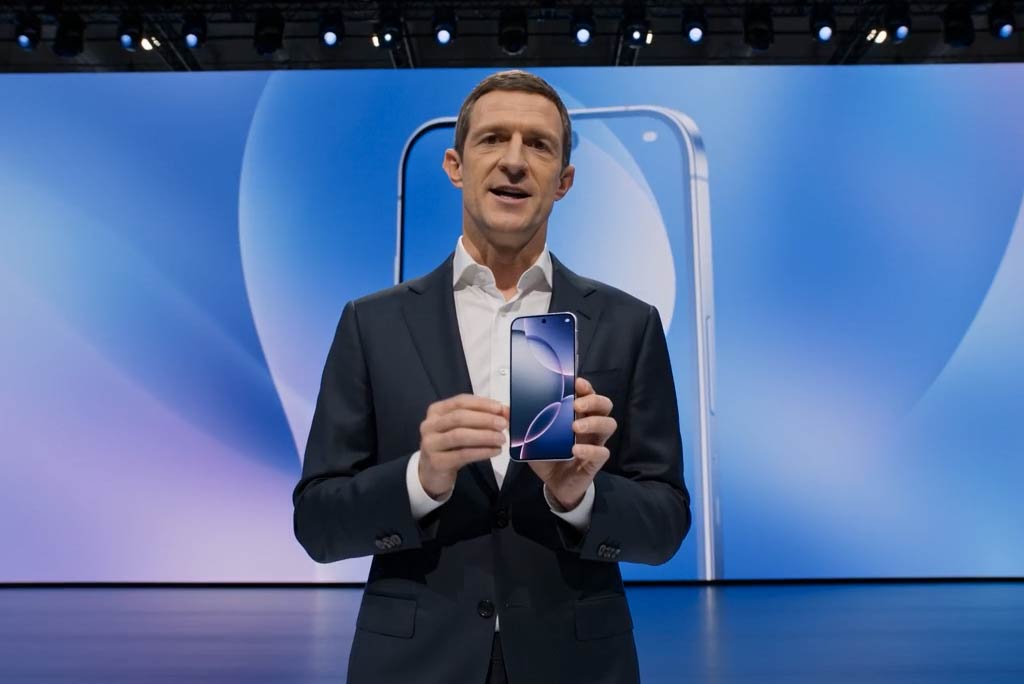
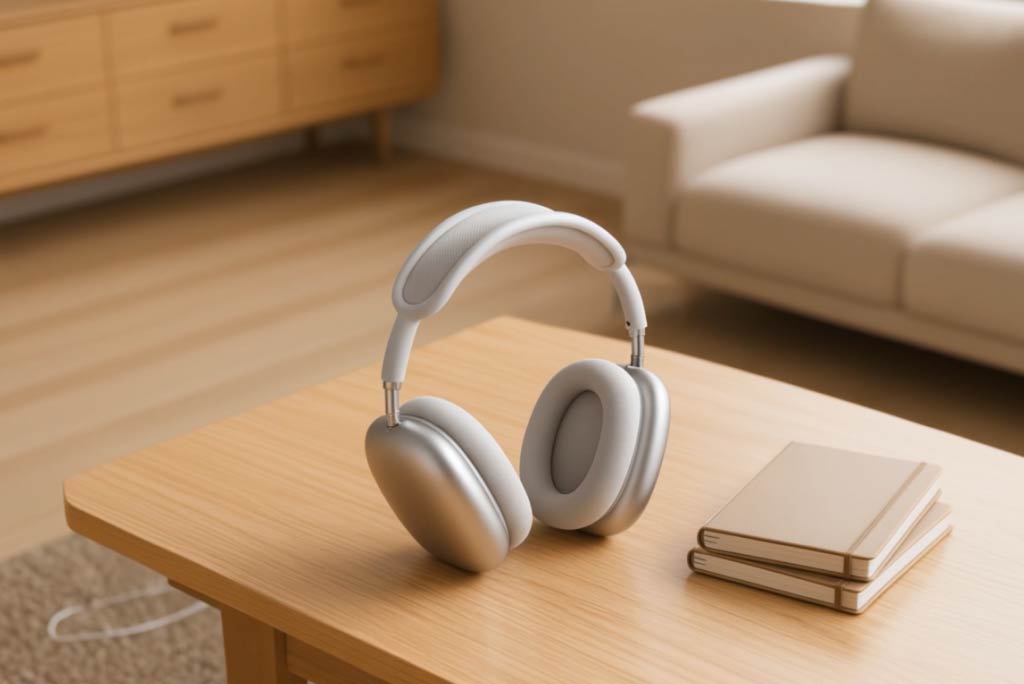
You do not have to make the video first and add sound later. MiniMax H3 can create dialogue, music, footsteps, sound effects, and room tone along with the picture. Describe what should happen and what we should hear, and the result feels like one finished shot.
00:00
00:00

Build a Complete Sequence, Not Just One Shot

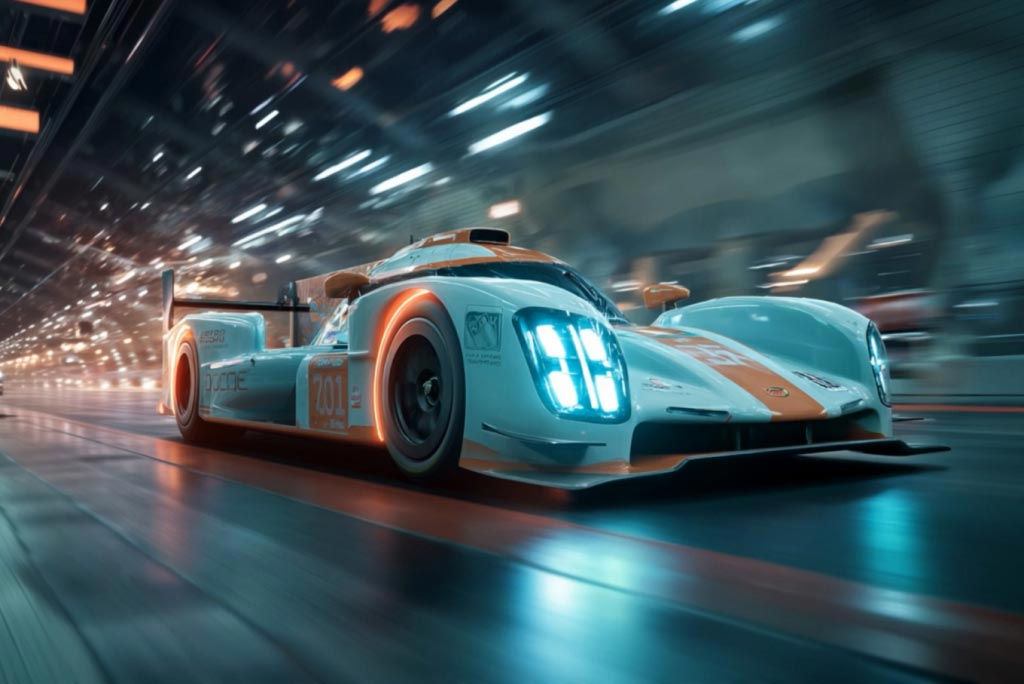
A good short video usually needs a few connected moments. Describe the opening, the detail you want viewers to notice, and the final reveal in one prompt. MiniMax H3 can connect those shots into a sequence that works for a product ad, title film, or short story.

What Can You Create with MiniMax H3?

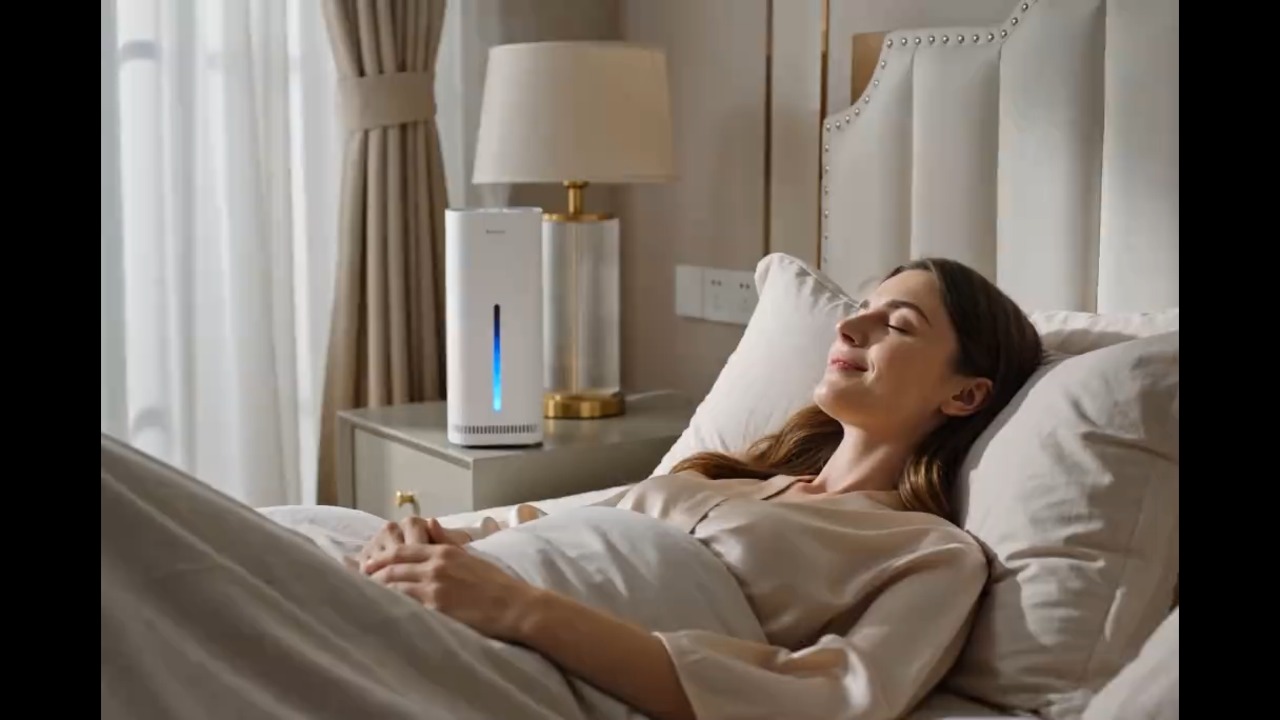
From product launches to opening titles, direct the picture, movement, and sound around the content you need to publish.
00:00
00:00

Product Ads and E-commerce Films

Build a compact product story instead of stopping at one beauty shot. Show the package, reveal the product, move into a detail shot, and finish with a clean campaign frame. For more product-focused workflows, continue with the AI product video generator.

00:00
00:00

Character Stories and Short Films

Keep a character recognizable while changing the location, action, camera, or mood around them. A reference image can anchor the look, while a motion clip and audio reference guide the performance. Longer ideas can begin in an AI story video generator.
00:00
00:00

Opening Titles and Brand Idents

Create a short title sequence where typography, visual motifs, music, and transitions share one rhythm. MiniMax H3 can move across several connected shots, making it useful for film openings, event intros, channel idents, and campaign launch films.
00:00
00:00

Animated Posters and Social Campaigns
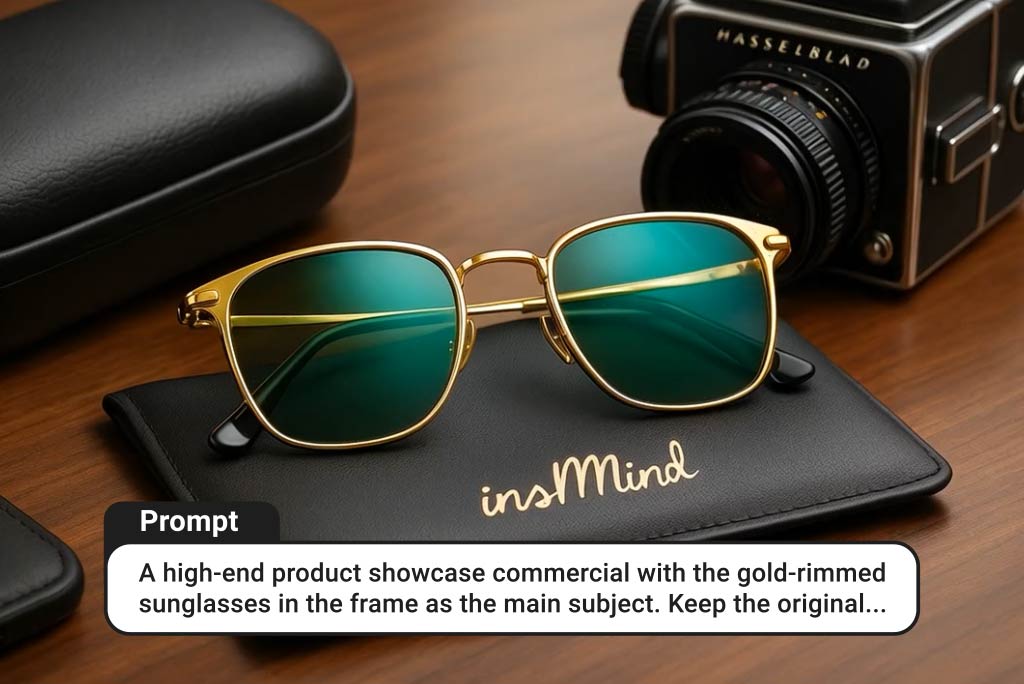
Turn a finished poster or campaign key visual into a moving social asset without losing its central composition. Animate the subject, graphic layers, lighting, and sound for Reels or Shorts. For a dedicated vertical workflow, use the AI Reel video generator.
00:00
00:00

Product Websites and Interface Motion

Show how a landing page, game menu, dashboard, or product interface behaves instead of presenting a static screen. Direct scrolling, transitions, hover states, graphic movement, and sound as one sequence for launch videos, feature demos, or concept presentations.

00:00
00:00

Existing Footage Rewrites

Reuse a performance you already like while changing only the part that no longer works. Replace a background, product, sign, object, line of dialogue, or lighting condition, then check whether the original movement, framing, and timing remain intact.

How to Generate a Video with MiniMax H3

Step 1: Choose MiniMax H3

Choose MiniMax H3 from the various AI video models available in insMind. Then choose the aspect ratio, resolution, duration, and other settings for your video.

Step 2: Enter Your Prompt and Add References

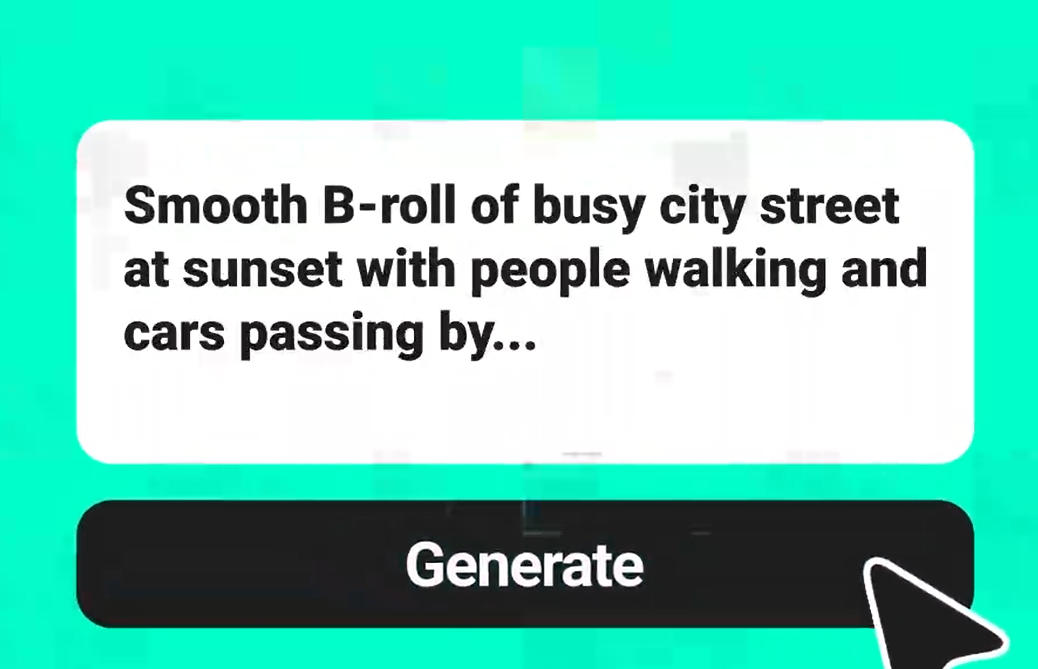
Now enter your prompt and upload images, videos, and audio as references for MiniMax H3.

Step 3: Send the Prompt to Generate

Click the arrow to send the prompt and references. MiniMax H3 will start generating the video.

Step 4: Preview and Download

Preview the generated video, then download it when it is ready.

Why Try MiniMax H3 on insMind?

Choose from More Leading Models

Choose from More Leading Models

MiniMax H3 is one option in insMind's AI video workspace. Switch between leading models such as Seedance 2.0, Kling 3.0, and Veo 3.1 when a different model suits the project better.
Keep Generation Cost-Effective

Keep Generation Cost-Effective

Create and compare videos in one place instead of paying for separate tools just to test different models. Clear credit usage helps you understand what each generation costs before starting a larger batch.
Use a Simpler Interface

Use a Simpler Interface

The workflow stays easy to follow: choose a model, add your prompt and references, send the request, and review the result. You can focus on the video instead of learning a complicated model interface.
Work with References in One Place

Work with References in One Place

Keep your prompt, images, video clips, and audio references together in the same generation. There is no need to move the project between separate image, video, and audio tools.
Set the Output for Your Project

Set the Output for Your Project

Choose the aspect ratio, resolution, and duration that fit your project, whether you are making a product film, a social clip, or a wider brand video.
Preview Before You Download

Preview Before You Download

Watch the complete result before exporting it. If the movement, sound, or reference handling needs work, revise the prompt and generate again before downloading.

Frequently Asked Questions

What is MiniMax H3?

insmind expand icon
MiniMax H3 is a general-purpose multimodal video model that understands text, images, video, and audio in one context. It can generate video with native stereo sound, follow references, edit existing footage, and connect multiple shots.

Can MiniMax H3 generate video from text?

insmind expand icon
Yes. MiniMax H3 text to video starts with a written prompt. Describe the subject, action, camera movement, lighting, shot order, and sound you want, then send the prompt to generate the video.

Can MiniMax H3 turn an image into a video?

insmind expand icon
Yes. A MiniMax H3 image to video workflow can use an uploaded image as the opening frame and animate it according to your prompt while keeping the original composition recognizable.

How does MiniMax H3 reference to video work?

insmind expand icon
Add the references needed for the scene and explain what each one should control. An image can guide identity, a video can guide movement or camera work, and audio can guide delivery or atmosphere.

What reference files can MiniMax H3 use?

insmind expand icon
MiniMax H3 can work with text, images, video, and audio references. The exact upload options and limits may depend on the current insMind model configuration.

Does MiniMax H3 generate audio?

insmind expand icon
Yes. H3 can generate native stereo audio with the picture, including requested dialogue, music, sound effects, and ambience that follow the action.

Can MiniMax H3 create multi-shot videos?

insmind expand icon
Yes. Describe several connected visual beats in one prompt, such as an opening shot, a close-up, and a final reveal, and H3 can connect them into a short sequence.

Can MiniMax H3 edit an existing video?

insmind expand icon
H3 supports natural-language reference and editing instructions for changes such as replacing a background, changing an object, or adjusting lighting while preserving the rest of the scene.

What resolution, duration, and aspect ratios does MiniMax H3 support?

insmind expand icon
The official MiniMax API lists 768P and 2K output, 4 to 15 second durations, and ratios including 21:9, 16:9, 4:3, 1:1, 3:4, and 9:16. Options in insMind may vary.

Is MiniMax H3 free to try on insMind?

insmind expand icon
insMind offers free access or credits for trying core creative features. Credit use can vary by model, duration, and resolution, so check the current interface before starting a larger project.

More Video Models and Multimodal Creation Tools