Kling 4.0 Video Generator

Turn text prompts and images into cinematic videos up to 30 seconds long. Guide your scenes with multimodal references, camera direction, and native audio.

Kling 4.0 available on insMind

Reference-led creation, longer stories, and more deliberate camera direction.
00:00
00:00

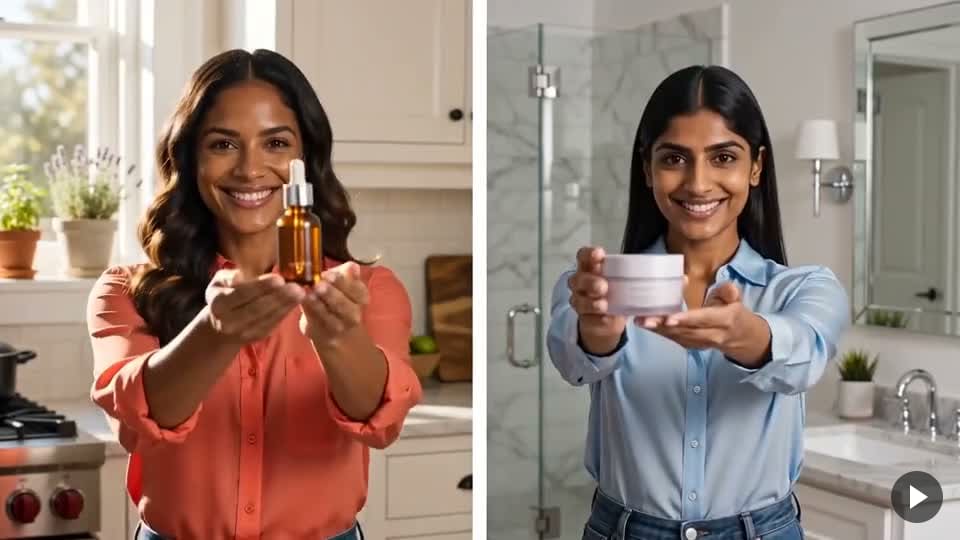
Video Recreation with Your Own Subjects

Use a reference video to guide camera movement, pacing, and composition, then introduce your own character or product. Develop new ad variations around an existing visual direction.
00:00
00:00

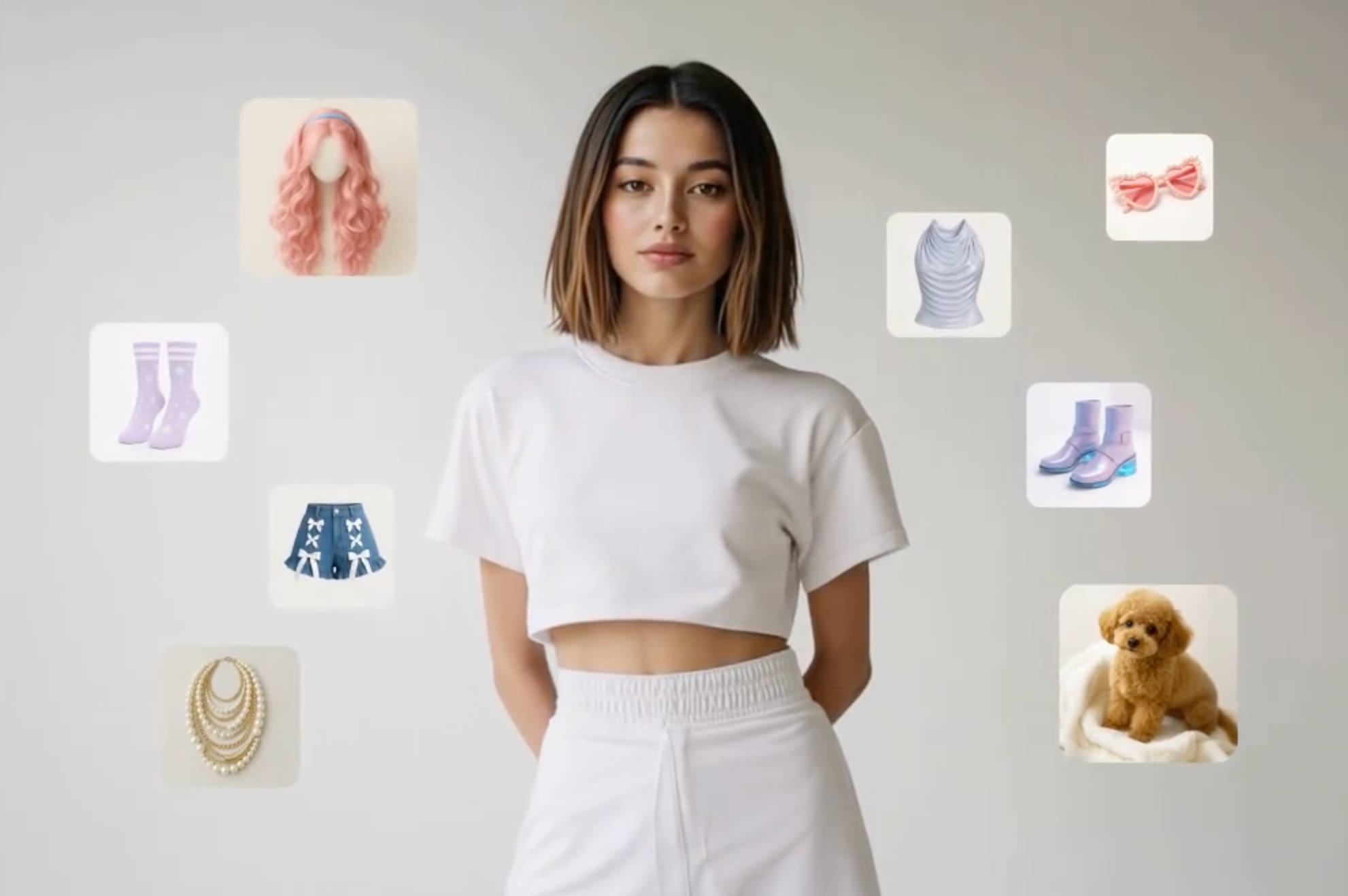
Up to 15 Multimodal References

Give each reference a clear role: one defines the character, another the product, and another the setting or camera movement. Combine up to 15 supported assets to guide the scene and keep important details more consistent.
00:00
00:00

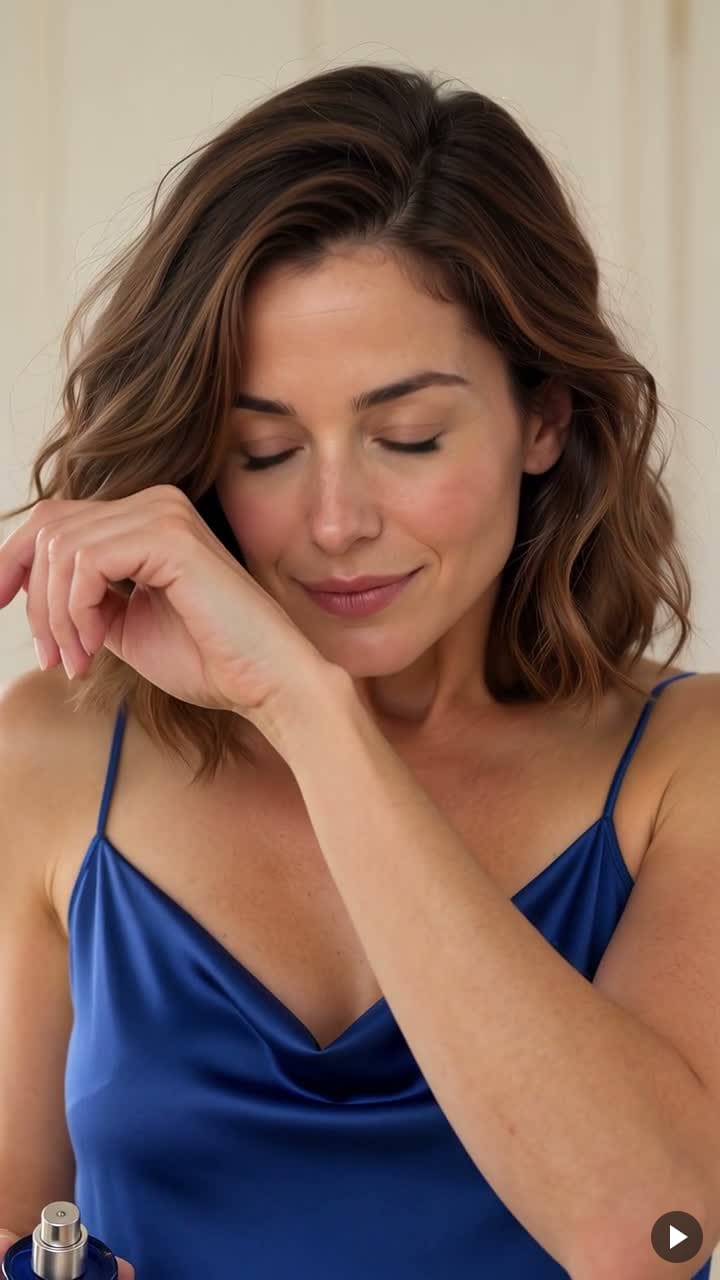
Up to 30-Second Native Generation

Give a scene time to develop. Generate up to 30 seconds in a single request, with room for connected actions, changing expressions, and a complete advertising or narrative beat. Direct a continuous shot or plan a sequence of cuts.
00:00
00:00

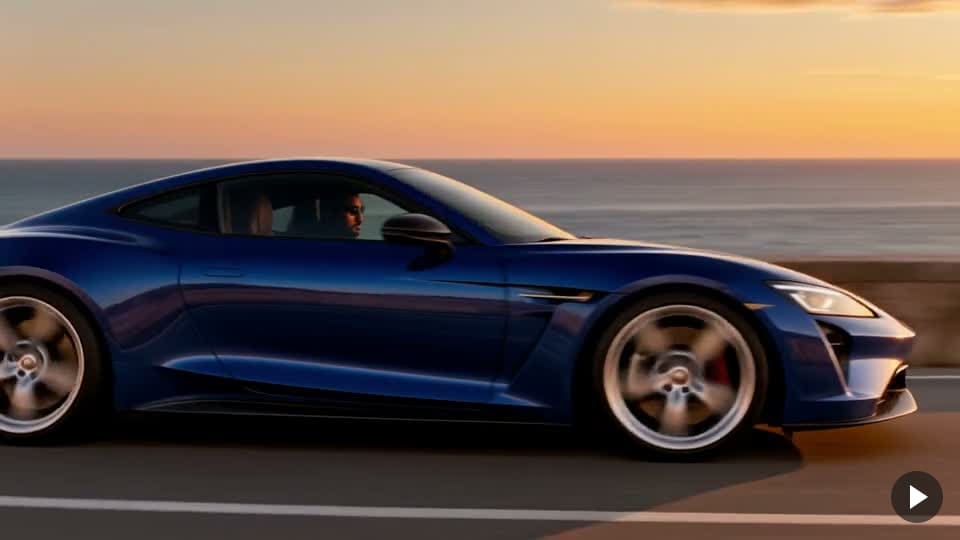
More Stable Camera Moves and Continuous Action

Plan a tracking shot, move into an orbit, or pull back to reveal the setting. Kling 4.0 focuses on more stable camera movement and continuous action, helping complex scenes stay visually connected as subjects and viewpoints change.

What's New in Kling 4.0?

Longer generation, richer reference control, and more precise scene direction.

Up to 30-Second Native Generation

Up to 30-Second Native Generation

Develop a complete action or story beat in one generation, with less need to assemble separate short clips.

Up to 15 Multimodal References

Up to 15 Multimodal References

Guide subjects, settings, and motion with supported reference assets. For related workflows, explore reference-to-video creation.

More Stable Motion and Camera Direction

More Stable Motion and Camera Direction

Build scenes around tracking, orbiting, and continuous action, with greater emphasis on keeping movement and spatial relationships coherent.

Up to 10 Keyframes

Up to 10 Keyframes

Define important visual checkpoints along the timeline to guide character states, scene changes, and the progression of a shot.

Stereo Audio and Multilingual Dialogue

Stereo Audio and Multilingual Dialogue

Plan dialogue and environmental sound alongside the visuals, with stereo audio and multilingual voice capabilities for character-led scenes.

Targeted Video Refinement

Targeted Video Refinement

Describe a specific visual change and identify what should stay consistent. For related identity-led projects, explore consistent character videos.

How to Create Videos with Kling 4.0 on insMind

Step 1: Open Kling 4.0

Start with the video tool on this page. Check that Kling 4.0 is selected before preparing your scene.

Step 2: Add Your References

Add the images or video references available in your selected workflow. Decide which asset defines the subject, setting, composition, or movement.

Step 3: Direct the Scene

Describe the action in order. Explain what to preserve, what to replace, how the camera moves, and how the scene should sound. Set the available duration and output options for your project.

Step 4: Generate, Review, and Download

Generate the clip and check the complete result. Review subject details, camera movement, transitions, and audio, then refine your instructions or download the version you want to use.

Kling 4.0 Video Generator FAQs

What is Kling 4.0, and who is it for?

insmind expand icon
Kling 4.0 is a multimodal video model for creators who want more control over motion, references, and storytelling. Its capabilities are relevant to product ads, character-led clips, animation, and film concepts, especially when a project needs connected action or direction based on existing assets.

Can I use Kling 4.0 on insMind?

insmind expand icon
Check the model shown in the video tool before generating. Select Kling 4.0 when it is available in your account and workflow. Reference inputs, editing controls, duration, and output settings can differ between modes, so confirm the options shown for your task.

Can I recreate a video's camera work with my own character or product?

insmind expand icon
Kling 4.0 supports reference-led creation using an existing video's visual direction. Explain which camera movement, timing, or composition to borrow, then identify the image that defines your new subject. Treat the result as a new generation and review it against the reference rather than expecting a frame-for-frame copy.

How should I write a prompt for video recreation?

insmind expand icon
Start by assigning a role to each asset. State which video guides camera movement and pacing, which image defines the replacement subject, and which details should remain recognizable. Then describe the action in order. Concrete shot directions are more useful than broad requests for a cinematic or premium look.

How do I combine references to improve character and product consistency?

insmind expand icon
Choose clear references with distinct roles, then describe the face, clothing, product shape, or scene details that matter. Avoid conflicting subject images or unclear asset assignments. Inspect the whole clip for drift, especially during turns, close-ups, and transitions, and simplify the action if important details change.

When should I use Omni Reference instead of Keyframes?

insmind expand icon
Use Omni Reference when different assets should guide the subjects, setting, action, or visual direction. Use Keyframes when particular visual moments along the timeline are already defined. Choose according to what you need to control; these are distinct workflows rather than controls that necessarily combine in one request.

Can Kling 4.0 generate a continuous 30-second video?

insmind expand icon
The model supports up to 30 seconds in one generation, which can contain a continuous shot or multiple shots. If you want a long take, specify one continuous shot with no cuts and describe a manageable sequence of actions. Check the finished video for both duration and unintended transitions.

What changed from Kling 3.0?

insmind expand icon
Key changes include a longer generation ceiling, expanded reference inputs, additional keyframe control, stereo audio, and a stronger focus on complex-motion stability. Kling 3.0 already supports multi-shot storytelling, native audio, and subject-reference workflows. Compare the specific controls you need instead of treating every capability as new in 4.0.

Does it support keyframes, audio, and video editing?

insmind expand icon
Kling 4.0 includes keyframe-guided creation, native audio, and targeted video-editing capabilities. Their availability depends on the workflow exposed by the platform. Check the selected mode before planning around a feature, and describe the visual elements that should remain unchanged when requesting an edit.

Which output options and credit costs apply on insMind?

insmind expand icon
Use the options and credit estimate displayed for your selected model and workflow. Duration, resolution, reference inputs, and other settings can affect the task and its cost. Review the current estimate before generating; do not assume that every model-level output specification is available in every insMind mode.

Explore More AI Video Models & Kling Tools

Direct Your Next Video with Kling 4.0

Bring your references, plan the action, and shape the next scene around your own creative direction.