
AI Emoji Remover: Remove Emojis and Stickers from Photos




Remove Emoji Overlays Without Manual Retouching
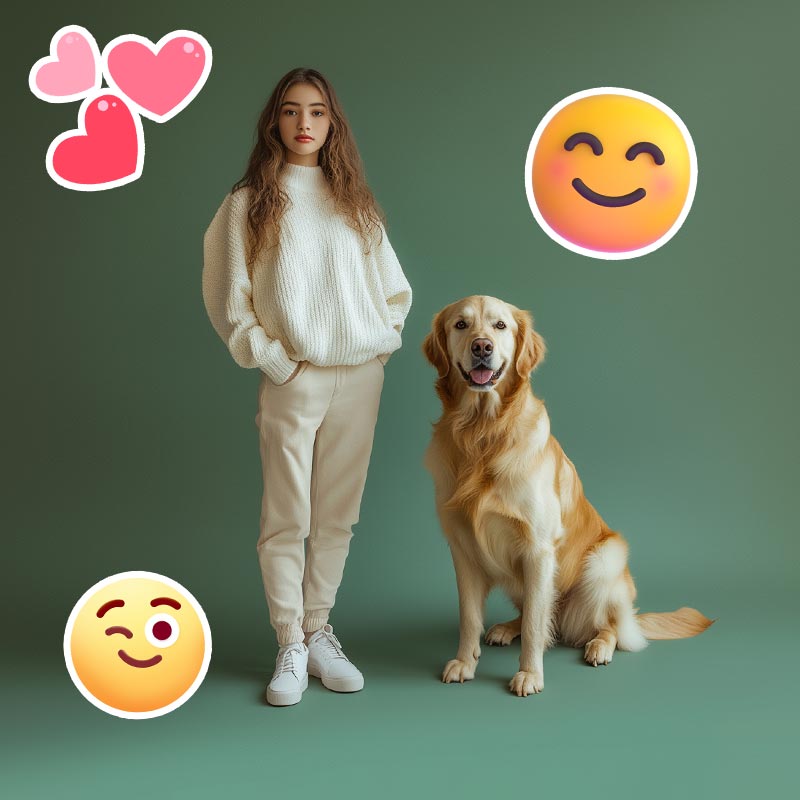
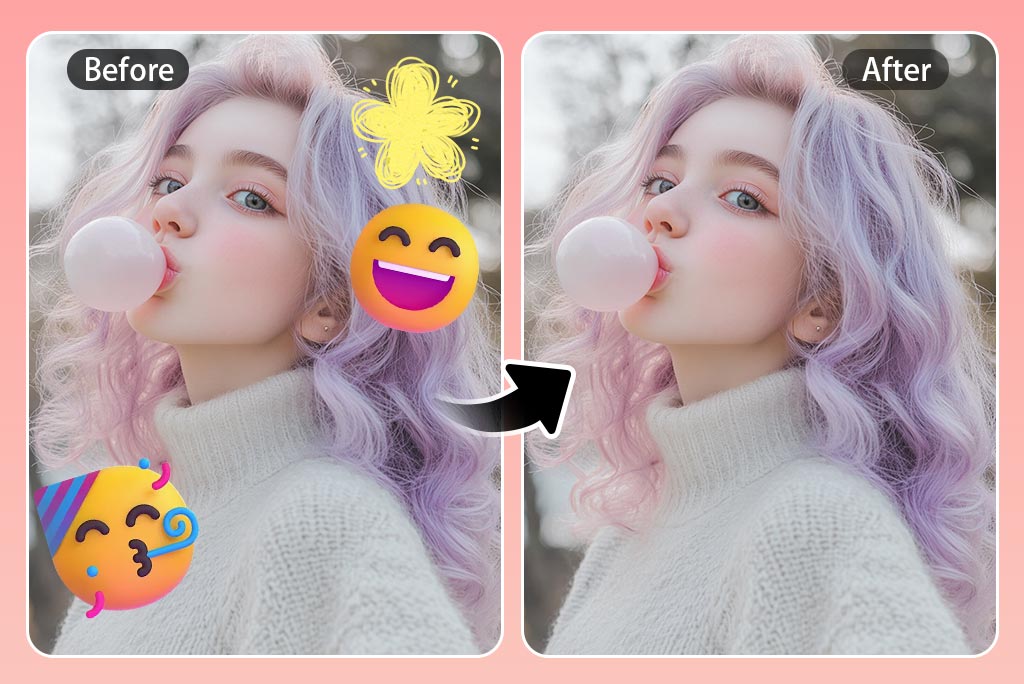
Use the AI emoji remover when reaction graphics, decorative emojis, or social-media overlays distract from the photo. Upload the image and describe which overlays to remove; the editor generates replacement pixels that follow the surrounding color, texture, and lighting.
For a small object that is easier to select by hand, the AI Magic Eraser offers a brush-based cleanup path. Whichever method you use, zoom in afterward and check repeated patterns, straight lines, and edges around the edited area.
Use a Photo Sticker Remover for Social and Product Images
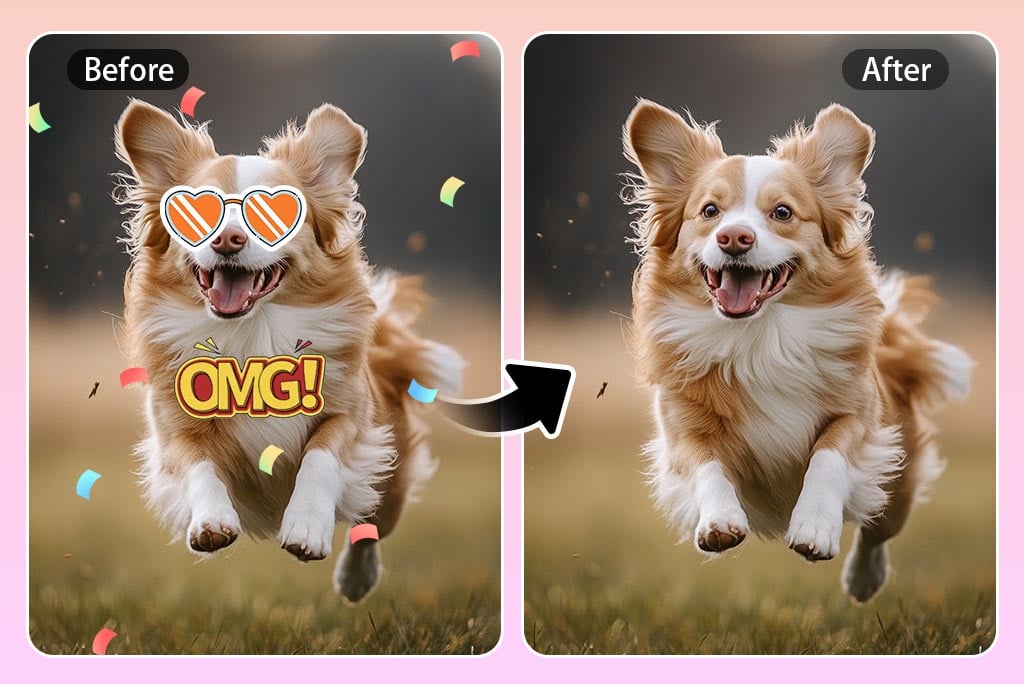
Remove sticker overlays from a photo when labels, GIF-style graphics, reaction stickers, or decorative elements cover the subject. A specific prompt such as "remove the heart sticker in the upper-right corner" helps the AI focus on the intended area.
Start with the original image rather than a compressed screenshot when possible. After generation, compare small text, product edges, hair, and patterned backgrounds with the source; these details may need a second pass if the sticker overlaps them.
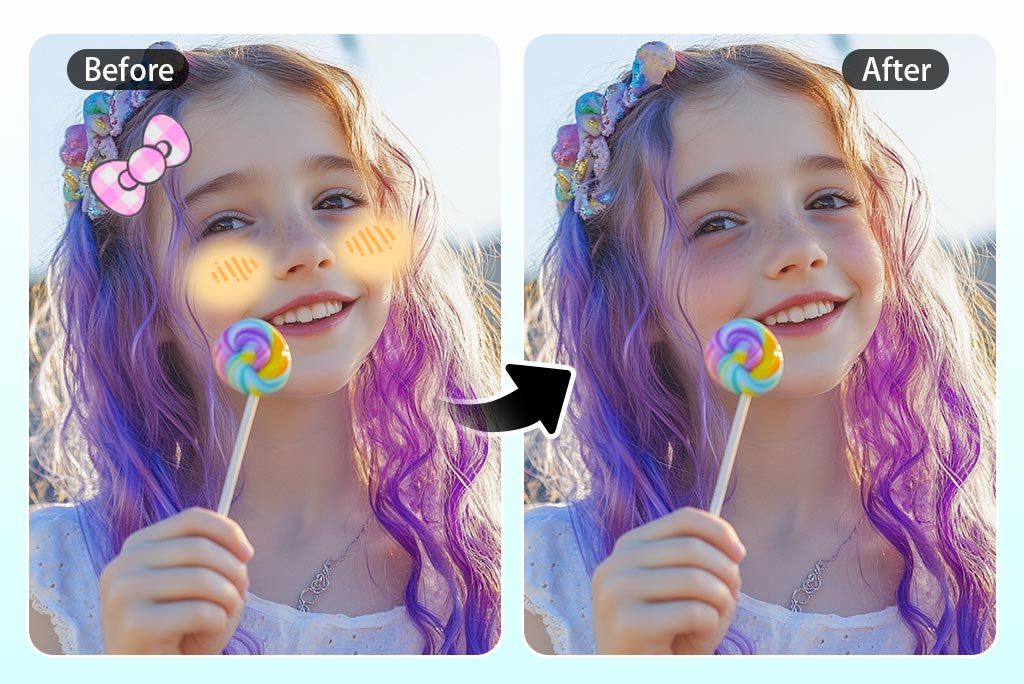
Remove a Face Emoji and Rebuild the Covered Area
A face emoji remover can clear an overlay from a selfie, group photo, or portrait and use visible context to generate a plausible replacement. It works best when only a small part of the face is covered and the pose, lighting, and nearby features are clear.
An important limit: the pixels hidden by an emoji are not stored inside the finished image. AI can create a new interpretation, but it cannot reveal or recover the person's exact original eyes, mouth, skin texture, or expression. Treat the result as an edit, not evidence of what was underneath.
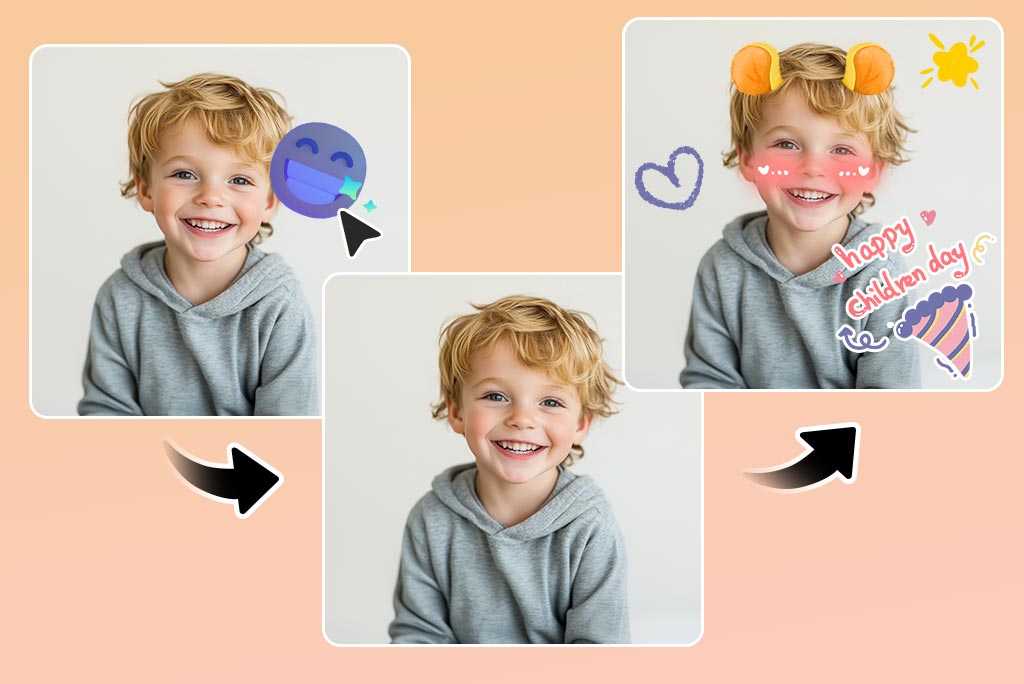
Describe Exactly Which Emoji or Sticker to Delete
The editor uses a text prompt, so identify the overlay by type, color, location, or the subject it covers. For example: "remove the yellow emoji over the person's left shoulder and keep the background unchanged." A focused instruction is easier to review than asking the AI to remake the whole photo.
If you want to replace the overlay with a deliberate new object rather than reconstructed background, continue with AI Replace. This keeps removal and creative replacement as two clear editing decisions.
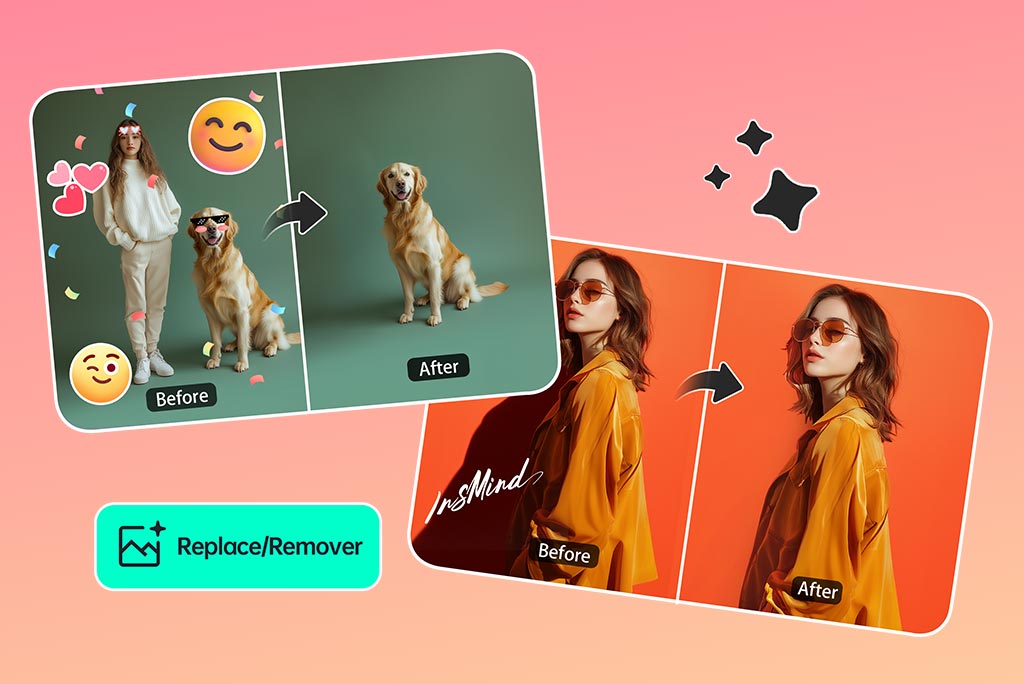
Choose the Right Remover for the Element in Your Photo
This page is designed around emoji and sticker removal. Use it when the unwanted element is a digital overlay and you want AI to rebuild the covered area from a prompt.
For people, props, signs, or other real scene elements, use the dedicated object remover. Watermarks and text also have separate workflows, which helps each page answer one editing task instead of treating every type of cleanup as the same problem.
More Tools for Removing Distractions from Photos
How to Remove Emojis and Stickers from Pictures

1 Upload the Photo
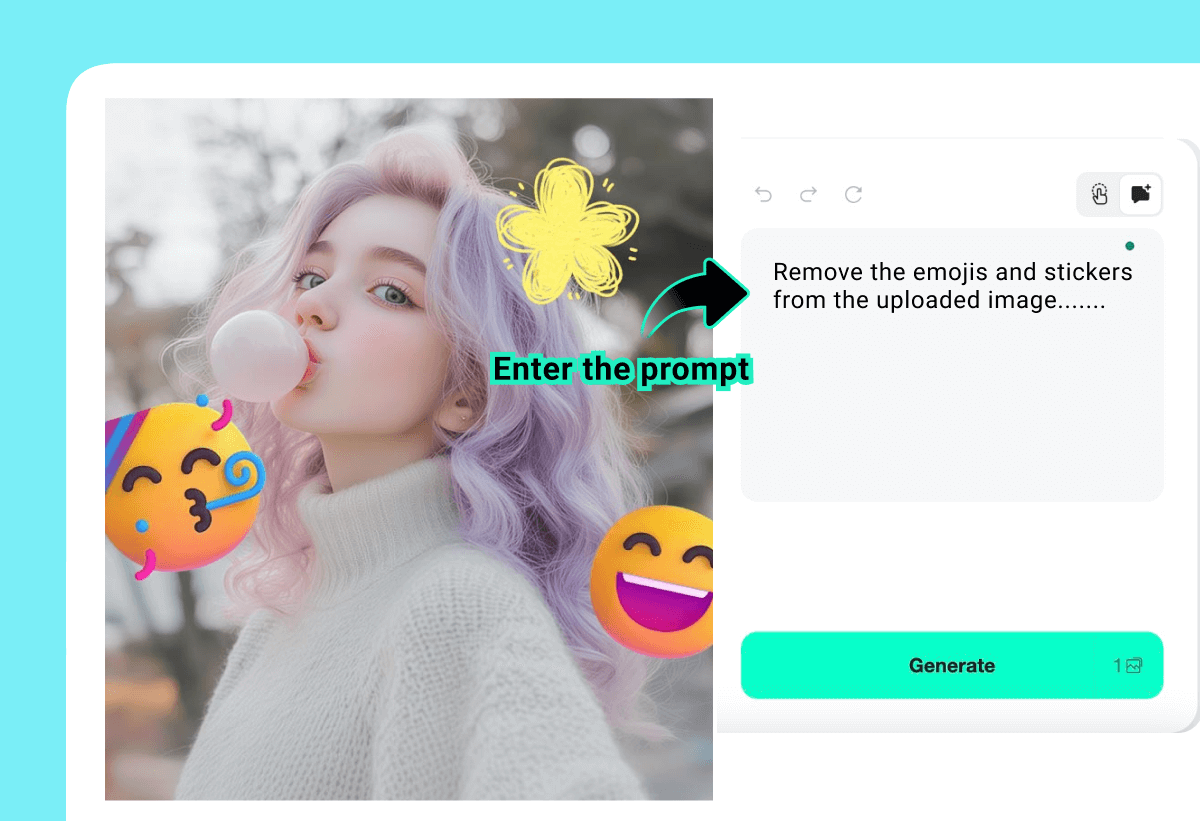
2 Describe What to Remove
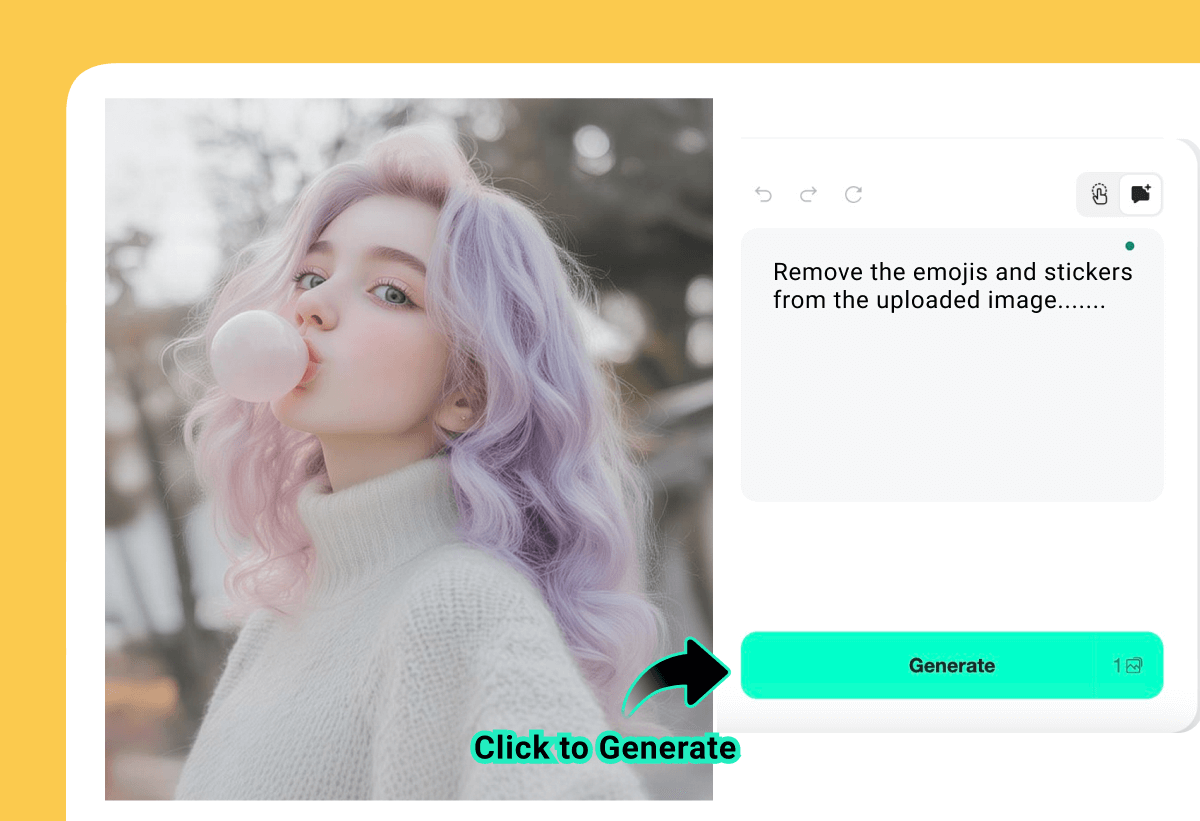
3 Generate and Inspect the Edit
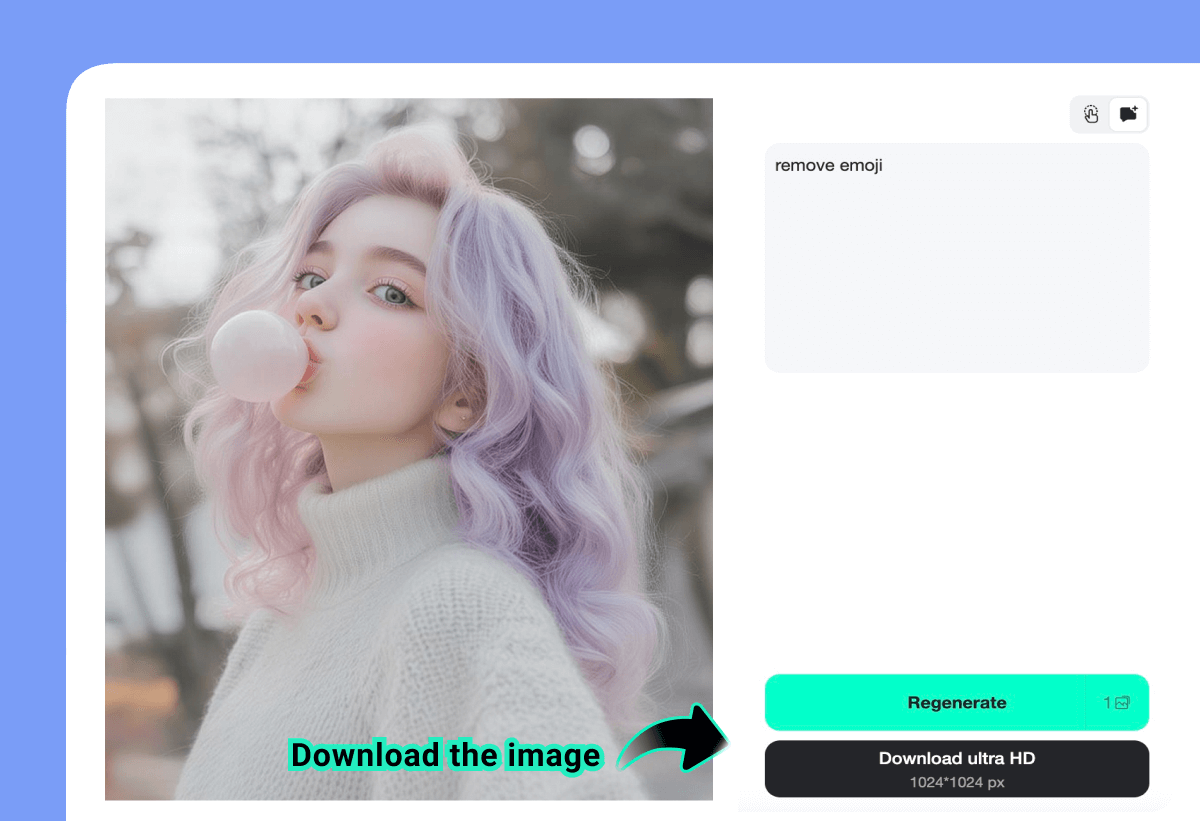
4 Regenerate or Download
Continue Cleaning Up Other Photo Distractions
After removing emojis or stickers, use a focused tool for shadows, unwanted people, or text rather than reworking the whole image.
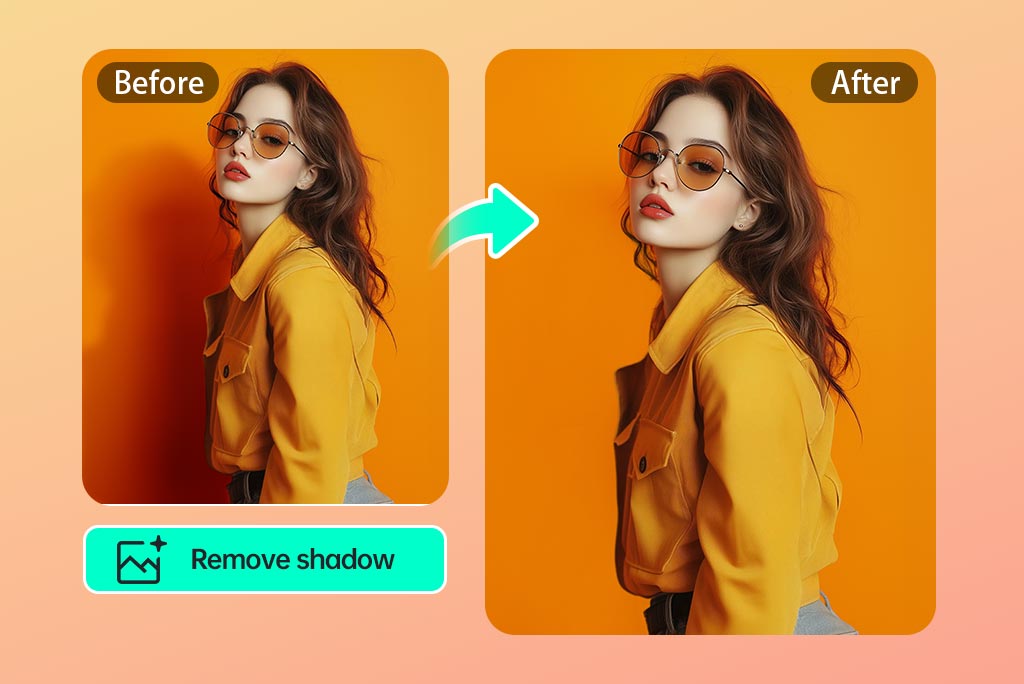
Remove Shadows from a Photo
Use the shadow remover when harsh cast shadows, not digital stickers, are the main distraction. Review contact points and object edges so the corrected lighting still looks believable.
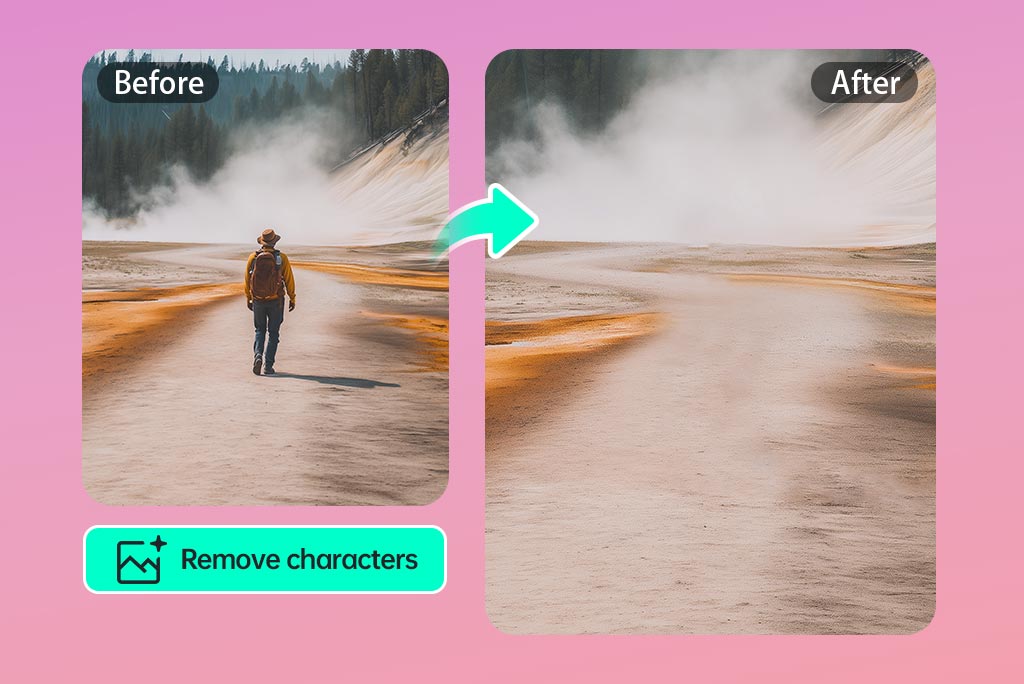
Remove Unwanted People
Clear a passerby or photobomber from a travel, event, or product image. Backgrounds with repeating lines, rails, or crowds may need a closer check after removal.
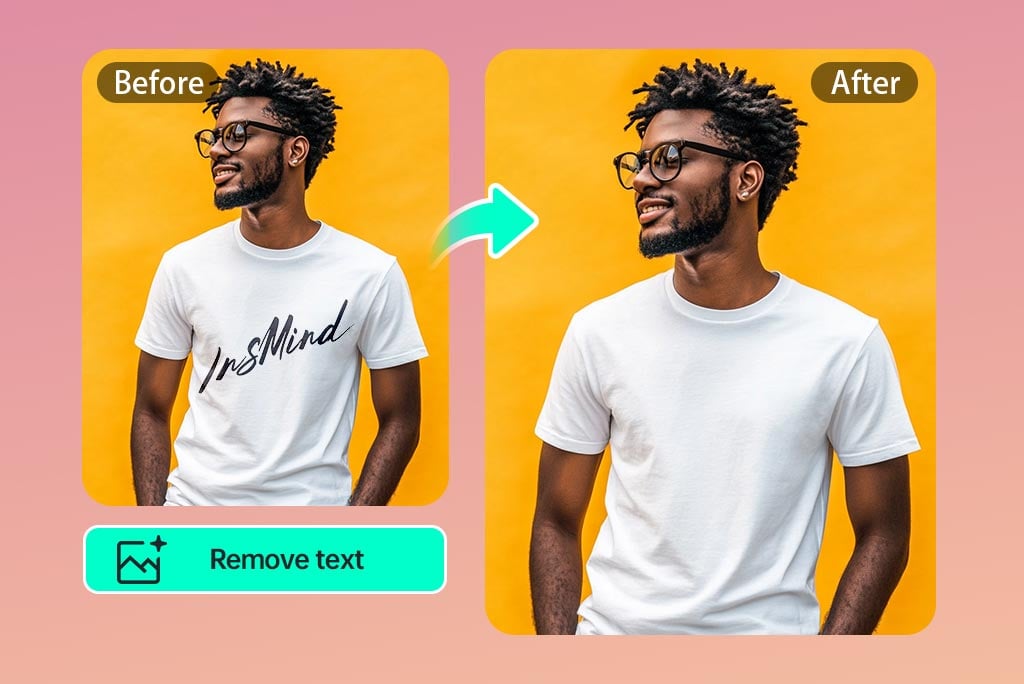
Remove Text from an Image
Delete captions, labels, or unwanted words with the text-focused remover. Verify nearby logos, packaging, and small print before using the edited image.
Why Use insMind as an Emoji and Sticker Remover?

Prompt-Guided Overlay Removal
Name the emoji or sticker and where it appears. The prompt gives the AI a specific edit to make without requiring manual clone-stamp or layer work.

Regenerate When the First Fill Is Not Right
AI results can vary, especially across faces, text, hair, and patterned backgrounds. Inspect the output and regenerate with a more precise prompt instead of accepting an inaccurate first result.

One Browser Workflow from Upload to Download
Upload, describe the edit, generate, review, and download in the online editor. The available export size, credits, or account options are shown in the current product interface.
FAQs About Removing Emojis and Stickers from Photos
How do I remove an emoji from a photo online?


Can I remove a sticker from a photo online for free?
Can a face emoji remover reveal the real face underneath?
Will removing an emoji or sticker reduce image quality?
Can I delete several emojis from one picture?
What prompt works best for an AI emoji remover?
Related Tools for the Next Cleanup Step
Remove text, people, shadows, watermarks, or other distractions with a tool built for that specific task.
Cleanup Pictures
Remove Glare From Photo

Remove Shadow From Photo
Remove Text From Image

Transparent Background

AI Background

White Background

Remove People From Photo

Remove Watermark From Photo
"Not just for emojis! The tool became essential for me to eradicate shadows together with text elements from my images. A must-have for photo editing."
@Sophia