
Cut Out Image Online with Clean Edges





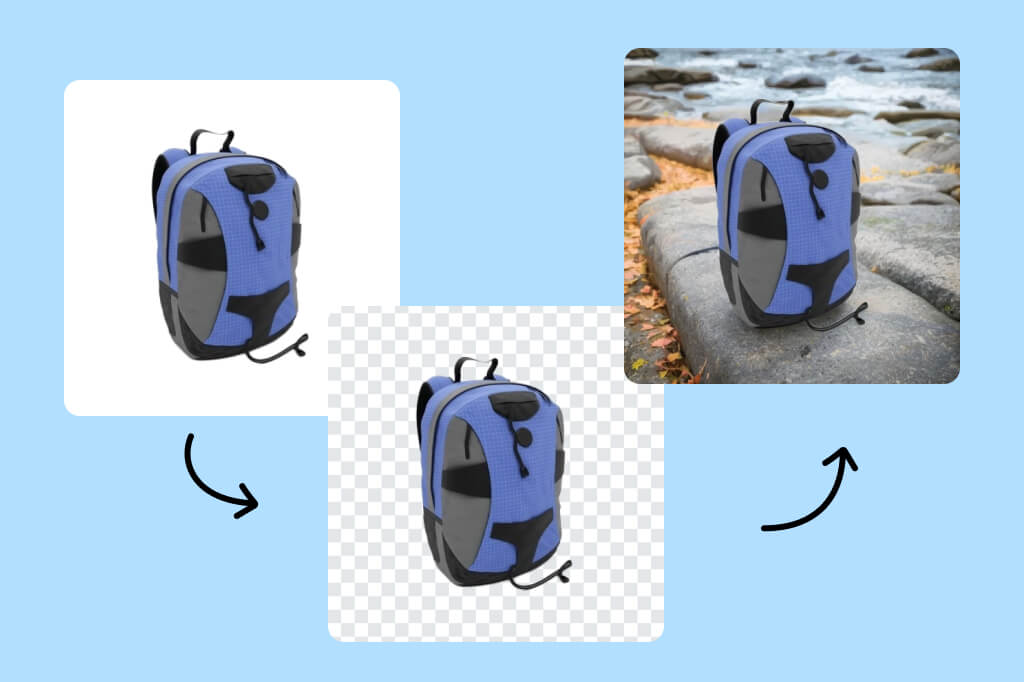
Cut Out the Subject and Redesign the Background
Remove the original background and place the subject on a transparent PNG, white background, brand color, or AI-generated background. This works well for product photos, profile shots, and quick campaign assets.
Keep the first cutout simple, then adjust the new background only after the subject edge looks right.
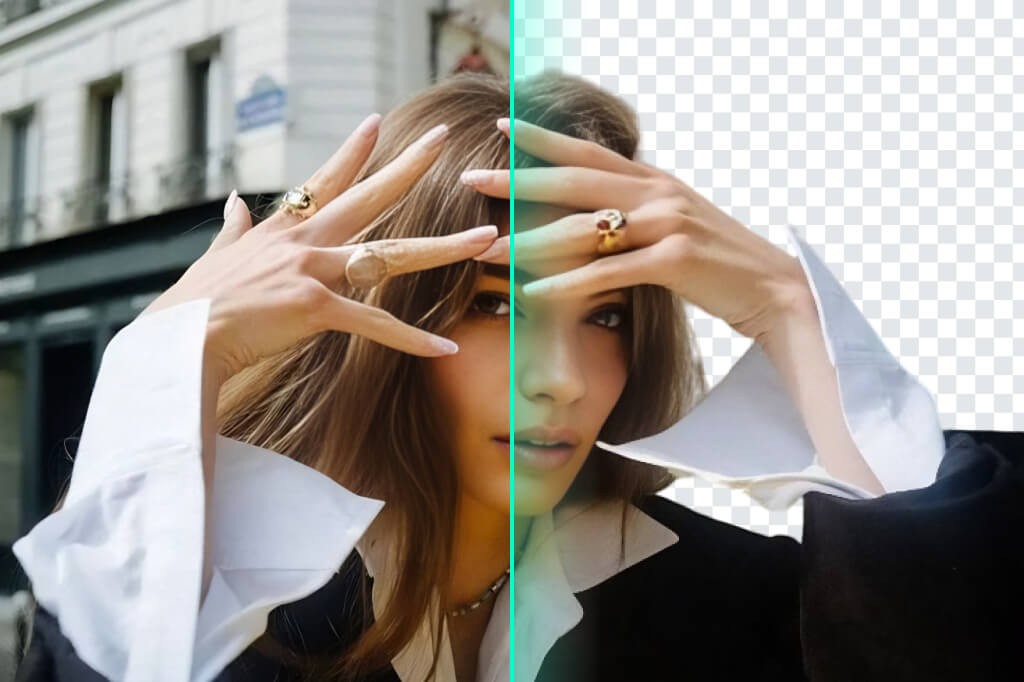
Clean Edges for Hair, Products, and Complex Shapes
AI detects the main subject and separates it from the background without manual lasso work. For fine hair, fur, glass, or irregular product edges, preview the result and use Edit Cutout if the border needs a touch-up.
If the photo still has distracting marks after the cutout, clean them with Magic Eraser before exporting the final image.
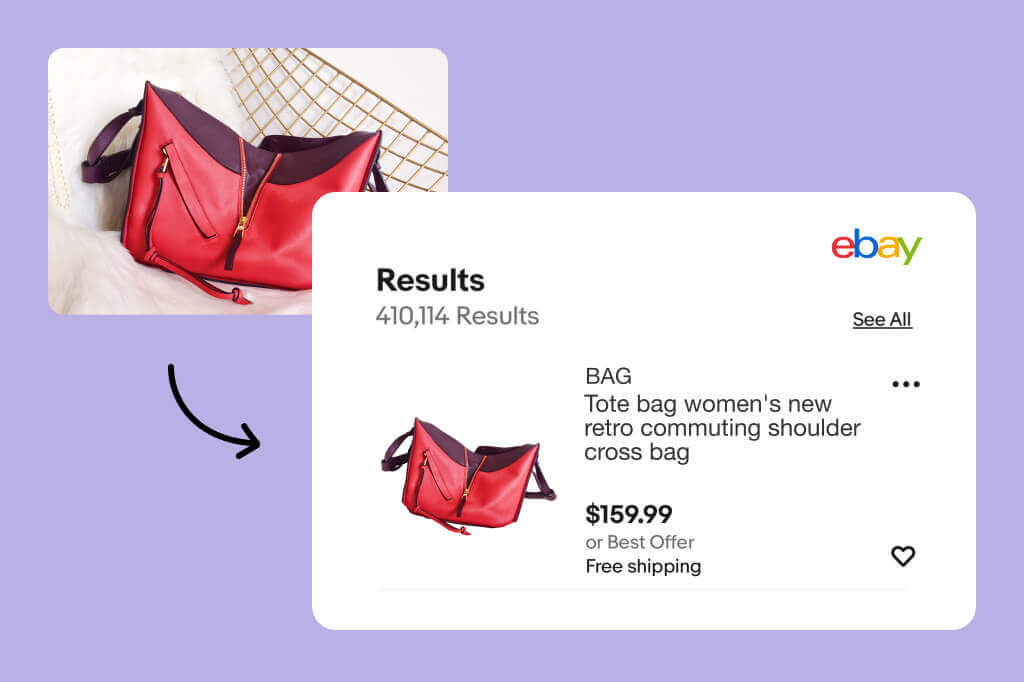
Prepare Consistent Product Photos for Ecommerce
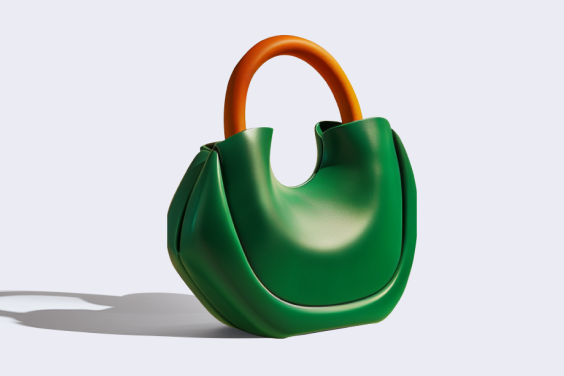
Cut out shoes, cosmetics, accessories, packaging, and marketplace product shots, then place them on a consistent background. It helps product grids look cleaner without reshooting every item.
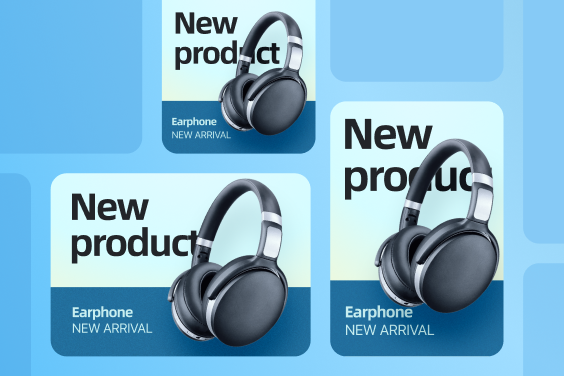
For catalog pages, pair cutouts with consistent shadows or a fixed background color so shoppers compare the products, not the photo setup.
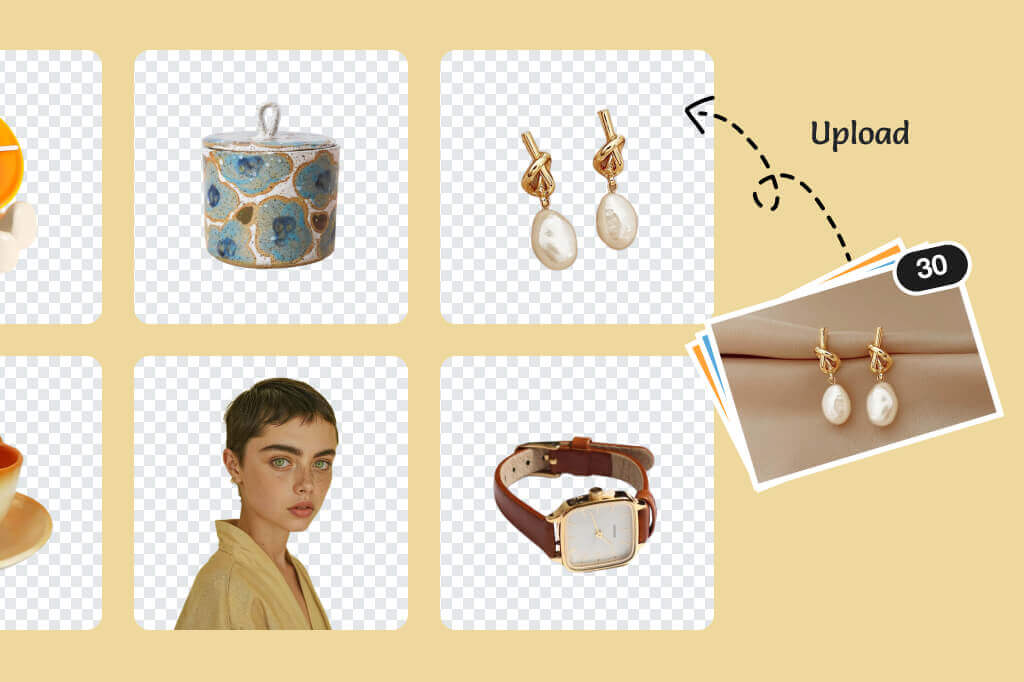
Cut Out Images in Bulk When Speed Matters
Upload multiple photos and process repeated cutout tasks faster. Use bulk cutout for SKU updates, team portraits, campaign variants, and social assets that need the same background style.
How to Cut Out an Image Online
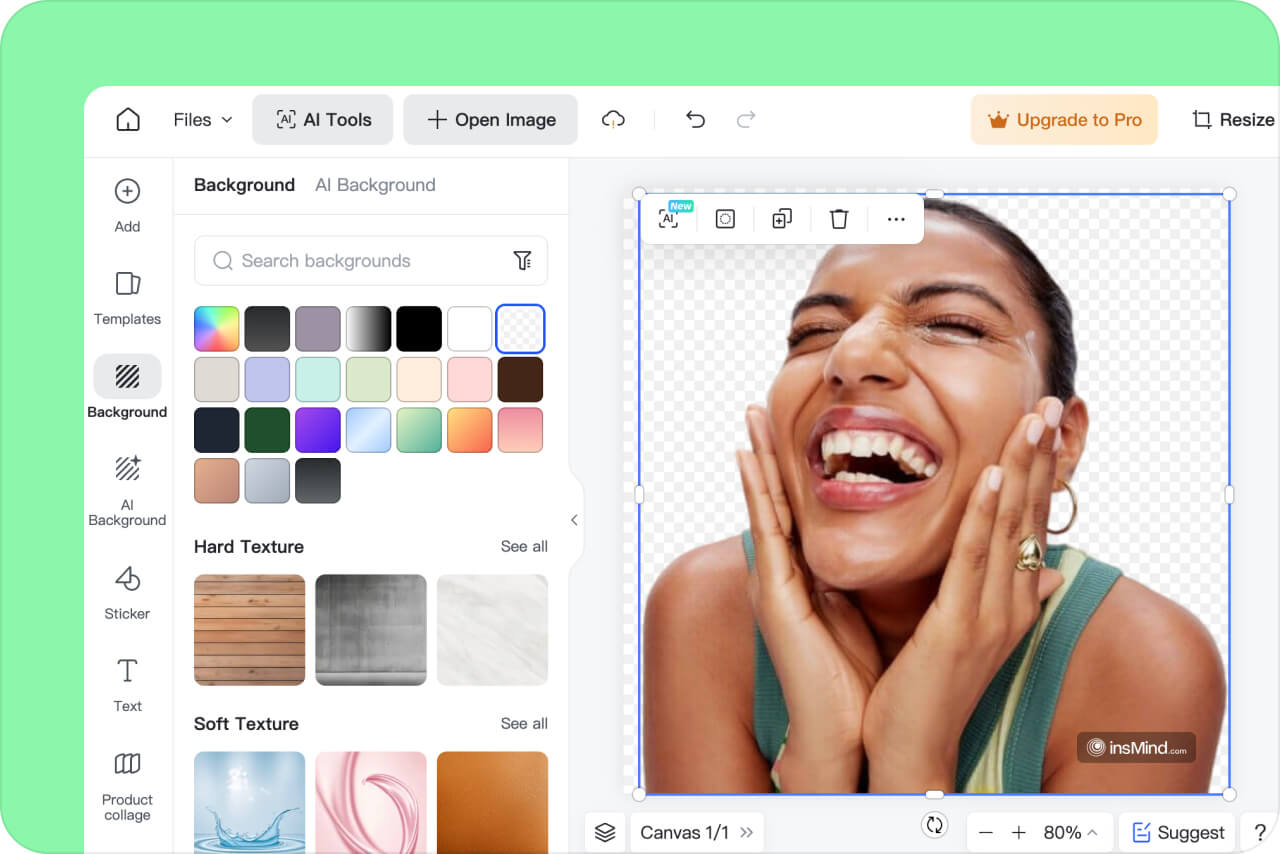
1 Let AI remove the background
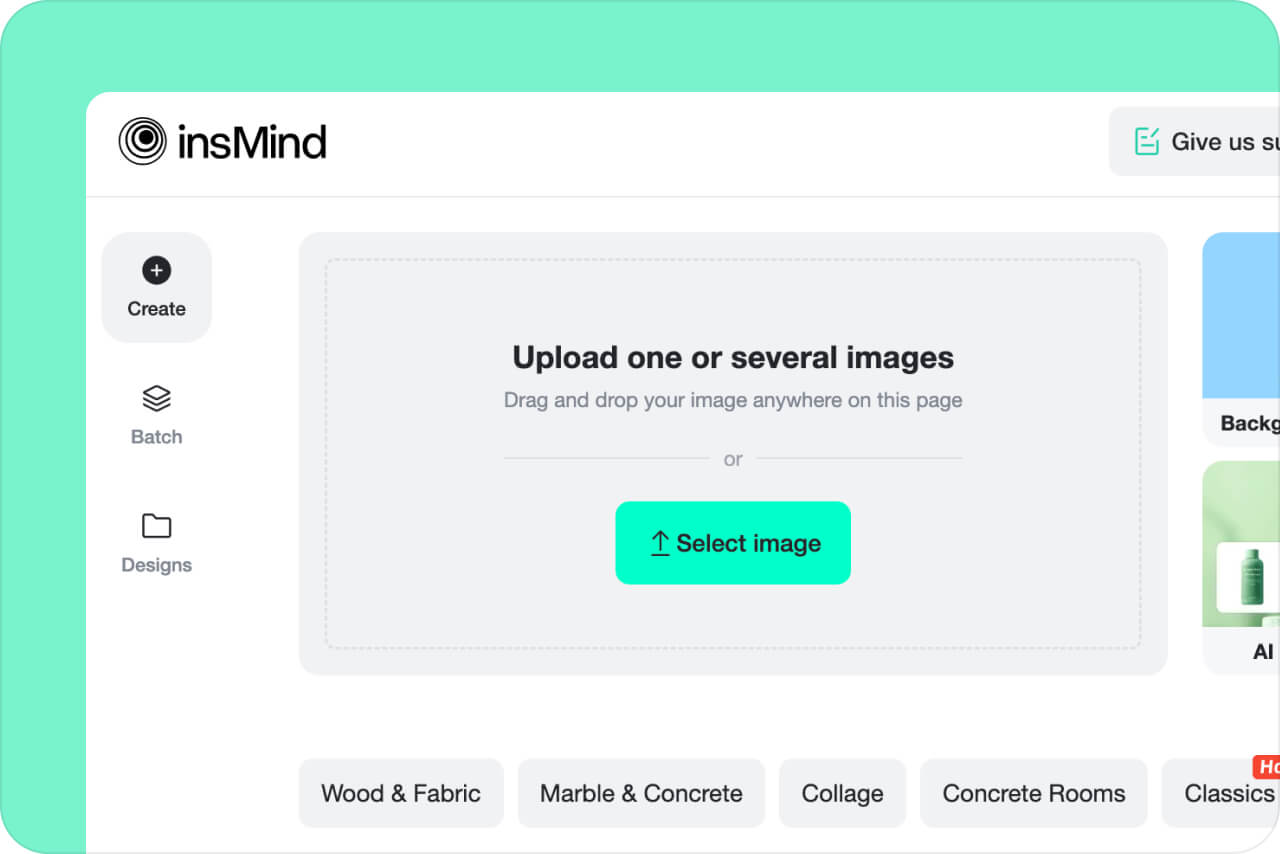
2 Upload your photo
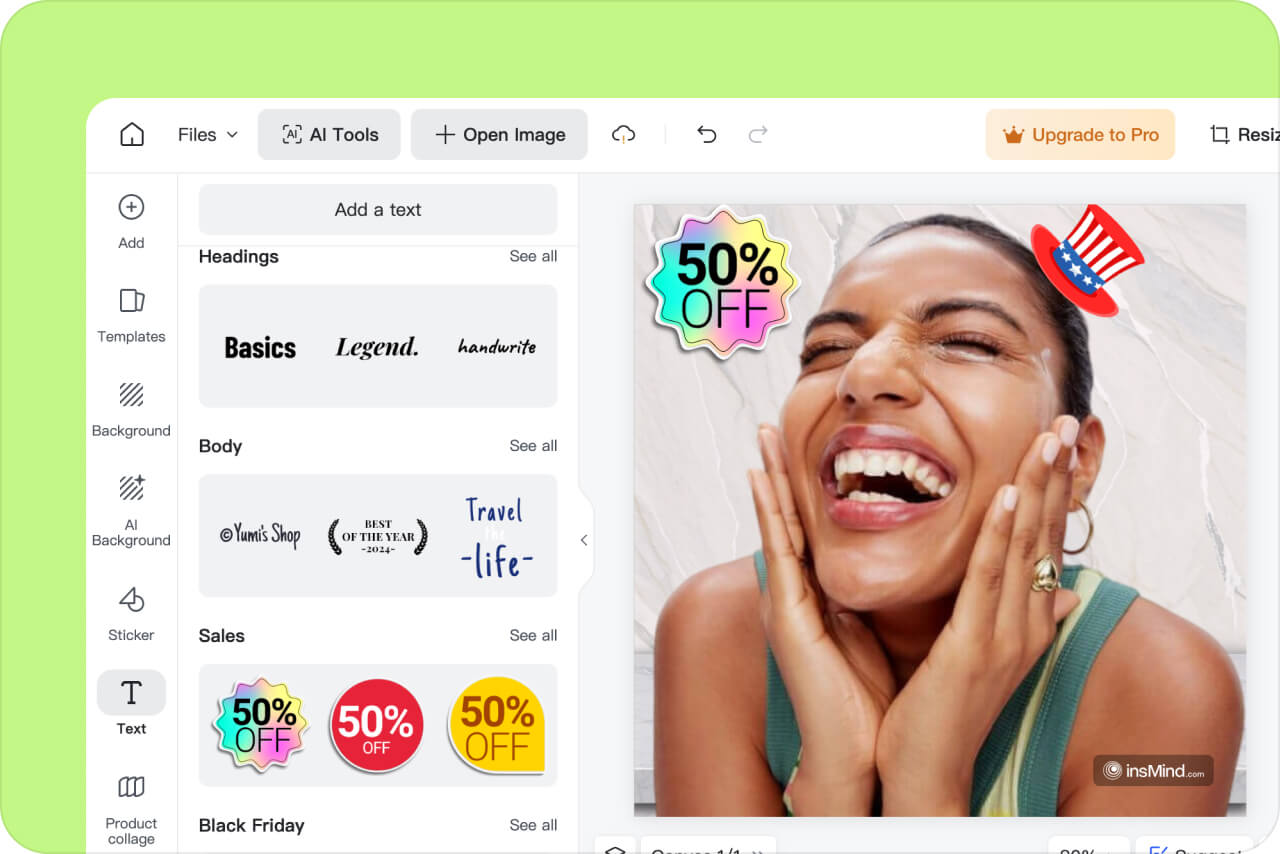
3 Edit the cutout or add a background
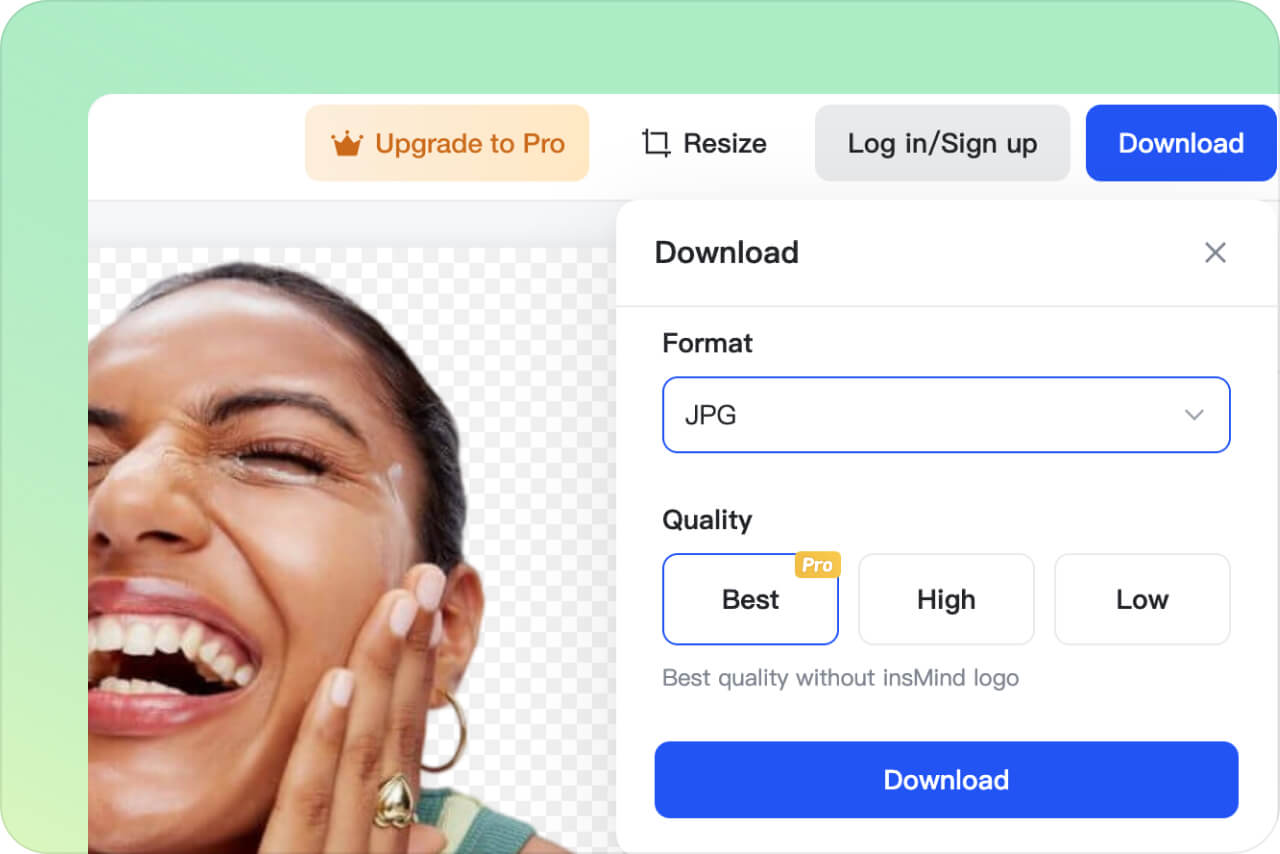
4 Download the finished image
Where an AI Image Cutout Saves Time
Use one clean cutout workflow for product photos, people, branding, and social content instead of repeating manual background removal in a full editor.
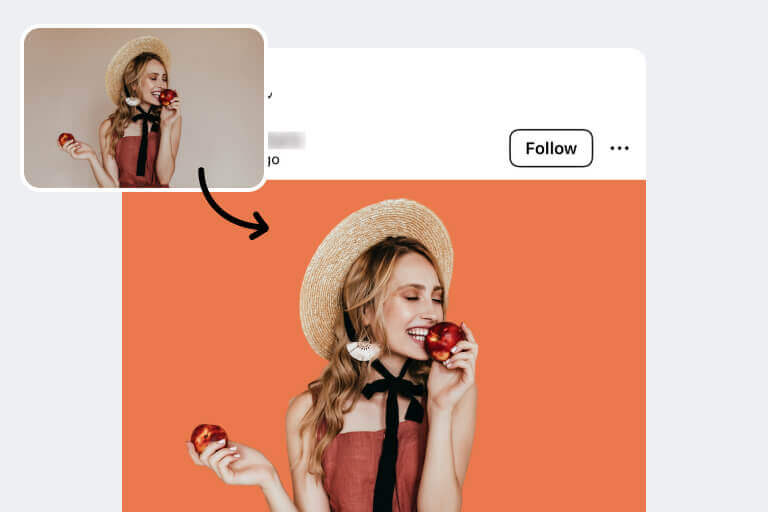
Ecommerce Product Photos
Cut out products and place them on white, transparent, or branded backgrounds for cleaner product grids and ads.
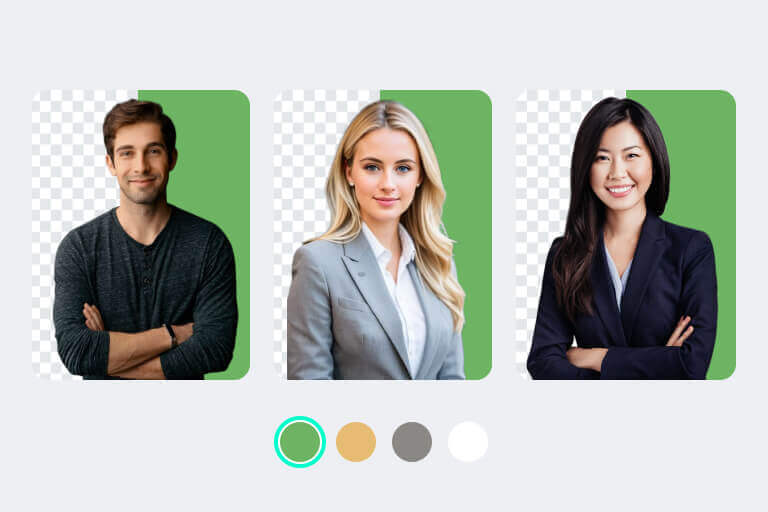
Team Photos and Brand Assets
Separate people from messy office or event backgrounds, then reuse the cutouts in banners, presentations, and profile images.
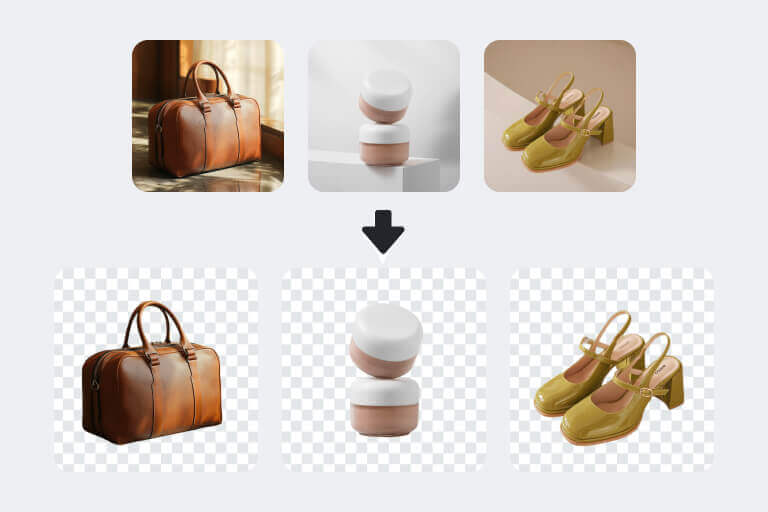
Social Media and Creative Edits
Turn a person, product, pet, or object into a reusable sticker-style cutout for posts, thumbnails, and quick designs.
Why Use insMind for Image Cutouts?

Clean Subject Separation
AI removes the background while keeping the subject easy to reuse. Always preview fine details such as hair, fur, transparent objects, or product holes before downloading.

Fast Editor Workflow
After the cutout, you can keep a transparent background, add a new color, generate an AI background, resize the image, or continue editing without switching tools.

Useful Export and Format Options
Start from common image formats and download a cutout that fits product listings, team pages, presentations, or design assets.
More Tools for Backgrounds and Clean Edits
FAQs About Cutting Out Images
What is the easiest way to cut out an image online?


Can I cut out multiple images at once?
Can I download a transparent PNG after cutting out an image?
What should I do after cutting out the background?
Keep Editing After the Cutout
Use related tools when you need a new background, cleaner edges, better resolution, or marketplace-ready product photos.
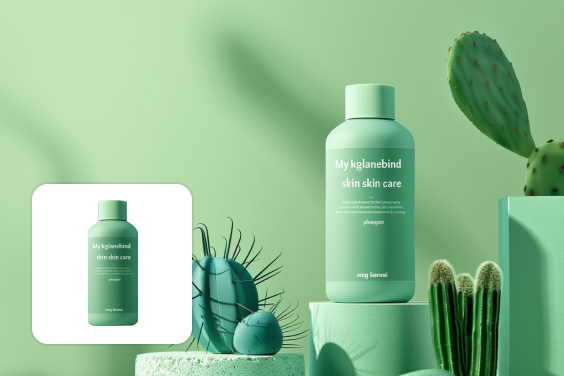
AI Background Generator
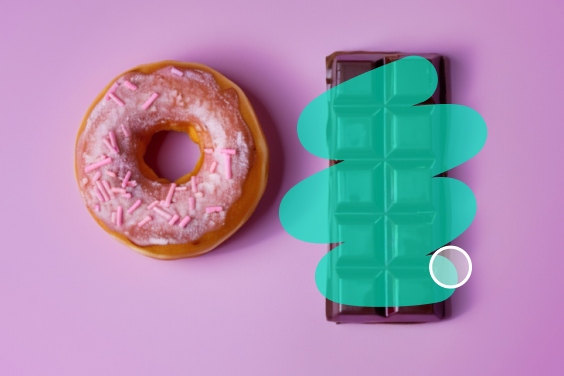
Magic Eraser
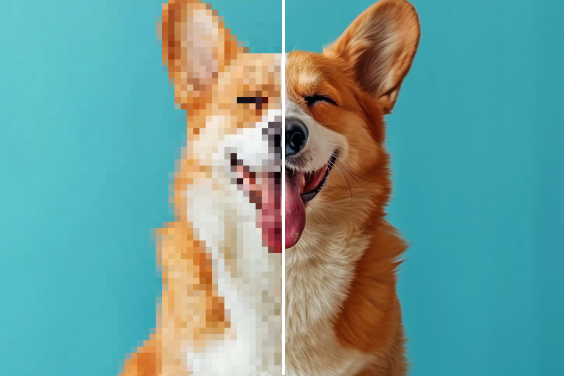
AI Image Enhancer
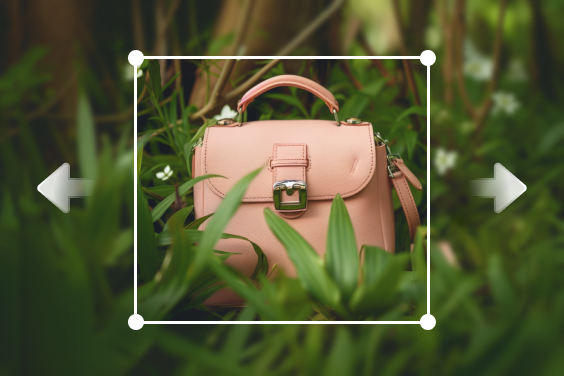
AI Image Expander
AI Shadow
“The tool is straightforward: upload, review the cutout, fix the edge if needed, and download. That is exactly what I wanted for quick social images.”
@Eshal Montes