Outro Video Maker
Make a clean ending for YouTube videos, Shorts, vlogs, and product clips. Turn your final shot into a goodbye, subscribe reminder, or follow-ready outro in seconds.

Turn a Closing Image into a Video Outro
Upload a photo or frame that already feels like the end of your content, such as a creator saying goodbye, a finished dish, a product close-up, or a travel view. Describe the camera move and final gesture, and insMind animates it into a smooth outro for vlogs, tutorials, reviews, and product videos.

Make the Outro Lead Viewers to Follow
After the ending moment, add a natural follow cue instead of a hard cut. Describe a wave, smile, hand gesture, product placement, or final look to camera, and insMind creates a short outro that helps YouTube videos and YouTube Shorts close with a clear next step.
How to Make a Video Outro with insMind
Step 1: Upload Your Ending Image
Start with the image or final frame you want to turn into an outro. Use a creator wave, finished recipe, product close-up, travel sign-off, group goodbye, or any scene that should feel like the last moment of your video.
Step 2: Describe the Outro Action
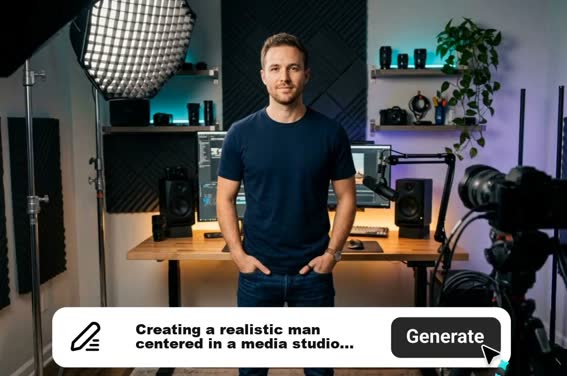
Tell insMind what should happen in the final seconds. Describe the goodbye gesture, camera pull-back, product wrap-up, follow reminder, lighting, mood, and aspect ratio so the ending feels natural for YouTube, Shorts, Reels, TikTok, or your website.
Step 3: Generate the Outro Video
Start generation and let the AI turn your image and prompt into a polished ending clip. The outro video maker adds motion, pacing, and a clear final beat while keeping the scene realistic and ready for review.
Step 4: Download and Add It to Your Video
Preview the finished outro, check that the last few seconds clearly close the video, then download the clip. Add it to YouTube videos, product reviews, tutorials, vlogs, short-form posts, or social ads as a clean final scene.
Why Choose insMind Outro Video Maker

Real Ending Moments
Use a real final shot, such as a wave goodbye, finished recipe, product close-up, travel farewell, or group sign-off, and turn it into a moving outro instead of a static end screen.

Creator-Friendly Prompts
Describe exactly what should happen in the last seconds: a creator smiles at the camera, a dish is presented, a product is placed beside its case, or friends wave as the camera pulls back.

Useful for Multiple Platforms
Create a 16:9 outro for YouTube and website videos, or switch to 9:16 for Shorts, Reels, and TikTok when the same ending needs a vertical version.

Easy to Refine
If the first result is not right, adjust the prompt with concrete changes like a slower pull-back, warmer kitchen light, cleaner hand wave, clearer product placement, or a stronger final frame.

Fast AI Workflow
Go from one ending idea or uploaded reference image to an outro clip without opening a timeline editor, cutting footage by hand, or building an end card from scratch.

Brand and Follow Ready
Guide the final moment toward a real viewer action, such as subscribe, follow, watch next, remember the product, or end the video with a clear brand wrap-up.
FAQs About insMind Outro Video Maker
What is an outro video maker?


How do I make a video outro with insMind?
Can I make outros for YouTube, Shorts, Reels, or TikTok?
Do I need editing skills or a paid plan to create an outro?
More Outro and Creator Video Tools from insMind

AI Video Generator

AI YouTube Shorts Generator
Youtube Video Editor