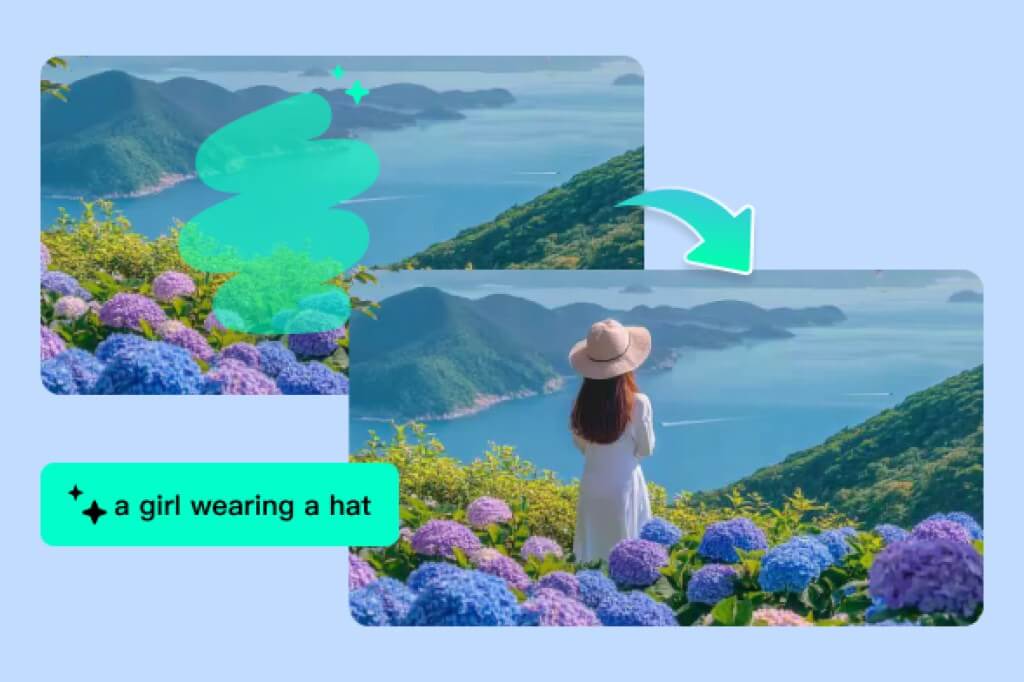
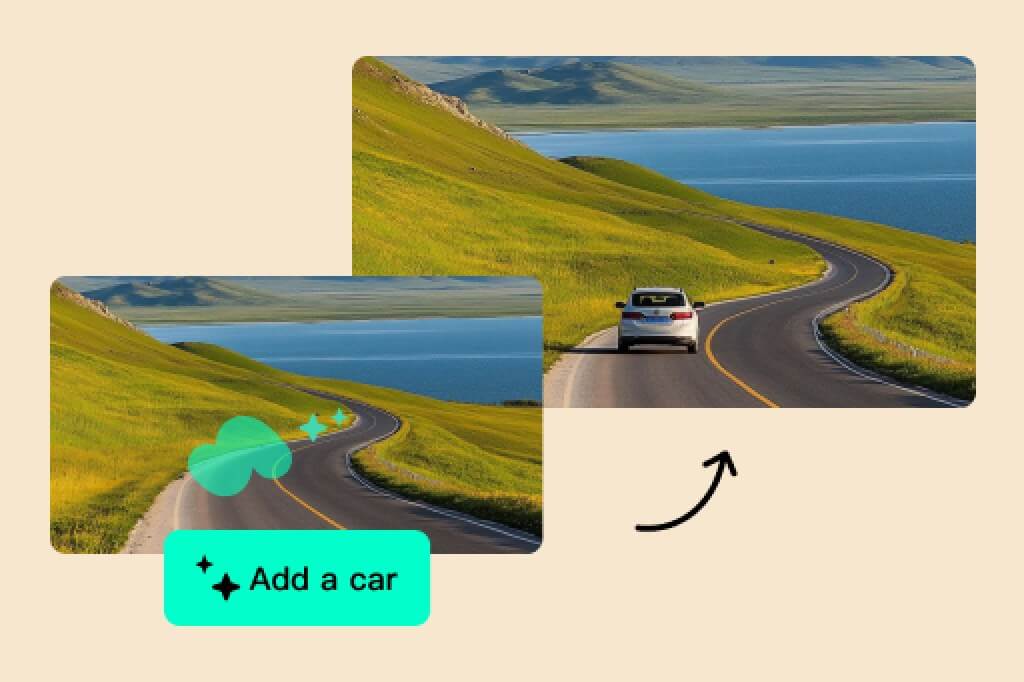
Upload a photo, brush over the area you want to change, and type what should appear there. insMind reads the surrounding color, lighting, and texture so the new object or filled area belongs in the original scene. For precise edits, use prompts like “add a small ceramic vase on the table” or “fill the empty corner with soft green plants.”

AI Generative Fill Online for Free
Or drop image here, paste image or URL
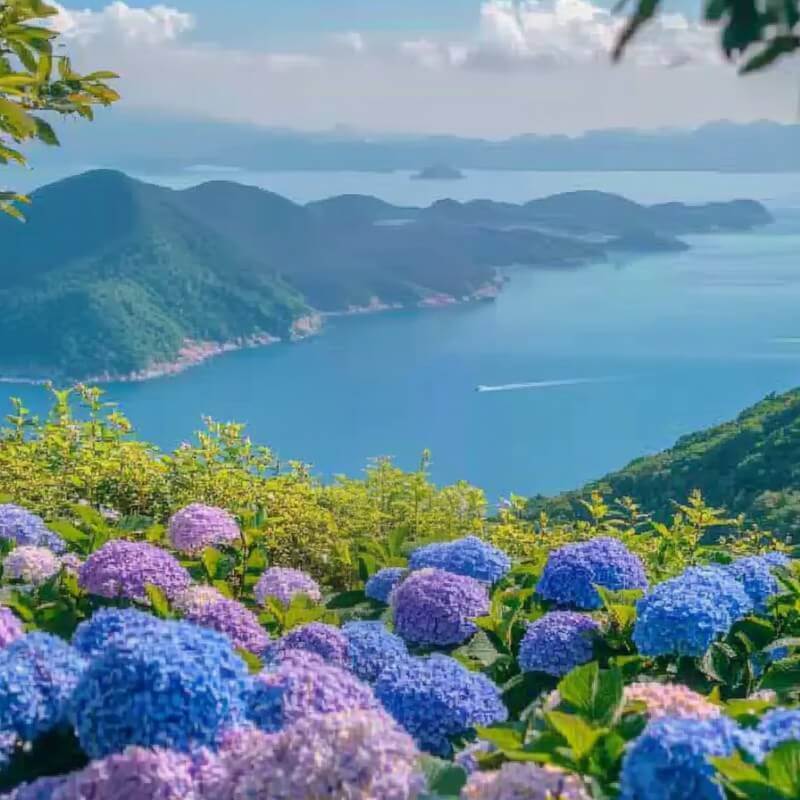
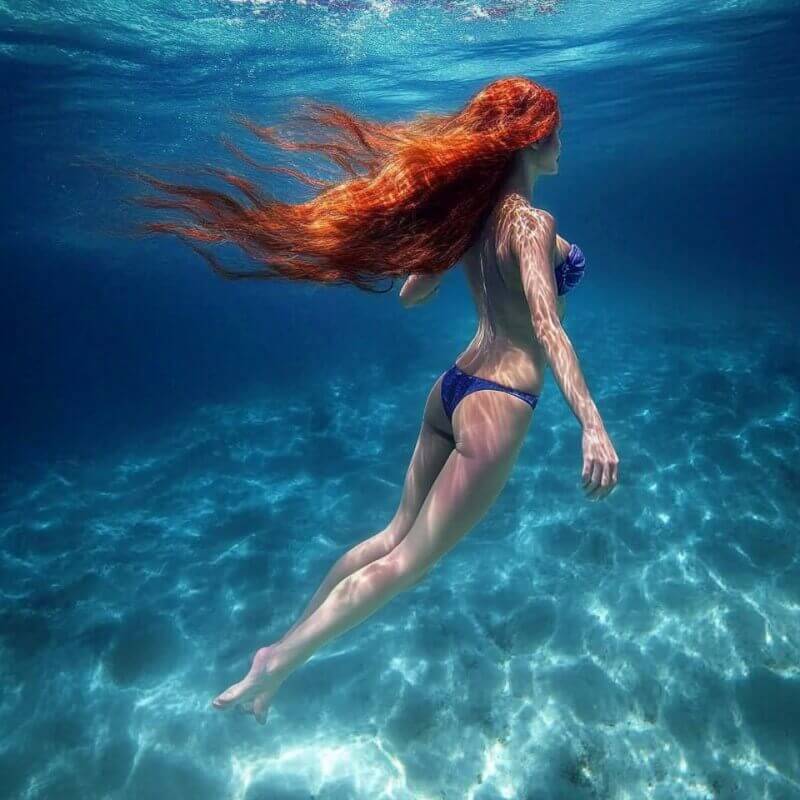
Try with one of these

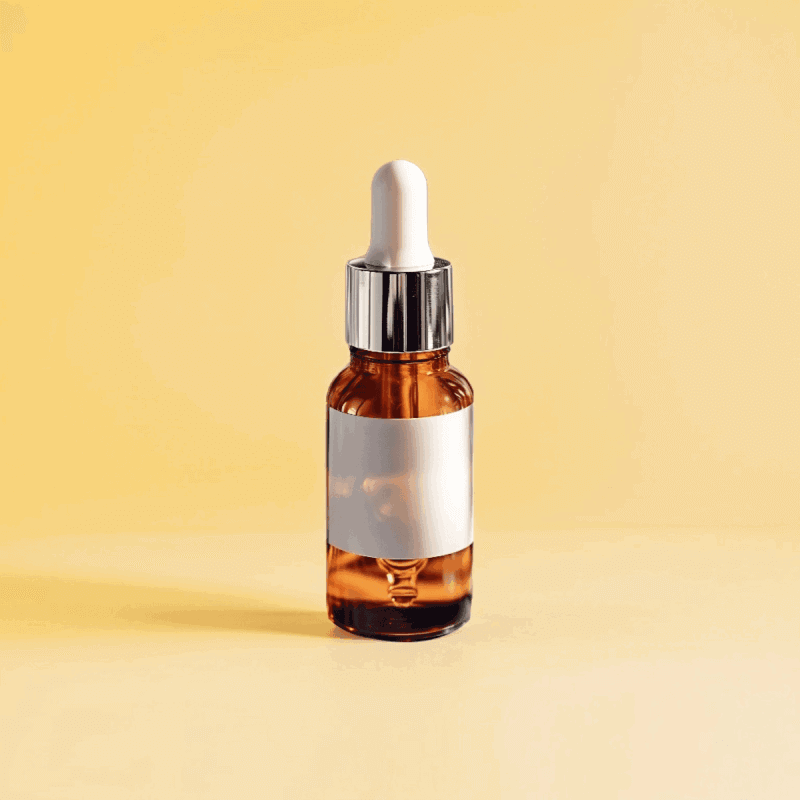

Replace Objects in Images for Product Shots
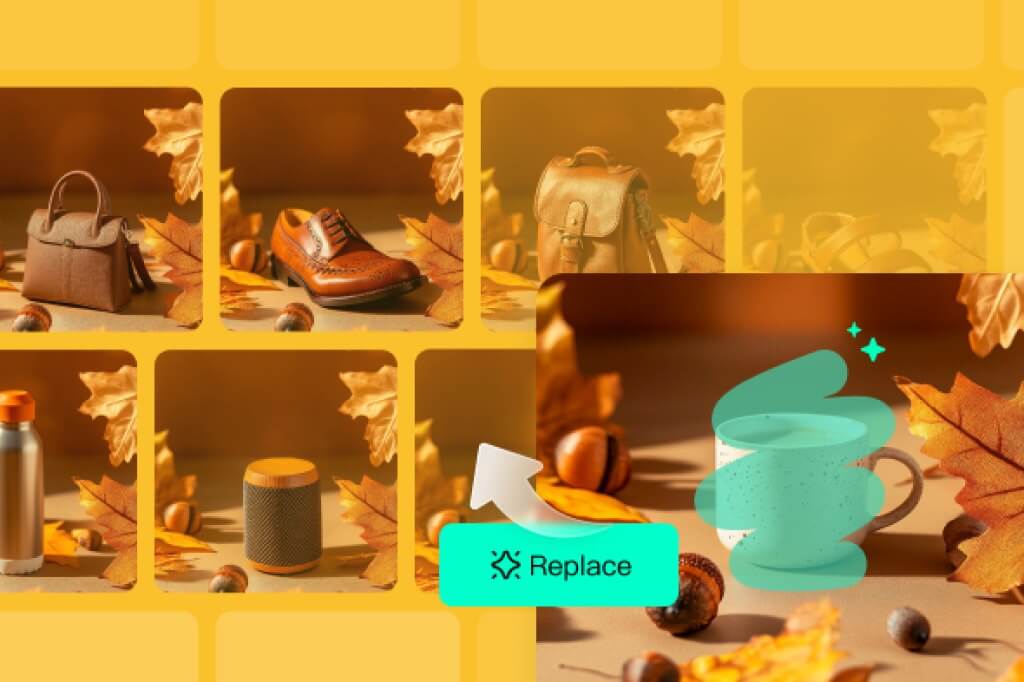
Generative fill helps when a product image has the wrong prop, an empty display area, or a background detail that no longer fits the campaign. Select the object or empty space, write the replacement prompt, and preview the result before applying it. For a more direct remove-and-replace workflow, use the AI Object Replacer after this edit.
Use AI Background Generative Fill
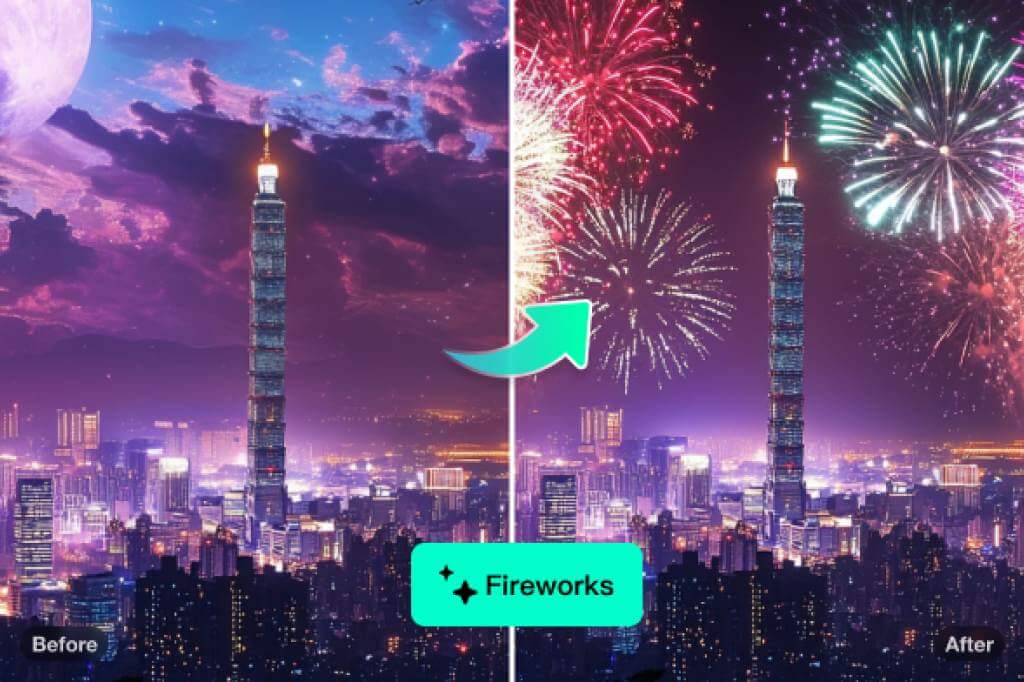
Need a cleaner shelf, a seasonal scene, or a more branded backdrop? Mark the background area you want to rebuild and describe the setting, color, or surface you need. If your main task is extending the canvas beyond the original frame, the AI Image Expander is a better next step.
Repair Empty Areas and Creative Gaps Fast
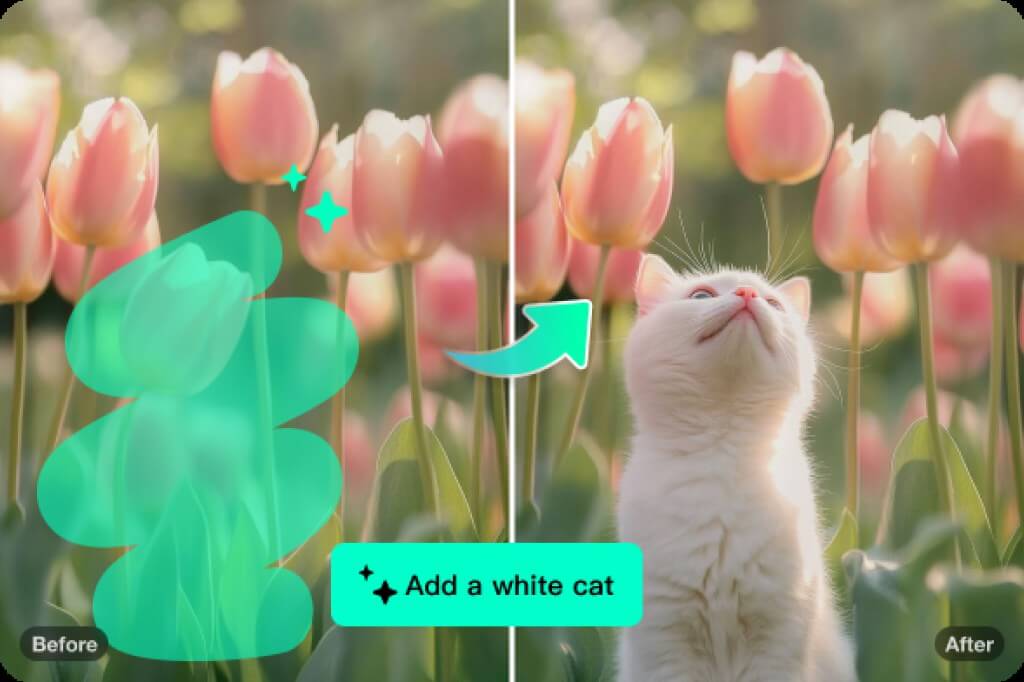
Use AI generative fill when a crop leaves an awkward gap, a scene needs one more detail, or a photo needs a small repair before publishing. Keep the selected area tight, generate a few variations, and apply the one that blends best. If you only want to erase something without adding a new prompt-based detail, try Magic Eraser instead.
Related AI Photo Editing Tools
AI Object ReplacerMagic EraserAI Image ExpanderBackground RemoverAI Image GeneratorCleanup PictureRemove Text from ImageRemove People from PhotoAI Image EnhancerUncrop PhotoUnblur ImagesAI Image UpscalerAI ShadowsRemove Shadow from PhotoRemove Watermark from PhotoRemove Glare from PhotoMidjourney Image Upscaler
How to Use AI Generative Fill Online
A tight selection and a specific prompt usually produce the most believable fill.

1
1 Upload Your Photo
Click "Upload a photo" and choose a clear JPG, PNG, or WebP image. For product and background edits, start with the largest version you have so the filled area has enough detail to match.
2
2 Brush Over the Area to Fill
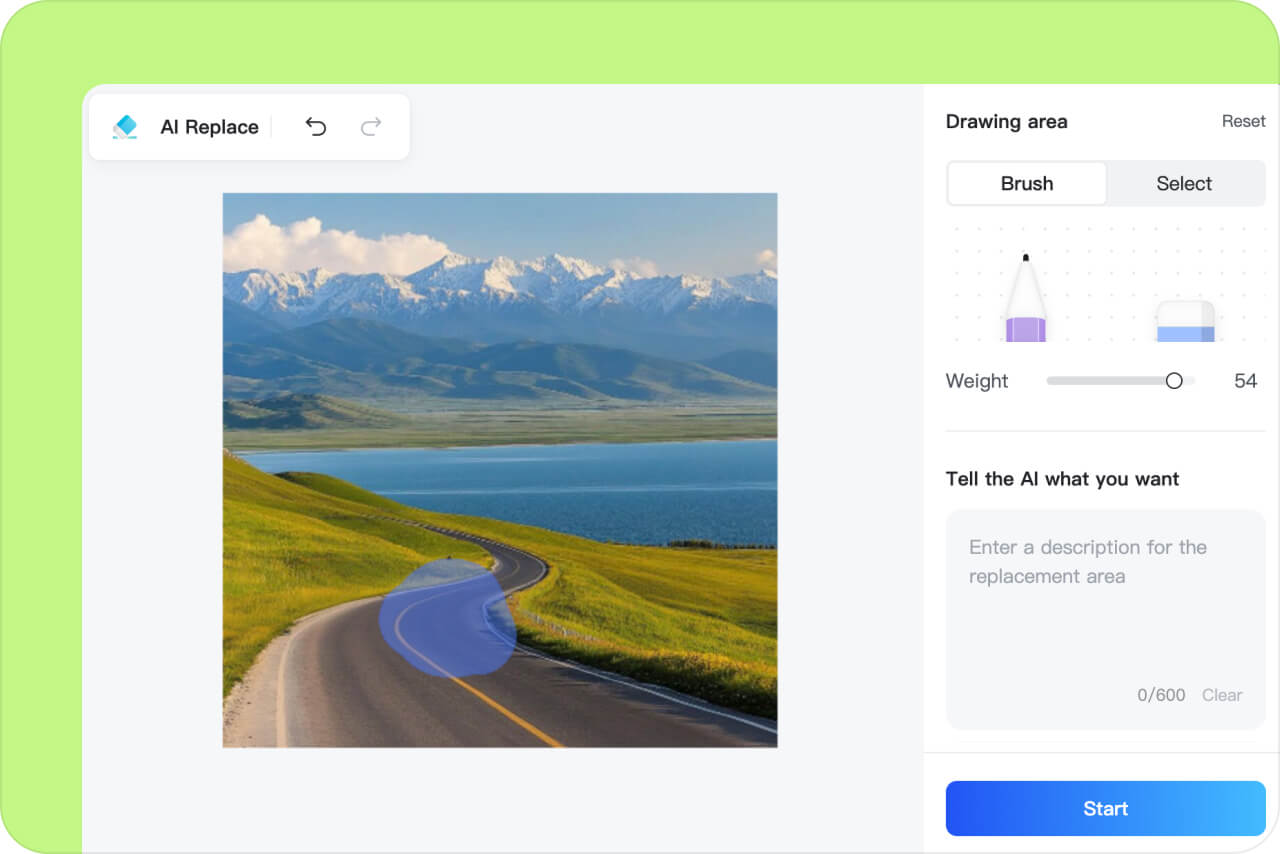
Use the brush to mark only the object, empty space, or background section you want AI to change. Keep the selection close to the real edge; a smaller selection usually blends better than covering too much of the image.
3
3 Write a Clear Prompt
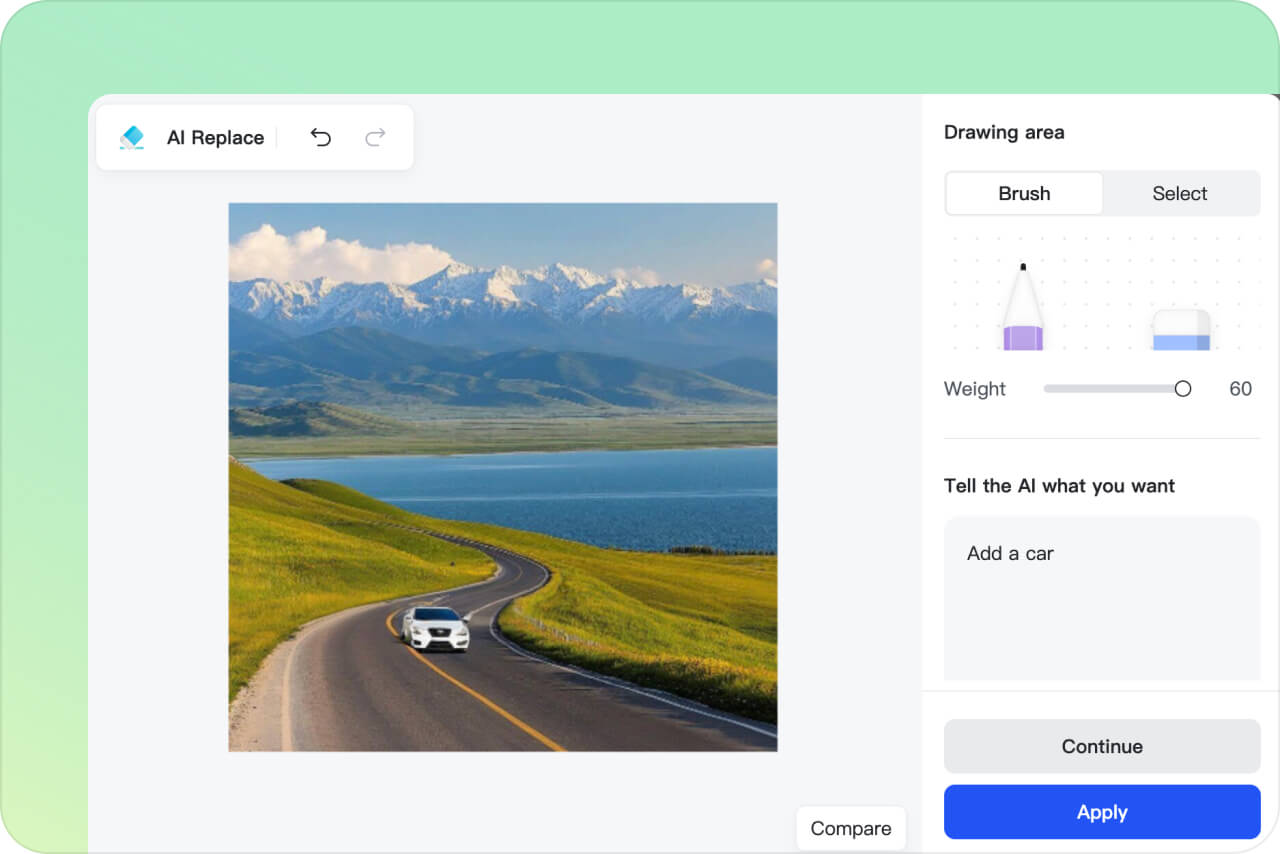
Describe the new object, background, color, material, or mood you want. Short prompts work for simple fills; detailed prompts help when the area needs to match a product scene, room style, or social post concept.
4
4 Generate, Review, and Download
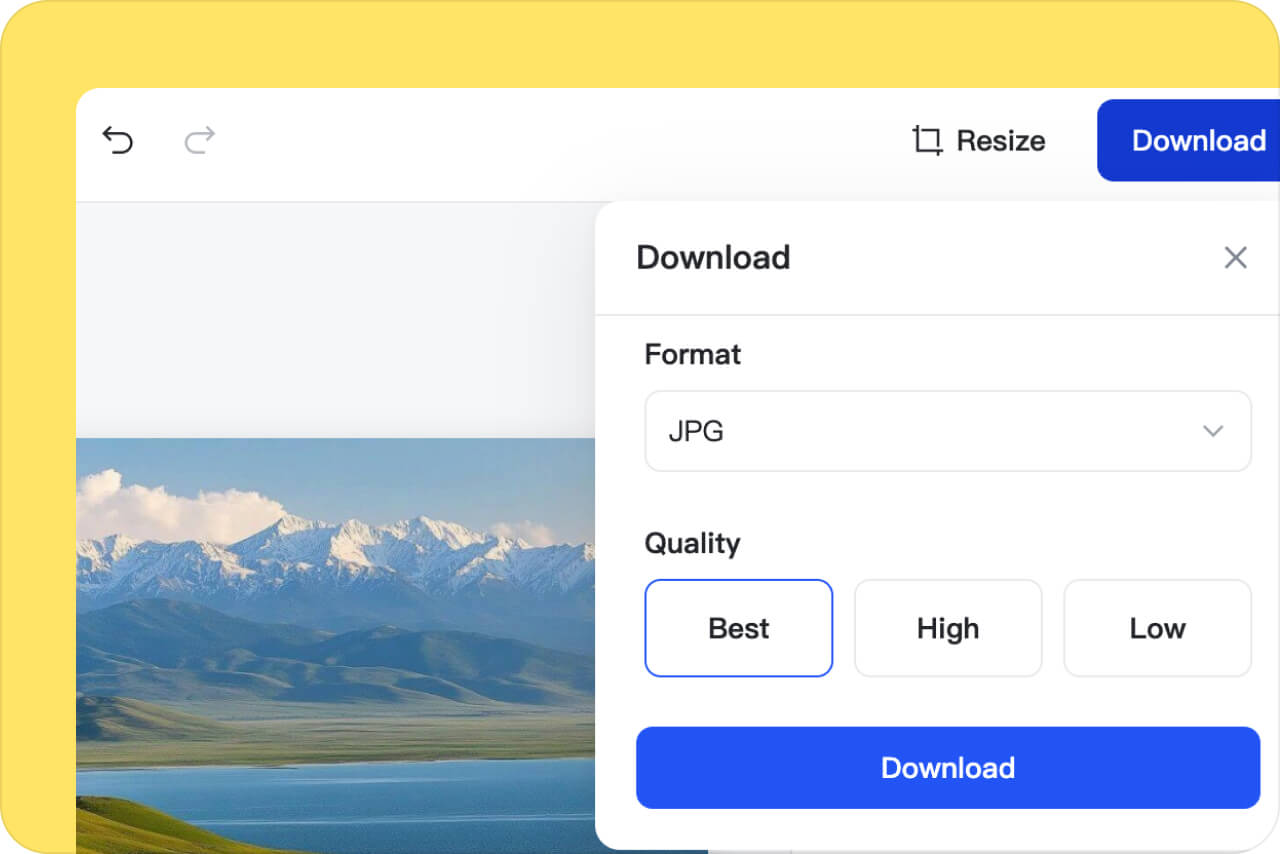
Click "Start" to generate the fill. Review the edges, lighting, and scale before applying it. If the first result looks off, adjust the selection or prompt and try again, then download the finished image from the editor.

Use AI Generative Fill for Product, Creative, and Social Images
Select part of a photo, describe the change, and get a usable filled result without opening desktop design software.
E-Commerce Product Photography
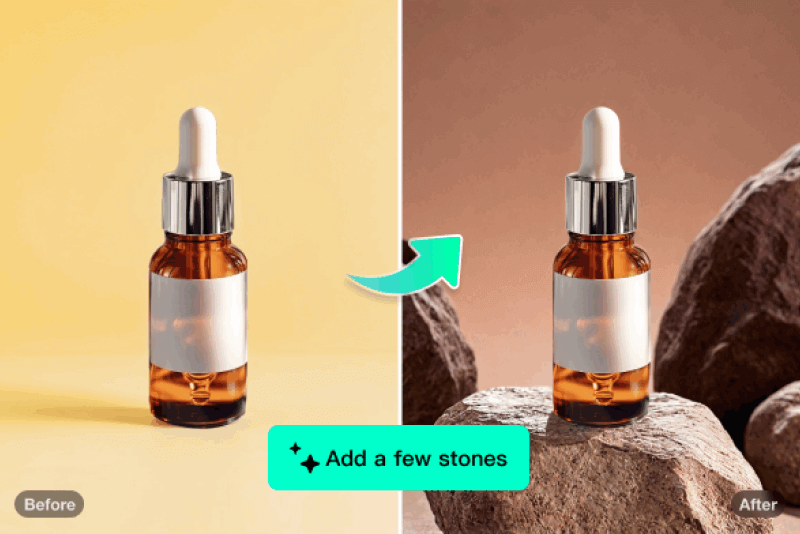
Clean up a product scene without reshooting it. Fill an empty tabletop, add a small prop, replace a distracting background detail, or create a seasonal product visual while keeping the original product in place.
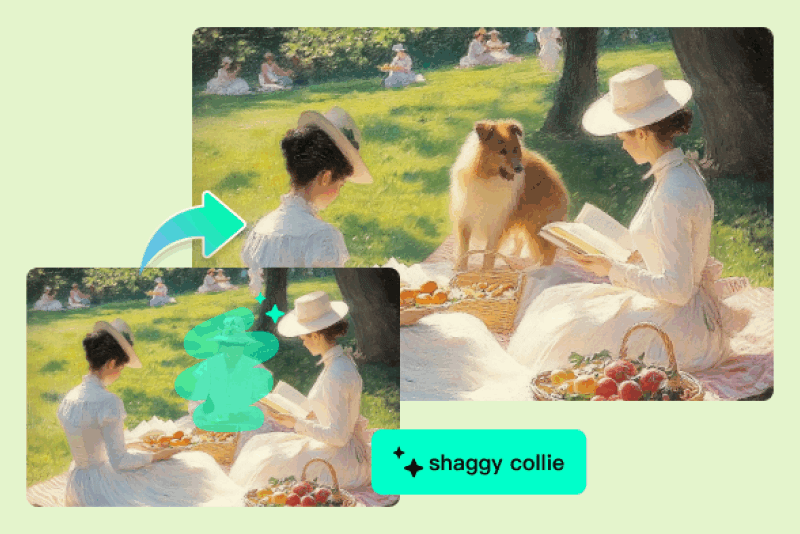
Creative Art and Design
Turn a draft image into a stronger concept by adding objects, textures, or atmosphere in selected areas. This works well for posters, thumbnails, mood boards, and early creative tests where you need several visual directions quickly.
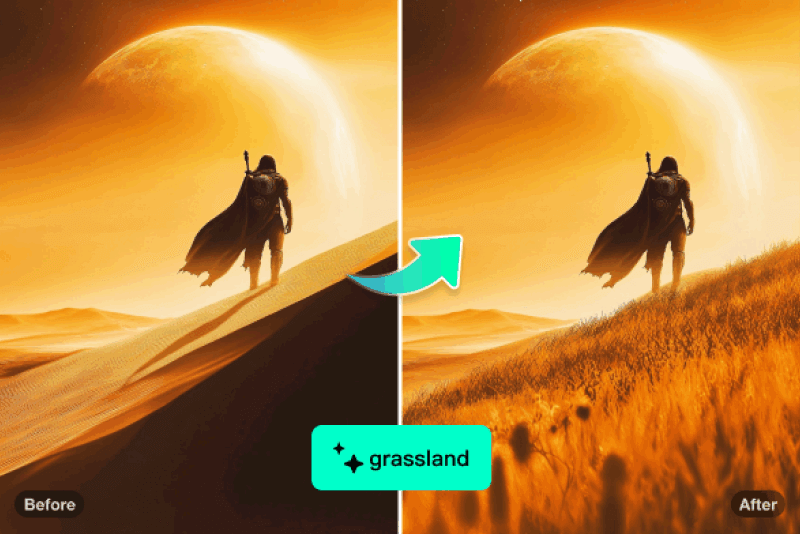
Concept Scenes and Game Assets
Add props, lights, scenery details, or background elements to concept screenshots and game-inspired visuals. Keep prompts specific so the generated fill matches the angle, depth, and style of the original image.
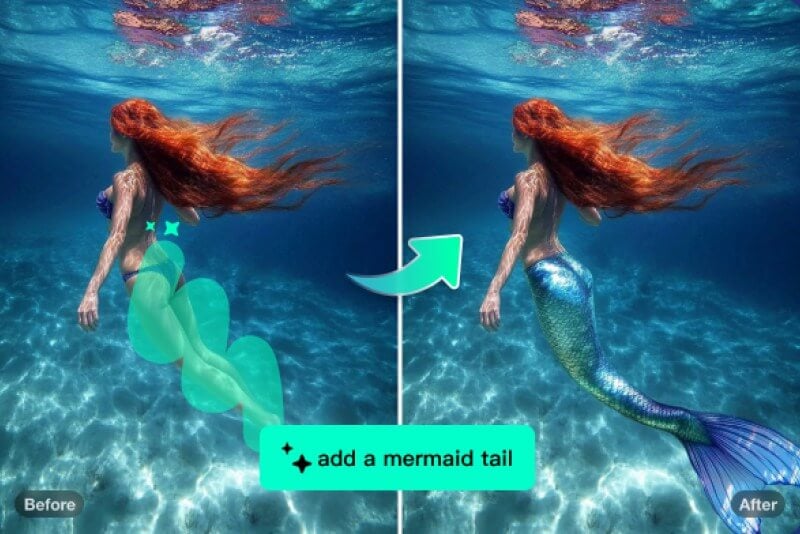
Social Media Content
Fix a crop, rebuild an empty corner, or add a small visual detail before posting. Generative fill is useful for Instagram, TikTok covers, ad creatives, and profile content when the original photo is close but not quite ready.
Why Use insMind for AI Generative Fill?

Simple Brush-and-Prompt Editing
You do not need layers or desktop software to make a focused change. Upload the image, brush the target area, write the prompt, and preview the AI fill in the browser.

More Control Than Full-Image Generation
A selected-area workflow lets you keep the parts of the photo that already work and regenerate only the object, background detail, or empty space that needs attention.

Free to Start and Online
insMind runs online, so you can test generative fill from your browser without installing Photoshop-style software. It is a practical option for quick product visuals, social posts, and everyday photo edits.
FAQs about AI Generative Fill
What is AI generative fill?


AI generative fill is a prompt-based photo editing feature. You select part of an image, describe what should appear there, and AI creates new pixels that blend with the surrounding area.
How do I get better generative fill results?
Use a clear image, select only the area you want to change, and write a specific prompt. Mention the object, color, material, lighting, or background style you want. If the result looks unnatural, make the selection smaller or rewrite the prompt.
Can I use AI generative fill to replace a background?
Yes. Select the background area and describe the new scene, surface, or color you want. For large canvas extensions outside the original photo, use AI Image Expander instead.
Is insMind a Photoshop Generative Fill alternative?
insMind is a lightweight online alternative for quick prompt-based fills, object replacement, and background changes. It is best when you want a browser workflow without installing desktop design software.
Is insMind AI Generative Fill free? Can I use it for work?
You can start using insMind AI Generative Fill online for free. For business or client projects, review your account plan, download settings, and usage rights before publishing the final image commercially.
Keep Editing with Related AI Photo Tools
Remove distractions, replace objects directly, expand the canvas, or improve image quality after your generative fill edit.
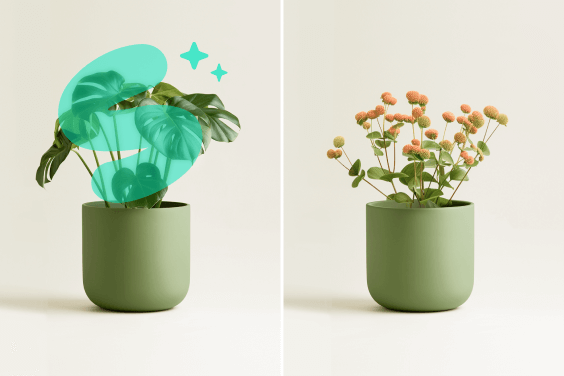
AI Object Replacer
Remove an object and replace it with a new AI-generated item in one focused workflow.
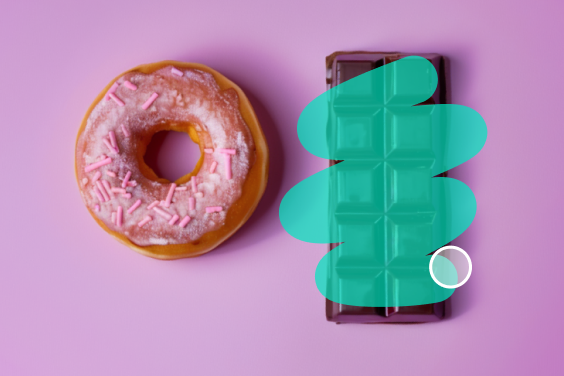
Magic Eraser
Remove objects, people, text, or small distractions when you do not need to generate a replacement.
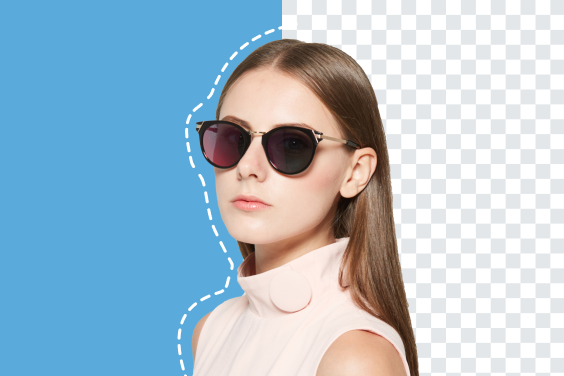
Background Remover
Remove the full background first when you need a clean cutout before creating a new scene.
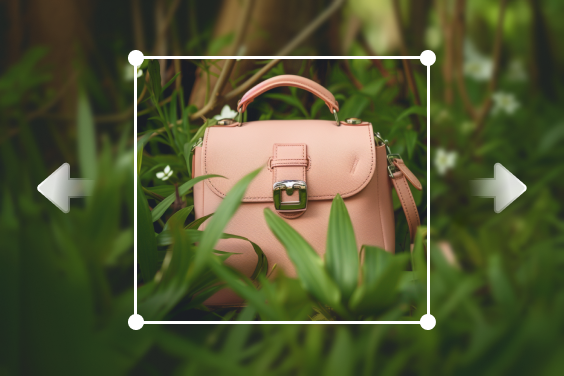
AI Image Expander
Extend an image beyond its original frame with AI outpainting.
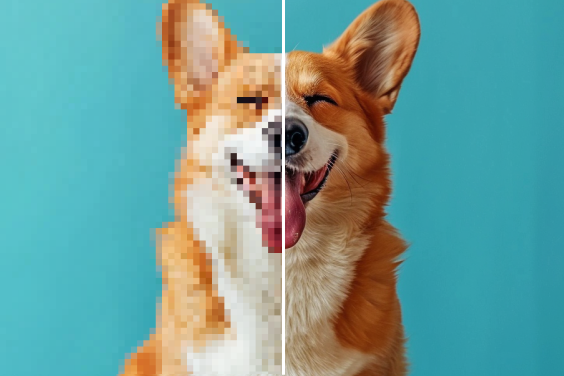
AI Image Enhancer
Sharpen or upscale the finished edit when the generated area needs a cleaner final export.
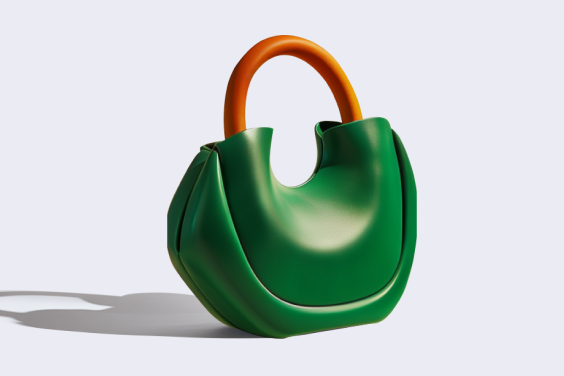
AI Shadows
Add or adjust realistic product shadows after replacing a background or object.
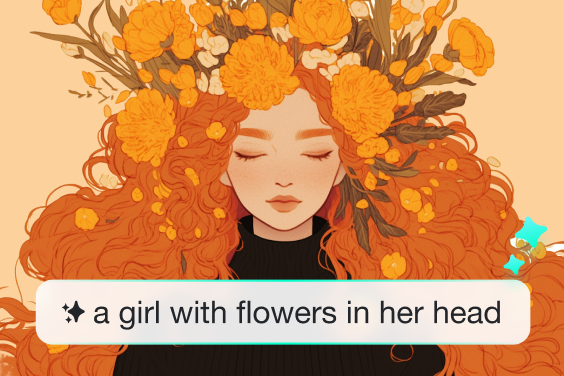
AI Image Generator
Create a new image from text when you want to start from a prompt instead of editing an existing photo.
"This online AI generative fill is a solid 10! It produces excellent AI results. It effortlessly cropped out an image portion and replaced it with AI content."
@Dominic Barlow