
YouTube Equipment for Beginners: Gear, AI Video & Your First Upload (2026)
Make YouTube Videos with AI Free

Starting a YouTube channel in 2026 is exciting, but the gear aisle can feel overwhelming. Do you need a cinema camera on day one? Is your phone “good enough”? And where does AI fit in if you are not ready to film elaborate B-roll every week? This guide breaks down practical beginner equipment—microphone, lighting, and camera—and shows you how to pair that hardware with an AI video workflow so you can publish consistently, not just occasionally.
You will learn what to buy first (and what to skip), how to keep audio clean on a budget, and how to use the insMind AI Video Generator to turn text prompts or still images into short clips you can drop into intros, outros, and YouTube Shorts. By the end, you will have a realistic starter kit plus a repeatable five-step pipeline: choose text-to-video or image-to-video, pick a model, write a strong prompt or upload a reference image, generate a YouTube-friendly clip, then download and upload to YouTube with the right aspect ratio and metadata.
If you are ready to stop collecting gear and start publishing, let’s go.
Table of Contents
YouTube Starter Gear: What to Buy First
Most successful beginner channels are built on three pillars: intelligible speech, a stable image, and enough light that viewers are not guessing what you are showing. You can absolutely start with a modern smartphone—many creators do—as long as you invest in audio first. Viewers forgive a slightly soft image far sooner than they forgive noisy, hollow sound.
A simple USB or XLR dynamic microphone (or a quality lavalier if you move on camera) will instantly lift your production value. For lighting, a key light with adjustable temperature beats a random desk lamp because it keeps skin tones consistent across episodes. A compact tripod or phone mount keeps your frame level, which matters more than resolution when people watch on phones.
Use the table below as a quick sanity check. It is not a shopping list of premium gear; it is a priority map so you spend money where viewers notice it first.
| Priority | Gear | Why it matters on YouTube | Typical beginner move |
|---|---|---|---|
| 1 | Microphone + interface | Clear voiceovers and hooks keep watch time up. | USB mic or lav; record a clap sync if you use multiple sources. |
| 2 | Key light + fill | Even lighting reads as “professional” on any camera. | Softbox or LED panel; add a reflector for budget fill. |
| 3 | Tripod / mount | Stable framing reduces distraction and editing time. | Ball head tripod; phone cage if mobile-first. |
| 4 | Camera or phone | 1080p is still fine if motion is controlled. | Use what you own; upgrade after 20+ uploads. |
Once your basics are covered, the fastest way to add variety without buying new lenses is to generate supplemental footage with AI: product pans, abstract backgrounds, and Shorts-friendly vertical clips that match your niche.
Why AI Video Fits a Beginner YouTube Workflow
Consistency beats perfection on YouTube. If you only publish when you have perfect sunlight, a full script, and two hours of B-roll, you will fall behind channels that ship weekly with a simpler stack. AI video generation is not a replacement for your personality; it is a multiplier for scenes that would otherwise require stock subscriptions, extra filming days, or motion graphics skills you are still learning.
With insMind, you can move between text-to-video and image-to-video in one place. That matters for YouTube because different videos need different sources: a talking-head explainer might only need a branded intro clip generated from text, while a tutorial about thumbnails might start from a PNG mockup you already designed—ideal for image-to-video. You can also iterate quickly: adjust the prompt, regenerate, and cut the best take into Premiere, CapCut, or DaVinci Resolve.
For Shorts, short AI clips are especially useful. Vertical formats reward punchy motion in the first second; a well-prompted scene can hold attention while you deliver the payoff in captions or voiceover.
How to Create YouTube-Ready Clips with insMind (Step-by-Step)
Follow these five steps whenever you want a fresh clip for an intro, transition, or Short. The workflow mirrors how working creators batch content: open the tool, choose a mode, lock creative direction with a model and prompt, generate, then export in the right aspect ratio for YouTube or Shorts.
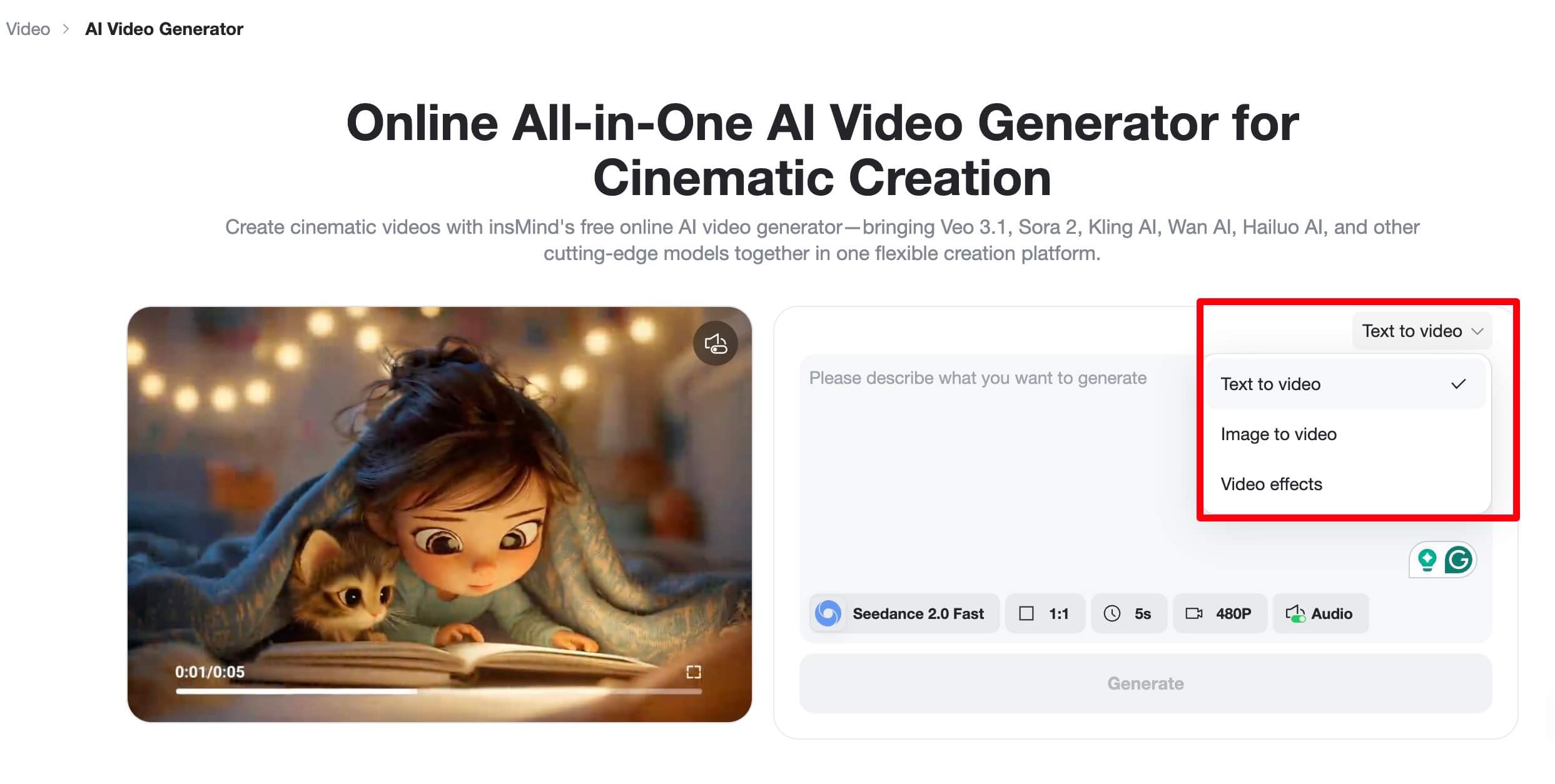
Step 1: Open the insMind AI Video Generator
Go to the AI Video Generator and sign in. You will see the main workspace where you can start from text, from an uploaded still image, or explore video effects depending on your campaign. For YouTube, bookmark this page—it is the hub for generating clips you will later place on your timeline.
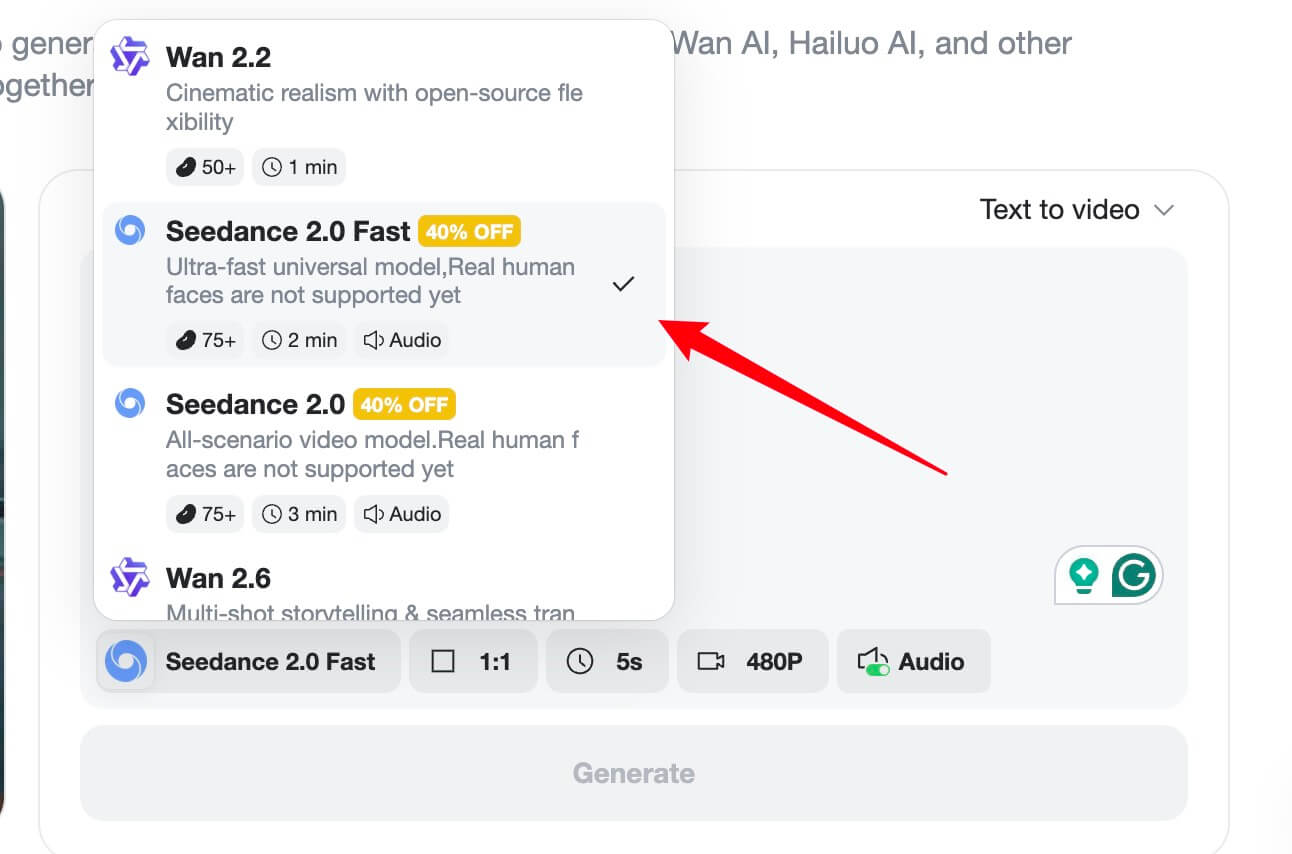
insMind exposes multiple models tuned for different motion styles and quality levels. You do not need to master every model on day one; pick one, learn its strengths, and standardize your prompts so results stay predictable as your channel grows.
Step 2: Choose Text-to-Video or Image-to-Video
Select the creation path that matches your asset. Text-to-video is perfect when you only have a concept: describe the scene, camera move, and lighting. Image-to-video is ideal when you already have a thumbnail sketch, logo lockup, or product still you want to animate—the visual identity stays anchored while motion is added.
For faceless channels, text-to-video can carry entire Shorts. For personal brands, image-to-video helps you animate branded overlays without learning complex motion design.
Step 3: Pick a Model and Refine Your Prompt
Choose a model that fits your clip length and motion needs. Then write a prompt that names the subject, environment, camera behavior, and pacing. For YouTube, explicitly mention aspect ratio intent (“16:9 widescreen” or “vertical 9:16 for Shorts”) when it affects composition, and describe the first second—that is where retention is won or lost.
If you are animating from an image, reference the important edges and colors so the model preserves branding. Iterate: generate, watch, tweak one variable at a time (lighting, camera, motion), and regenerate.
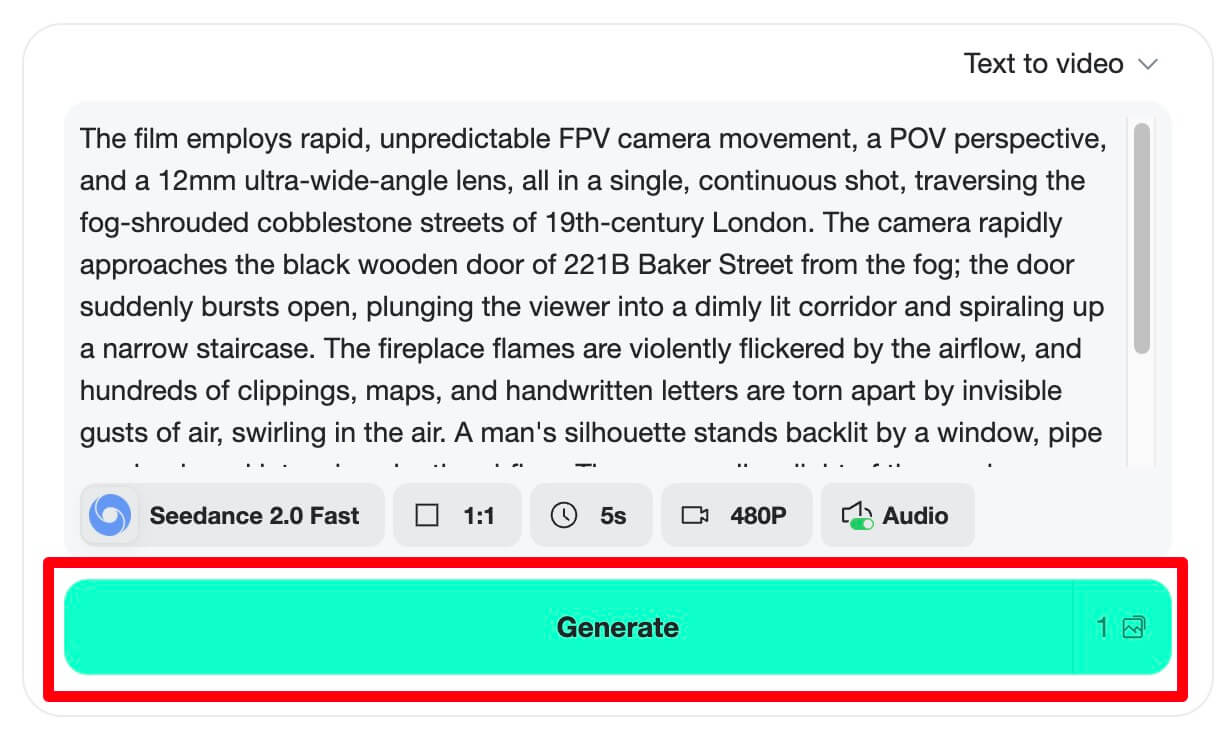
Step 4: Generate Your Clip
Click generate and let the model render. Preview the result before you move on. If something looks off, adjust seed-related settings if available, or simplify the prompt: fewer simultaneous actions often yield cleaner motion. For longer YouTube videos, plan multiple short generations you can stitch rather than expecting one clip to cover a full chapter.
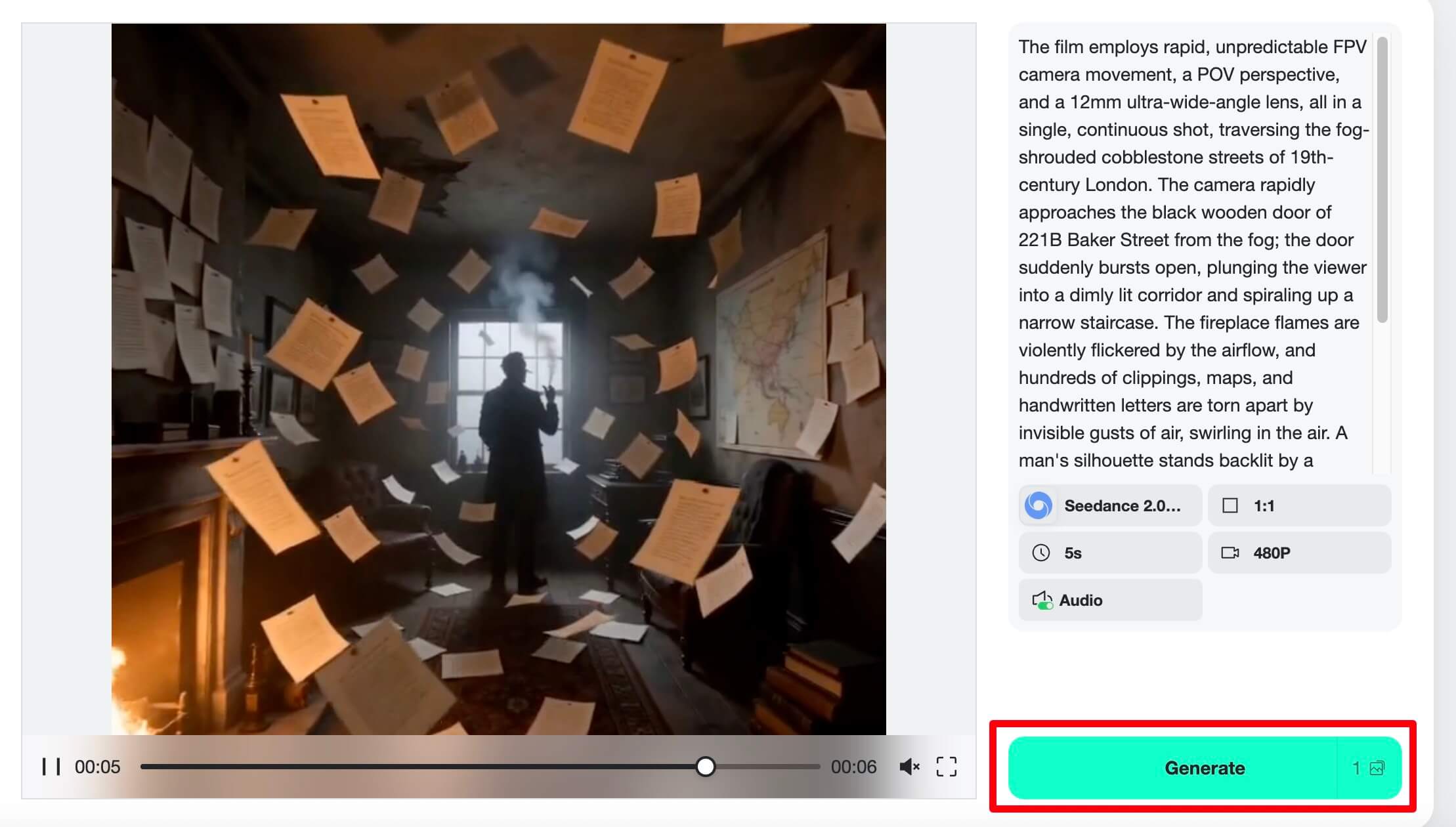
Step 5: Download and Upload to YouTube
Export the clip in a format your editor accepts (commonly MP4). For long-form, assemble with your talking-head footage, normalize loudness, add chapters, and upload to YouTube Studio. For Shorts, keep the strongest motion in the first frame, add on-screen text, and verify vertical crop in the Shorts preview.
When you are satisfied, upload from desktop or mobile, write a title that matches search intent, and place your primary keyword naturally in the first lines of the description along with a clear call-to-action.
Text-to-Video vs Image-to-Video for YouTube
Text-to-video shines when you need rapid ideation: testing hooks, generating background loops, or producing faceless explainers where the visuals support a voiceover script. The tradeoff is consistency; characters and objects may drift between generations, which matters less for abstract B-roll than for serialized storytelling.
Image-to-video shines when brand assets already exist: channel banners adapted to motion, product photos with subtle parallax, or meme templates you want to animate without redrawing. Because the frame is anchored, you get repeatable looks across a series of uploads.
Many creators mix both: image-to-video for branded segments, text-to-video for variety and fast experiments. insMind keeps both modes in one flow so you are not switching tools midweek when your content calendar changes.
Common Beginner Mistakes to Avoid
Even with good gear and a solid AI pipeline, a few habits quietly hurt channels. First, ignoring loudness: YouTube listeners bounce when audio jumps between clips. Normalize speech and generated clips to a consistent LUFS target in your editor. Second, overloading prompts: asking for ten simultaneous actions confuses the model; stage motion in separate clips instead. Third, skipping metadata: titles, descriptions, and chapters help discovery; AI can speed up visuals, but SEO still needs your keywords and clarity.
Fourth, waiting for perfect gear: upgrade after you have proof of concept from real uploads, not before. Finally, inconsistent aspect ratios: mixing landscape and vertical without a plan creates awkward padding; decide per asset whether it is long-form 16:9 or Shorts-first 9:16 before you generate.
Frequently Asked Questions
Do I need an expensive camera to start on YouTube?
No. Many channels grow with a smartphone plus good audio and lighting. Invest where viewers perceive quality first: clarity of speech, stable framing, and a well-lit subject. Upgrade cameras when your content strategy outgrows your current sensor, not because of gear forums.
Can I use AI-generated clips on monetized YouTube videos?
In most cases, yes, when your platform license allows commercial use. Always read the terms for the specific model and plan you use. insMind is built for creator workflows; pair generated footage with original commentary, editing, and value-add so your video reflects genuine effort and complies with platform policies.
What is the best format for Shorts vs long-form?
Shorts favor vertical 9:16 with an immediate hook in the first second. Long-form generally uses 16:9. Generate AI clips in the target aspect ratio when possible to avoid heavy cropping. If you reuse a landscape clip inside a Short, plan safe margins for key subjects.
How do I keep my channel sounding professional?
Treat audio as a system: mic placement, room tone reduction, gentle EQ, and loudness normalization. Record room tone for noise profiling when possible. For AI clips, match perceived loudness to your voiceover so viewers are not reaching for the volume control.
How often should beginners upload?
Pick a sustainable cadence—for many creators that is one long video per week plus a few Shorts—rather than burning out on daily uploads. AI can reduce time on B-roll, but scripting, filming, and packaging still need calendar space.
Publish Your First Video This Week
You now have a grounded gear priority list, a clear reason to add AI clips to your workflow, and a repeatable five-step process inside insMind to produce YouTube-ready footage. The gap between “thinking about YouTube” and running a channel is not more equipment—it is shipping episodes, reading analytics, and improving one element each week.
Open the generator, create one intro or Short tonight, and schedule your upload. Small, consistent improvements compound faster than waiting for the perfect studio.

Jordan Lee
I write practical creator guides at insMind, focusing on AI video workflows, YouTube growth, and gear that earns its place in your bag.


