

Virtual Try On Glasses Online Free

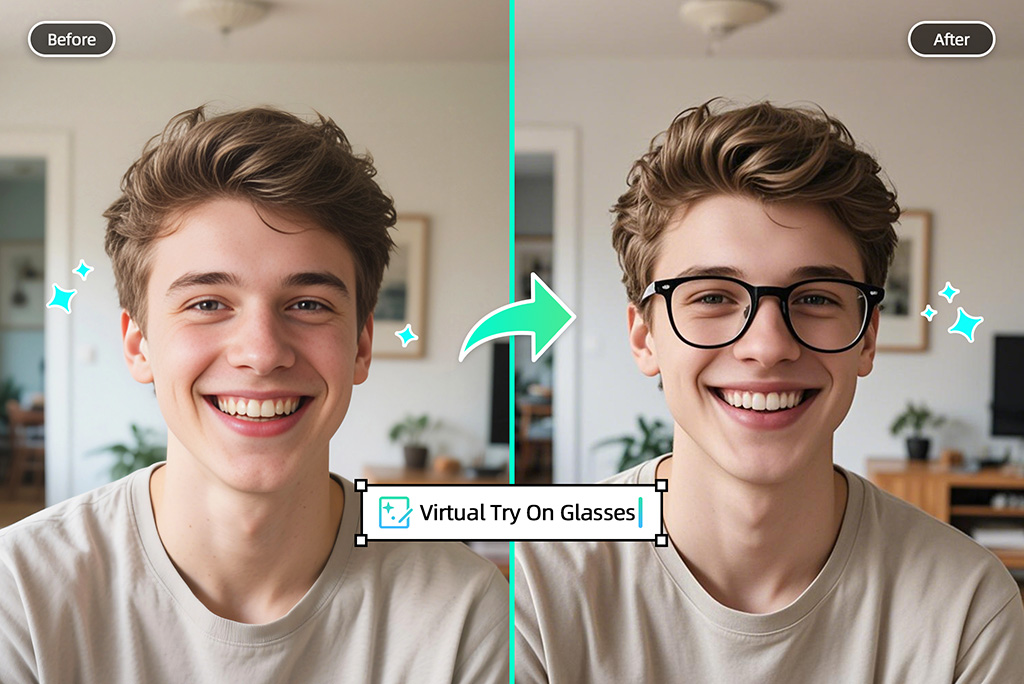
Upload a face photo, mark where the frames should sit, and use AI to add eyeglasses or sunglasses to your picture for a quick style preview.

Virtual Try On Glasses Online Free
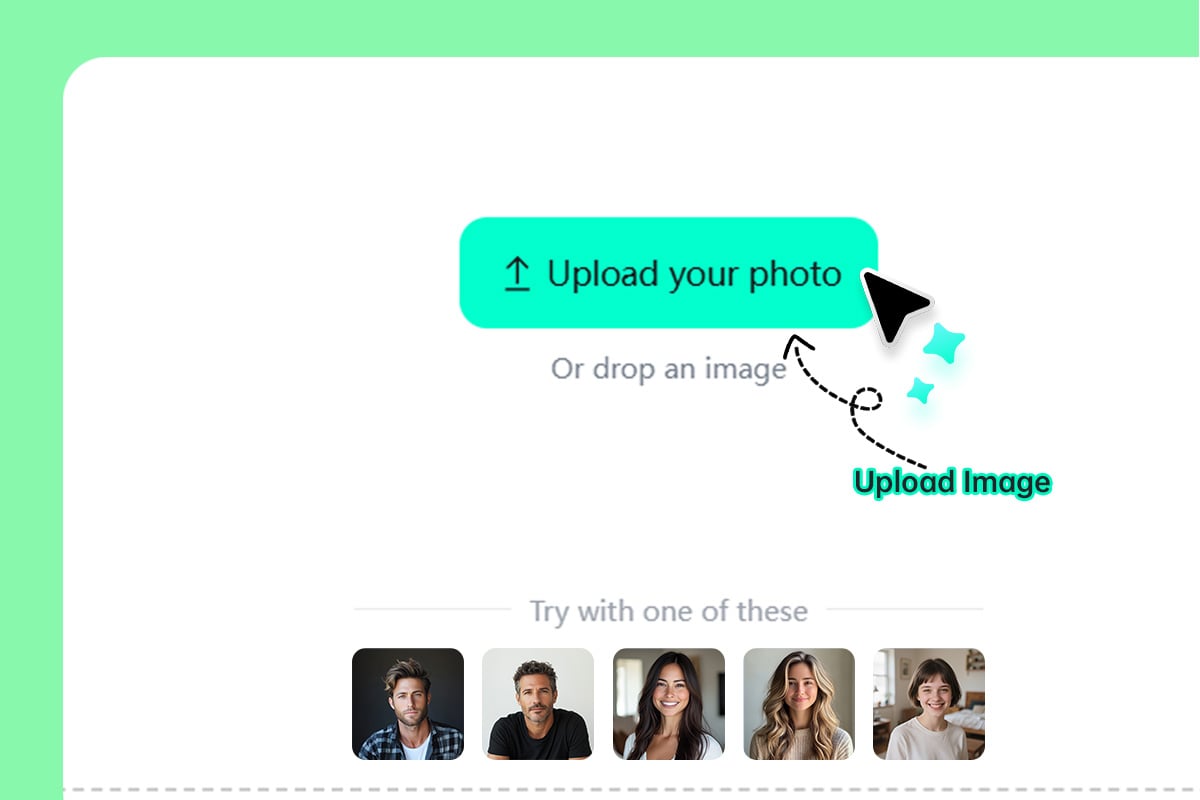
Or drop image here, paste image or URL
Try with one of these
Virtual Glasses Try-On 1
Virtual Glasses Try-On 2
Virtual Glasses Try-On 3
Virtual Glasses Try-On 4
Virtual Glasses Try-On 5
Virtual Try On Glasses Online Free
Try On Glasses Virtually With a Photo

Try On Glasses Virtually With a Photo

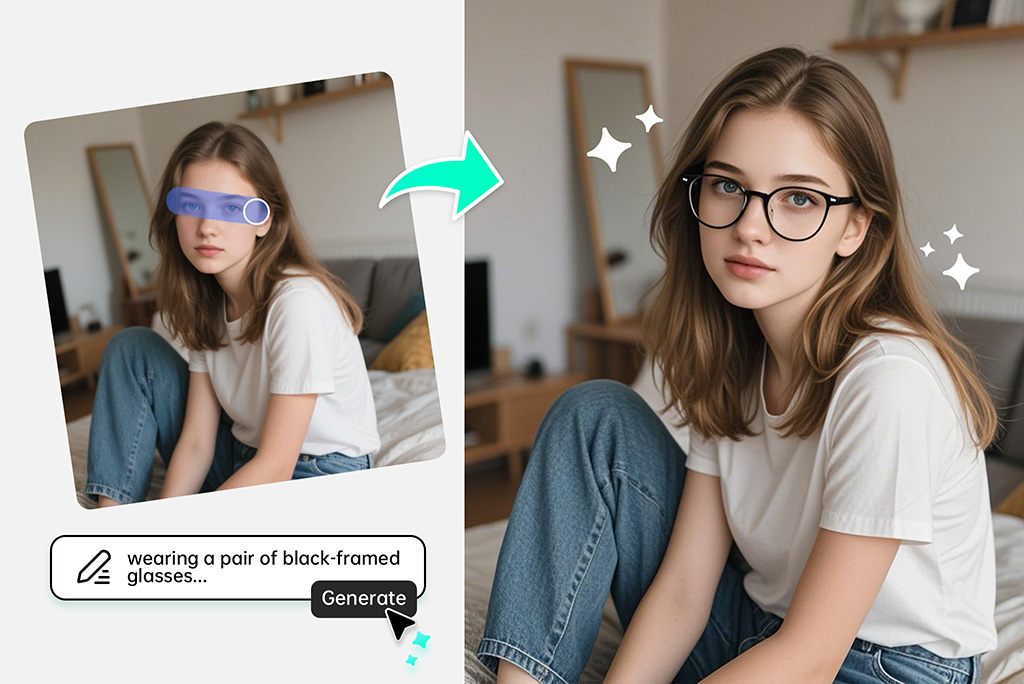
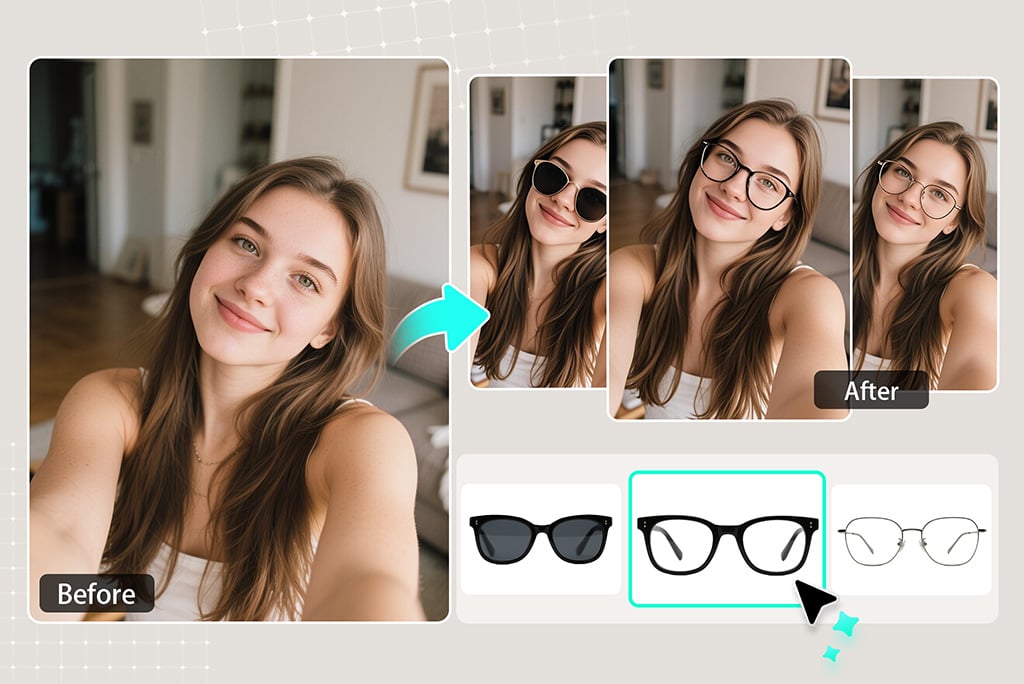
A front-facing photo is enough to preview a new frame idea. Upload your selfie, brush over the eye area, and describe the glasses you want: round metal frames, black square eyeglasses, clear acetate, aviators, or sunglasses.

This photo eyeglass AI online workflow is useful when you want to compare styles before shopping, refresh a profile photo, or test a look without opening a full design editor. It gives you a visual preview, not an optical prescription or exact frame measurement.
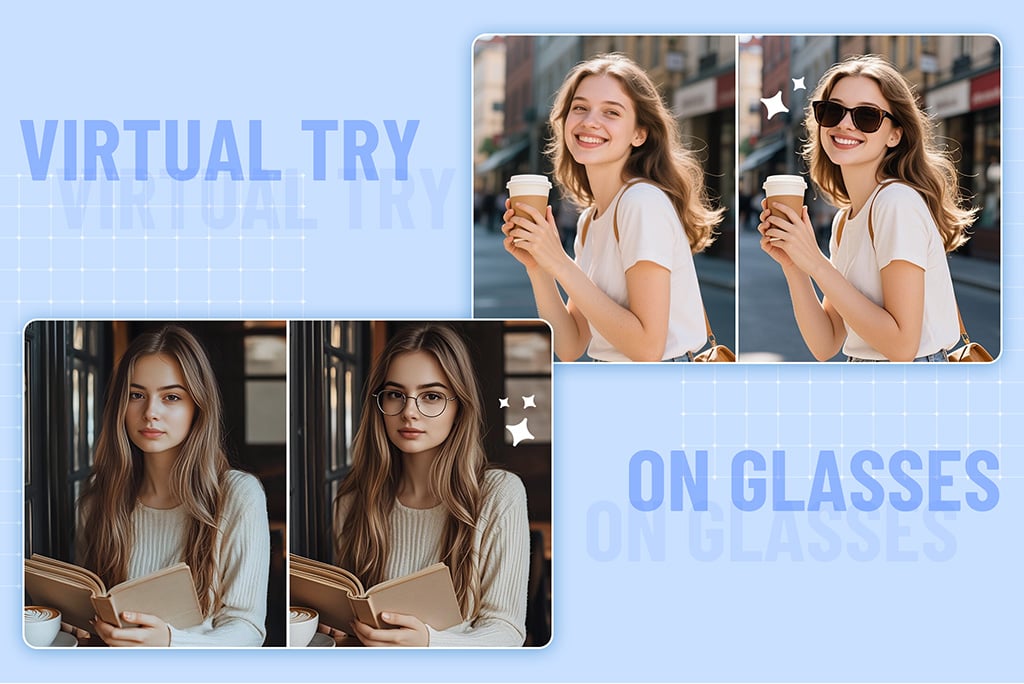
Try Glasses on Your Photo
Add Sunglasses or Eyeglasses to Any Picture

Add Sunglasses or Eyeglasses to Any Picture

Use insMind when you already have a portrait but want to put glasses on the photo. Brush the area around the eyes, write a short prompt such as “thin gold round glasses” or “black sunglasses,” and let the AI blend the frames into the image.

For a cleaner result, choose a photo where the face is visible, the head is not heavily tilted, and the eyes are not covered by hair or strong shadows. Small details like frame color, lens tint, and style keywords help the tool generate a more useful preview.

Add Glasses to Photo
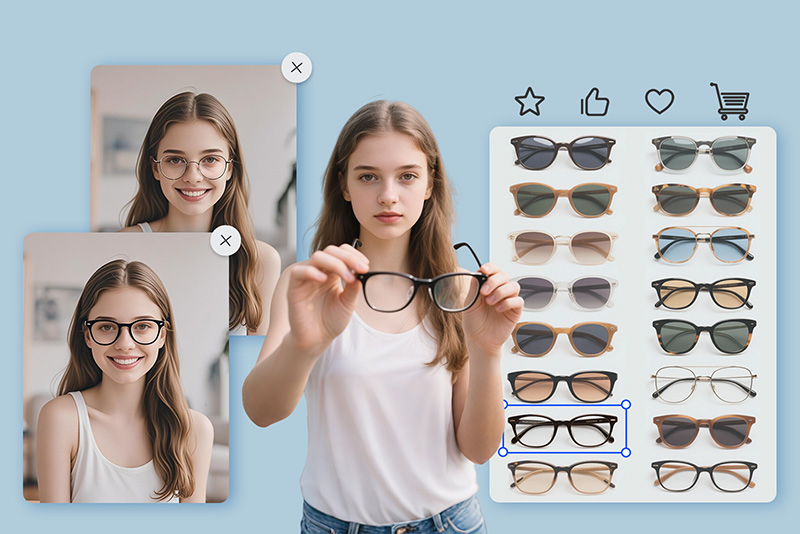
Compare Frame Styles Before You Buy or Post

Compare Frame Styles Before You Buy or Post

If you are asking “what glasses suit my face,” start by testing a few different frame shapes on the same photo. Try one subtle option for everyday wear, one bold pair for fashion content, and one pair of sunglasses for outdoor photos.

The tool does not replace an optician or a real fit check, but it helps you narrow down the look you like before ordering frames, updating a profile picture, or sharing a style idea with a friend.

Preview Glasses Styles

More Try-On and Portrait Editing Tools

How to Try On Glasses Virtually Online

Step 1: Upload a Clear Face Photo
1

1 Step 1: Upload a Clear Face Photo

Choose a selfie or portrait where your face is visible and the eye area is not blocked. A straight-on photo usually gives the AI more room to place glasses naturally.
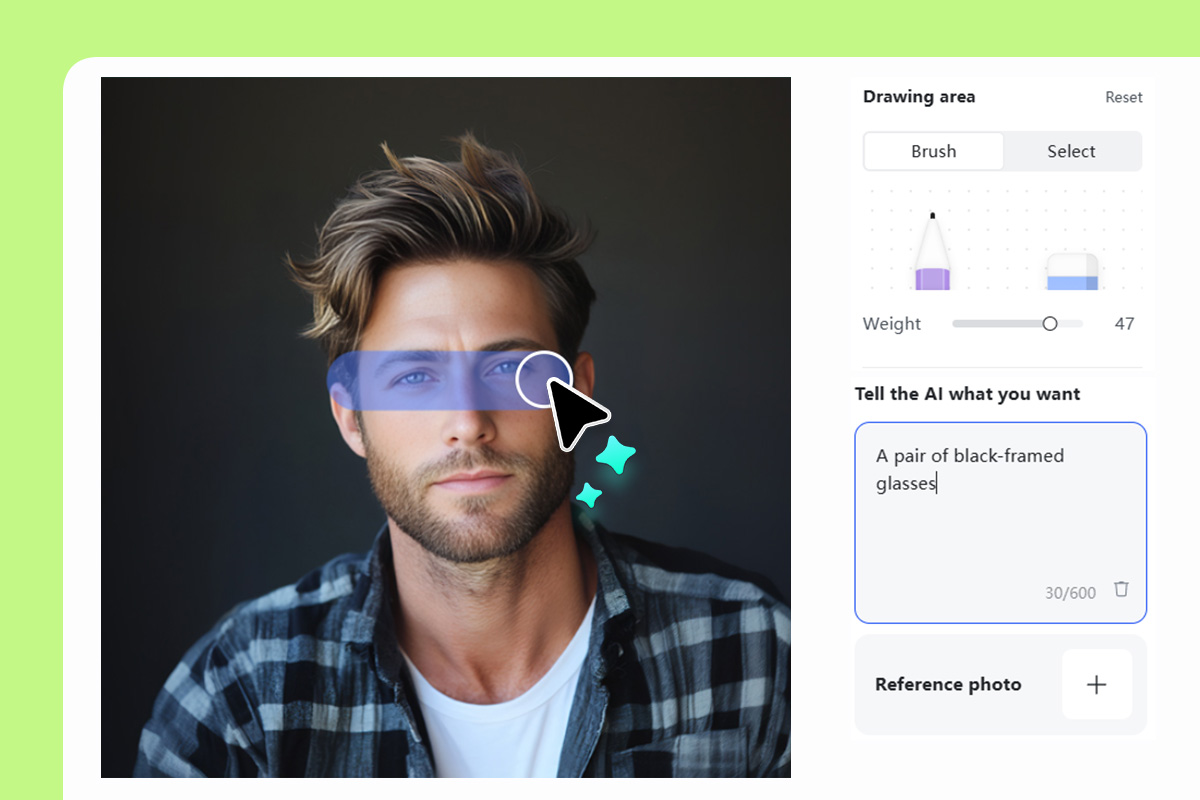
Step 2: Mark the Frame Area and Describe the Glasses
2

2 Step 2: Mark the Frame Area and Describe the Glasses

Brush over the area where the glasses should appear. Then type a specific prompt, such as “thin silver eyeglasses,” “black rectangular glasses,” or “brown sunglasses with lightly tinted lenses.”
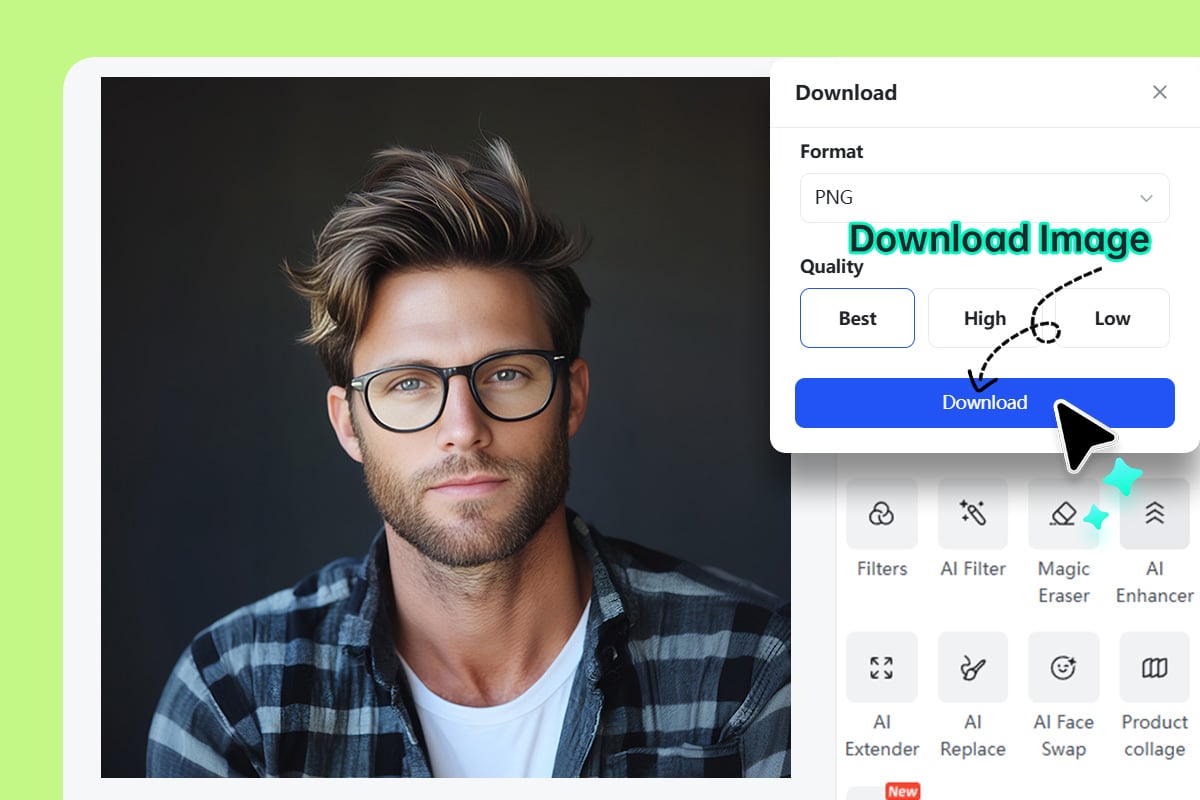
Step 3: Generate, Compare, and Download
3

3 Step 3: Generate, Compare, and Download

Generate the result, compare the preview with your original photo, and try another prompt if the style is not right. Download the image when the glasses look balanced with your face and lighting.

When to Use a Virtual Glasses Try-On Tool

Use the tool for quick style decisions, photo edits, and profile updates where a realistic visual preview is more useful than guessing from a product thumbnail.

Online Frame Shopping

Online Frame Shopping

Test round, square, cat-eye, aviator, or transparent frames on the same photo before you shortlist a pair. It helps you compare the overall look, color, and face balance before buying.

Social Posts and Creative Edits

Social Posts and Creative Edits

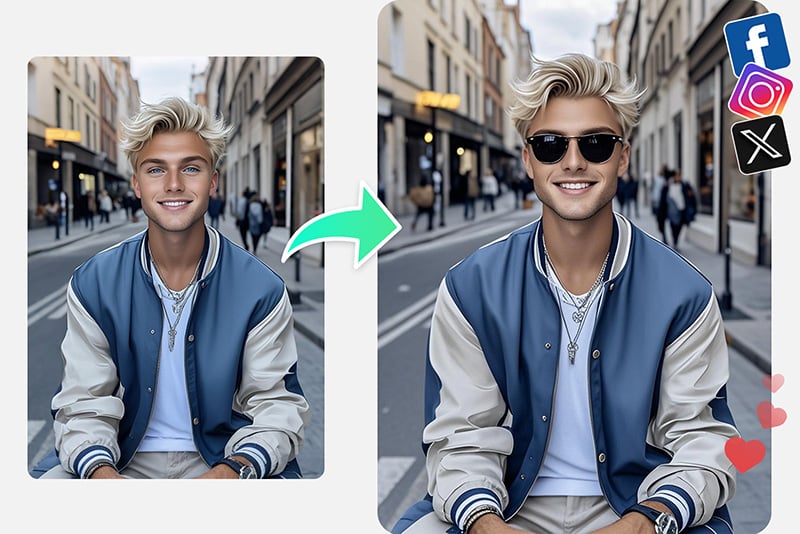
Add sunglasses to photos for travel posts, campaign visuals, or playful profile updates. A short prompt lets you change the frame style without re-shooting the image.

Profile Photo Refreshes

Profile Photo Refreshes

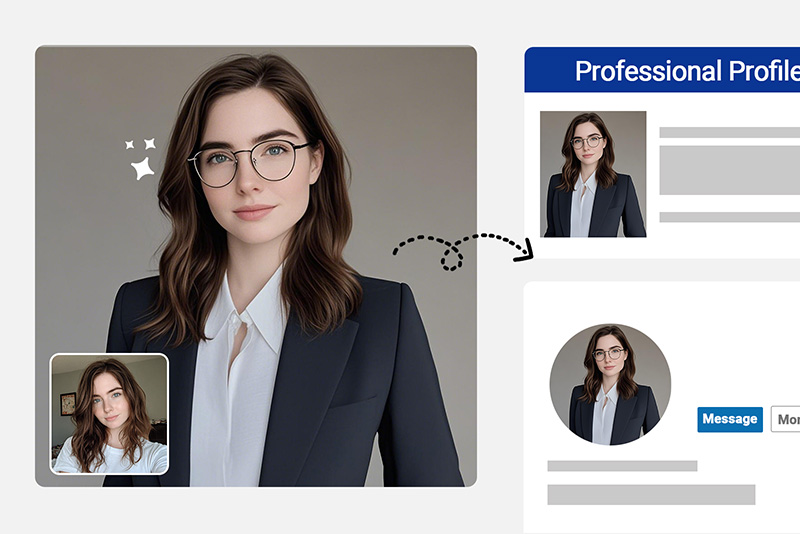
Try subtle eyeglasses on a headshot before using the photo on LinkedIn, resumes, creator bios, or team pages. Keep the result natural and avoid changing identity details.

Why Use insMind for Virtual Glasses Try-On?

Photo-Based Frame Placement

Photo-Based Frame Placement

Upload the portrait you actually want to use, then guide the AI with a brush and prompt. This keeps the preview tied to your face angle, lighting, and image style.

Eyeglasses and Sunglasses Prompts

Eyeglasses and Sunglasses Prompts

Test everyday eyeglasses, bold fashion frames, or sunglasses by changing a few words in the prompt. You can compare several looks without rebuilding the whole photo.

Works in a Browser

Works in a Browser

Use the online tool from desktop or mobile when you need a quick preview. No store visit, app install, or design software is needed for a simple glasses-on-photo edit.

FAQs About Virtual Try-On Glasses

Is the virtual glasses try-on tool free to use?

insmind expand icon
You can start the glasses-on-photo workflow online and preview frame ideas with insMind. Check the download screen for the exact export options available to your account.

Can I try on glasses using my own photo?

insmind expand icon
Yes. Upload a clear portrait, mark the area around the eyes, and describe the frame style you want. The AI will generate glasses on your photo for a visual preview.

Can I add sunglasses to a photo?

insmind expand icon
Yes. Use prompts such as “black sunglasses,” “brown aviator sunglasses,” or “transparent pink sunglasses” to add sunglasses to photos.

Can AI tell which glasses suit my face?

insmind expand icon
The tool can help you compare how different frame styles look on your photo, but it is not a medical or optical fitting tool. Use it for style previews, then confirm size and prescription details with a real eyewear provider.

What kind of photo works best?

insmind expand icon
Use a front-facing portrait with good light, visible eyes, and minimal blur. Heavy shadows, side angles, hair over the eyes, or very small faces may make the frame placement less reliable.

Can I put glasses on a picture for a profile photo?

insmind expand icon
Yes. Keep the frame style simple and realistic if the image is for a profile, resume, or team page. Avoid changing identity details or creating a misleading document photo.

How do I make the glasses look more natural?

insmind expand icon
Be specific in the prompt: mention frame shape, color, lens tint, and material. If the first result feels too bold, generate again with a lighter frame or a more neutral color.

Try More Photo Style Tools

Preview outfits, hairstyles, colors, and profile edits after you test your frames.