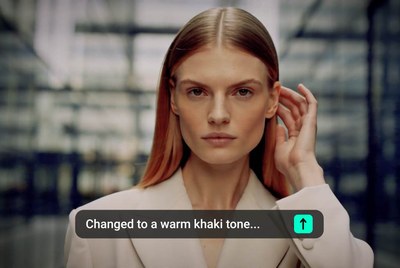
AI Video Watermark Remover

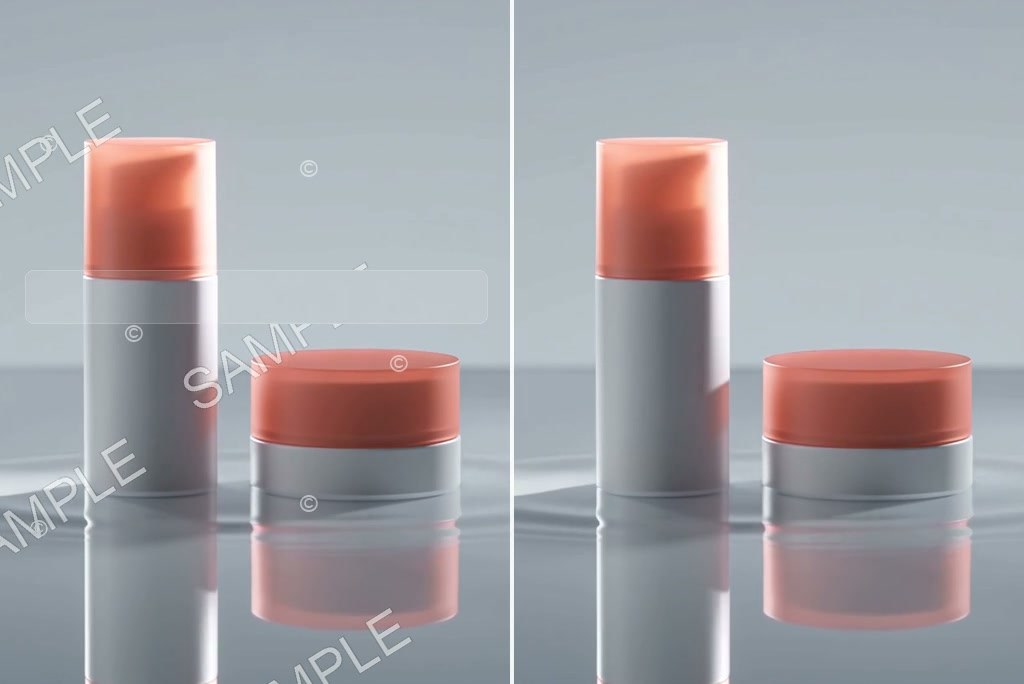
Remove logos, text, and moving watermarks without cropping the frame or leaving a blurry patch behind.

00:00
00:00

Remove the Mark, Not the Scene Around It
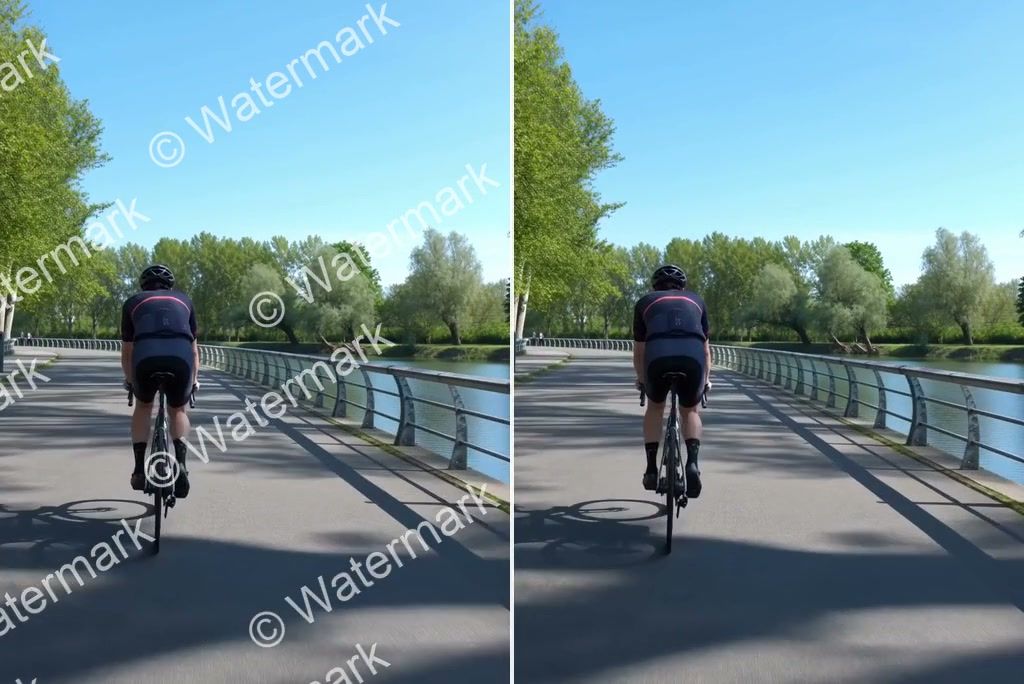
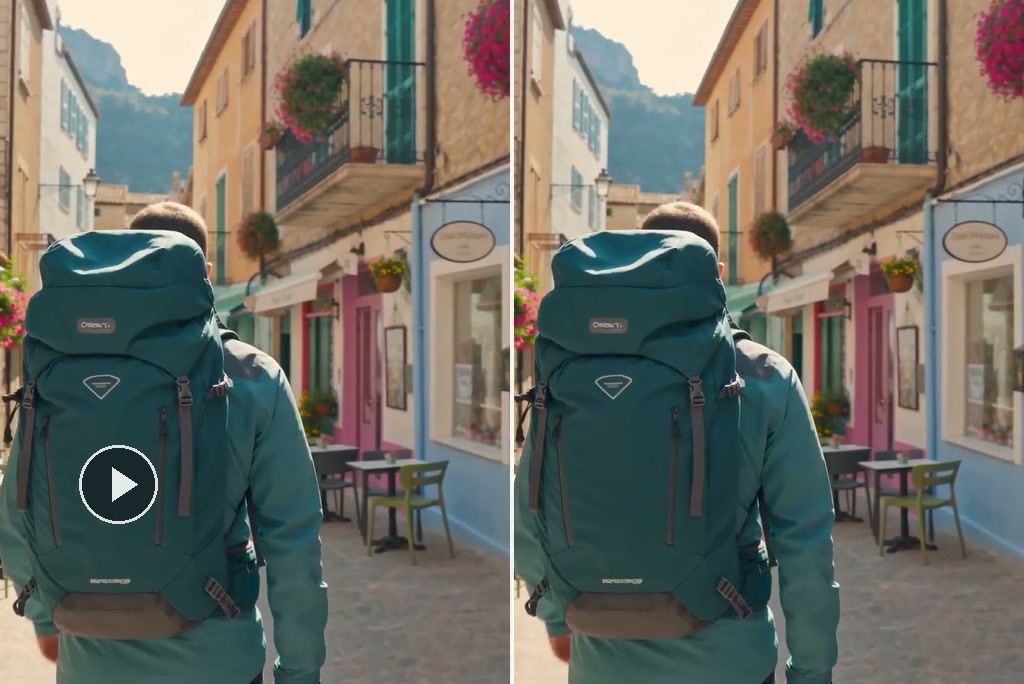
Watermarks often sit close to a face, product, or fine edge. The AI video editor clears the marked area without cutting into the subject beside it. You keep the full frame, and the rest of the shot stays where it belongs.
00:00
00:00

Keep the Repair Stable When the Scene Moves
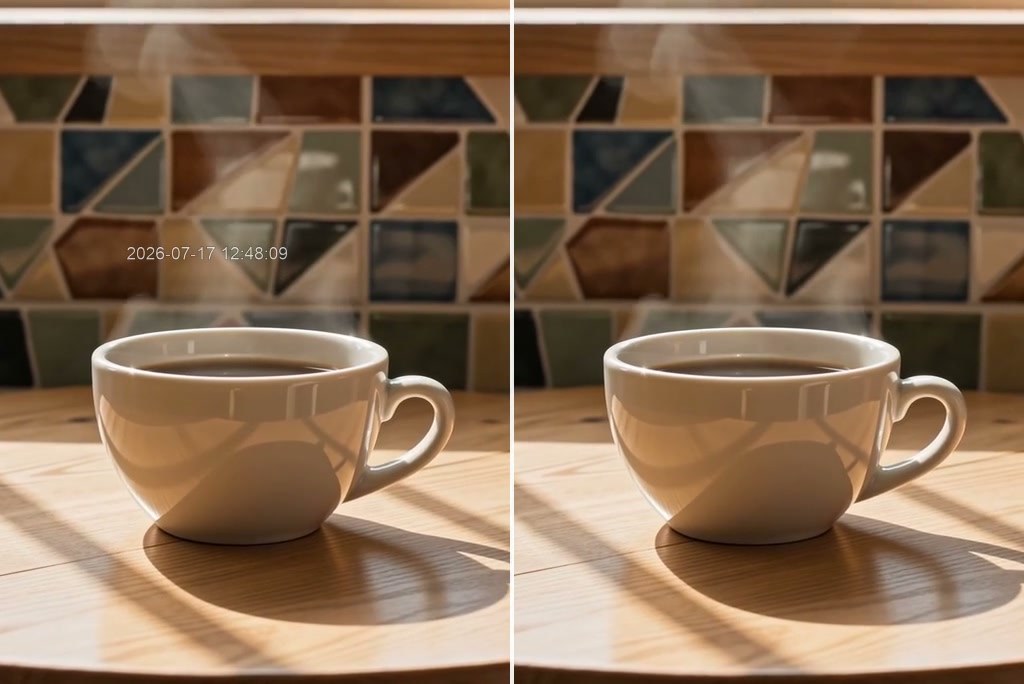
Even when a watermark stays in one corner, the footage behind it keeps changing. insMind updates the fill with the scene, so the cleaned area does not freeze, flash, or drag old pixels into the next frame.
00:00
00:00

Fill the Gap with Real Scene Detail

Blurring a watermark only replaces one distraction with another. After the mark is gone, insMind rebuilds the missing wall, fabric, reflection, or shadow from the frames around it. The repaired spot follows the scene instead of sitting on top like a soft rectangle.
00:00
00:00

Remove a Moving Watermark from Video

A moving logo does not stay inside one erase box. insMind follows its path as it slides, bounces, or switches corners, then repairs each covered area using the frames around it.
00:00
00:00

Handle More Than a Corner Logo

A fixed logo in an empty corner is the easy case. insMind can also work on faded stamps, drifting overlays, repeated patterns, and layered marks that cross a detailed background. These harder edits get frame-by-frame attention that a simple crop or blur cannot provide.

How to Remove a Watermark from Video with AI

Step 1: Upload Your Video

Choose a clear source file where the mark is visible. Only upload a video you own or have permission to edit.

Step 2: Tell AI What to Remove

Type a direct instruction such as, Remove the watermark in the upper-right corner and restore the wall behind it. If the mark moves, say where it starts and where it travels. Then choose a video model such as Seedance 2.0, Kling 3.0, or Veo 3.1.

Step 4: Preview and Download

Play the full video and look for flicker, faint edges, or a mismatched patch. Ask for one more fix if needed, then download the finished clip.

Step 3: Run the Edit

Send the instruction to AI and let the selected model generate the edited clip. The original framing, action, and camera movement stay as the reference.

Clean Up Watermarks and Reuse Your Videos

Keep the footage you own, remove outdated marks, and prepare cleaner masters for new edits and channels.

Clean Provider Marks from AI-Generated Videos

Clean Provider Marks from AI-Generated Videos

Clean up provider marks on AI-generated videos you own or are authorized to edit. Keep the shot, motion, and timing you already like instead of generating the same moment again.

Remove Platform Marks from Social Videos

Remove Platform Marks from Social Videos

Clean your own clip once, then reuse the master for a different crop, caption, hook, or channel without the old badge following it.

Delete Old Logos and Text from Product Videos

Delete Old Logos and Text from Product Videos

Remove an outdated logo, price badge, or campaign message and build the next ad from the same product clip. If repeated exports look soft, finish with an AI video enhancer.

Clear Timestamps and Overlays from Tutorials

Clear Timestamps and Overlays from Tutorials

Clear a timestamp, corner badge, or text overlay that covers the exact button or detail a viewer needs to see. For course thumbnails or screenshots, use the AI watermark remover for photos.

Why Use an AI Video Watermark Remover Instead of Cropping or Blurring

Keep the Full Frame

Keep the Full Frame

Cropping a corner also removes part of the shot. AI clears the mark while leaving the original composition in place.
Skip Manual Masks

Skip Manual Masks

No frame-by-frame painting, moving selection box, or trail of keyframes just to follow one drifting mark.
Start with Credits

Start with Credits

Try the core workflow with free credits and earn more through eligible activities available on the insMind platform.
Fix One Weak Spot

Fix One Weak Spot

If one edge or reflection still looks wrong, ask for a focused correction instead of starting the edit again.
Check the Motion

Check the Motion

A repair can look fine when paused and flash during playback. Review the full clip before keeping the result.
Multiple AI Models

Multiple AI Models

Choose from supported models such as Seedance 2.0, Kling 3.0, and Veo 3.1 for the clip you need to clean.

Frequently Asked Questions

How can I remove a watermark from a video with AI?

insmind expand icon
Upload the video, enter a direct removal prompt, choose a compatible model such as Seedance 2.0, generate the edit, and check the repaired area through the full clip before downloading.

Can insMind remove a moving watermark from video?

insmind expand icon
Yes. State where the mark starts and how it moves across the frame. AI uses nearby frames to keep the repaired area consistent over time.

Can it erase semi-transparent or complex watermarks?

insmind expand icon
insMind can work on fixed, semi-transparent, moving, and layered marks. For a difficult overlay, identify its location, opacity, and movement path.

How does AI reconstruct the area behind a watermark?

insmind expand icon
The model uses visual information from surrounding frames, including nearby texture, lighting, edges, and motion, to generate a plausible replacement for the covered area.

Will watermark removal affect video quality?

insmind expand icon
Results vary with source resolution, compression, motion, and background complexity. Start with the clearest source file available and review the full sequence.

What should I include in a video watermark removal prompt?

insmind expand icon
State what the watermark looks like, its position, whether it moves, and what lies behind it. Also say which subjects, camera movement, colors, framing, and audio should remain unchanged.

Is it legal to remove a watermark from a video?

insmind expand icon
Only remove watermarks from videos you own or have permission to edit. Removing a watermark does not give you rights to reuse someone else’s content.

Is there a free video watermark remover online?

insmind expand icon
insMind offers free credits for trying core features. Credit use can vary by model and generation settings, so check the current credit requirement before generating.

Can I refine the result if part of the watermark remains?

insmind expand icon
Yes. Preview the video and send a follow-up prompt that identifies the remaining area or time in the clip. Ask AI to repair that area while preserving the rest.

More Video Cleanup and Editing Tools from insMind