A clip that ends two seconds too early doesn't need a reshoot. Upload it, describe what should happen next — the camera pans wider, the subject walks forward, the scene fades to a new setting — and insMind generates the continuation from where your footage left off.
The AI reads the final frames for motion direction, lighting, and composition, then produces new frames that carry the action forward naturally. If the original clip came from insMind's AI video generator, the extension inherits the same visual style automatically.

Video Extender

Extend Short Video Clips Without Refilming

Continue the Scene Without Visible Cuts or Seams

Make Product Videos Longer Without Rebuilding the Shoot
How to Extend Videos with insMind in 4 Steps
Step 1: Upload Your Video
Open insMind's video extender and upload the clip you want to lengthen. The tool accepts common video formats — AI-generated clips, phone footage, or professional recordings all work.
Step 2: Describe How the Scene Should Continue
Type a text prompt explaining what happens next: "the camera slowly zooms out," "the subject turns and walks away," or "the scene transitions to a sunset." The more specific your prompt, the closer the result matches your vision.
Step 3: Generate the Extended Video
Hit generate and let insMind's AI analyze the final frames of your clip — motion, lighting, composition — and produce a seamless continuation. The extension picks up exactly where your footage ends.
Step 4: Download and Use Anywhere
Preview the result and download the extended video. The output is ready for social media, ads, presentations, or further editing in your preferred tool.
Real Scenarios for AI Video Extension
From product demos to marketing campaigns, see how creators use insMind to make clips longer without reshooting.

Product Video Production
Extend product demos to fit platform requirements — add a closing sequence, a second angle, or extra seconds for captions. One shoot produces multiple video lengths without additional production.

Film & Short Film Post-Production
Add breathing room to tight edits. Extend establishing shots, hold on a reaction beat longer, or build a smoother transition between scenes — all without calling the crew back.

E-learning & Tutorial Videos
Extend pauses between demonstration steps so viewers can follow along. Lengthen screen recordings or hands-on sequences without re-recording the entire lesson.

Marketing & Ad Footage
Stretch UGC clips or B-roll to fill ad placements that need longer duration. The AI continues the scene naturally, giving your campaign footage more flexibility without additional shoots. Pair extended clips with insMind's image to video tool for creating new footage from stills.
Why Choose insMind Video Extender

Prompt-Guided Extension, Not Random Generation
Describe what should happen next — camera movement, subject action, scene transition — and the AI follows your direction. The extension reflects your creative intent, not a random guess.

Seamless Frame-Level Continuation
The AI reads motion trajectory, lighting, and composition from the final frames and generates new footage that continues without a visible splice. One continuous shot, not a stitched sequence.

Works on AI Clips and Real Footage
Extend videos from any source — AI-generated clips, phone recordings, professional shoots, or screen captures. The AI adapts to whatever visual style and motion pattern it detects.

Maintains Original Resolution and Quality
Extended frames match the resolution of your source footage. The AI generates new content rather than stretching or interpolating existing pixels, so sharpness and detail remain consistent.

Pairs with the Full insMind Video Suite
Extend the clip, then enhance the resolution</a> or correct colors — all within the same platform. No exports or re-imports between different tools.

Fast Cloud Processing, No Software Needed
Everything runs in the browser. Upload your clip, type a prompt, and download the extended video — no GPU, no editing software, no render queue.
FAQs About insMind Video Extender
What is an AI video extender?


An AI video extender generates new frames that continue your existing footage. Unlike looping or slow motion — which repeat or stretch what's already there — the AI creates genuinely new content: subjects keep moving, the camera keeps tracking, and the environment evolves naturally from where your clip left off.
How does insMind extend videos with a text prompt?
You describe what should happen next — "the camera pulls back to reveal the full room" or "the subject turns and walks off screen." The AI analyzes the final frames of your clip for motion, lighting, and composition, then generates a continuation that follows your prompt while staying visually consistent with the original.
Does the extended footage match my original video's style?
Yes. The AI reads color tone, lighting direction, motion speed, and visual texture from the original clip and carries those attributes into the generated frames. The extension looks like part of the same shot, not a separate clip spliced on.
Is insMind's video extender free to use?
insMind offers a free trial so you can try the video extender with core features. You can also earn free credits through platform activities to continue using the tool.
What video formats does the extender support?
insMind accepts common video formats for upload, including clips from AI generators, phone cameras, and professional editing software. The output is delivered in a standard format ready for social media or further editing.
Can I extend videos for social media platforms like TikTok?
Yes. Many social platforms require a minimum video length — 15 seconds for Reels, 5–60 seconds for TikTok. The AI extends your clip to hit these thresholds while keeping the content natural and engaging, so you don't need to pad with static frames or awkward loops.
Does the AI generate audio for the extended section?
insMind focuses on visual continuation. For the extended portion, you can add your own audio track, voiceover, or music in any editing tool after downloading. This gives you full control over the sound design without AI-generated audio conflicting with your creative direction.
Explore More AI Video Tools
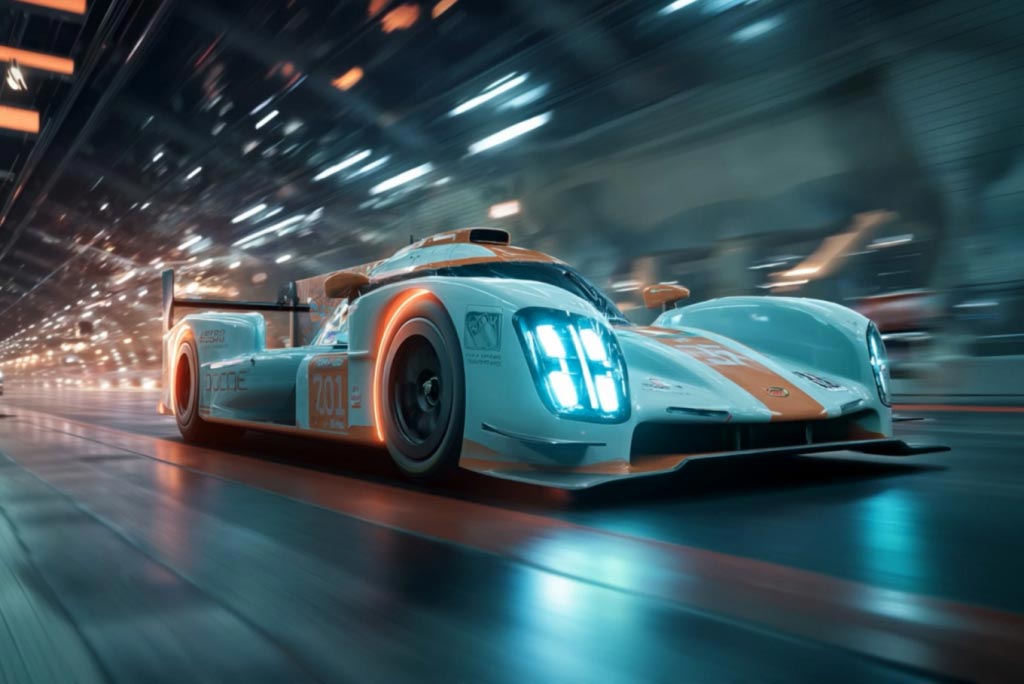
00:00
00:00
AI Video Generator
Create cinematic videos from text or images with AI.

00:00
00:00
Image to Video
Create custom videos from your photos with AI.
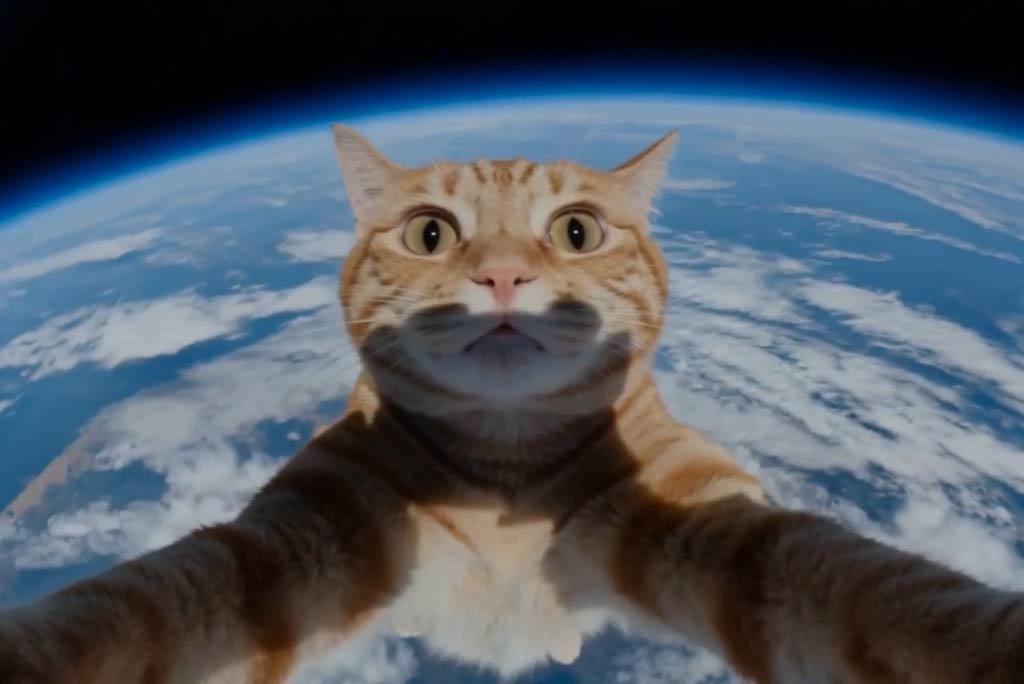
00:00
00:00
Video Object Replacer
Replace or remove objects in videos using AI text prompts — no manual editing needed.
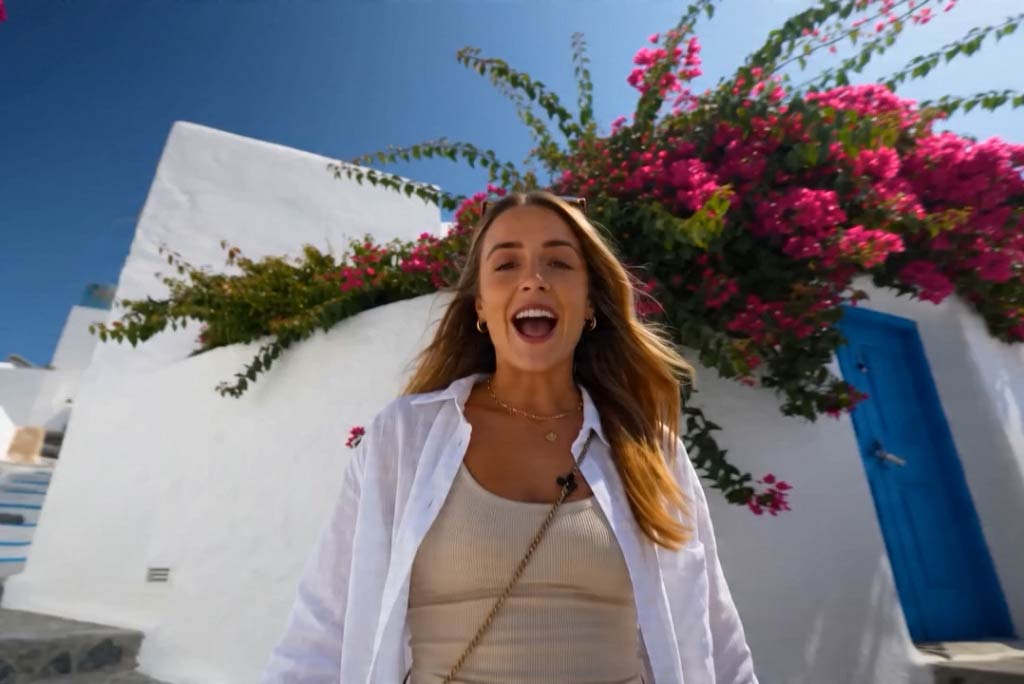
00:00
00:00
Video Background Changer
Swap any video background with AI — no green screen needed.

00:00
00:00
AI Video Enhancer
Easily improve your video quality with AI video enhancer.
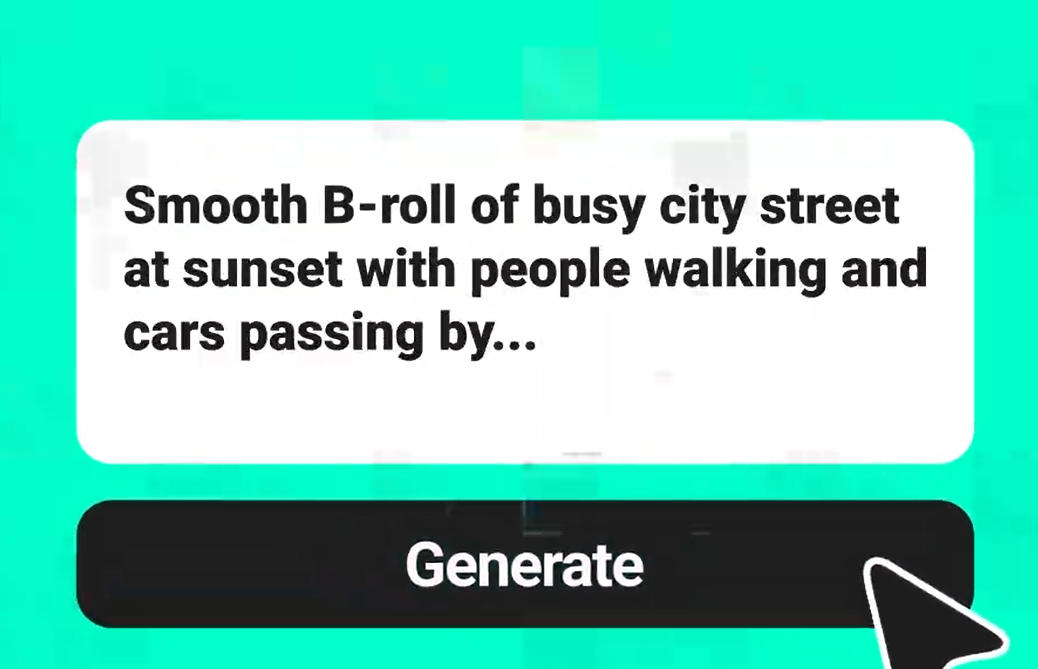
00:00
00:00
Text to Video
Turn any text prompt into high-quality videos in minutes.

AI Background Remover
Remove backgrounds from images online for free. Easily create transparent backgrounds for your photos in seconds.

AI Image Enhancer
Enhance image quality effortlessly with AI. Sharpen, upscale, and improve photos online for free.