AI Beardless Filter: Remove a Beard From Your Photo
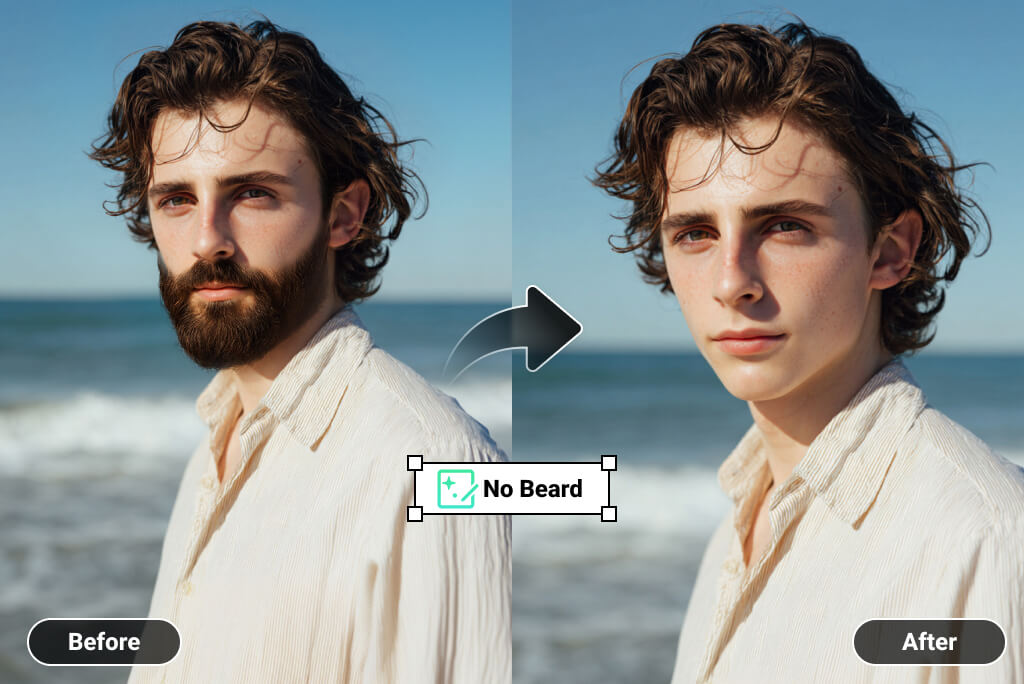
See What You Look Like Without a Beard
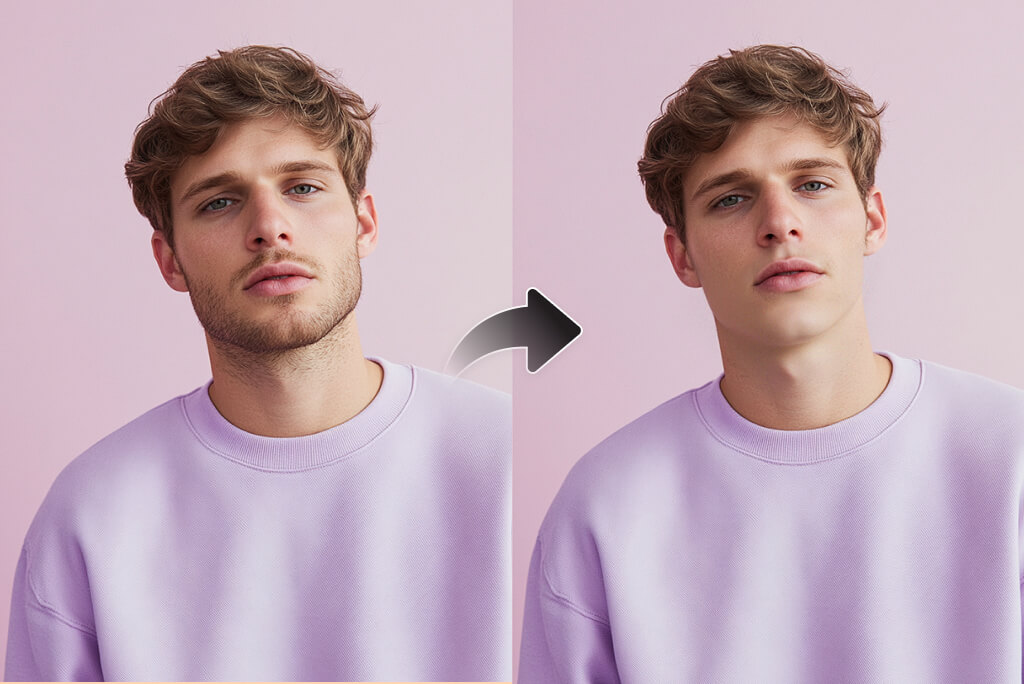
A beardless filter gives you a visual comparison before you change your facial hair in real life. Upload a recent portrait and compare the generated version with the original instead of treating it as an exact prediction.
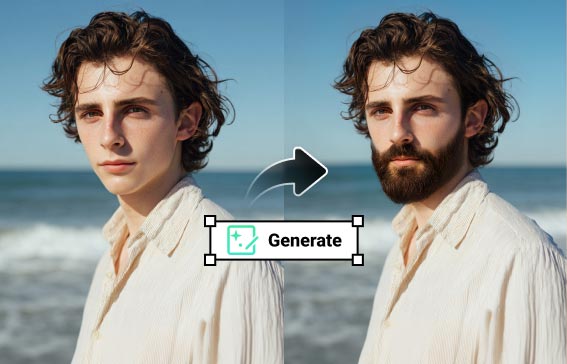
Want to test the opposite direction as well? Use the AI beard filter to compare several beard styles with the same portrait.
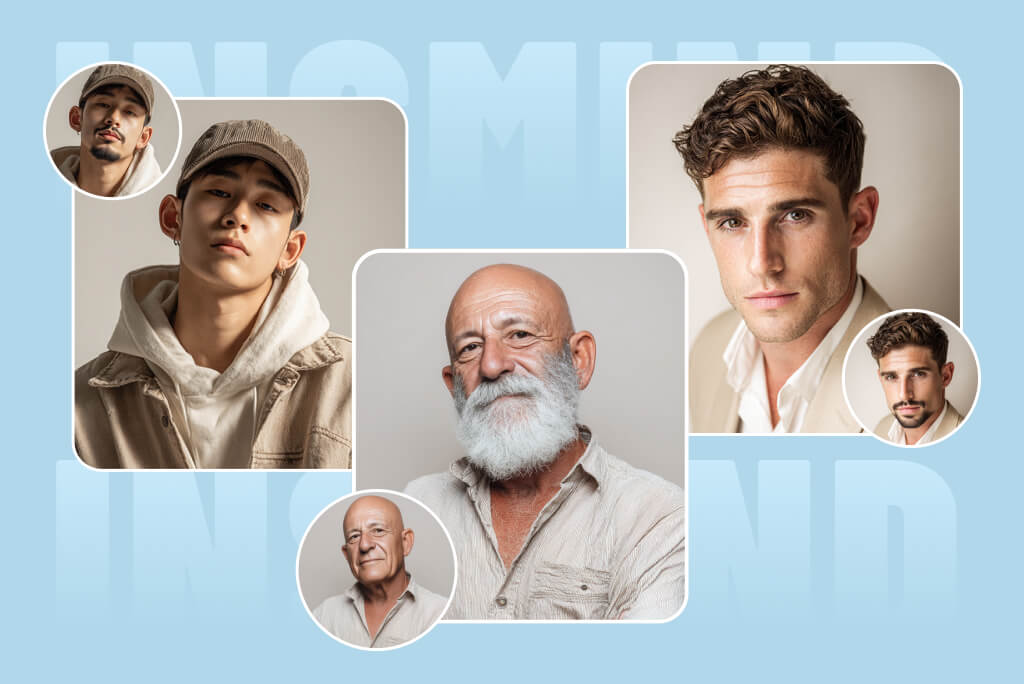
Remove a Beard, Mustache, Goatee, or Stubble
Use the preset for a full beard removal, or rewrite the prompt for one area. You can ask to remove only a mustache, clear a goatee while keeping sideburns, or reduce visible stubble for a cleaner shave preview.
Make one change at a time. A focused instruction is easier to evaluate than a long prompt that changes facial hair, hairstyle, expression, and lighting together.
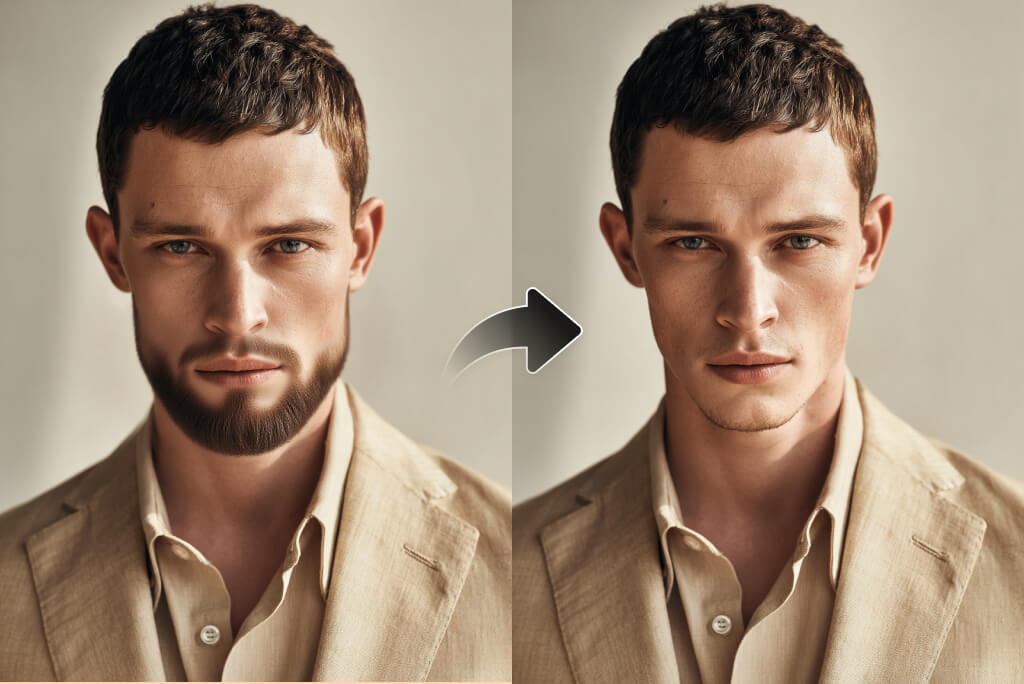
Choose a Photo That Shows the Jawline
The filter works best when the beard edge, lips, chin, and cheeks are visible. Heavy shadows, low resolution, hands over the face, or hair crossing the jaw can make the edited area harder to reconstruct.
After generation, compare skin texture and face shape with the source photo. Try another image or a narrower prompt when the result changes more than the facial hair.
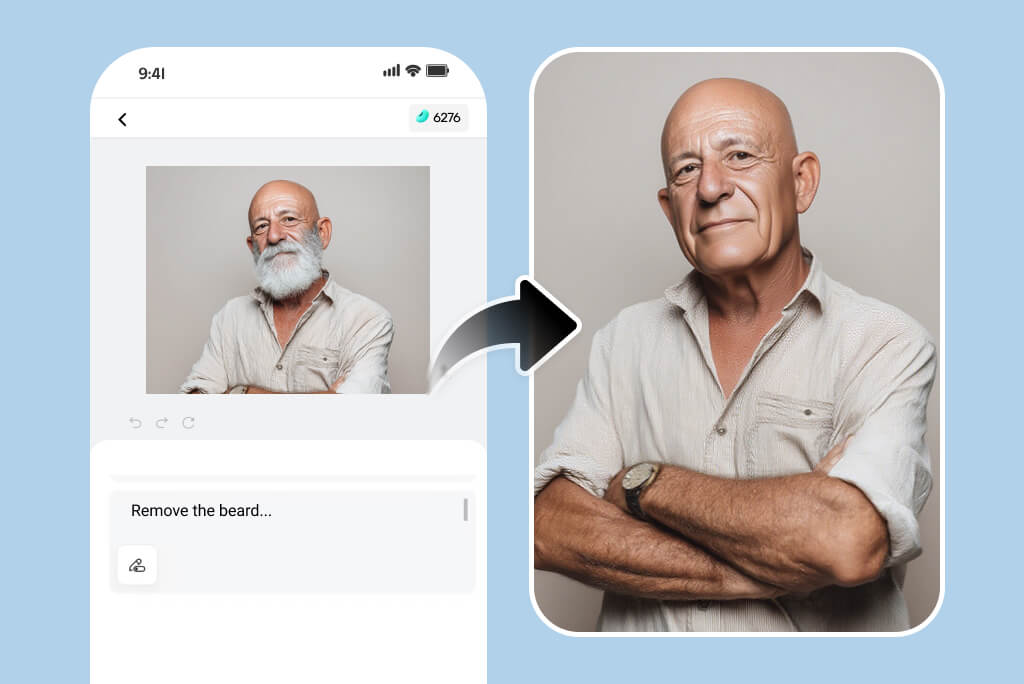
Try a Clean-Shaven Preview on Desktop or Mobile
Open the no beard filter in a desktop or mobile browser and upload one portrait. No manual brush work is required for the preset workflow, although you should still inspect the result before using it elsewhere.
To compare the clean-shaven result with a different haircut, continue with the AI hairstyle changer as a separate edit.
Ways to Use a No Beard Filter
Compare grooming ideas, prepare a portrait concept, or share a before-and-after without changing your original photo.
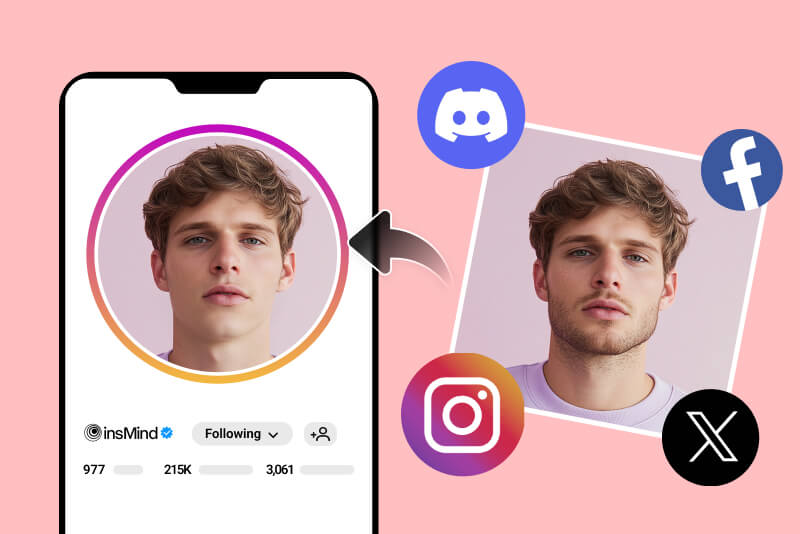
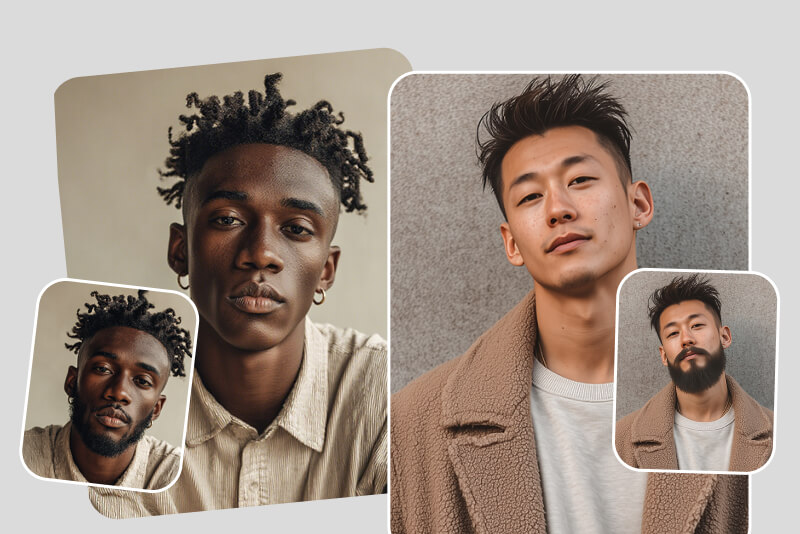
Compare a Bearded and Clean-Shaven Look
Place the original and generated versions side by side when deciding whether to shave. Check the jawline, upper lip, and sideburns rather than judging the result from a small thumbnail.
Mock Up a Profile or Headshot
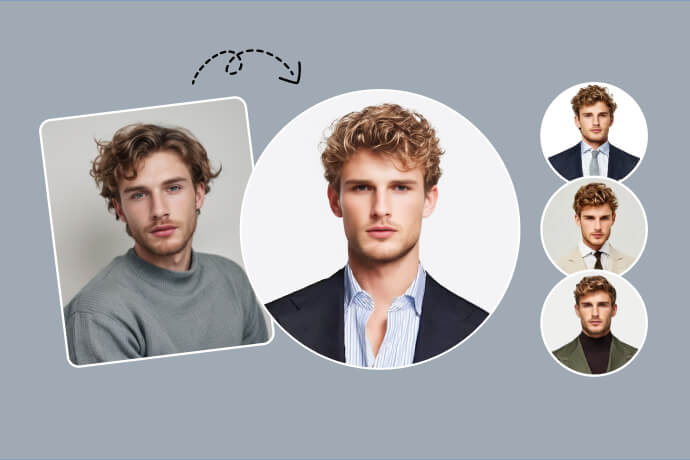
Preview a clean-shaven version before planning a profile, portfolio, or team photo. For a newly generated business portrait, use the AI headshot generator; do not use an AI edit as an identity or official-document photo where alteration is restricted.

Create a Before-and-After Style Post
Use both versions in a social post, poll, or private comparison. Label the edited image as AI-generated when the context could otherwise make viewers think the grooming change is real.
Why Use the insMind No Beard Filter?
A Beard-Removal Prompt Is Ready
The bound tool opens with “Remove the beard” already filled in, so you can start with a clear task instead of writing a prompt from scratch. Change the wording only when you want to keep or remove a specific type of facial hair.

You Can Refine the Result
A first result is a draft, not a guarantee. Inspect the lips, chin, jawline, skin texture, and sideburns; then narrow the instruction or use a clearer source photo if the change extends beyond the beard area.

Continue With Separate Portrait Edits
Keep beard removal as one focused step. If you also need skin retouching, open the blemish remover afterward so you can review each change independently.
No Beard Filter FAQs
What is an AI no beard filter?


How do I remove a beard from a photo?
Can the filter remove only a mustache?
Can I remove stubble, a goatee, or sideburns?
What photo works best for a beardless filter?
Will a beard remover preserve my face?
Is the no beard filter free to try?
Can I use the no beard filter on mobile?
Keep Editing Your Portrait
Compare facial hair and hairstyles, prepare a headshot, or make a separate portrait adjustment after reviewing the no-beard result.
Add Beard to Photo With AI
AI Headshot Generator
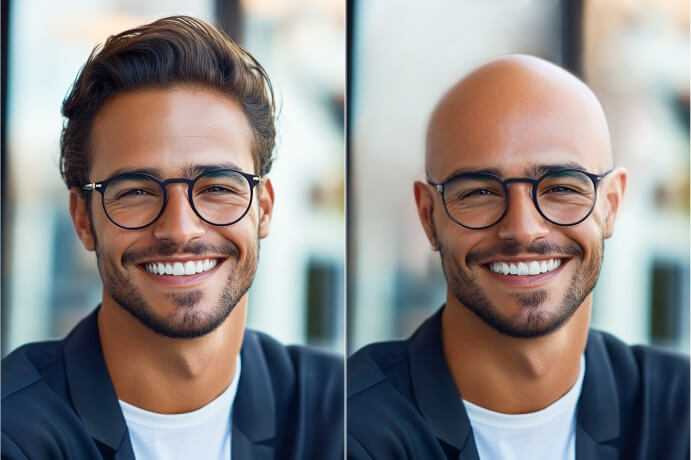
Bald Filter
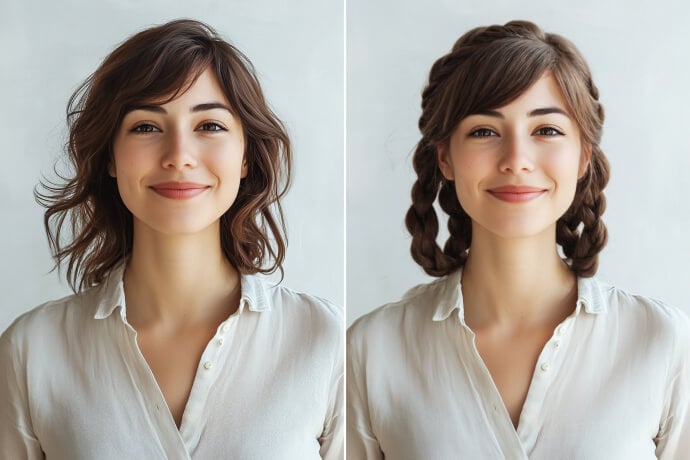
AI Hairstyle Changer
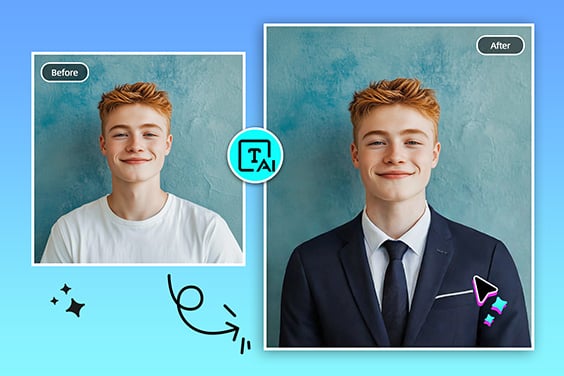
AI Clothes Changer
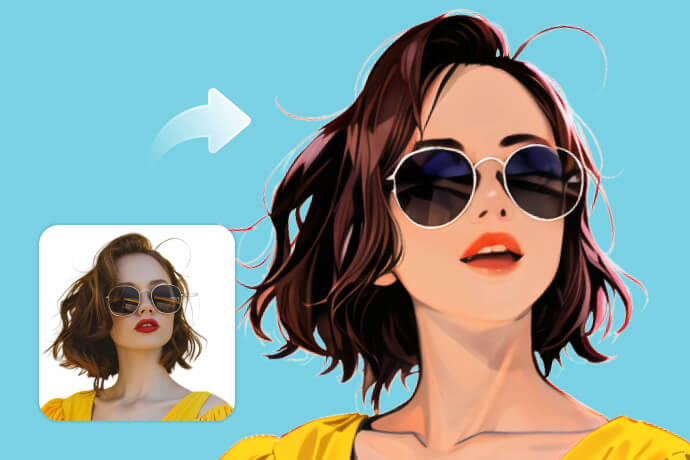
AI Photo Filter