
Batch Photo Enhancer - Improve Image Quality in Bulk with AI



Enhance Up to 30 Photos in One Batch
Add a group of soft, blurry, or low-resolution photos instead of repeating the same enhancement one file at a time. The batch photo enhancer applies the selected quality level across the uploaded set and keeps every result together for review.
Group photos with similar quality when possible. A dark phone photo and a compressed product thumbnail may need different settings. If you only have one file to fix, use the AI image enhancer instead.
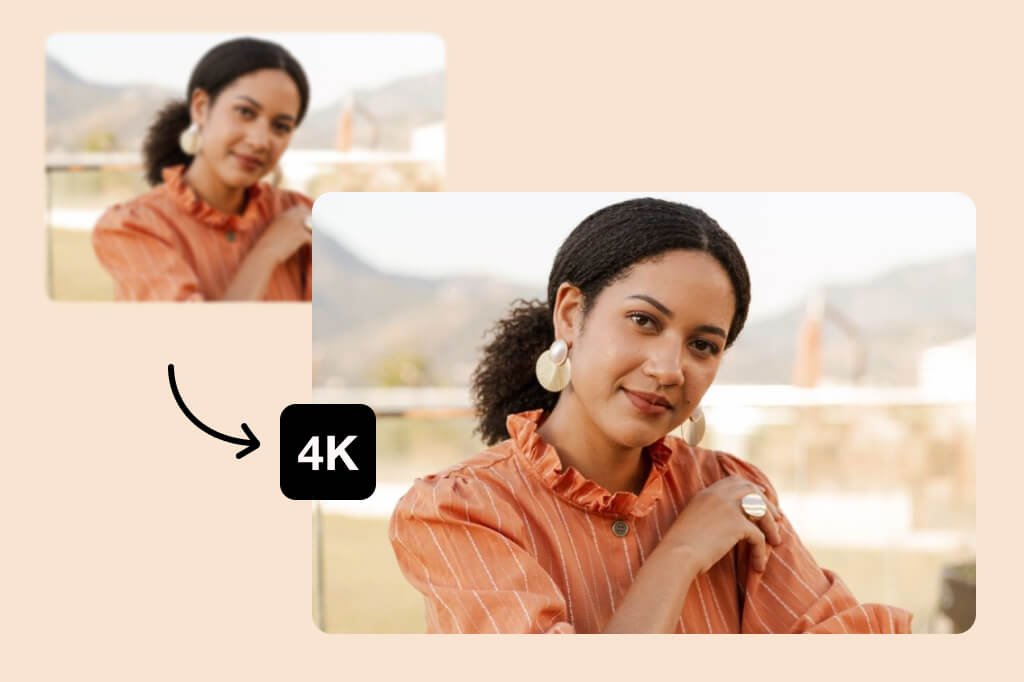
Choose 1x or 4x Enhancement for the Batch
Use High (1x) when you mainly want a cleaner version at the current scale. Choose Ultra High (4x) when small source files also need more pixels for a larger output.
A 4x setting enlarges the source dimensions; it does not make every file exactly 4K. Preview faces, product text, logos, and fine edges before downloading, especially when the originals are heavily blurred or compressed.

Keep Product and Content Sets Visually Consistent
Process a catalog, social series, or photo collection with one enhancement level so the files start from a more consistent quality baseline. This is useful when several images came from the same shoot, export, or messaging app.
Check each result rather than assuming every image needs the same correction. AI can improve visible detail, but it cannot reliably reconstruct text, faces, or objects that are missing from the original pixels.
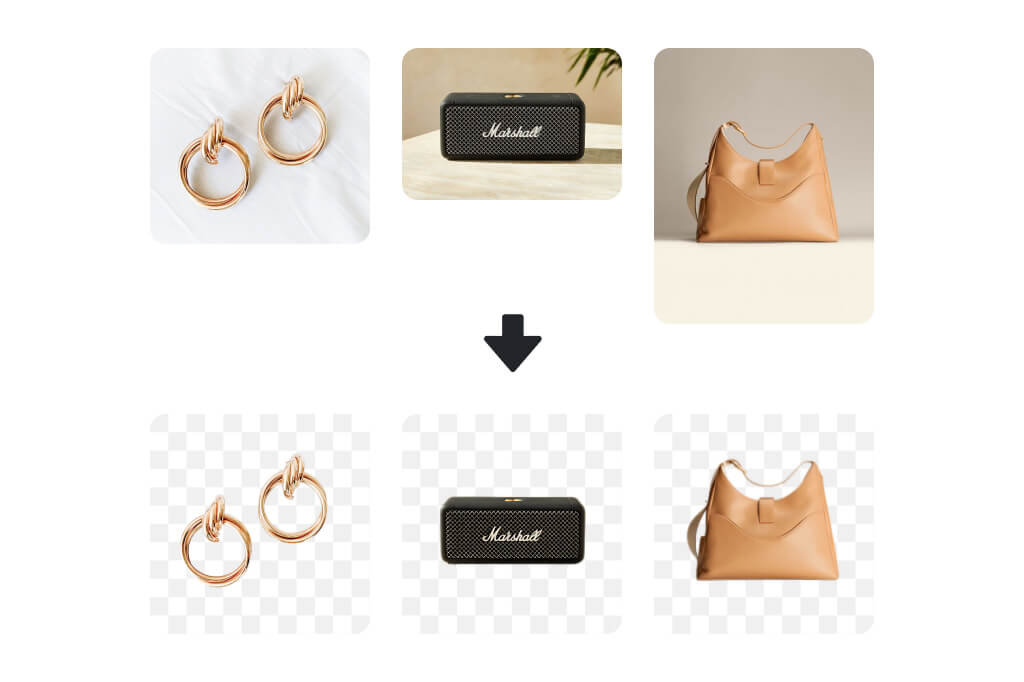
Continue Editing Without Rebuilding the Batch
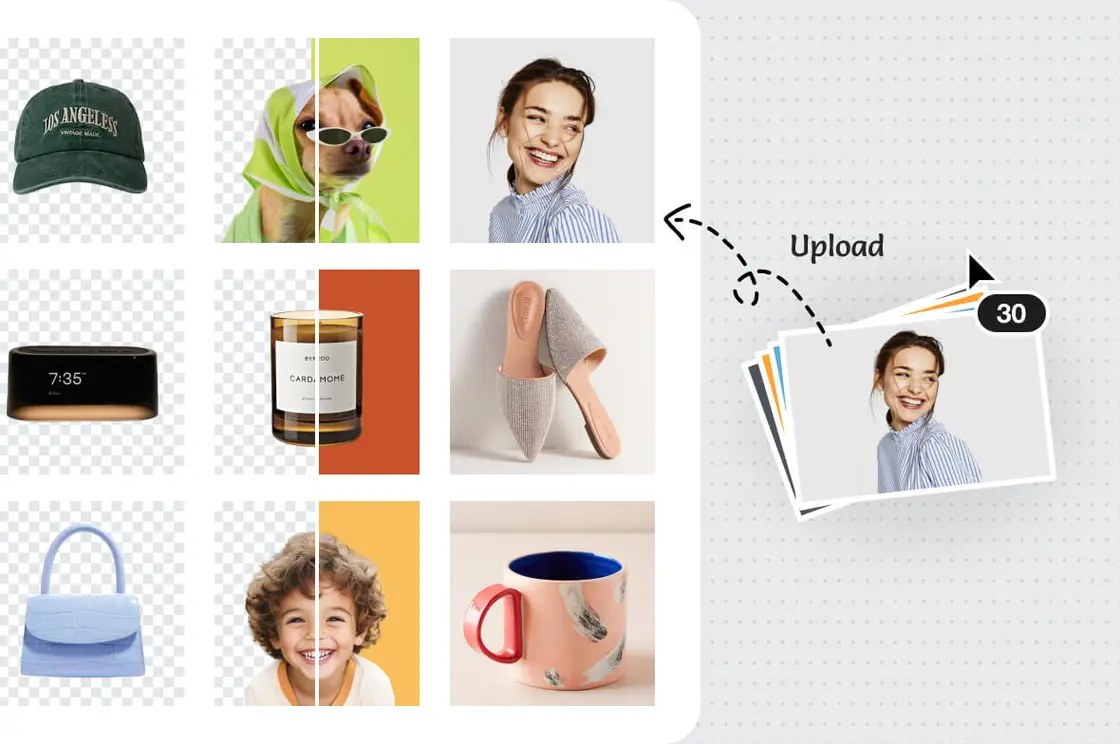
Quality enhancement is often the first step. Open the batch photo editor when the same files also need a shared size, crop, or background treatment.
Keep enhancement and layout tasks separate: first confirm that detail and resolution look right, then apply the production changes needed for a store, marketplace, campaign, or social channel.
More Tools for Batch Photo Workflows
Resize, remove backgrounds, or make a single-image correction after the quality pass.
How to Enhance Photos in Bulk with AI
Upload the set, choose one quality level, and inspect every output before downloading.
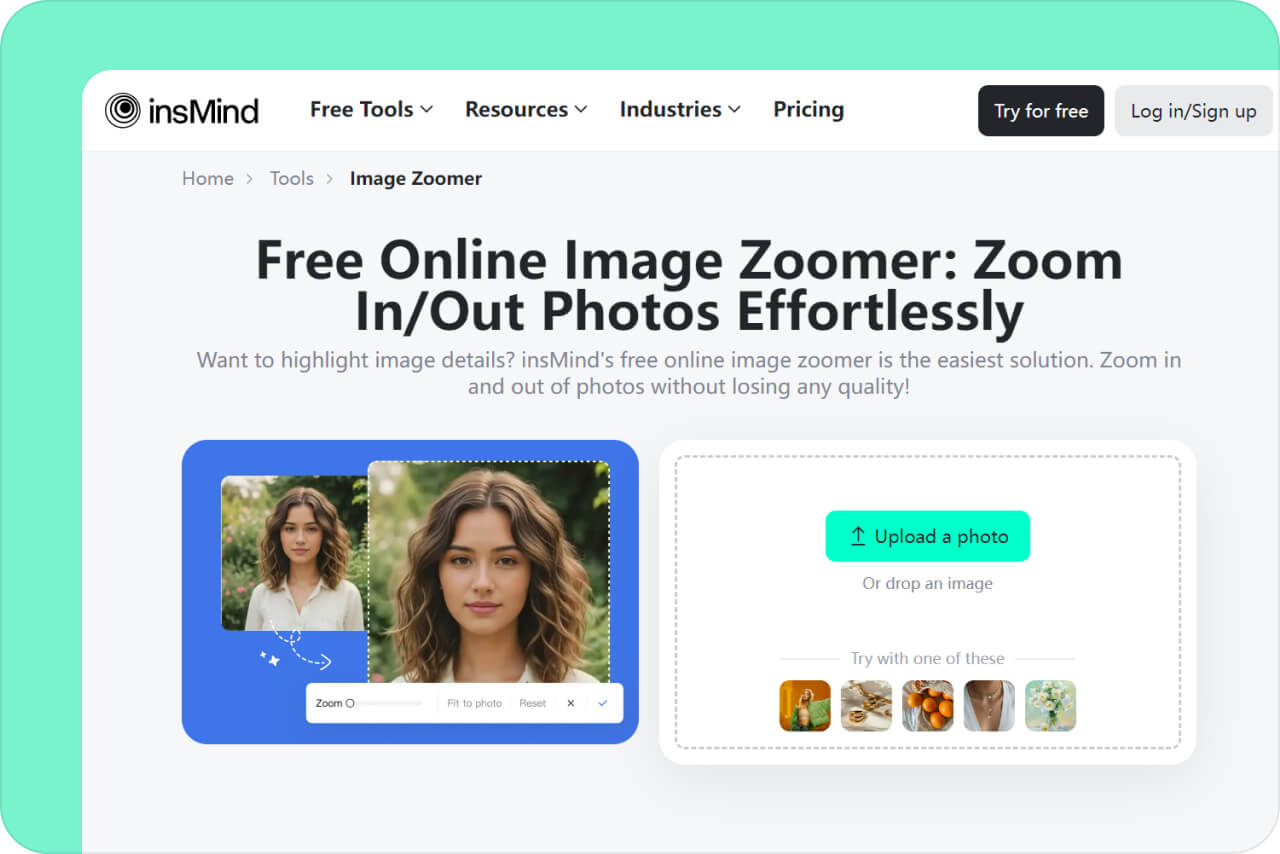
1 Upload Your Photo Batch
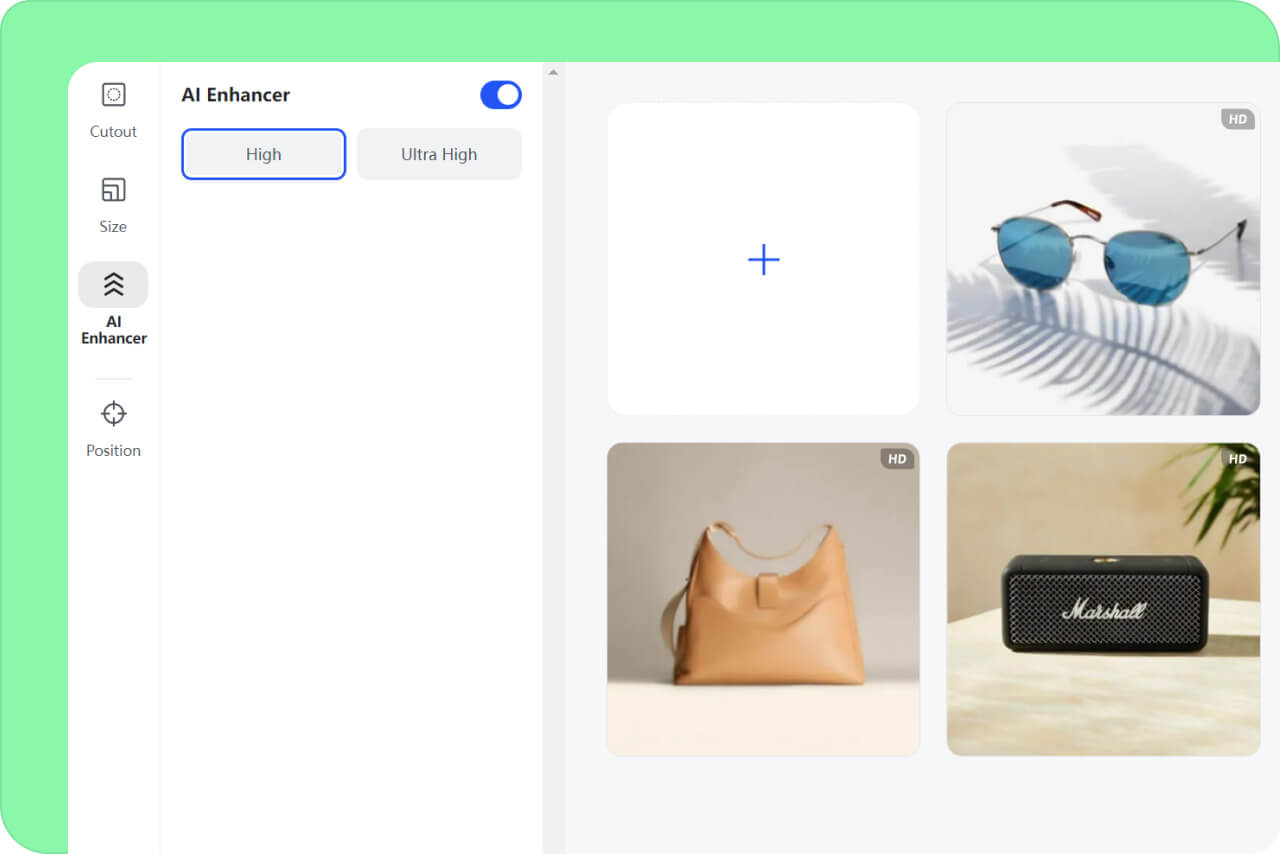
2 Choose High or Ultra High
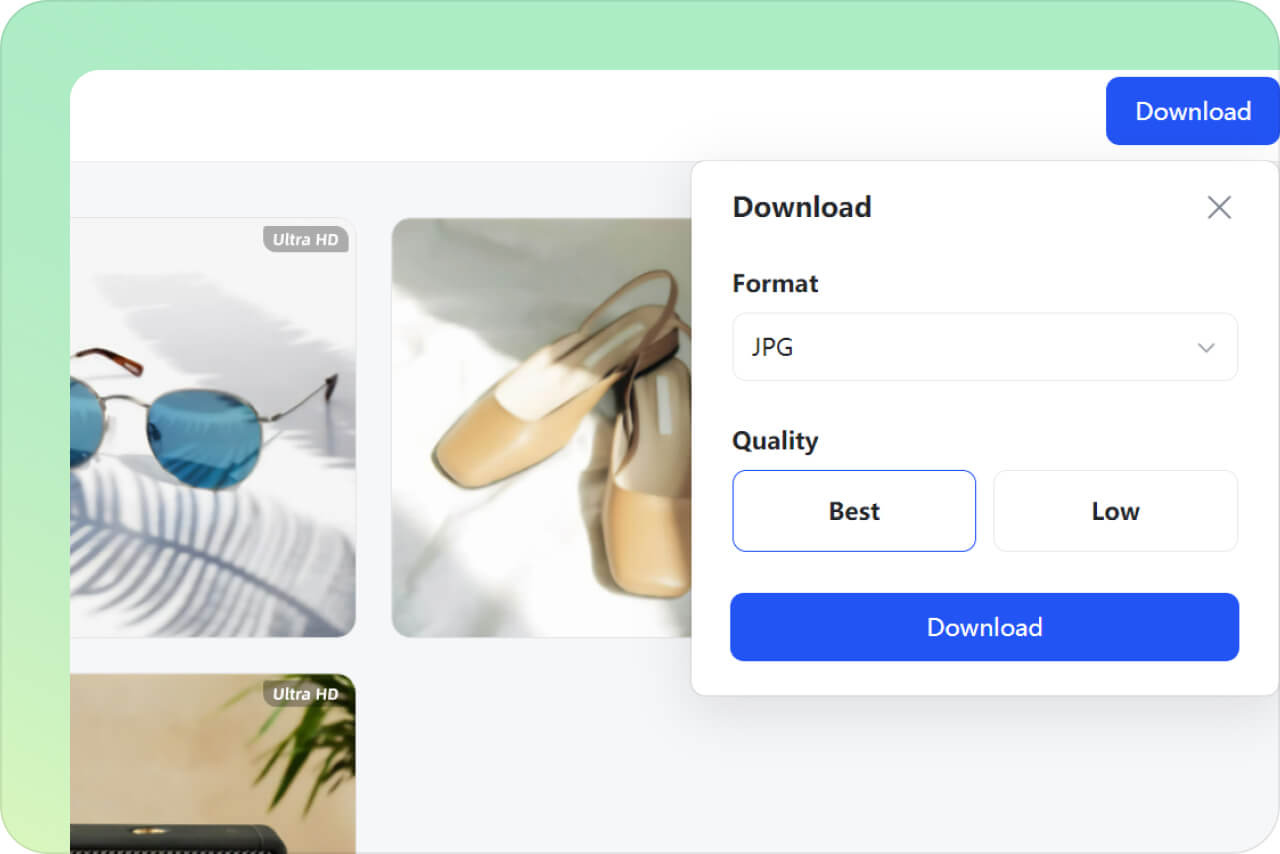
3 Preview the Results and Download
When to Use a Bulk Image Enhancer
Work through a related set of photos at once, then check the details that matter for that specific use.
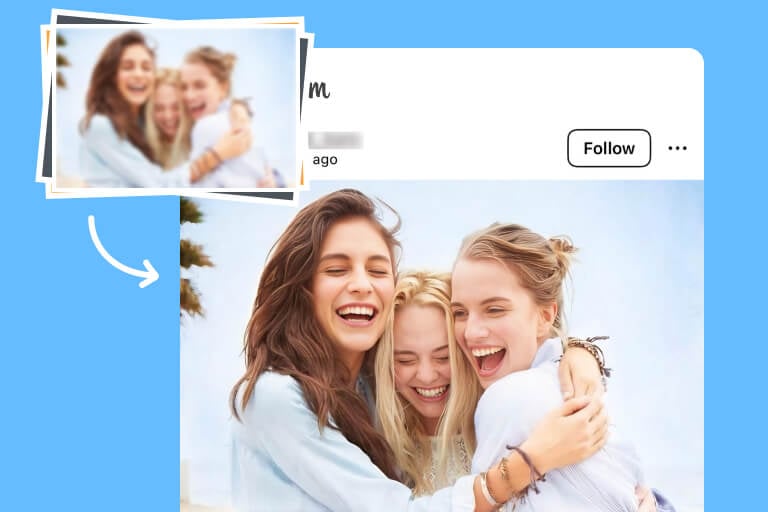
Personal Photo Collections
Improve a folder of travel photos, family snapshots, or scanned prints that look soft at the same time. Use enhancement for blur and low resolution; torn areas, deep scratches, or missing subjects need a more specialized restoration or editing workflow.

E-Commerce Product Catalogs
Give product photos from the same shoot a more consistent level of detail before listing them. Review labels, logos, fabric texture, and product edges, then use the bulk background remover if the catalog also needs matching cutouts.
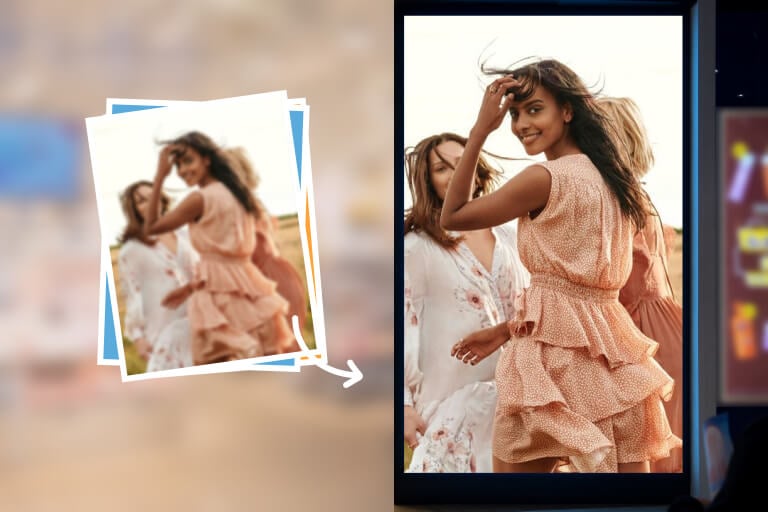
Marketing and Social Sets
Enhance campaign tiles, thumbnails, or social images together before publishing. Once image quality is approved, use the bulk image resizer to prepare the same set for different channel dimensions.
Why Use insMind's Batch Photo Enhancer?

One Workspace for the Whole Set
Upload the related files together and keep their outputs in one batch view. That removes the repeated open-process-download cycle required by a single-image tool.

Two Clear Quality Levels
Choose High (1x) for a quality pass at the current scale or Ultra High (4x) when the batch also needs larger pixel dimensions. The choice is visible before processing.

Preview Before Batch Download
Inspect individual outputs before saving the set. This matters for mixed batches because faces, typography, product labels, and compressed details may respond differently to the same enhancement level.
Batch Photo Enhancer FAQs
Is there a free batch photo enhancer online?


How do I batch enhance photos at once?
Does 4x enhancement make every image 4K?
What should I check after enhancing images in bulk?
Continue with Batch and Image Quality Tools
Choose the next tool based on whether the set needs backgrounds, dimensions, layout changes, or a single-image correction.

Bulk Background Remover
Batch Photo Editor
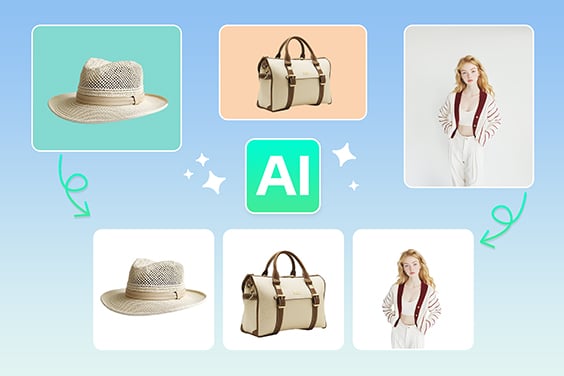
Bulk Image Resizer

Background Remover
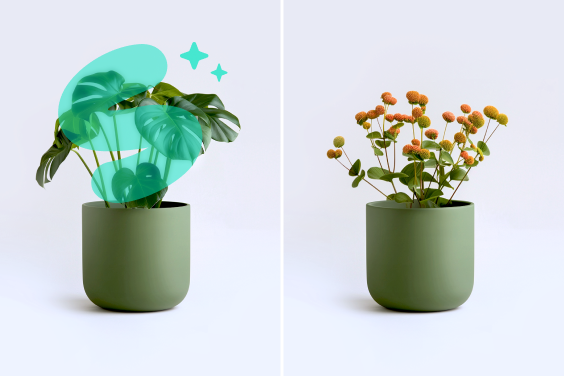
AI Replace
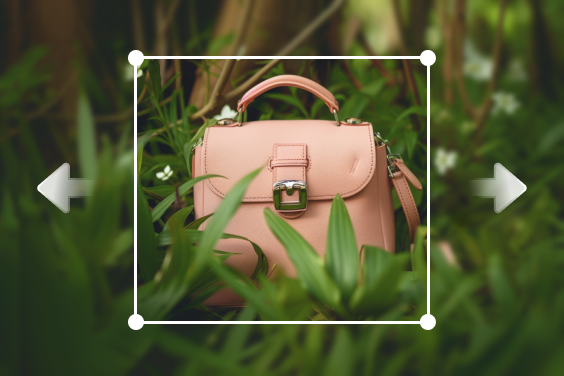
AI Image Expand
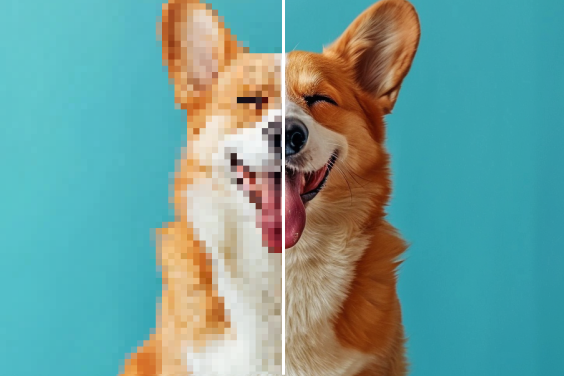
AI Image Enhancer

Product Collage
"I have been using this batch photo enhancer for a long time. It delicately highlights the best detail, and the interface is really intuitive. For me, it's a must-have tool for any photographer."
@Emily Roberts, Photographer