


Edit Text in an Image Online for Free

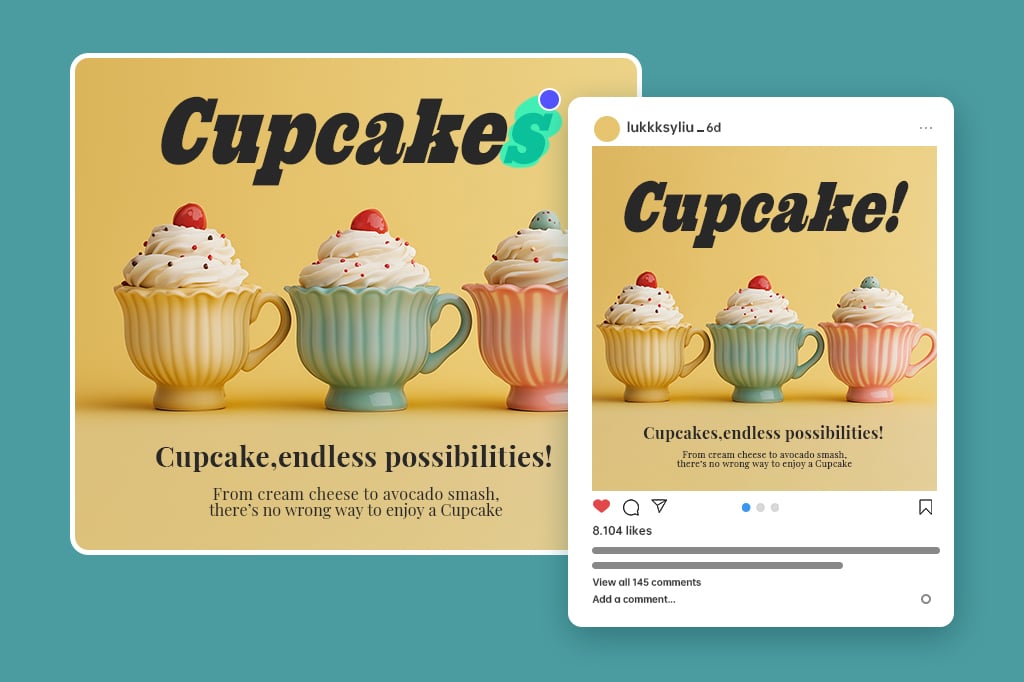
Need to fix wording on a photo, poster, screenshot, product image, or social graphic? Upload your image, clean the old text area, add new words, adjust the font, color, and position, then download the updated image from your browser.

Edit Text in an Image Online for Free
Or drop image here, paste image or URL
Try with one of these
Edit Text in Image 1
Edit Text in Image 2
Edit Text in Image 3
Edit Text in Image 4
Edit Text in Image 5
Edit Text in an Image Online for Free

How to Edit Text in an Image Online

Open the photo text editor
1

1 Open the photo text editor

Open insMind in your browser and choose the Edit Text in Image tool. No software installation is needed.
Upload your photo
2

2 Upload your photo

Choose the image you want to update. Screenshots, product photos, flyers, posters, and social media images work best when the text area is clear.
Remove the old text area
3

3 Remove the old text area

Use the eraser/cleanup tool to mark the words you want to replace. Zoom in for small letters or busy backgrounds so the cleaned area blends with the image.
Add and style your new text
4

4 Add and style your new text

Select the Text tool, type your replacement wording, then adjust the font, size, color, spacing, and placement until it fits the original design.
Preview and download
5

5 Preview and download

Check the edges, alignment, and readability before exporting. If the background is complex, make a quick second pass before downloading the final image.
Edit Text in Photos Without Rebuilding the Whole Design

Edit Text in Photos Without Rebuilding the Whole Design

A small typo or outdated price should not force you to recreate an entire image. insMind helps you update text on photos, screenshots, posters, and product graphics directly in your browser. Clean the old wording first, place the new text, and keep the rest of the design intact.


This is useful for quick content updates: changing a sale date, correcting a label, replacing a caption, or refreshing a visual before it goes live. The workflow is simple enough for first-time users, but still gives you control over the details that make the edit look intentional.
Upload Your Image
Replace Words in an Image and Match the Layout More Naturally

Replace Words in an Image and Match the Layout More Naturally

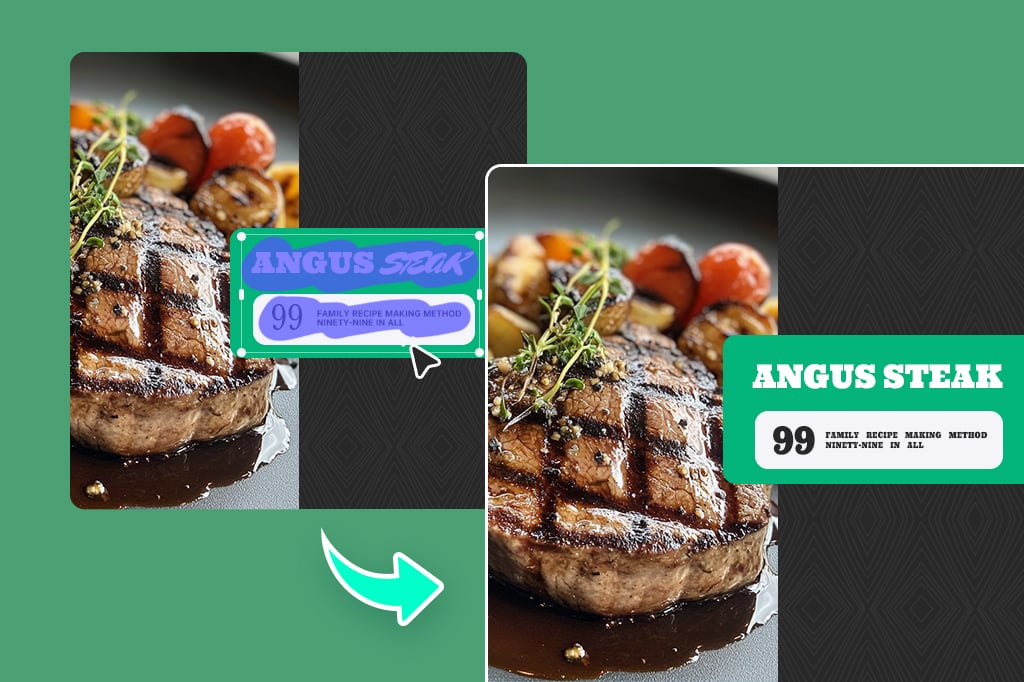
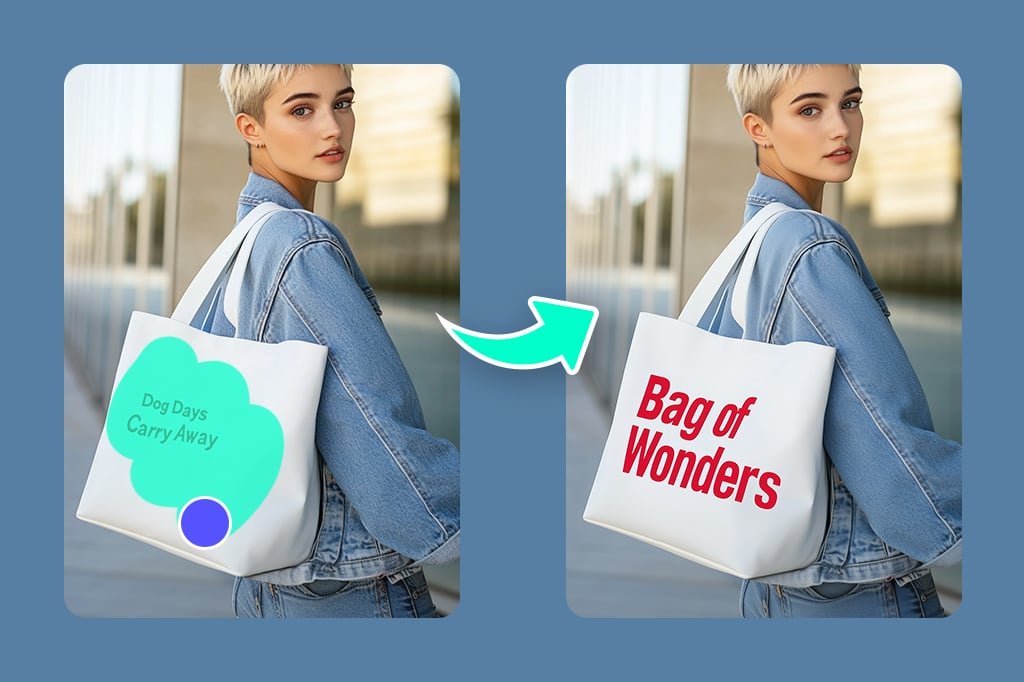
When you change text in an image, the replacement needs to fit the space around it. After removing the old words, you can add new text and adjust the font, size, color, and position so the update sits naturally in the design.


For clean results, start with a clear text area and zoom in when the background has texture, shadows, or small details.


If you only need to place new words on a blank area, try the Add Text to Photo tool.

Upload Your Image
Keep Your Image Clear While Editing Text

Keep Your Image Clear While Editing Text

Text edits look better when the cleanup area is precise. Use a smaller brush around letters, logos, and edges, then preview the result before adding replacement text. This helps preserve nearby details and avoids the blurry patch that can happen when too much of the image is erased at once.


If the original image looks soft after editing, improve the final version with the AI Image Enhancer.

Upload Your Image
Fix Text on Product Images, Flyers, Screenshots, and Social Posts

Fix Text on Product Images, Flyers, Screenshots, and Social Posts

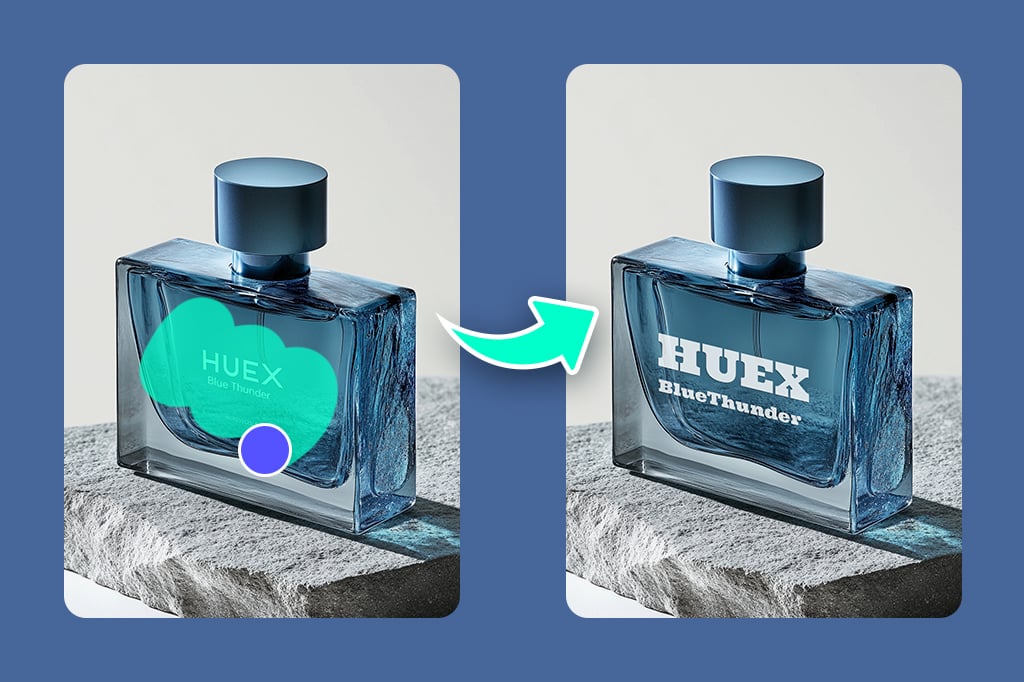
Use the image text editor when a visual is almost right but the wording is not. Update product prices, change a promo line, correct a misspelling, replace an old date, or adjust a message for a new campaign.


The best edits usually happen when the new text is close in length to the original and the background is not too crowded. For more complex edits, remove the old area carefully first, then place the new text in a way that matches the surrounding layout.

Upload Your Image
Style New Image Text with Fonts, Colors, and Effects

Style New Image Text with Fonts, Colors, and Effects

After the old text is removed, choose a font and style that fits the image. You can adjust size, color, alignment, and placement, then use shadows or text effects when the words need more contrast.


Keep the design readable first. A replacement line should look like it belongs in the image, not like a label pasted on top. For posters, ads, and social graphics, test the image at the size where people will actually view it.

Upload Your Image

Explore More Photo Text Editing Tools

What Can You Edit with an Online Image Text Editor?

Use insMind when the image is already useful but the wording needs a quick update. It works well for clear text areas, simple backgrounds, and everyday design fixes.

Marketing and product images

Marketing and product images

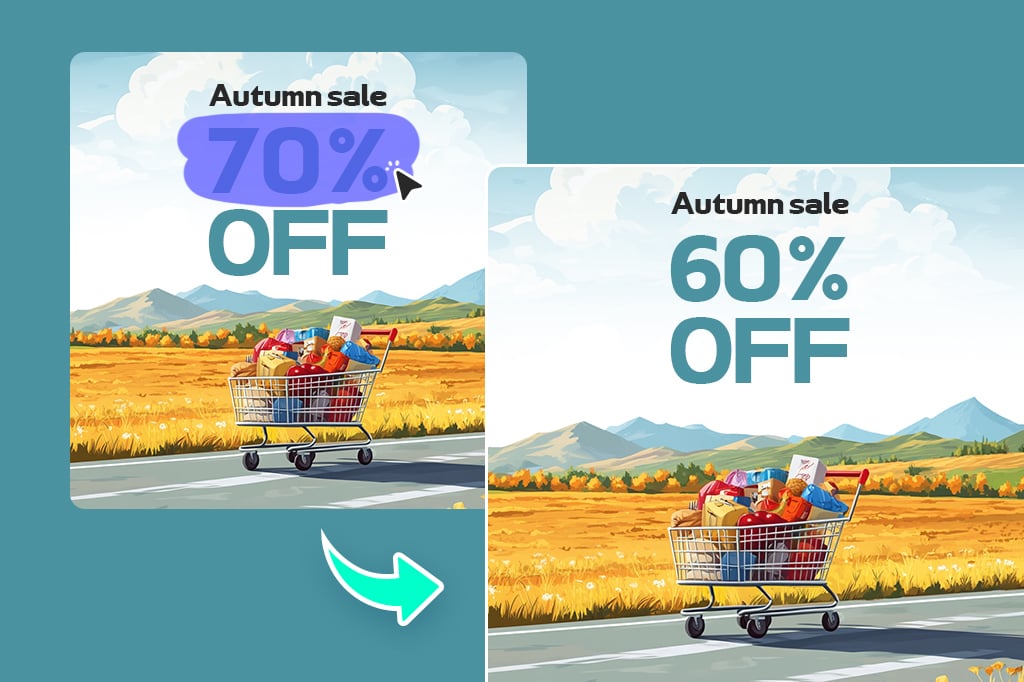
Update sale prices, product labels, promo lines, and campaign text without rebuilding the whole graphic. This is helpful for ecommerce listings, ad banners, and seasonal social posts.

Typos and outdated wording

Typos and outdated wording

Fix a misspelled word, old date, wrong phone number, or outdated caption directly on the image. Clean the original text area first, then place the corrected wording in the same spot.

Personal photos and event graphics

Personal photos and event graphics

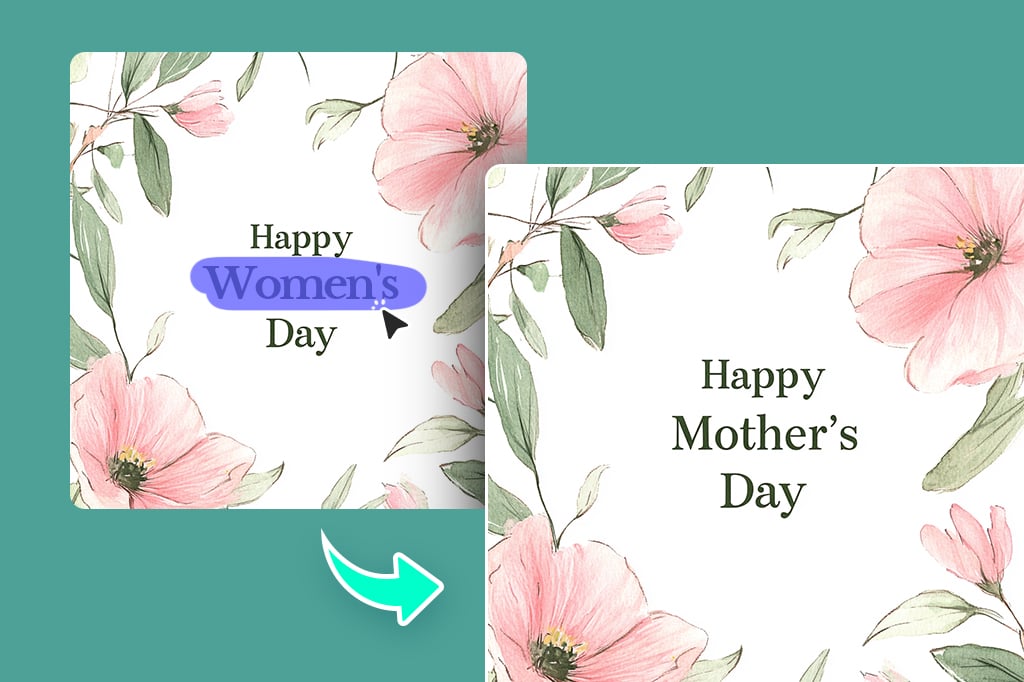
Add or replace names, dates, greetings, quotes, and short messages on invitations, birthday images, travel photos, or social media posts. Keep the new text short and readable for the cleanest result.

Why Use insMind to Edit Text in an Image?

Easy Browser-Based Editing

Easy Browser-Based Editing

Open the tool, upload your image, and start editing text without installing a design app. The workflow is built for quick fixes, not complex design setup.

Text styling controls

Text styling controls

After adding replacement text, adjust the font, size, color, position, and style so the new wording fits the image more naturally.

Useful Cleanup Tools

Useful Cleanup Tools

Remove the old text area before adding new words. This makes the final result cleaner than simply covering the original wording with a text box.

Frequently Asked Questions

Can I edit existing text in an image online?

insmind expand icon
Yes. Upload your image, remove or clean the existing text area, then add new text on top. You can adjust the font, size, color, and placement before downloading the edited image.

Is the insMind photo text editor free to use?

insmind expand icon
You can start editing text in images online for free. Some export options, higher-resolution downloads, or advanced features may depend on your account or plan.

What kinds of images work best?

insmind expand icon
Clear screenshots, product images, posters, flyers, banners, and social graphics usually work well. Text on a flat or simple background is easier to replace than text over detailed patterns or faces.

Will editing text reduce image quality?

insmind expand icon
The edit itself does not have to reduce quality, but the final result depends on the original image and how carefully the old text area is cleaned. For small text or complex backgrounds, zoom in and make a precise selection.

Can I match the original font exactly?

insmind expand icon
You can choose fonts, colors, and styles to get close to the original look. Exact font matching depends on the image and available font options, so preview the result before downloading.

More Tools for Cleaner Photo Text Edits

Remove unwanted words, add new captions, clean up backgrounds, or improve image quality after your text edit.