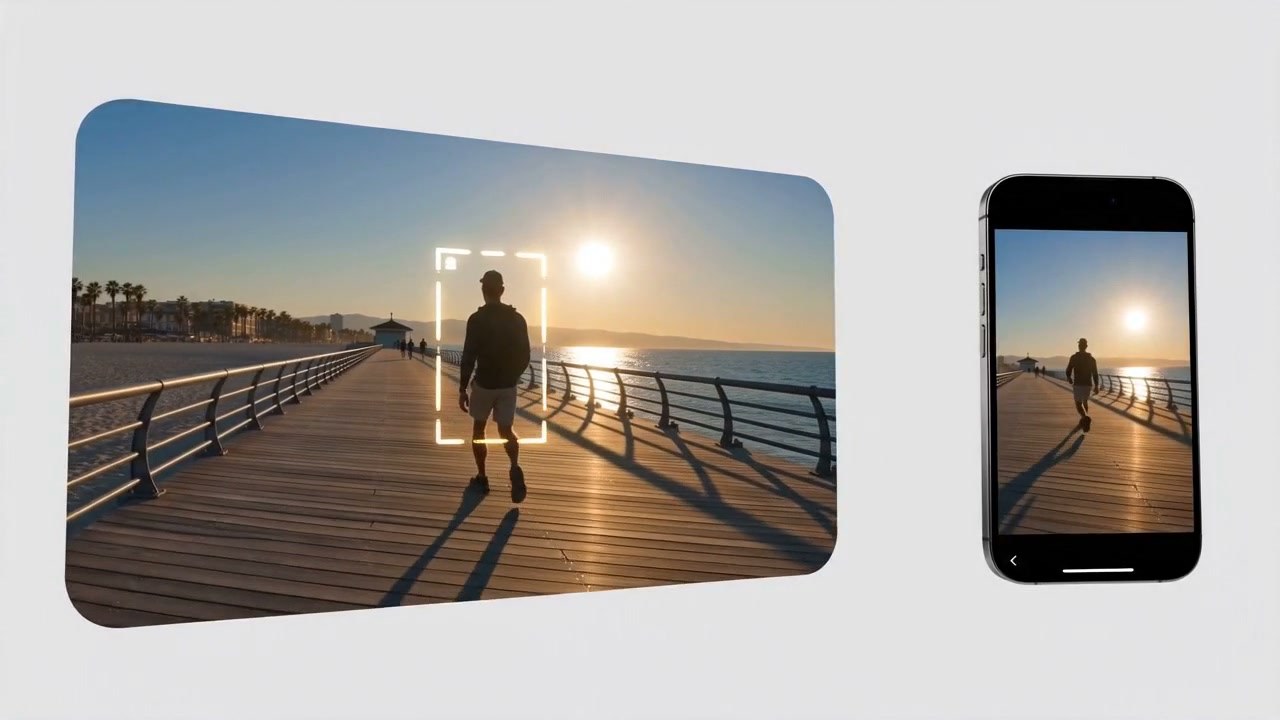
AI Landscape to Portrait Video Converter

Turn horizontal video into portrait clips that feel right on Reels, Shorts, TikTok, ads, and mobile posts.

00:00
00:00

Convert Horizontal to Vertical Video with AI

Upload a landscape video and turn it into a vertical clip for mobile viewing. Instead of starting over with a new shoot, use insMind to convert horizontal video to vertical with AI and make existing clips work better in short-form feeds.
Convert Video to Portrait
00:00
00:00

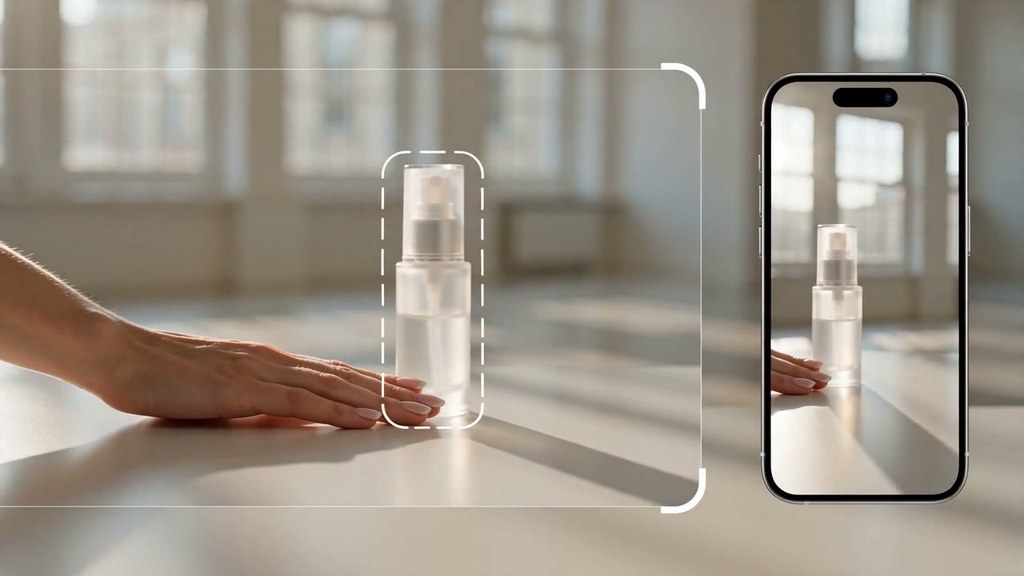
Reframe Landscape Videos to Portrait with the Main Subject

When a landscape video becomes portrait, the main subject still needs to make sense. Use insMind to guide the crop or reframe direction, then check that the person, product, screen, or action stays clear in the vertical version.
Convert Video to Portrait
00:00
00:00

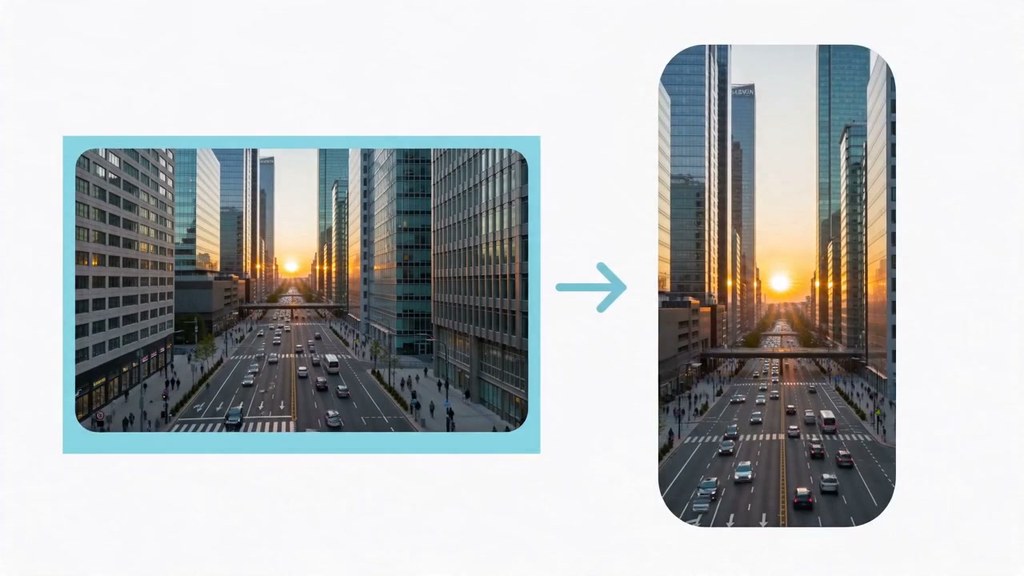
Turn Landscape Footage into 9:16 Social Clips

Turn campaign clips, creator footage, webinars, tutorials, or product demos into 9:16 versions for Reels, Shorts, TikTok, and mobile ads. If a clip needs more than reframing, the AI video editor can help you adjust the idea without digging through a heavy timeline.

Make Video Vertical

How to Convert a Landscape Video to Portrait Online

Step 1: Upload Your Horizontal Video

Choose the landscape or horizontal video you want to make vertical. A product demo, tutorial, webinar highlight, creator clip, or campaign video all work as long as the important subject is visible in the source.

Step 2: Enter Your Prompt and Choose a Model

Enter a prompt that explains the portrait version you want. For example, ask for a 9:16 vertical cut for Reels, Shorts, TikTok, or mobile ads, and name the subject that should stay visible. Then choose an AI model, such as Seedance 2.0 Mini, Seedance 2.0, or Kling 3.0.

Step 3: Send the Prompt and Generate

Send the prompt to start generating. insMind processes the uploaded horizontal footage with your prompt and selected model, then creates a portrait result you can review before downloading.

Step 4: Download and Share

Preview the vertical video and check the parts that matter: the subject, product, screen text, or main action. When the portrait frame looks right, download the clip for mobile posts, product ads, stories, or short-form previews.

Why Use insMind to Convert Landscape Videos to Portrait

Less Manual Cropping

Less Manual Cropping

Skip the back-and-forth of dragging crop boxes by hand. Give insMind your horizontal video, describe the portrait frame you want, and review a vertical version faster.
Ready for 9:16 Feeds

Ready for 9:16 Feeds

Shape landscape footage for the tall screens where people actually watch short clips. For social-first creation beyond reframing, try the AI YouTube Shorts generator.
Keep What Matters Visible

Keep What Matters Visible

Portrait conversion is only useful if the key subject survives the crop. Check whether the person, product, screen, or action still reads clearly.
Natural Proportions

Natural Proportions

Avoid the awkward look of stretched footage. Aim for a portrait result where people, products, and backgrounds still feel naturally shaped.
More Life from Old Clips

More Life from Old Clips

Get another round of value from footage you already have: campaign videos, tutorials, creator posts, product launches, and short-form previews.
Edit in the Browser

Edit in the Browser

Upload, prompt, preview, and download from your browser. To clean up a reused clip after conversion, the AI video enhancer is a helpful next step.

Frequently Asked Questions

What is a landscape to portrait converter video AI?

insmind expand icon
A landscape to portrait converter video AI changes horizontal footage into a vertical portrait version. It is useful when the source video is already finished, but you need a phone-friendly cut for Reels, Shorts, TikTok, stories, ads, or portrait previews.

How do I convert a horizontal video to vertical online?

insmind expand icon
Upload your horizontal video, enter a prompt for the portrait version, choose a model, and generate the result. Before downloading, check whether the subject, product, screen area, or action still sits well inside the vertical frame.

Can I make a landscape video portrait for TikTok, Reels, and Shorts?

insmind expand icon
Yes. A 9:16 portrait version is usually easier to watch on TikTok, Instagram Reels, and YouTube Shorts because it fills the phone screen. It is especially useful when the original clip was filmed horizontally but the audience will see it on mobile.

Will the portrait video stretch my original footage?

insmind expand icon
It should not be a simple stretch. A better landscape-to-portrait edit reframes, crops, or fills the composition so people, products, and backgrounds keep natural proportions. Always preview the result before using it.

How can I keep the main subject in frame when converting to portrait?

insmind expand icon
Name the part of the video that should stay visible, such as a speaker, product, screen recording, or action area. After generation, review the portrait result and adjust the prompt if the subject feels too tight, off-center, or cropped.

What is the difference between cropping, AI reframing, and blur background fill?

insmind expand icon
Cropping cuts the wide frame into a taller view. AI reframing can guide the portrait composition around the important subject when supported. Blur background fill keeps the full horizontal video visible by placing it over a soft vertical background.

Can I convert product demo videos into vertical ads?

insmind expand icon
Yes. Product demos are a strong use case because many brands already have horizontal footage. Convert the clip into a portrait version, keep the product readable, and use the vertical result for mobile ads, product teasers, or social posts.

Can I turn webinars or tutorials into portrait clips?

insmind expand icon
Yes. A horizontal webinar, lesson, explainer, or screen recording can become a shorter portrait preview for mobile viewers. Keep the key speaker, screen area, or visual step readable so the vertical clip still makes sense.

Is insMind's landscape to portrait video converter free?
insmind expand icon
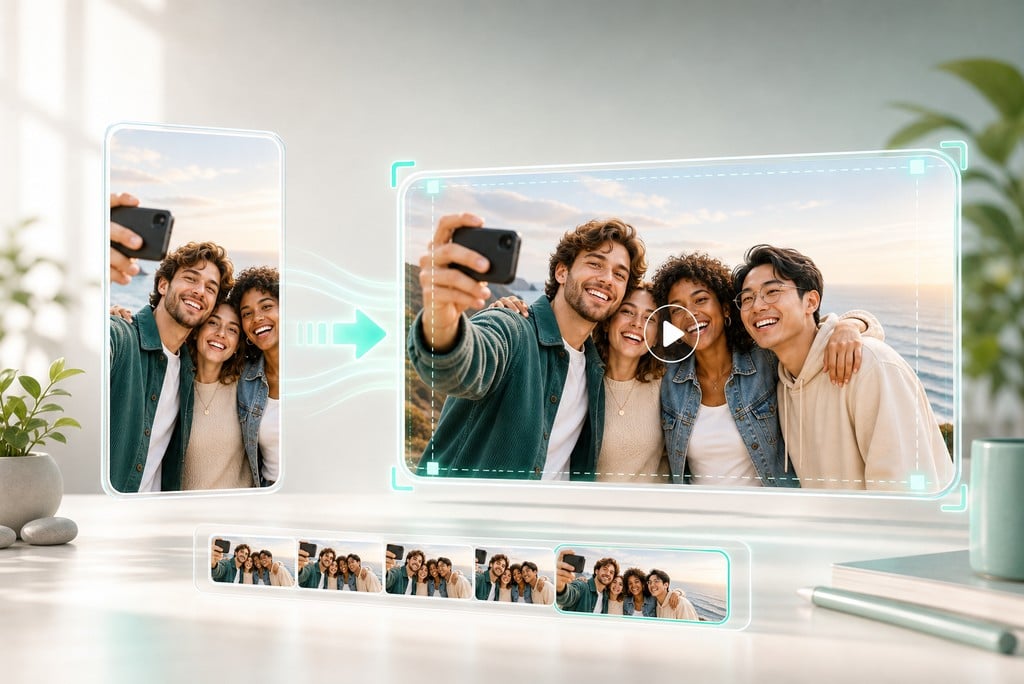
insMind offers a free trial for core features, and users can earn free credits through platform activities. Availability depends on current feature and account rules, so it is better to check your credit balance before starting a larger batch.

More Video Editing and AI Video Tools from insMind