
Change Facial Expressions in Photos with AI

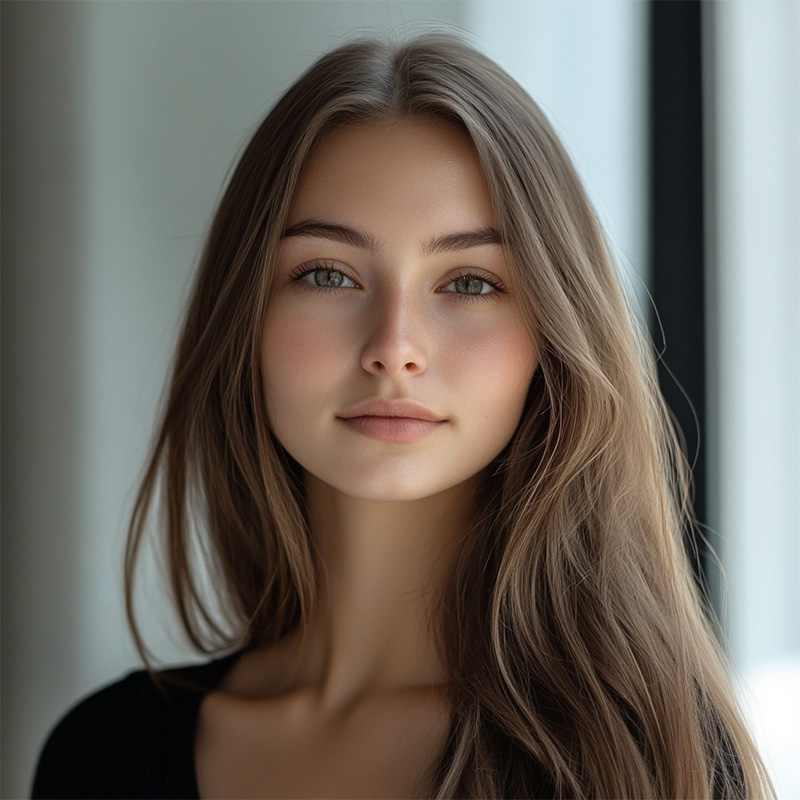
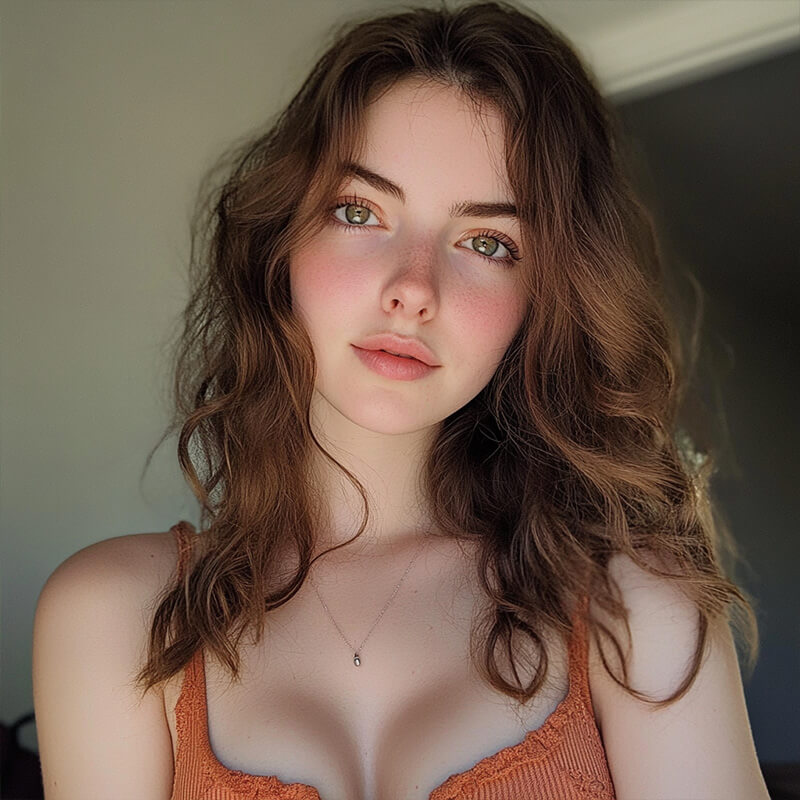
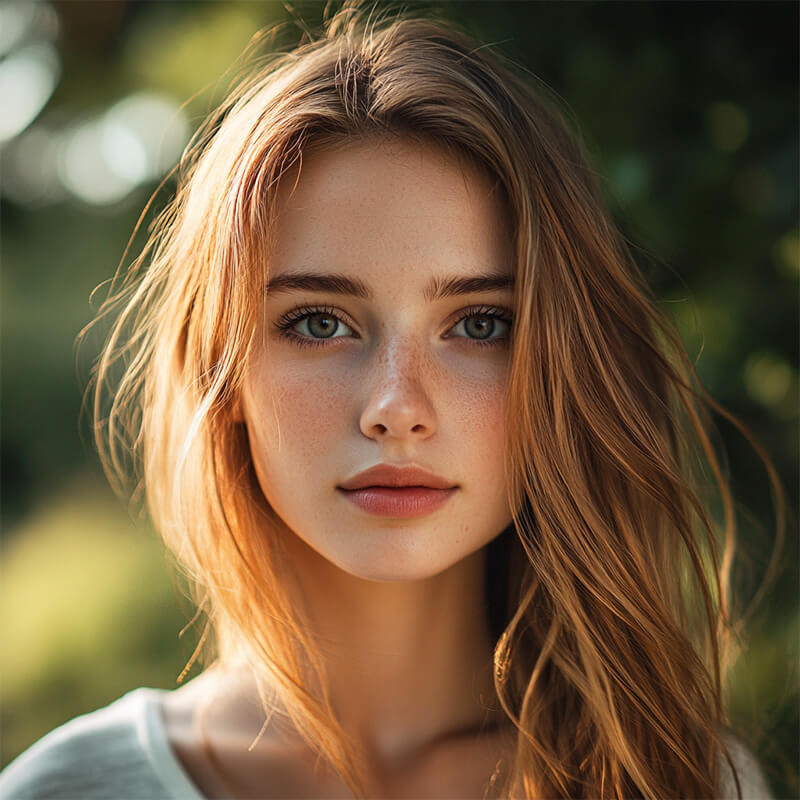
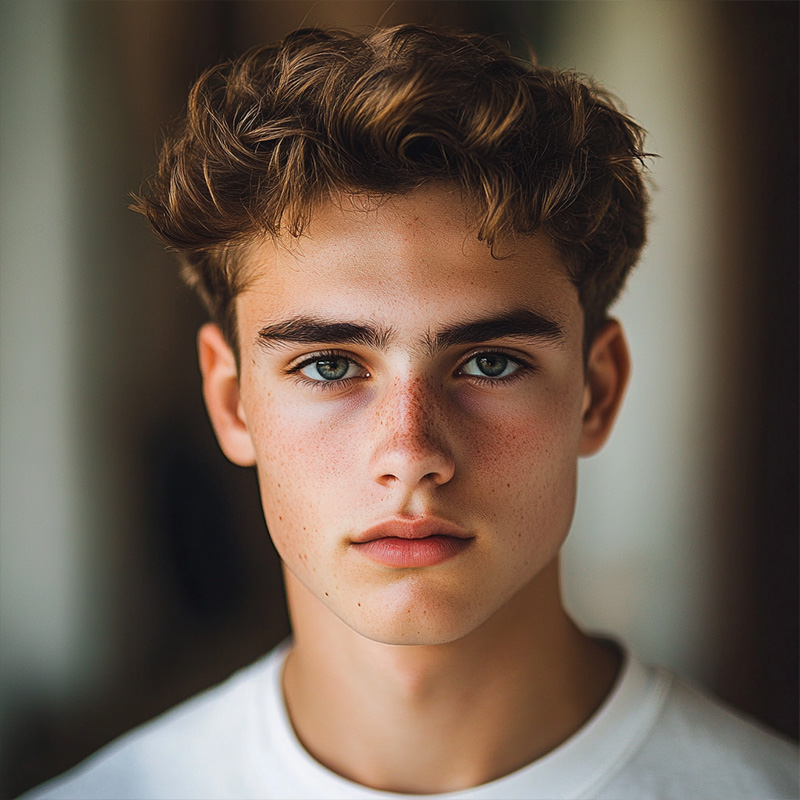
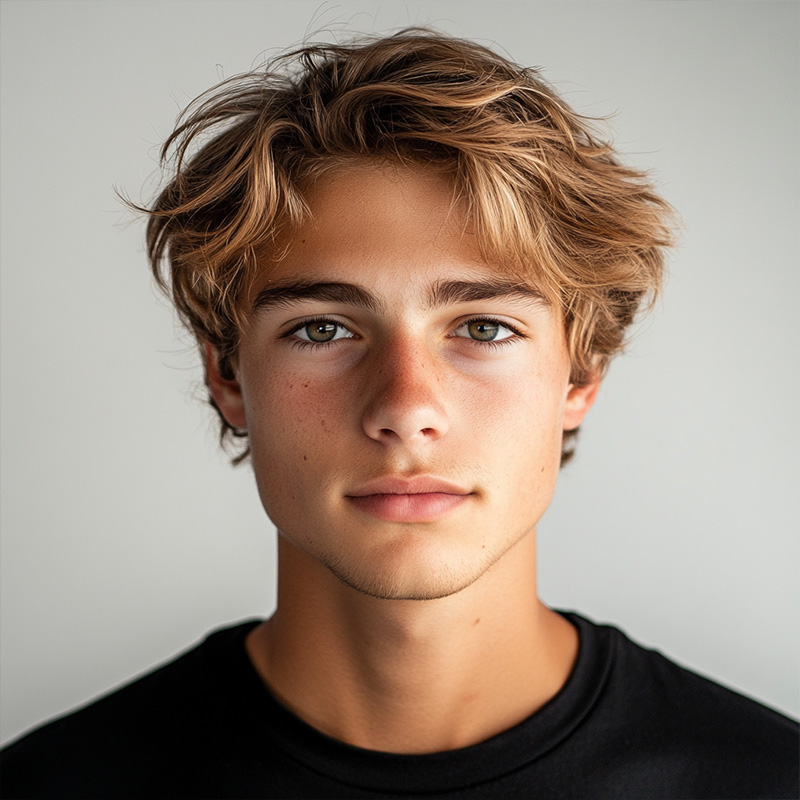
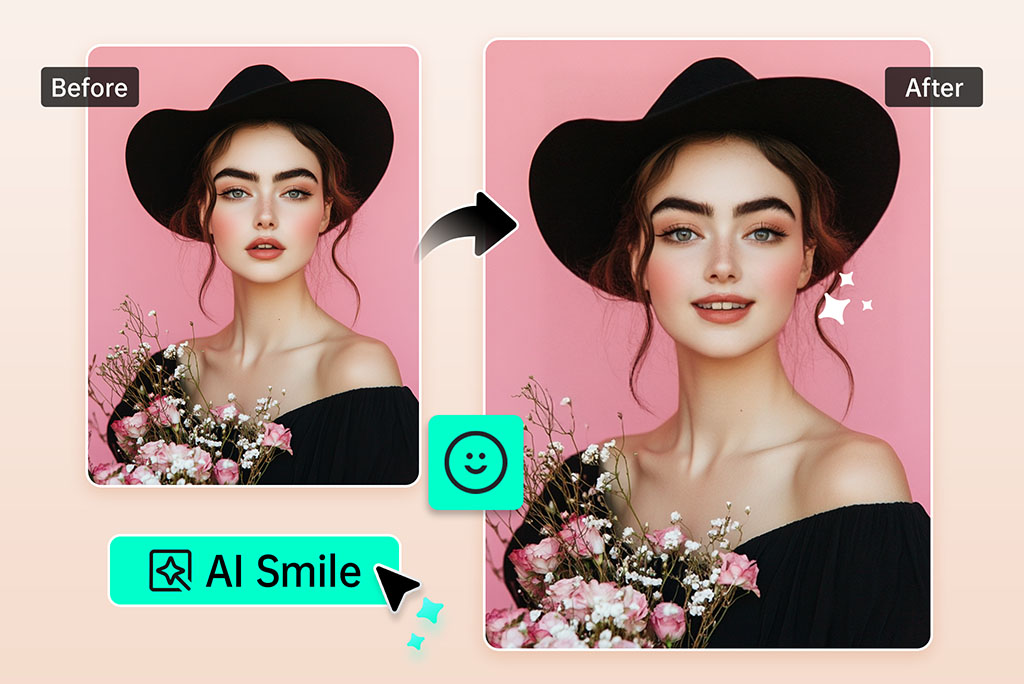
Adjust a Face Expression Without a Reshoot
A strong photo can still miss the right mood. Use the AI facial expression changer when the lighting, pose, and background already work, but the smile or emotion does not match the story.
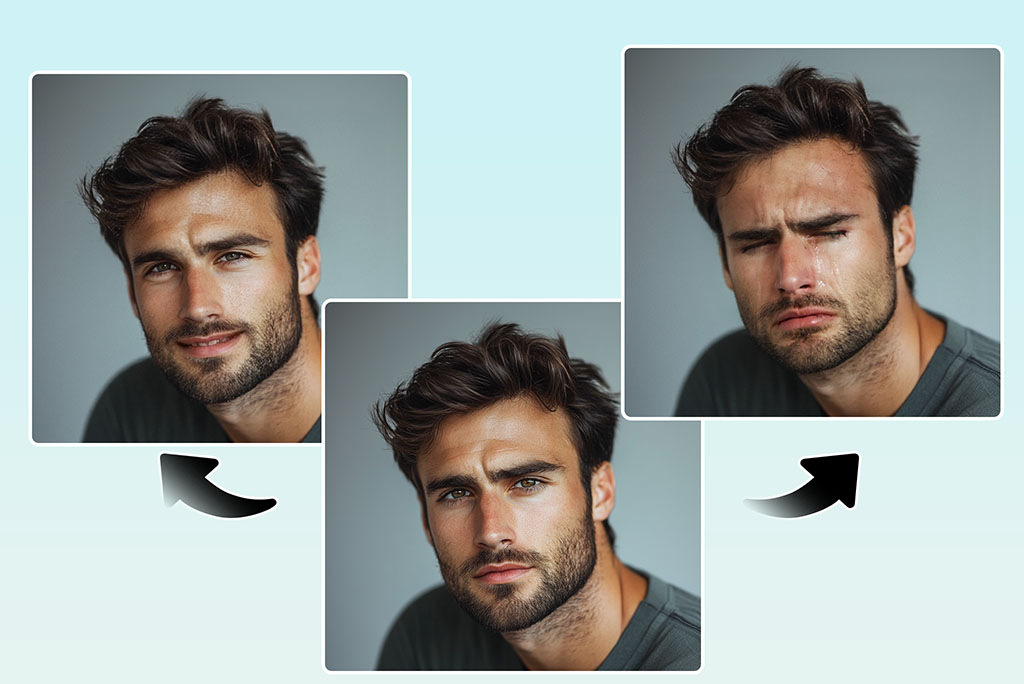
Make a Portrait Look Friendlier
For profile photos, team pages, or social posts, a slight smile often works better than an exaggerated one. Start with a clear face photo and keep the edit believable around the eyes.
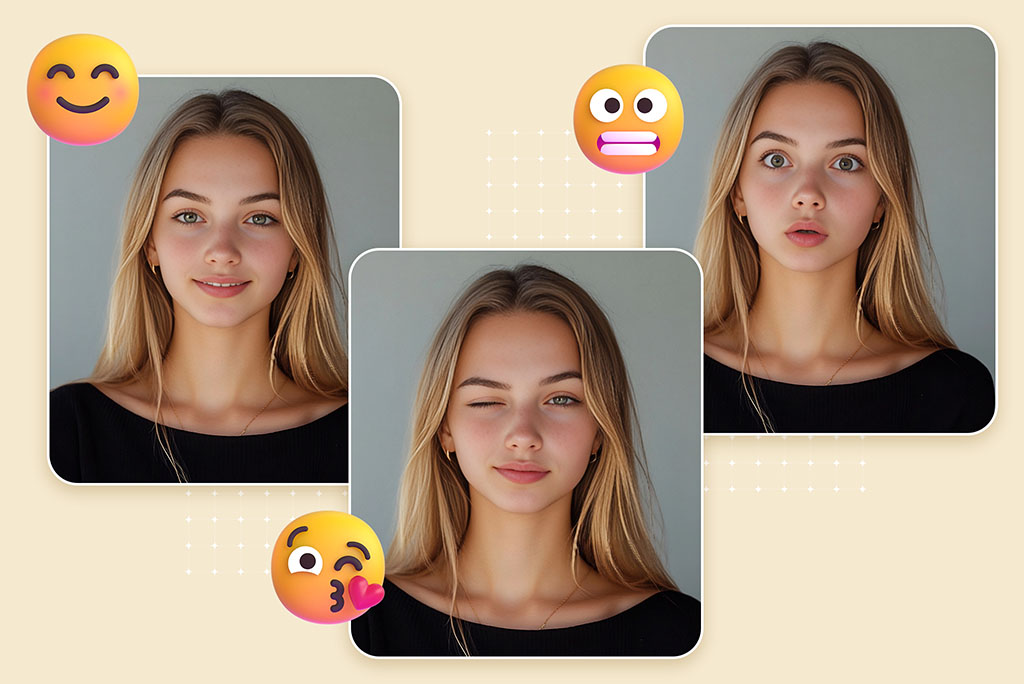
Test Different Emotions for Creative Images
Try happy, surprised, sad, or serious expressions when you need a different tone for a sticker, reaction image, thumbnail, or campaign concept.
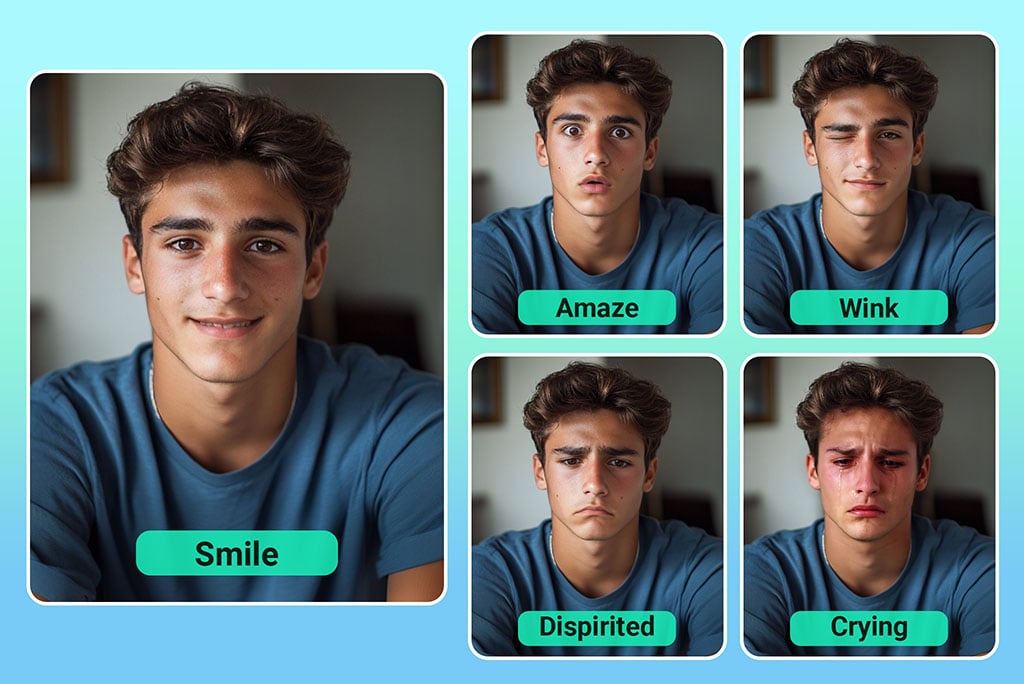
Review the Mouth, Teeth, and Eyes
Expression edits can fail when glasses, hands, hair, or shadows cover the face. After each result, zoom in and check whether the mouth shape and eye direction still feel coherent.
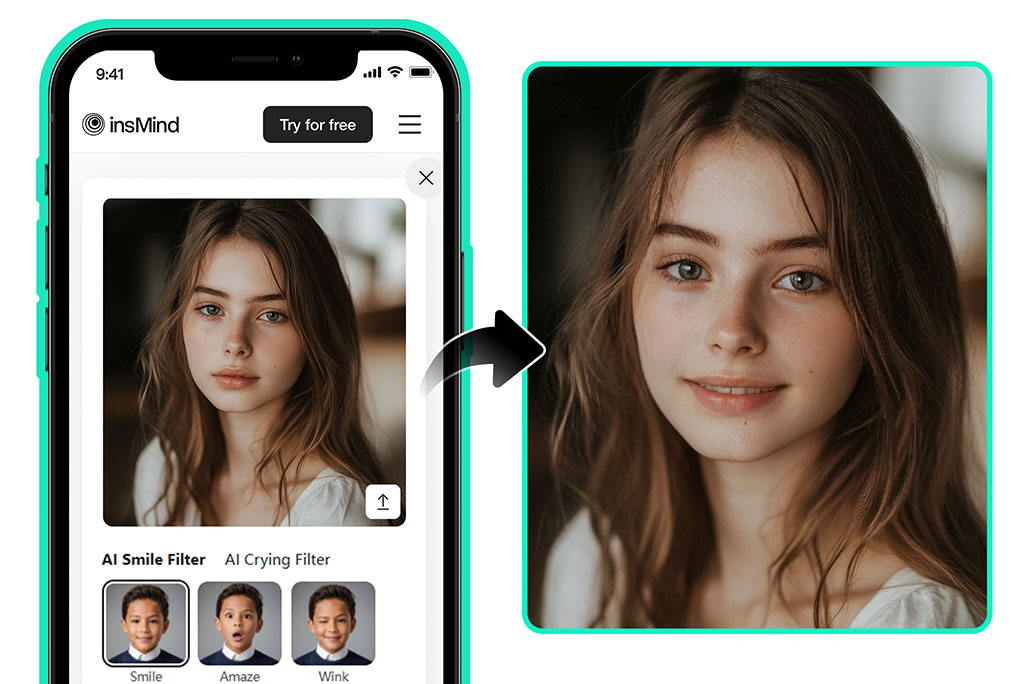
Keep the Best Version
Save the version that matches your use case, not just the strongest emotion. For professional portraits, restrained expression changes are usually safer.
More Face and Portrait Editing Tools
How to Change Facial Expressions in a Photo
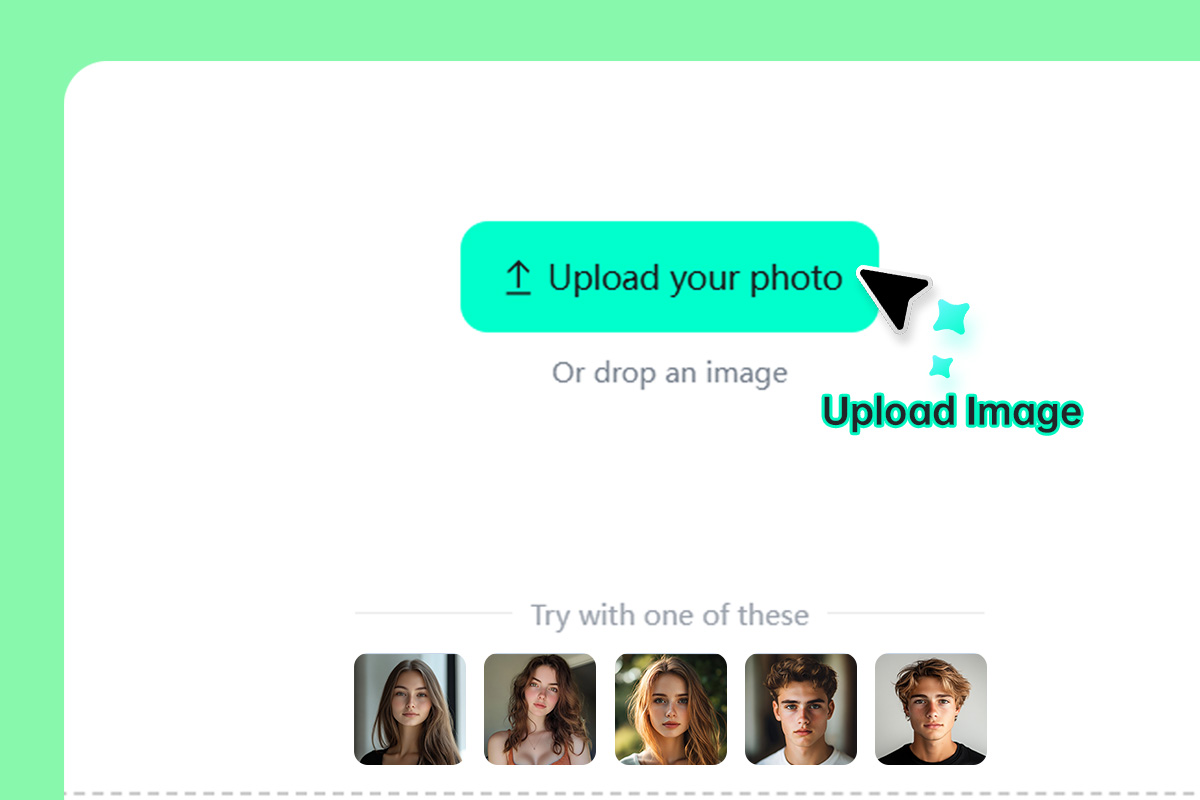
1 Upload a clear portrait
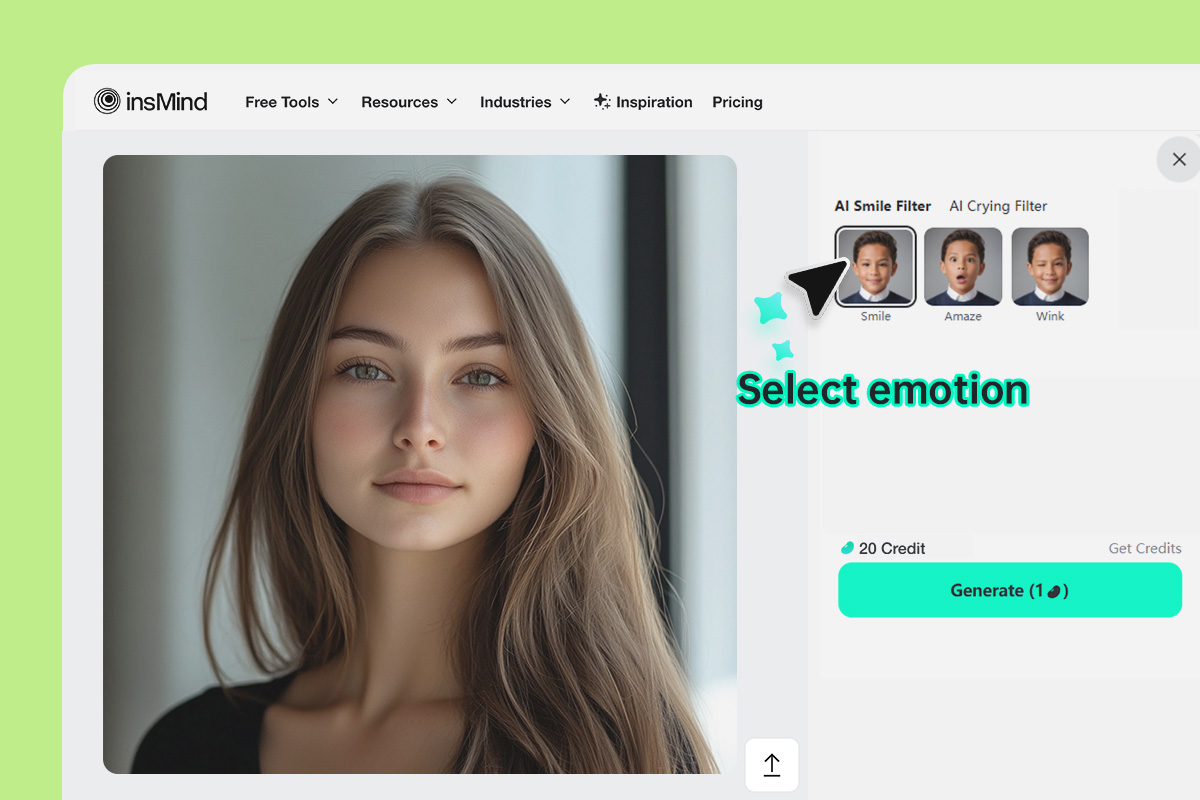
2 Choose the expression
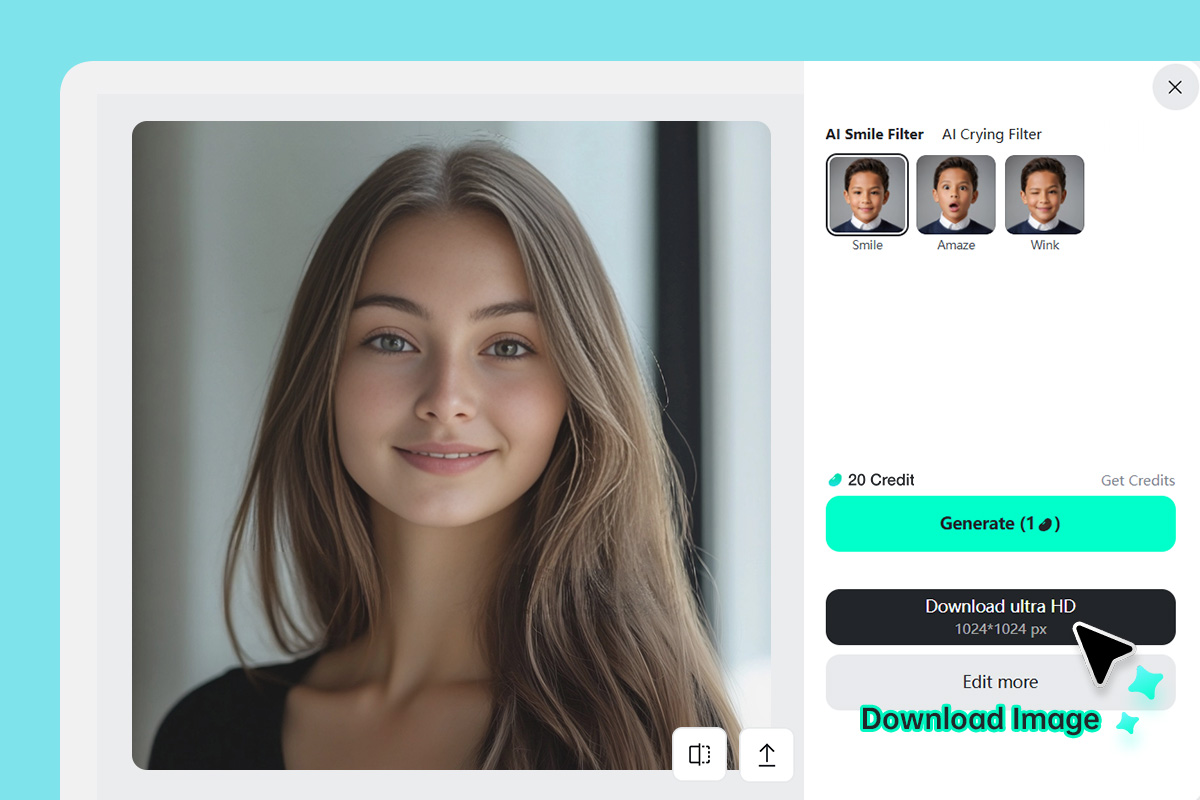
3 Generate, check, and download
When an AI Facial Expression Changer Helps
Use it when the photo is already good, but the emotion does not fit. For heavy face retouching or identity changes, use a more specific portrait editor instead.
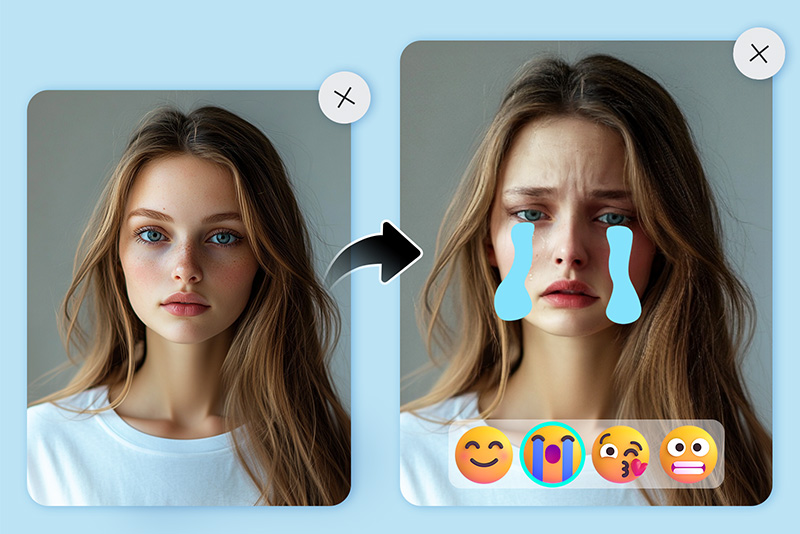
Profile Photos
Try a warmer smile for LinkedIn, resumes, speaker bios, or creator profiles. Keep the expression subtle so the result still looks like a real portrait.
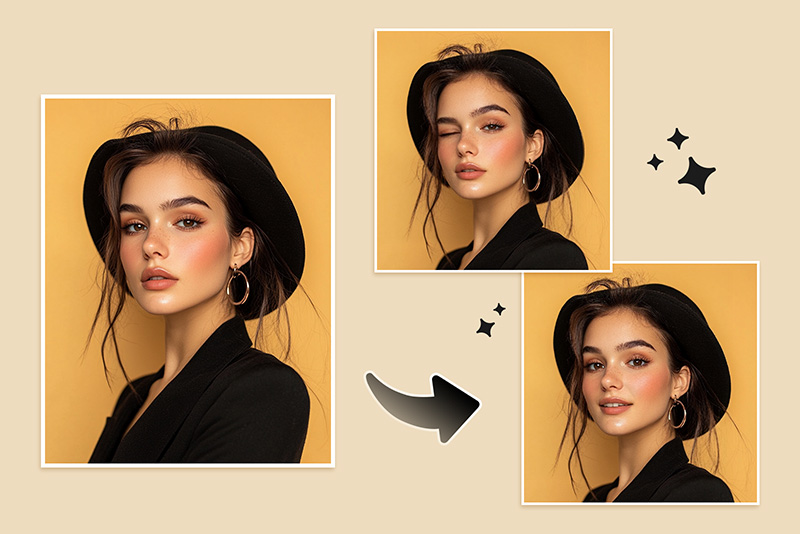
Reaction Images
Change a neutral face into a surprised, sad, or amused reaction for thumbnails, stickers, and social posts. Strong emotions are better for playful content than formal photos.
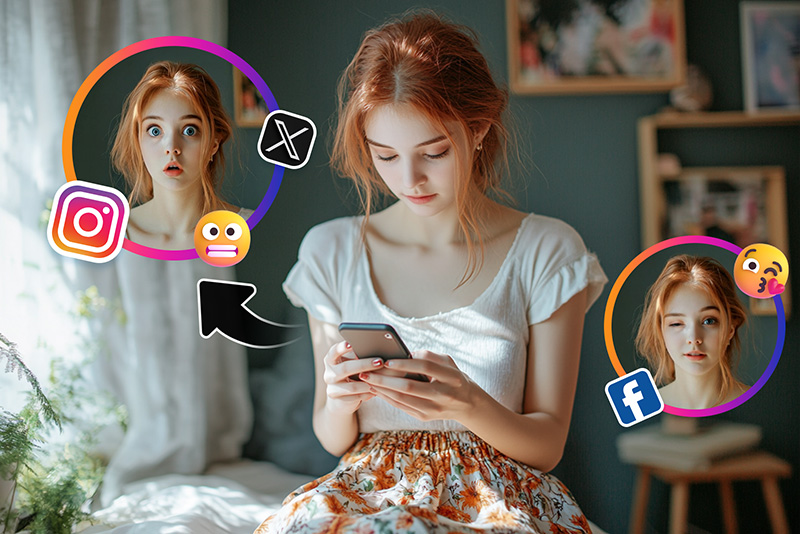
Campaign Concepts
Test whether a model photo works better with a confident, friendly, or serious tone before choosing final creative direction.
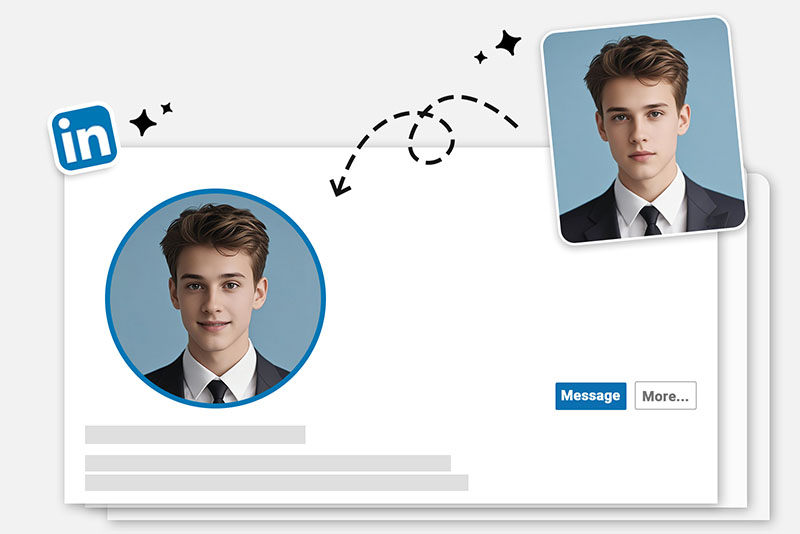
Family and Group Photos
If one person blinked or looked too serious, try a light expression edit. For group photos, check each face separately before sharing.
Why Use insMind for Face Expression Edits?

Expression Choices That Match Real Use Cases
Pick a smile for profile photos, a surprised look for reactions, or a calmer face for cleaner portraits. The goal is a better-fitting mood, not a completely different person.

Browser-Based Portrait Editing
Upload a photo, test an expression, and download the result online. This is useful when you do not want to open a full design suite for one face adjustment.

Practical Preview Step
The page works best when you inspect the generated face before publishing. Teeth, eyes, and shadows are the first places to check after an expression change.

Works Alongside Other Face Tools
After changing expression, you can keep editing with related portrait tools if the photo still needs glare removal, background cleanup, or image enhancement.
FAQs About Changing Facial Expressions with AI
What is an AI facial expression changer?


Can I change a neutral face into a smile?
Can I change facial expressions online for free?
What photo works best for expression editing?
Why does the edited expression sometimes look unnatural?
Is this the same as changing expressions on Snapchat?
Can I use it for professional portraits?
Will the tool change the whole face?
More Tools for Face and Portrait Edits
Use these if the portrait needs a different mood, cleaner details, or another style after the expression edit.
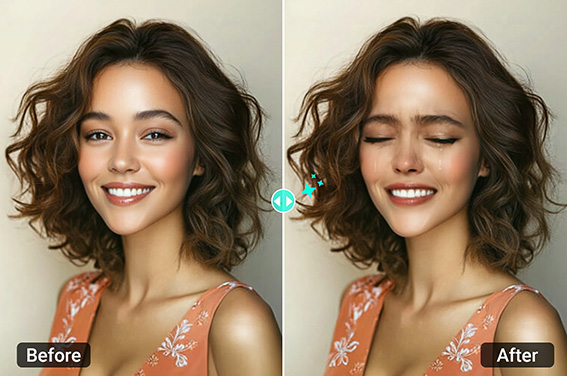
Crying Filter
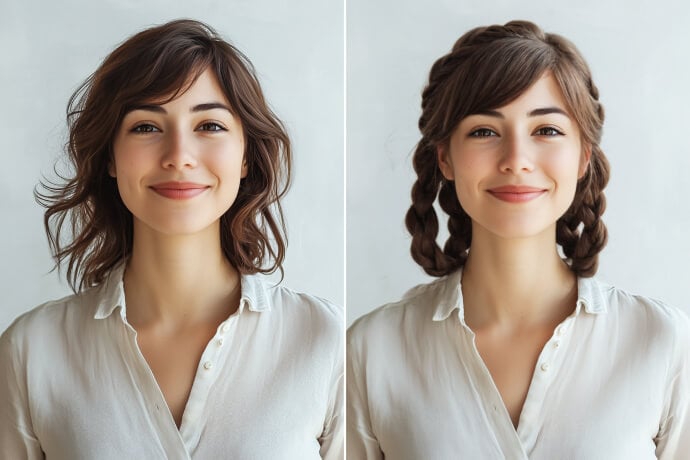
AI Headshot Generator
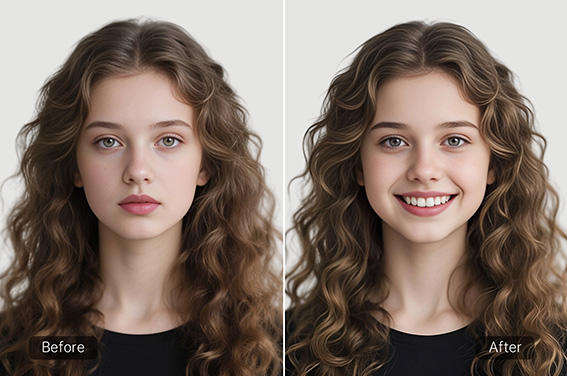
Smile Filter
Remove Glare From Photo
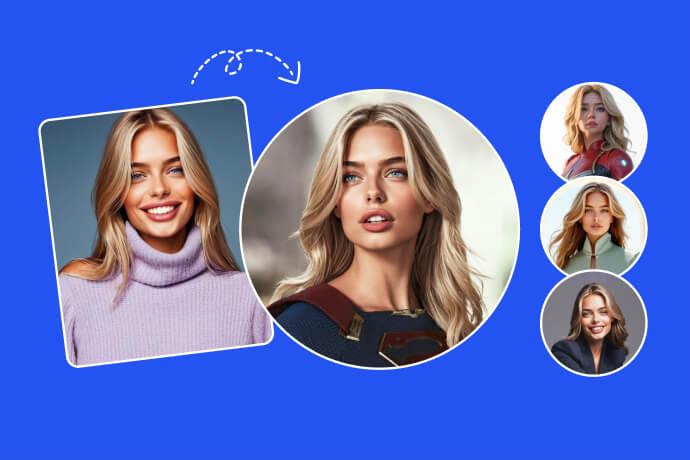
"Great tool! The expressions it altered look incredibly realistic, just like the original. It's a great asset for my design projects."
@Elizabeth