Use this page when you already have a source image and want a pixel-art version quickly. The best inputs have one clear subject, visible edges, and enough contrast; crowded photos can still work, but they may need a tighter crop before conversion.

Image to Pixel Art Converter Online
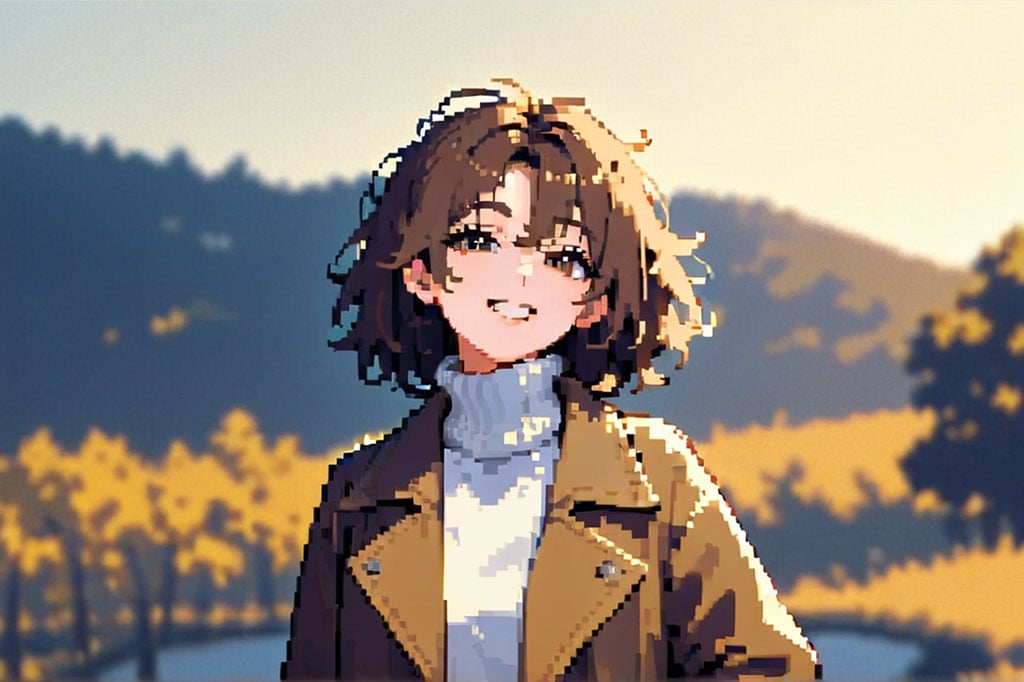
After
Before
Or drop image here, paste image or URL
Try with one of these
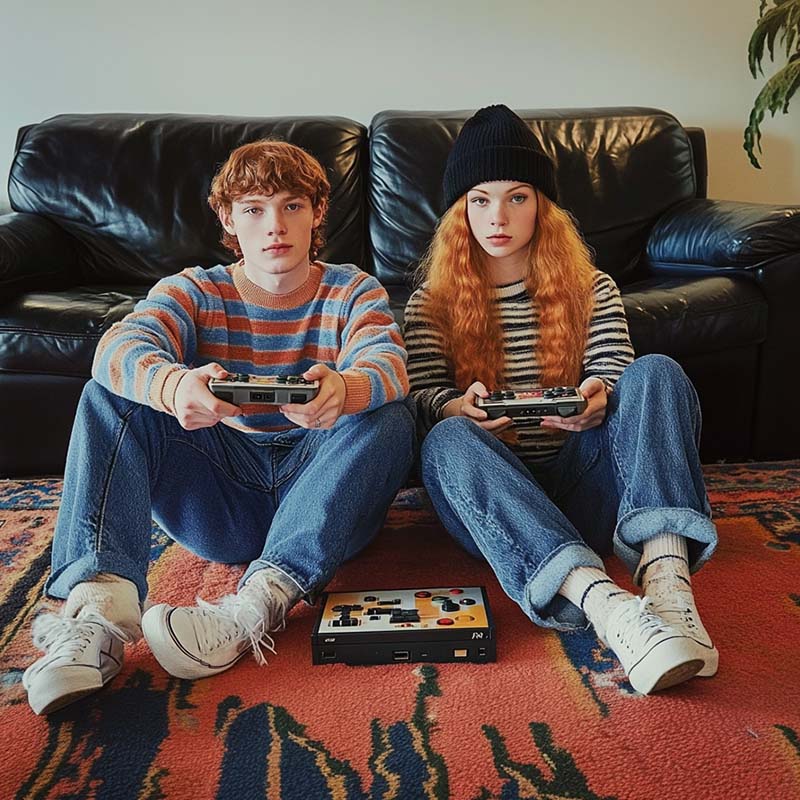
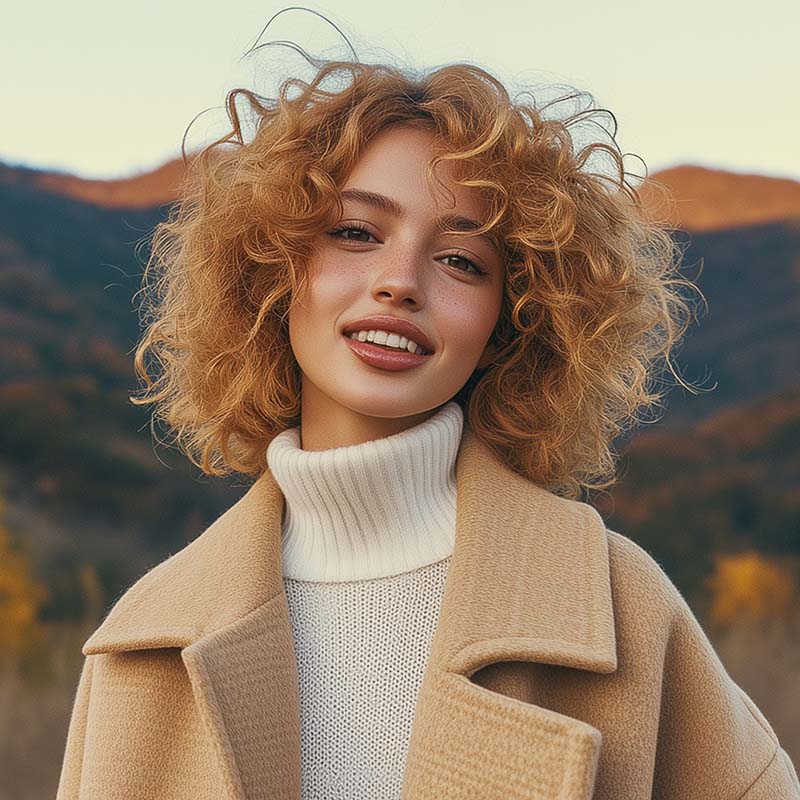
After
Before
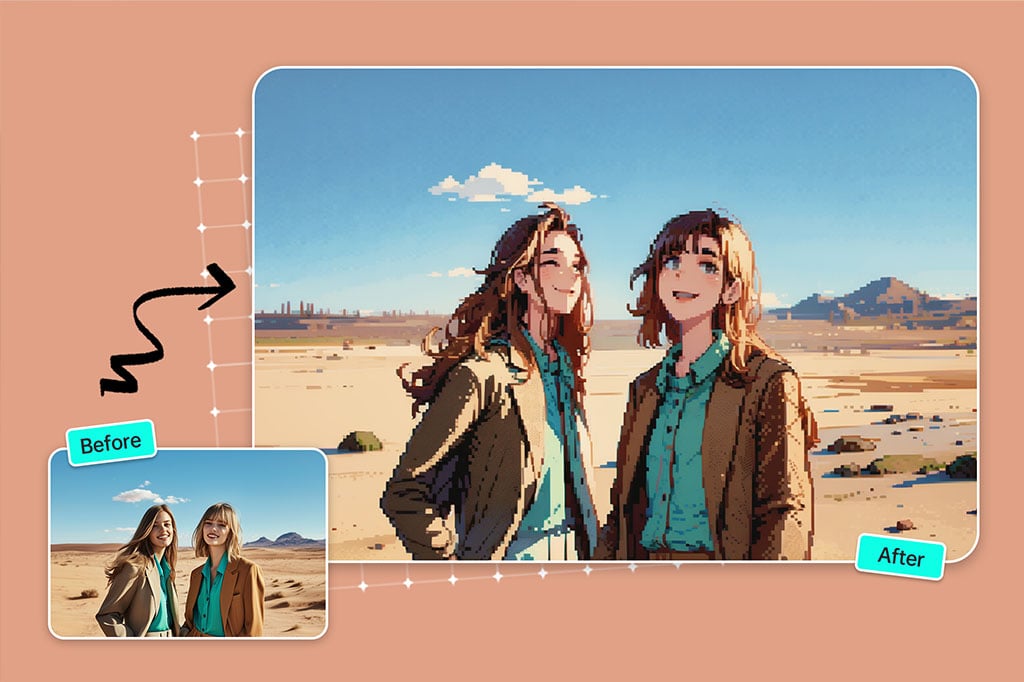
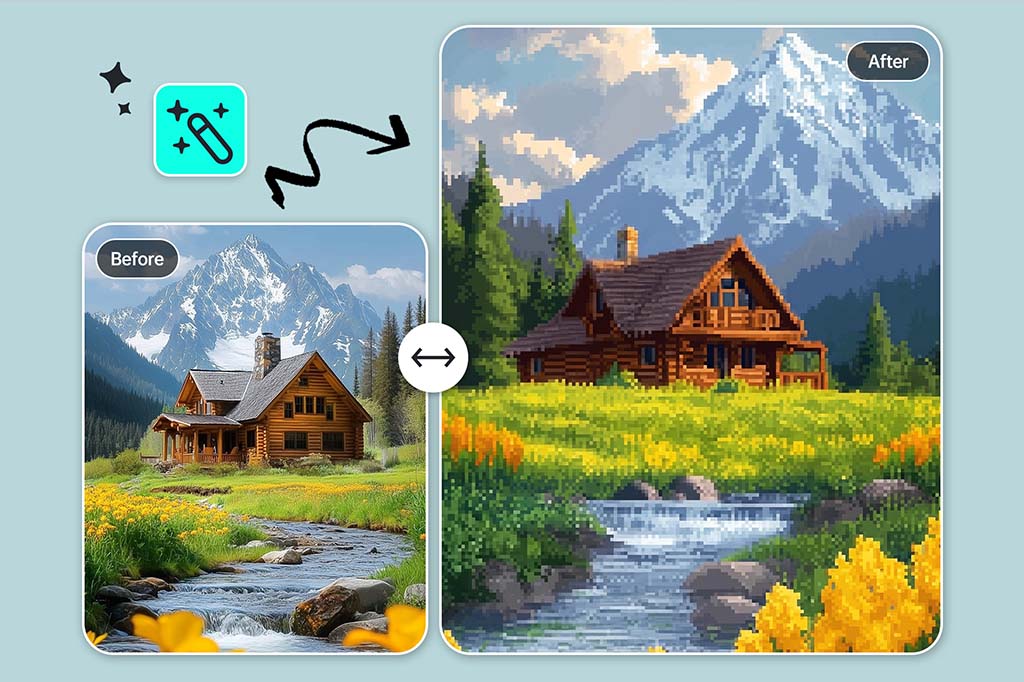
Pixelate Photos While Keeping the Subject Recognizable
A useful pixel result should still show what the original image was. After applying the Pixel filter, check the face, product outline, pet shape, or landscape silhouette. If those details disappear, crop closer or use a simpler source image.
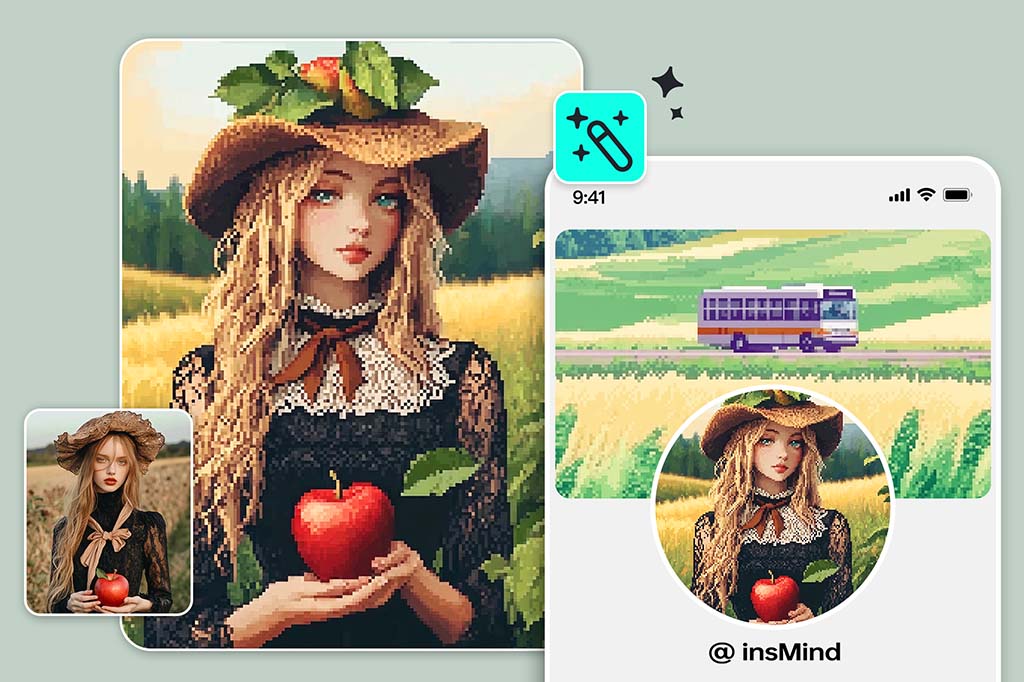
Make Pixel Avatars and Profile Pictures from Real Photos
Headshots, pet photos, and centered portraits are strong candidates for pixel avatars. Use the result for gaming profiles, Discord icons, YouTube thumbnails, creator branding, or retro social posts.
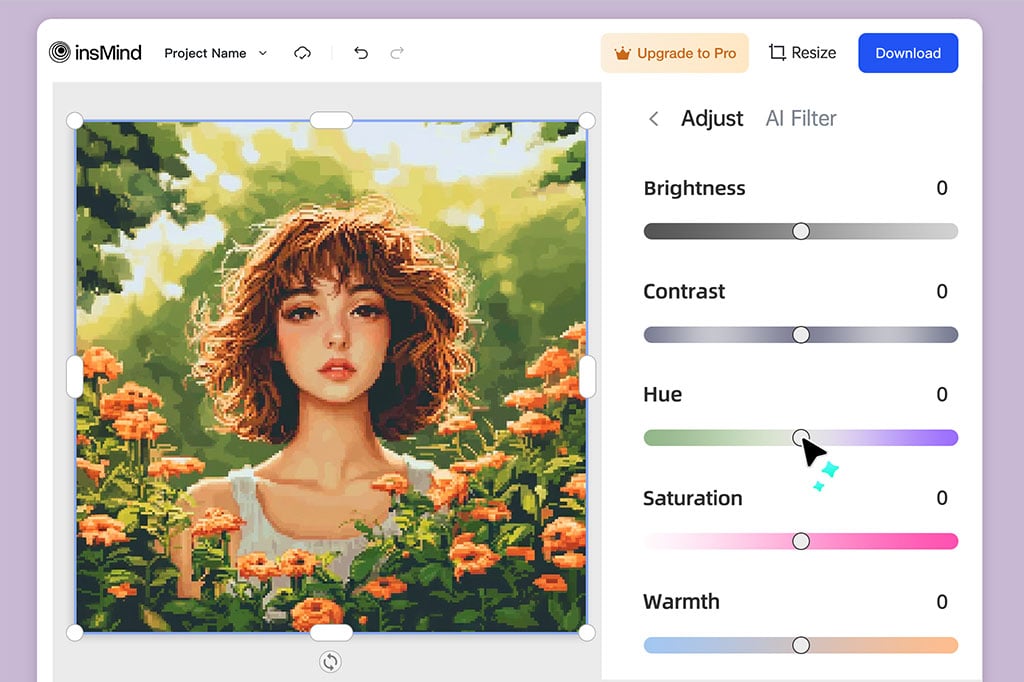
Create Quick Pixel-Art Drafts for Creative Projects
Use the converter for sticker ideas, poster drafts, merch mockups, mood boards, or early game-style concepts. If you need production-ready sprites with exact palettes or frame-by-frame control, treat this as a fast concept step before manual refinement.
More Photo Effects for Stylized Edits
How to Turn an Image into Pixel Art
Start with a clear image, apply the Pixel filter, then review the result like a designer: subject first, background second, tiny details last.
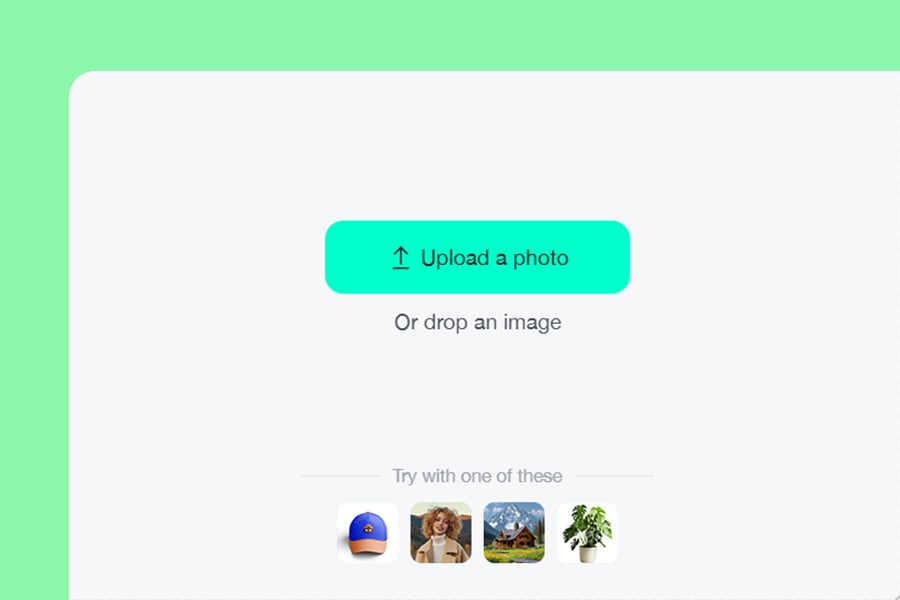
1
1 Upload your image
Choose the photo or design you want to pixelate. Portraits, pets, products, and simple scenes are easier to convert than crowded images with tiny details.
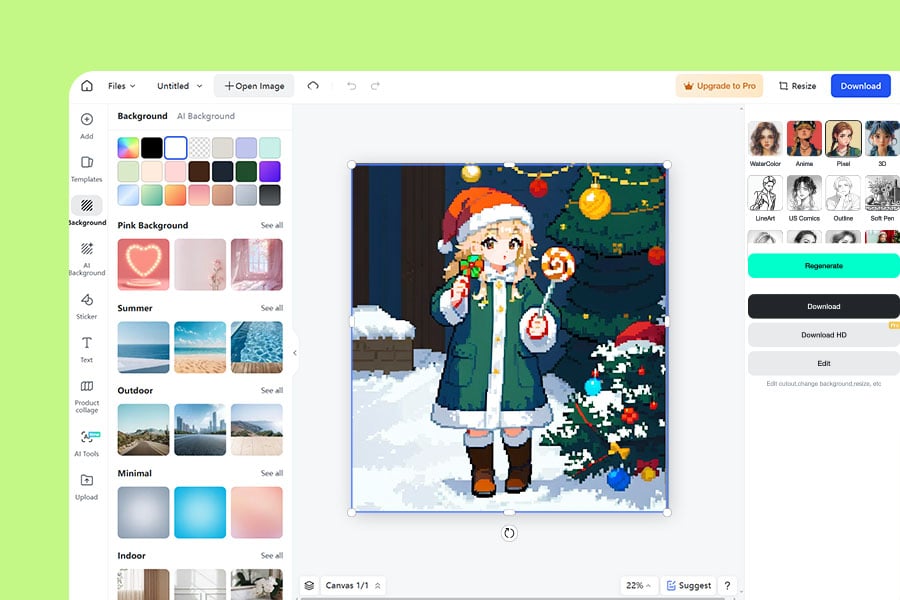
2
2 Apply the Pixel filter
Choose the Pixel filter in the editor. This creates the retro block-style look; it is different from simply blurring or hiding details with a mosaic effect.
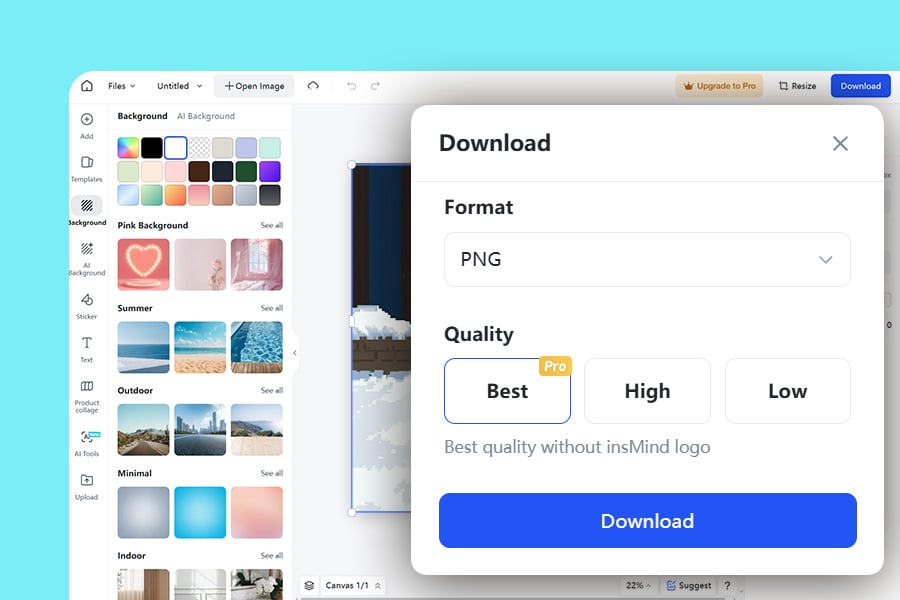
3
3 Preview and adjust the result
Check the result at the size where you plan to use it. Avatars need clear faces or silhouettes; posters and thumbnails can handle more background detail.
What Can You Make with a Photo to Pixel Art Converter?
Use pixel conversion when you want a retro visual style without drawing every block from scratch. The best outputs start from a clear subject and a simple composition.
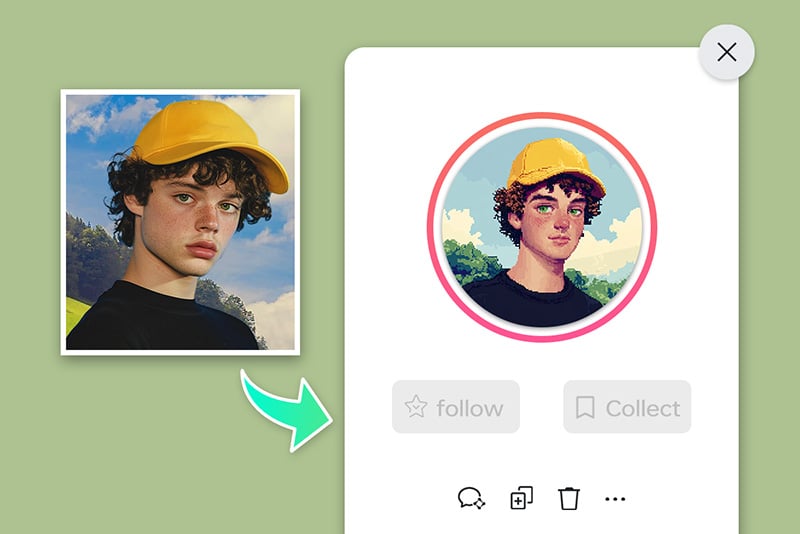
Social media avatars and profile art
Turn a selfie, pet photo, or creator portrait into a pixel-style avatar for Instagram, TikTok, Discord, YouTube, or gaming profiles.
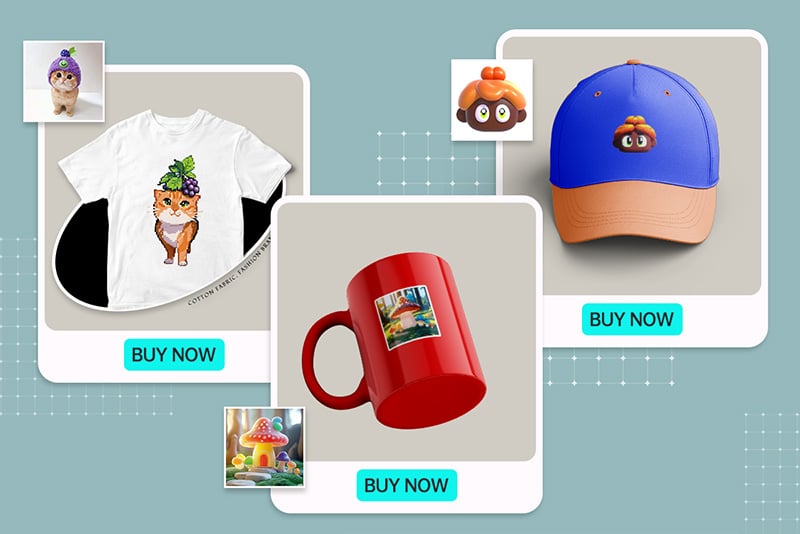
Gift and merch design drafts
Create a pixel-art version of a photo before placing it on a poster, mug, sticker, card, or T-shirt mockup. Use it as a draft and check the final print requirements separately.
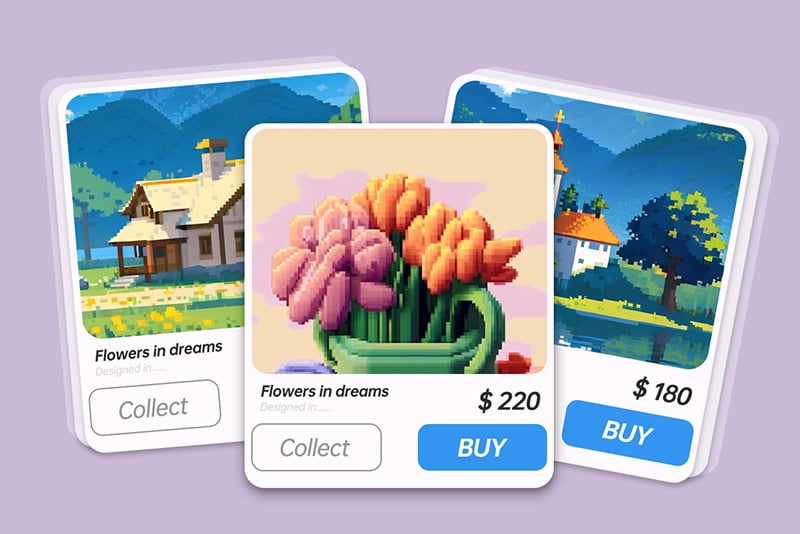
Retro design and game-style concepts
Convert objects, characters, or scene references into pixel-style visuals for mood boards, game ideas, thumbnails, or creative campaigns.
Why Use insMind as Your Image to Pixel Art Converter?

Fast Photo-to-Pixel Workflow
Upload an image, apply the Pixel filter, and get a preview without setting up a design file or drawing pixels manually.

Readable Retro Results
The goal is a pixel-art look that still keeps the main subject clear. Start with a clean image and review the result before downloading.

Easy for Quick Creative Drafts
Use it for avatars, posts, design references, and early ideas when you need a pixel style quickly, then refine the final asset if your project needs exact pixel-level control.
Frequently Asked Questions
How do I turn an image into pixel art online?


Upload your image, apply the Pixel filter, preview the result, and download the pixel-art version. For a cleaner result, use a photo with one clear subject and enough contrast around the edges.
What is the difference between pixel art and a pixelated image?
A pixelated image may only blur or block details. Pixel art should look intentional: the subject stays readable, the block style feels consistent, and the final image works at the size where you will use it.
Can I make pixel avatars from photos?
Yes. Selfies, pet photos, profile pictures, and centered portraits are good inputs for pixel avatars. Crop close to the subject if the background makes the result hard to read.
Can I convert JPG or PNG images to pixel art?
You can upload common image files such as JPG or PNG and convert them into a pixel-style result. If the file is very detailed, try a simpler crop first.
Is this a sprite editor for game assets?
This page is best for quick image-to-pixel-art conversion and concept drafts. If you need exact sprite sheets, animation frames, or strict color palettes, use the result as a reference and refine it in a dedicated pixel editor.
Keep Editing with Related Photo Effects
Try sketch, cartoon, anime, watercolor, or painting styles when pixel art is not the right finish.
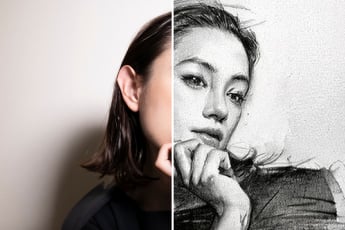
Photo to Sketch
Turn a photo into a clean sketch when you want line art instead of a blocky pixel style.
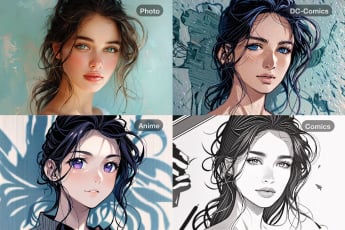
Photo to Cartoon
Create a cartoon version of your photo for a playful profile image or social post.
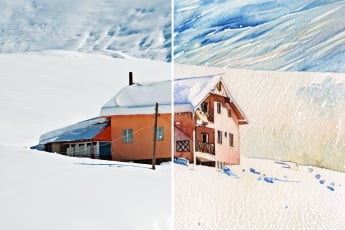
Photo to Watercolor
Convert photos into soft watercolor-style artwork for portraits, cards, and creative visuals.
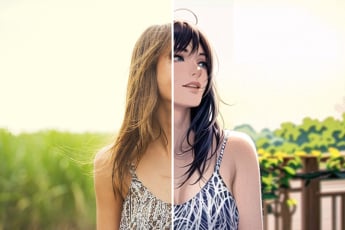
Photo to Anime
Turn a photo into an anime-style image when character art fits the project better than pixel art.

AI Filter
Explore more AI filters when you want to test several visual styles from the same image.
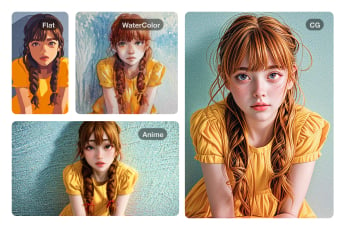
Photo to Painting
Use a painting-style converter for a more textured art look than pixel or cartoon effects.

AI Replace
Enhance your photos with insMind's AI Replace features
“This tool is a game changer, with easy customization, and high-quality results!”
@Jack