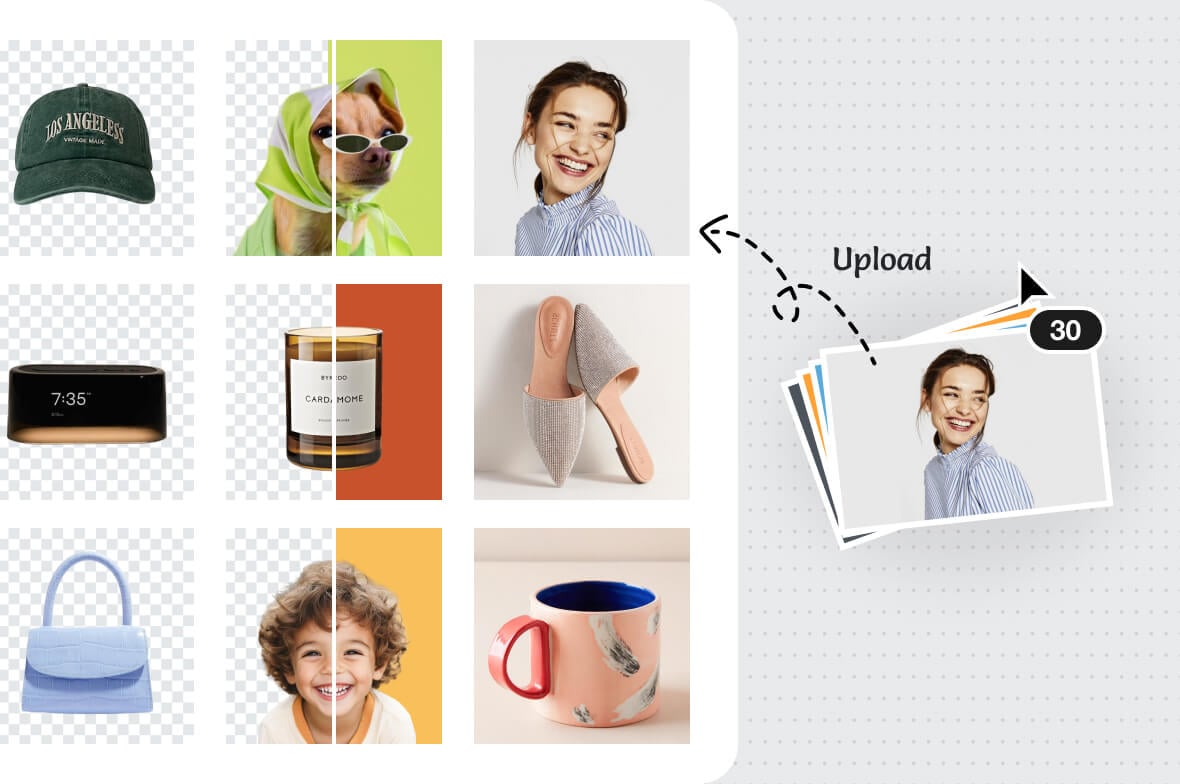
A batch photo editor is useful when a folder of images needs the same treatment. Upload the set, choose the batch action, then review a few results before exporting everything.

Batch Photo Editor Online for Bulk Image Edits
Or drop image here, paste image or URL
Try with one of these

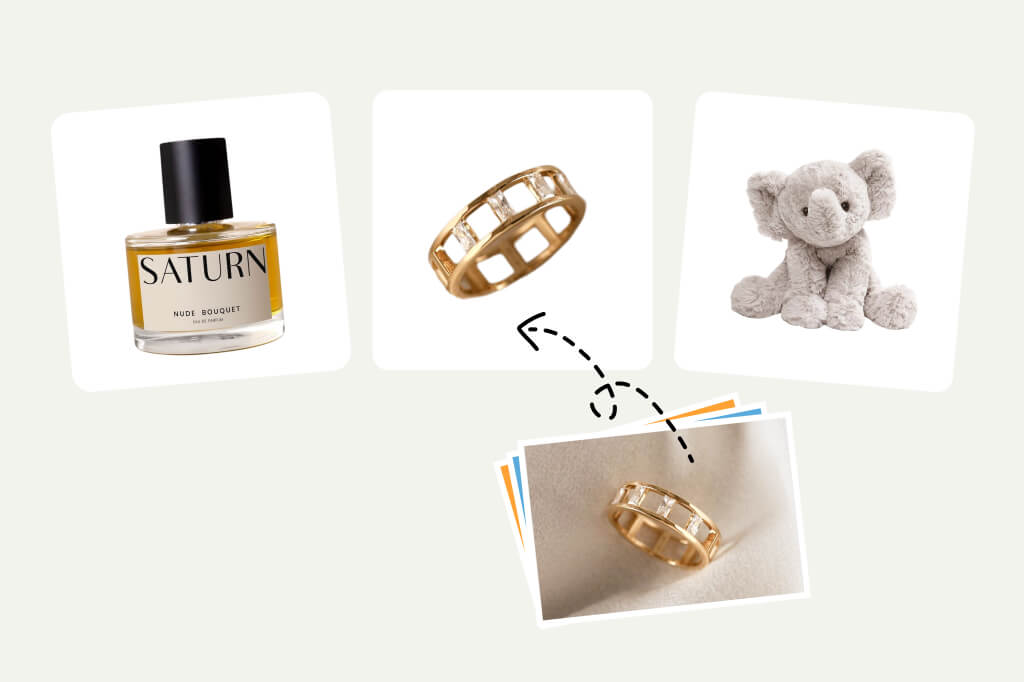
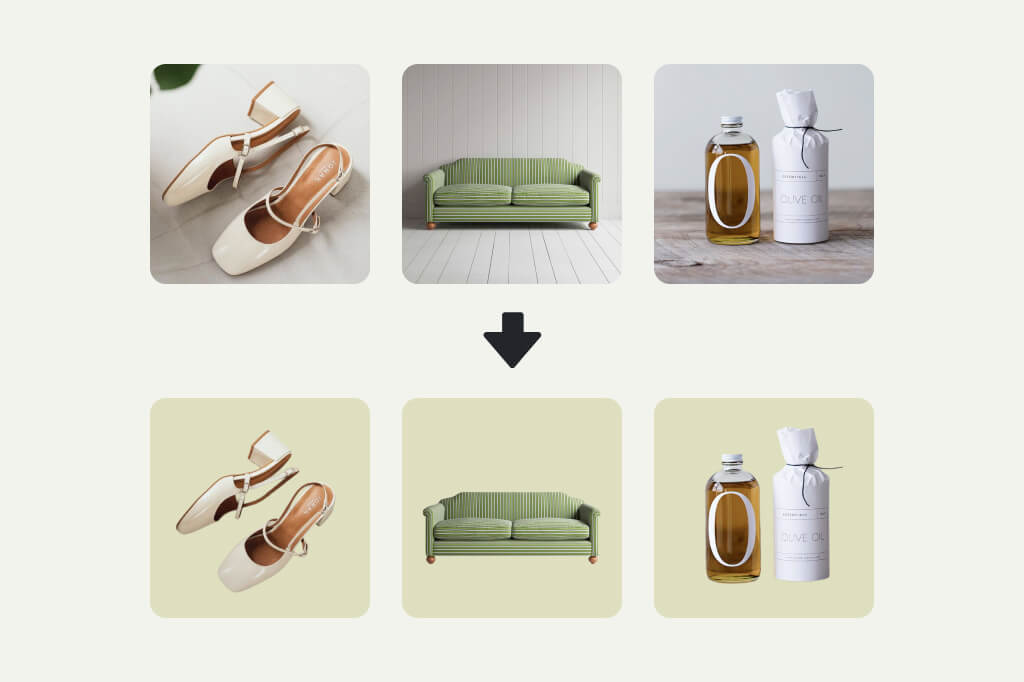
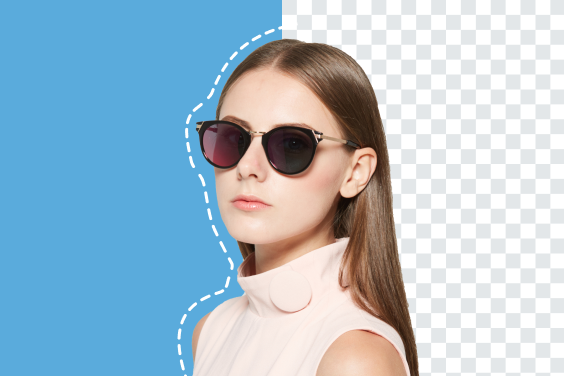
Remove Backgrounds from Product Photos in Bulk
For ecommerce photos, start with consistent lighting and similar angles. Batch background removal works best when the subject is clear and not blended into the background.
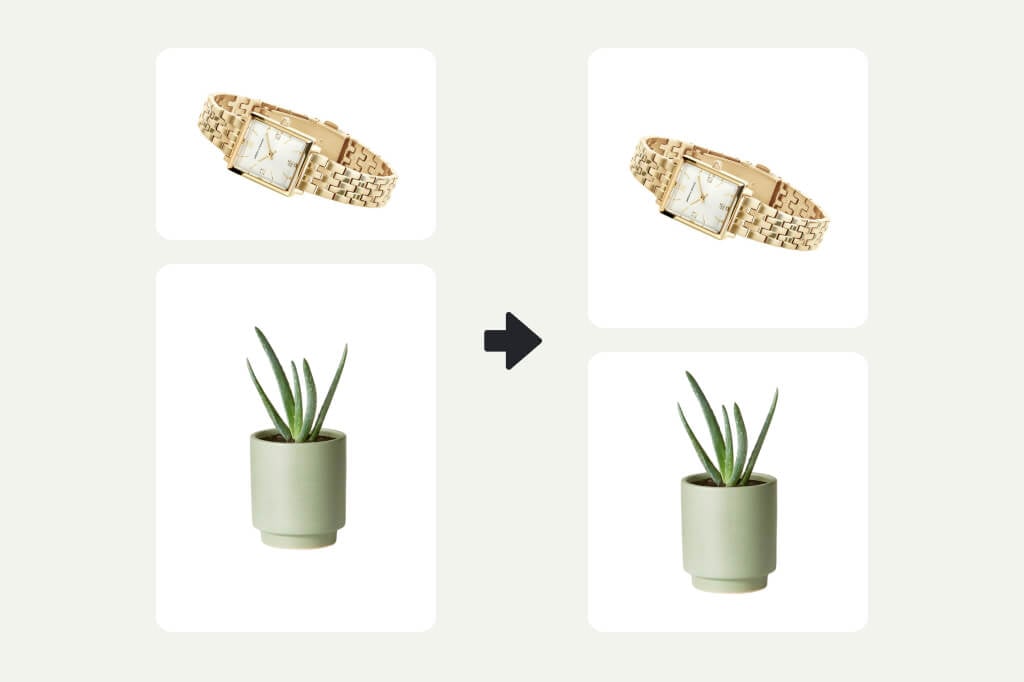
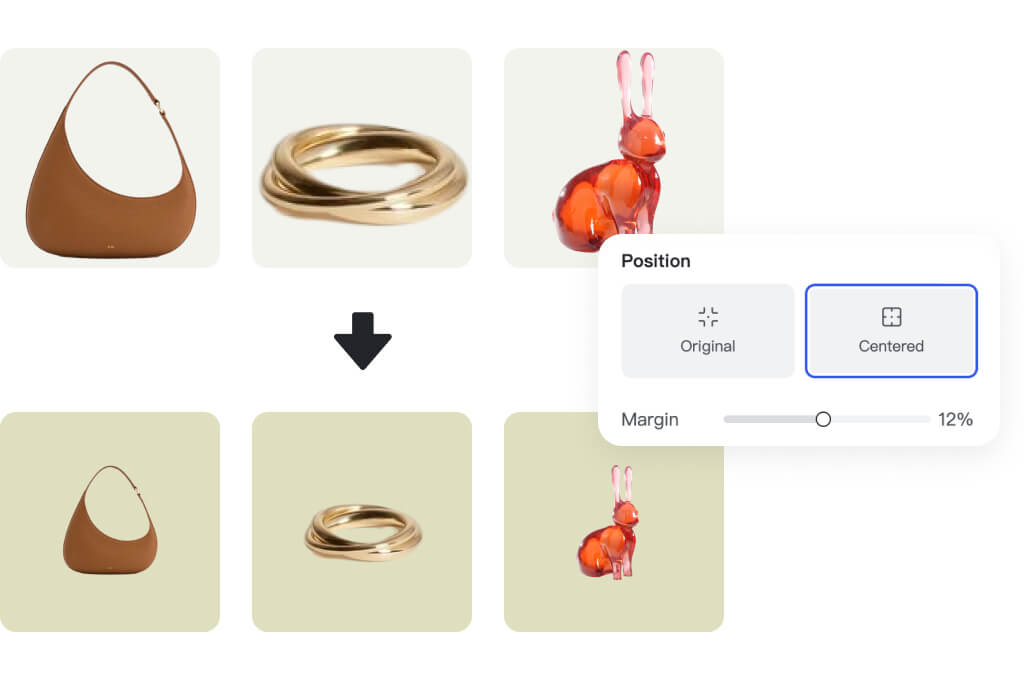
Resize Images for Listings, Ads, or Social Posts
Batch resizing keeps a group of images aligned for marketplaces, campaigns, and content calendars. Check crop and subject placement before downloading the final set.
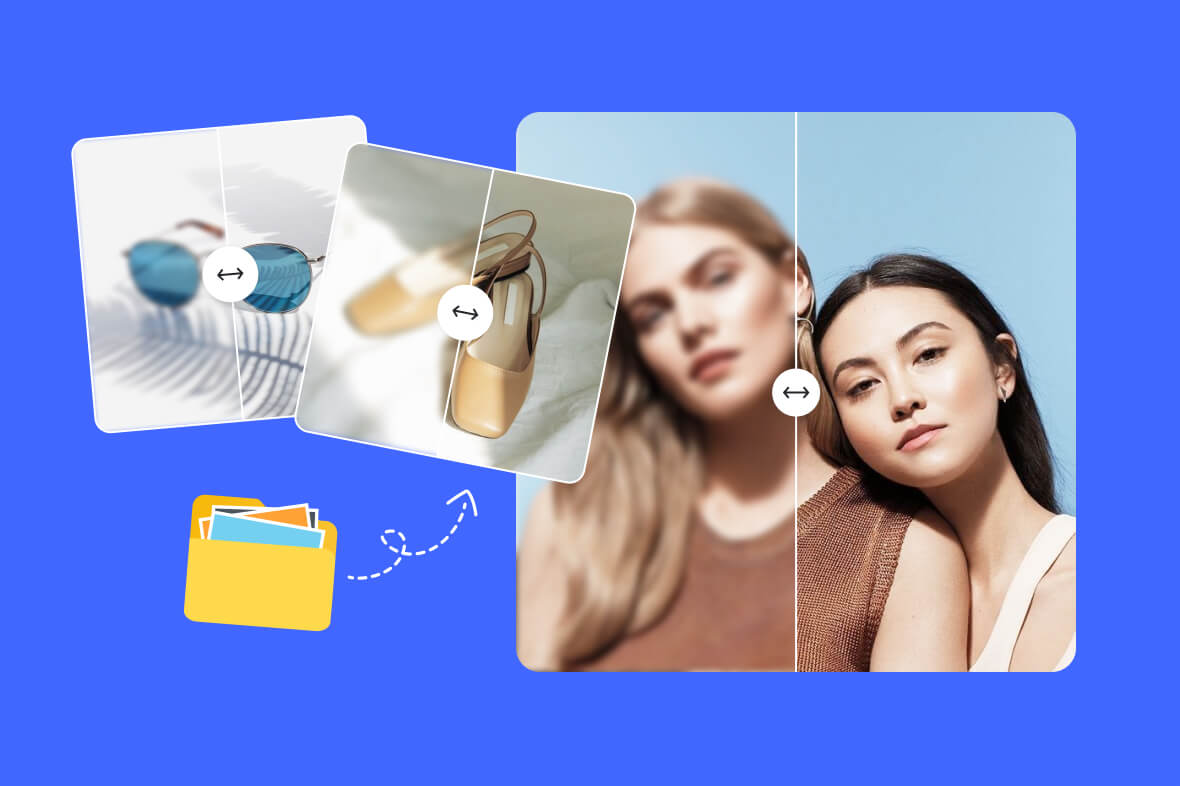
Improve Clarity Across a Whole Set
Use batch enhancement when several photos are slightly dull, soft, or uneven. Spot-check faces, product edges, and small text after processing.
Export a Cleaner Set Faster
Batch editing saves time, but it should still include a review pass. Open a few representative outputs before you publish or upload them to a store.
Bulk Editing Tools for Product and Campaign Photos
How to Edit Multiple Photos at Once
1
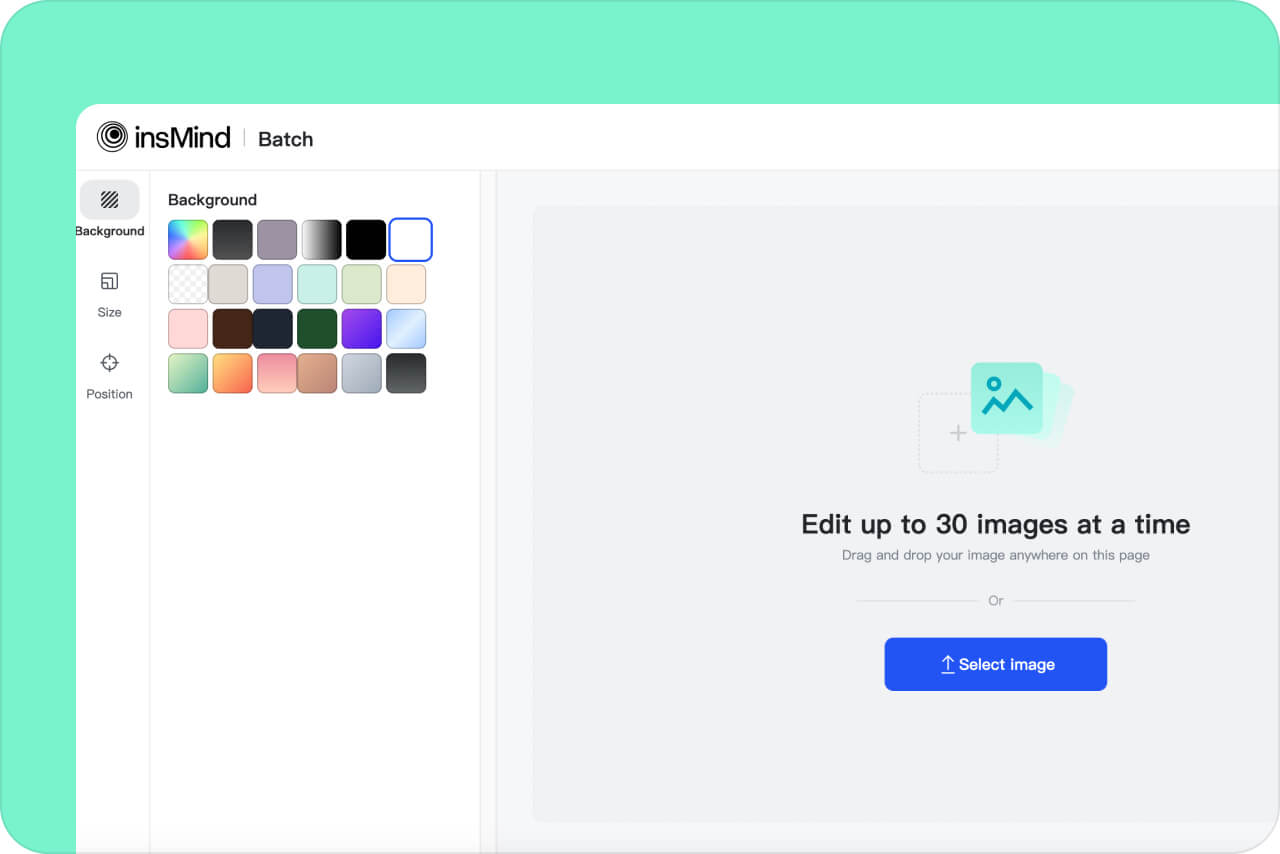
1 Upload your photo batch
Click the upload button and add the images you want to process together. Keep similar photo types in one batch so the same edit makes sense for every image.
2
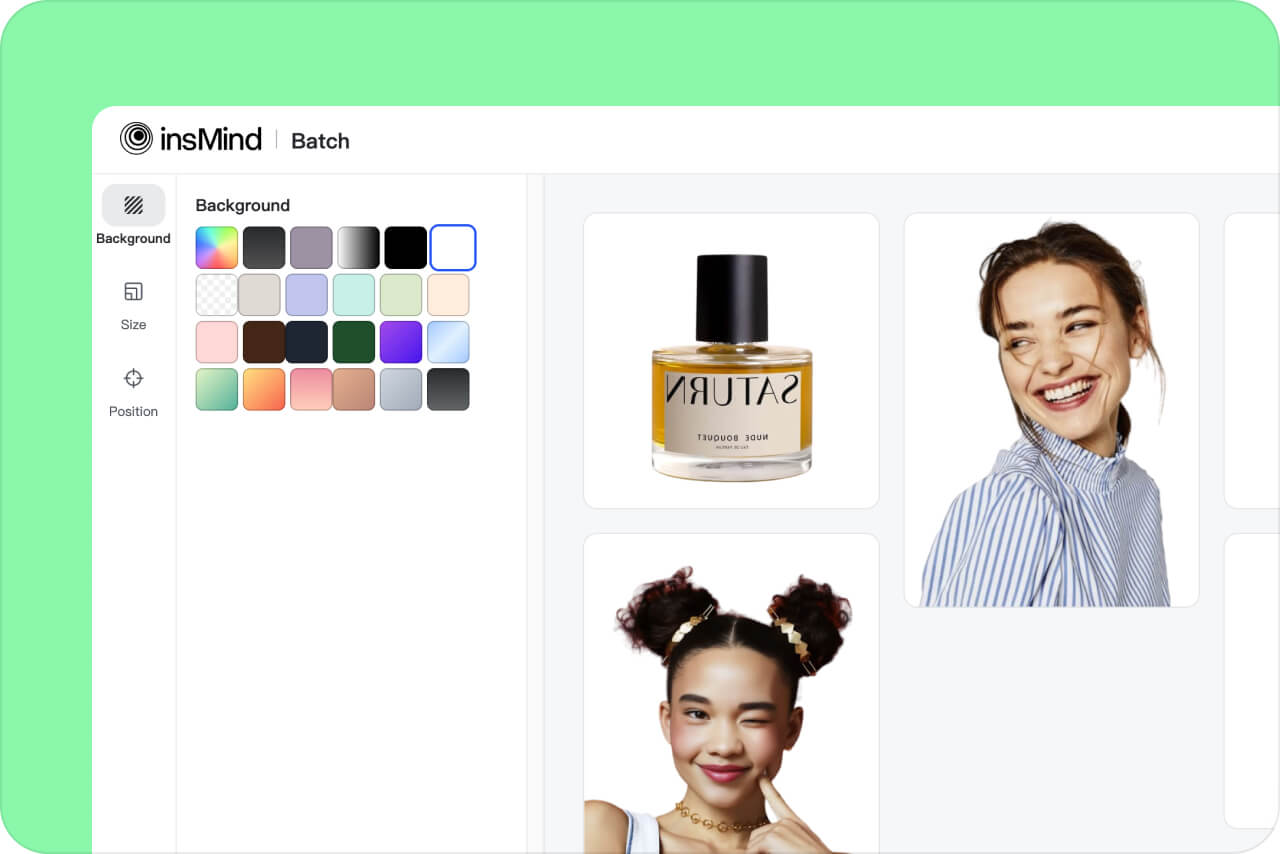
2 Choose a batch editing action
Select the task you need: remove backgrounds, resize, enhance, or another available batch tool. Avoid mixing unrelated edits in one pass.
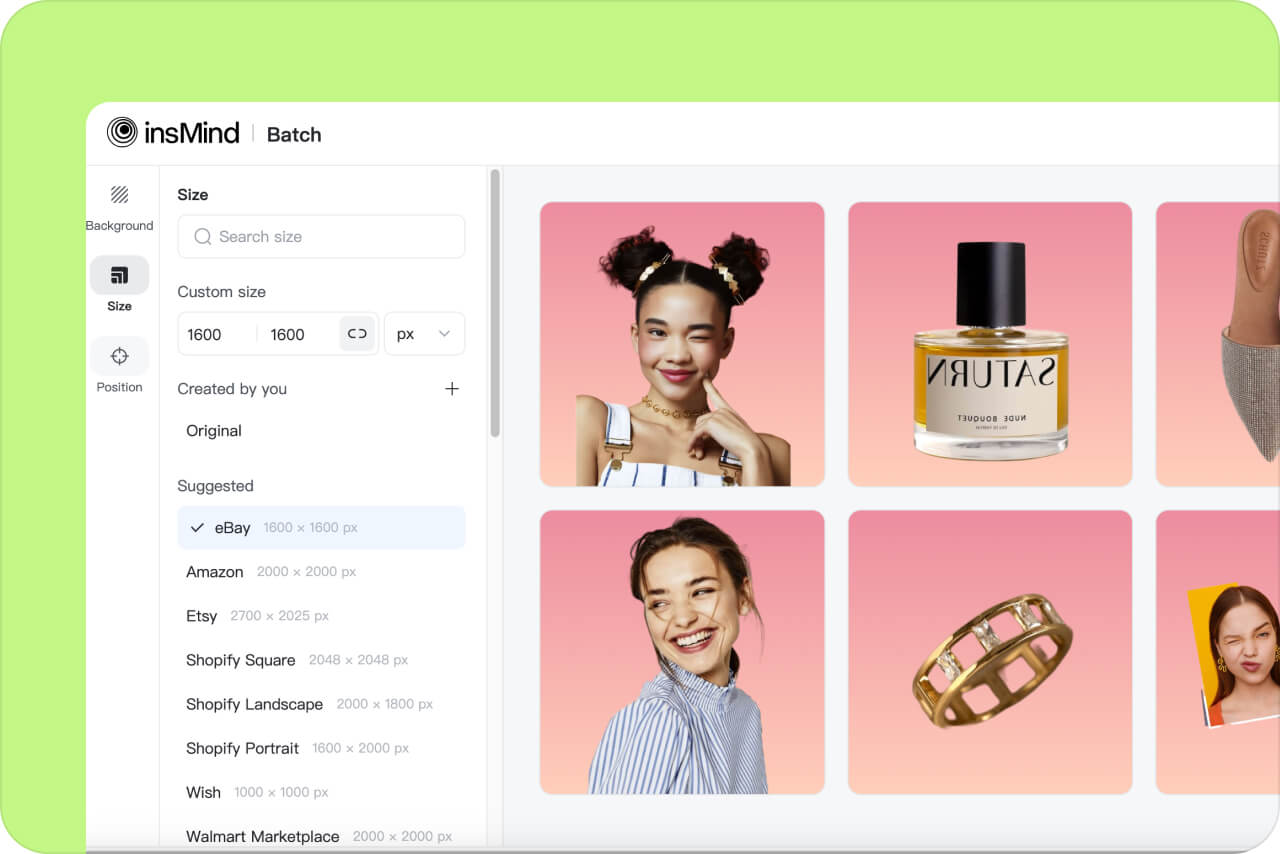
3
3 Preview several results
Check a few images from the batch before export. Look at edges, crops, faces, product details, and transparent backgrounds.
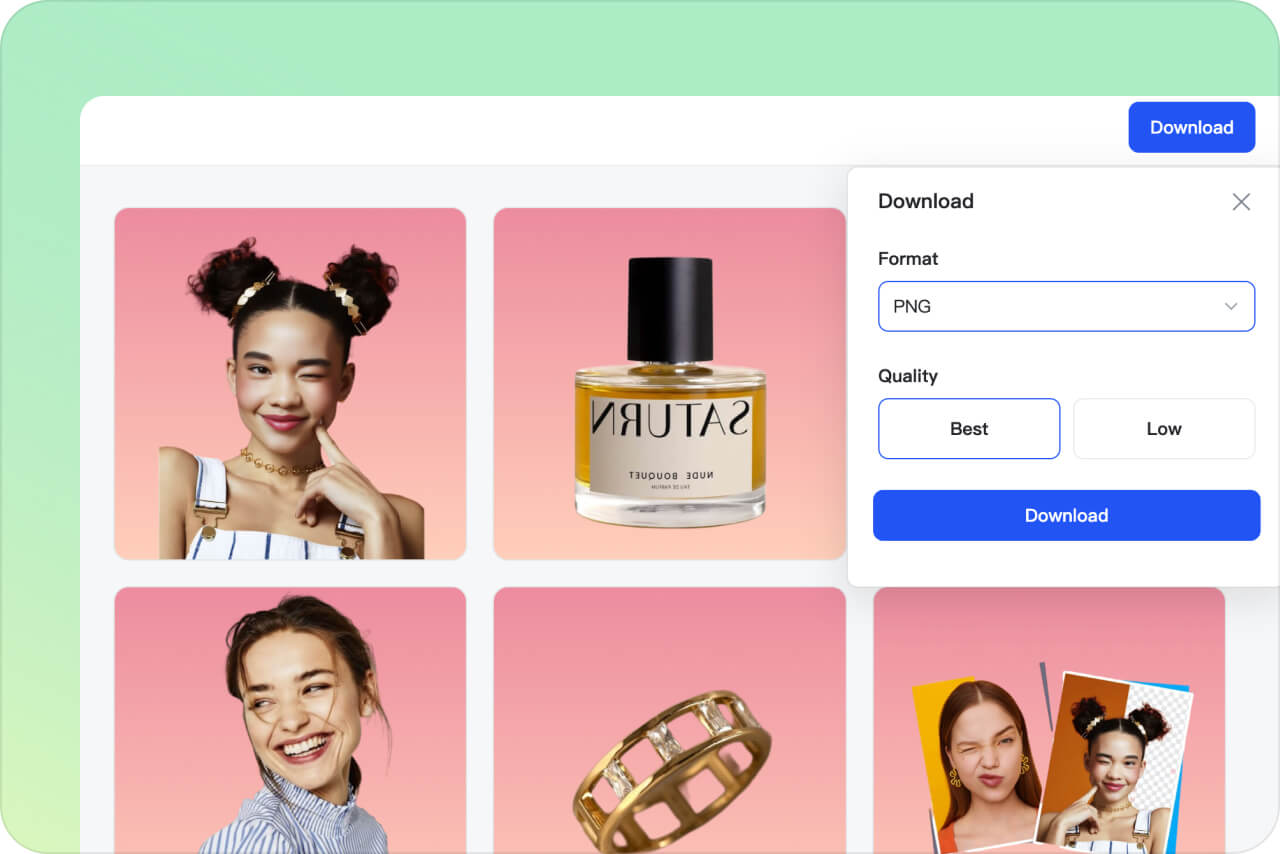
4
4 Download the edited set
When the batch looks consistent, download the results and use them for product listings, ads, social posts, or internal image libraries.
Where Batch Photo Editing Saves the Most Time
The page should target users who already have many images. The strongest use cases are product catalogs, social campaigns, marketplace photos, and repetitive cleanup tasks.
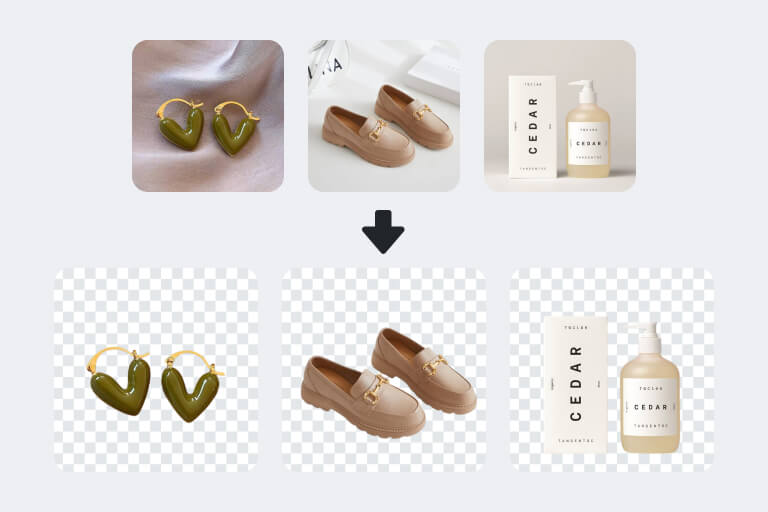
Ecommerce Product Photos
Apply background removal, resizing, or enhancement across product shots before uploading them to a store. Keep items with similar angles in the same batch for cleaner results.
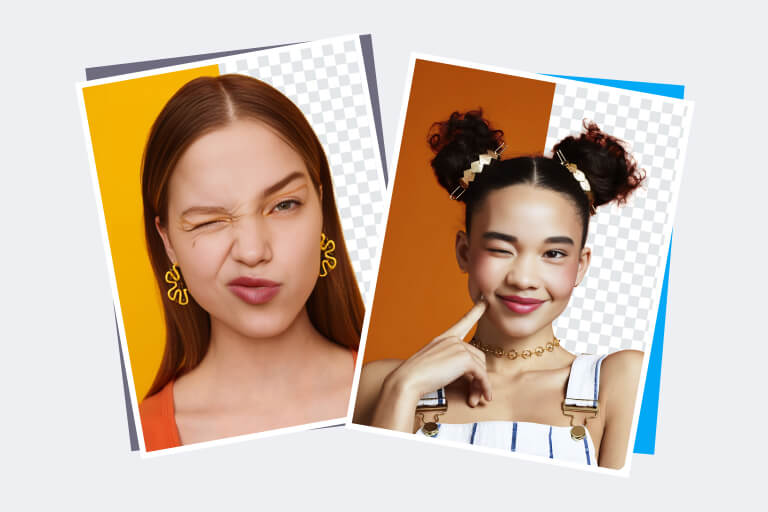
Marketing and Social Campaigns
Prepare a group of images for the same campaign size or visual style. Batch edits help keep the set consistent without rebuilding each image manually.
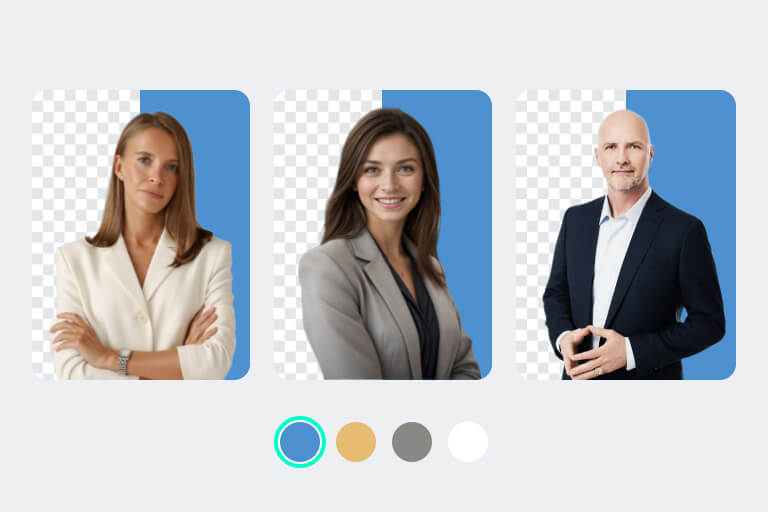
Creator and Team Workflows
Clean a folder of portraits, thumbnails, or content assets before sending them to a designer, client, or publishing queue.
Why Use insMind as a Batch Photo Editor?

Built for Repeated Edits
Use one workflow for a group of images instead of opening each file separately. This is most useful for simple, repeatable edits.

Useful for Product Sets
When product photos need the same background, size, or clarity standard, batch editing helps keep the catalog more consistent.

Review Before Export
Batch processing is fastest when you still inspect representative results. A quick review catches edge, crop, or subject issues before the full set is used.
FAQs About Batch Photo Editing
What is a batch photo editor?


A batch photo editor lets you apply the same edit to multiple photos in one workflow, such as resizing, background removal, or image enhancement.
Can I batch edit photos online for free?
You can try batch editing online in insMind. Check the current interface for upload limits, export rules, and account requirements.
What photos should I put in one batch?
Group photos that need the same edit. Product photos, profile images, or campaign assets with similar lighting and framing usually work better together.
Can AI edit multiple photos at once?
Yes, AI can apply supported edits across a batch. You should still preview a few results because edges, faces, and small text can vary by image.
Is batch editing good for ecommerce?
Yes. It is useful for product backgrounds, consistent image sizes, and quick cleanup before uploading photos to marketplaces or stores.
Related Tools for Bulk Photo Workflows
Use these when one batch task needs a more focused tool, such as background removal, resizing, or image enhancement.
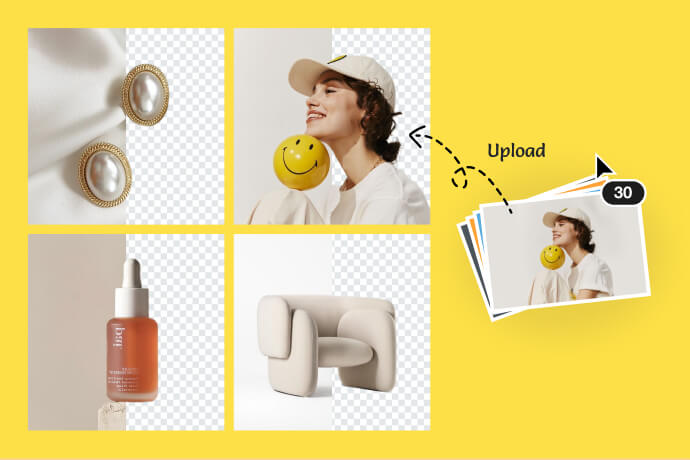
Bulk Background Remover
Remove backgrounds from many images in one workflow.
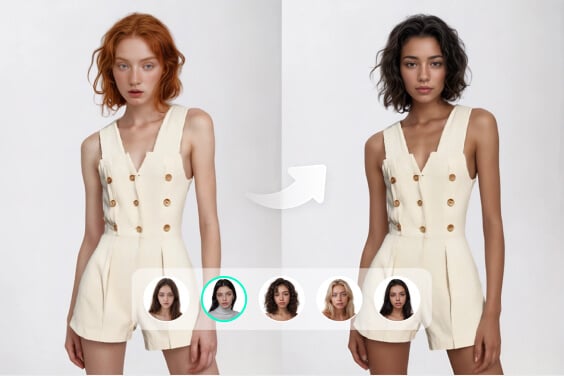
Bulk Image Resizer
Resize image sets for stores, ads, and social platforms.
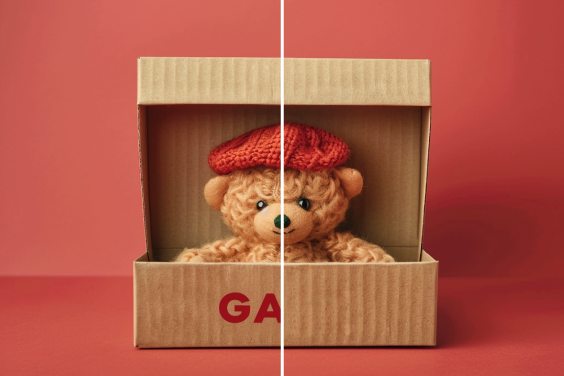
AI Image Enhancer
Improve clarity and sharpness before exporting photos.
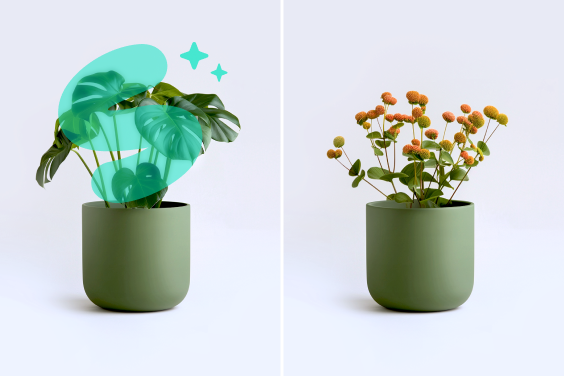
Background Changer
Replace backgrounds after cleanup when you need a new scene.
AI Photo Editor
Open a single photo for manual refinements after batch processing.
"As a freelance designer, insMind's batch photo editor has dramatically simplified my work. Adjusting photo sets for clients now takes minutes instead of hours. The results are great, making this tool a staple in my toolkit."
@Hasnain Patterson