Manually selecting and adjusting faces takes time. With Nano Banana Pro AI inside insMind, you just write a simple prompt. The AI detects faces and applies blur precisely. No Photoshop skills needed. You can blur a face in a picture quickly and accurately with one click.

Blur Face in Photo Online with AI
Blur Multiple Faces in Photos at Once
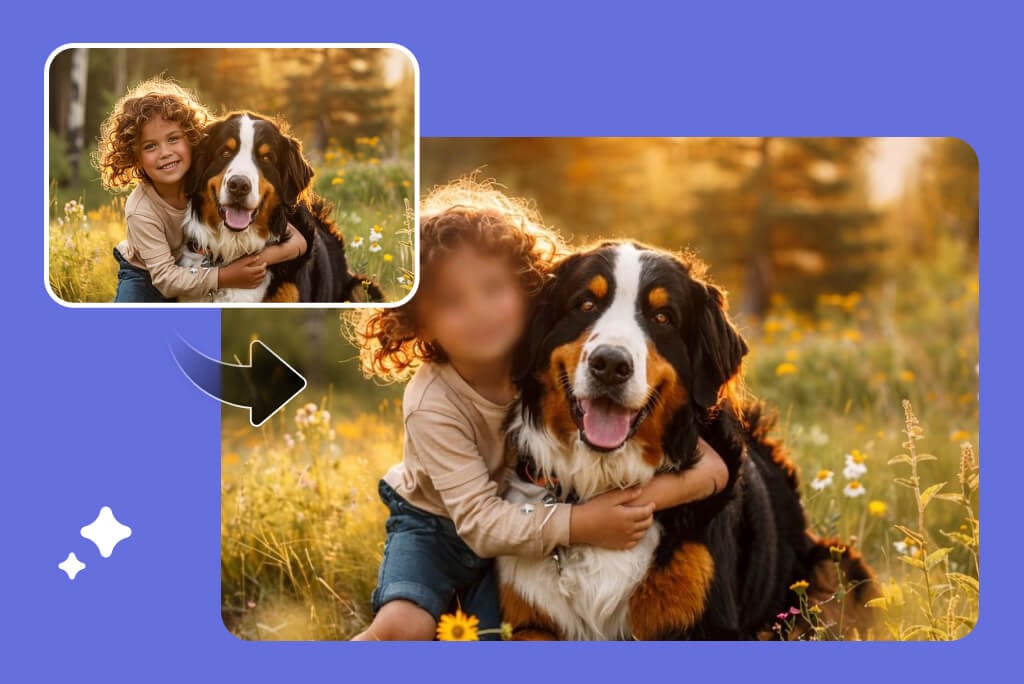
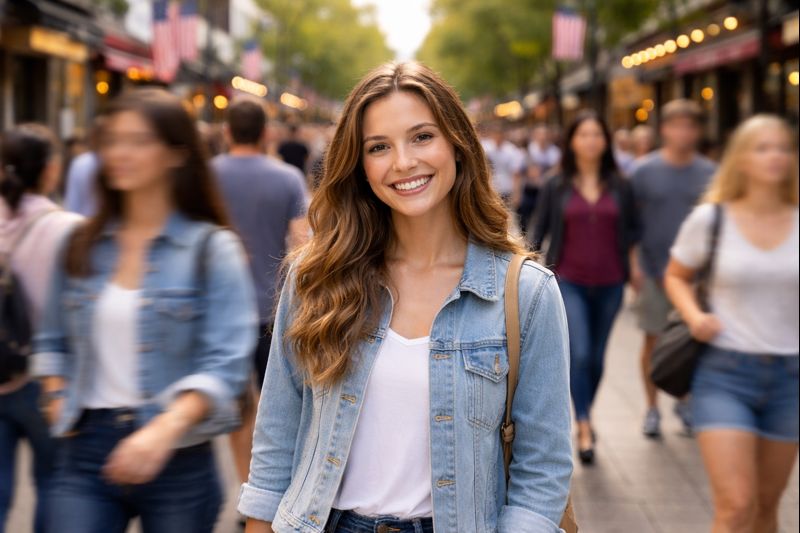
Crowded images are no problem. The AI can blur multiple faces in photos at the same time. It detects every face automatically. You do not need to select each one. Save time and blur faces in photos in one smooth process.
Anonymize Faces to Protect Your Privacy
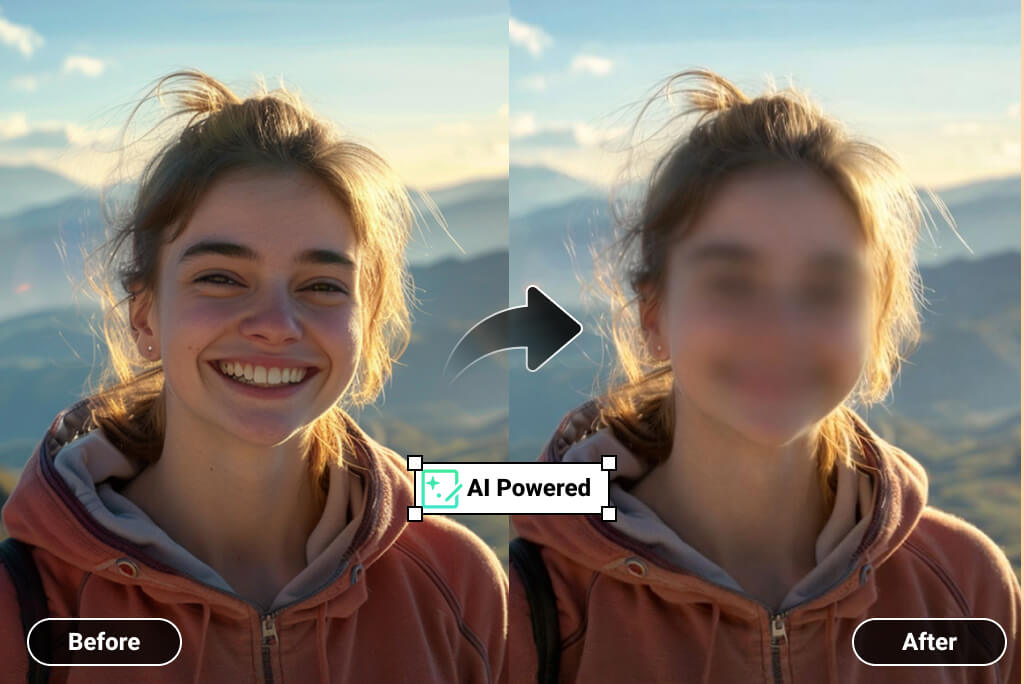
Online privacy matters more than ever. Blur face in the photo to hide identity and stay safe. Our tool supports image anonymization with blur or pixelation. You can anonymize faces easily and protect personal data before sharing images online.

Customize Different Face Blur Effects
You can choose how your blur looks with insMind. Just say it in the prompt. Use Gaussian blur, box blur, motion blur, or pixelation. The blurry face filter applies the style instantly. No settings panels. No manual tweaking.
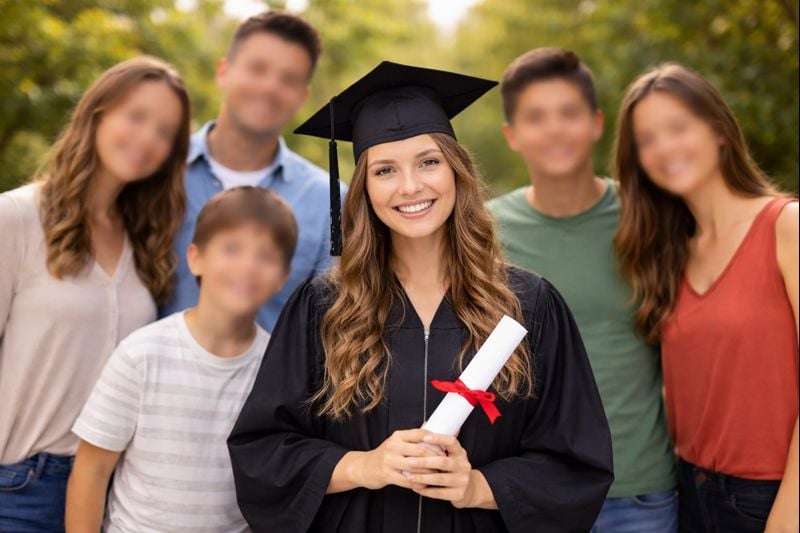
Keep Yourself Clear While Others Are Blurred
Want to show yourself but hide others? Simply describe it in your prompt. Our face blurer understands instructions clearly. Keep your face sharp while blurring other faces. The face blur effect is fully controlled by your words.
How to Blur a Face in a Picture Online
Step 1: Upload your photo
Upload a clear image from your device. The picture editor blur face tool supports common image formats and works fully online.
Step 2: Enter your prompt
Type what you want, such as "blur the face in the uploaded image." You can also describe the blurry face effect or blur strength in the prompt for more precise results.
Step 3: Blur the face in the photo
Click "Generate." Your prompt is sent to the AI. It will analyze the image and blur the face in a few seconds.
Step 4: Download the photo
Now you can preview the result. If you like it, download the image instantly and use it anywhere.
Why Use an AI Face Blur Photo Editor Online?
Protect Personal Privacy Online
Sharing photos online can expose your identity without you noticing. By using AI to blur faces in photos, you can hide facial details and reduce privacy risks. This is especially useful for social media, forums, and public platforms where personal safety and image anonymization are important.
Highlight the Main Subject Clearly
Sometimes, background faces distract from the real focus. With a face blur editor, you can blur faces in photos while keeping the main subject clear. This helps guide attention naturally and makes your images more professional for blogs, profiles, and storytelling visuals.
Blur Passersby in Travel Photos
Travel photos often include strangers in the background. Using AI to blur a face in a picture lets you respect others’ privacy while keeping your memory intact. It’s an easy way to share travel moments online without worrying about exposing unknown faces.
Share Family Photos More Safely
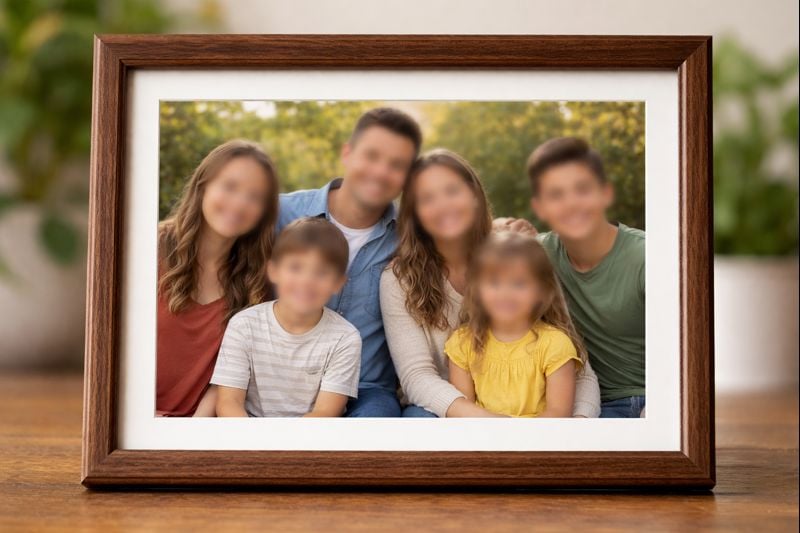
When posting family photos, especially with children, privacy matters. You can blur face in photo online free to hide sensitive faces before sharing. This helps parents and families control who appears clearly in images shared on social media or messaging apps.
Use Photos for News, Media, or Content Creation
Content creators and journalists often need to anonymize faces to protect sources or subjects. With AI-powered image anonymization, you can quickly blur faces in photos without manual editing, making your workflow faster and more responsible.
Create Clean Thumbnails and Marketing Images
Busy images can confuse viewers. By applying a face blur effect, you can remove visual noise and keep the message clear. This works well for thumbnails, banners, and promotional images where focus and clarity are essential.
Meet Privacy and Compliance Requirements
Some platforms and regulations require anonymize faces in images. A blur face editor helps you meet these requirements easily. You can blur faces accurately without technical skills and publish content with more confidence.
Edit Photos Anytime, on Any Device
You don’t need software or experience. With a blur face online tool, you can edit images from desktop or mobile. Now you can blur faces in photos wherever you are, using only a browser and a few simple steps.
Explore More AI Photo Editing Tools
Frequently Asked Questions
What is a face blur photo editor?


A face blur photo editor is a tool that hides facial details using blur or pixelation. insMind uses AI to detect faces automatically, allowing you to blur faces in picture quickly without selecting areas manually or using complex editing software.
How do I blur a face in a photo online for free?
Simply upload your photo, type a short prompt, and click Generate. The AI processes the image and applies the blur instantly. You can blur a face in a picture online for free without downloads, skills, or complicated settings.
Can I blur multiple faces in one image?
Yes. The AI can blur multiple faces in a photo at the same time. Even in crowded images, it detects all faces automatically, saving you from manually selecting each person one by one.
Do I need photo editing experience to use this?
No experience is needed. The tool is designed for everyone. You just upload an image and describe what you want. The face blurer handles detection, blur strength, and placement automatically.
Can I keep my face clear while blurring others?
Yes. You can customize the result by describing it in your prompt. Tell the AI which faces to blur and which to keep clear. This makes it easy to protect others’ privacy while staying visible yourself.
What types of face blur effects are available?
You can choose different styles like Gaussian blur, box blur, motion blur, or pixelation. Just mention the effect in your prompt. The blur face editor applies it automatically with clean and natural results.
Is this tool suitable for privacy protection?
Yes. It supports image anonymization and helps anonymize faces before sharing photos online. This is useful for social media, work content, or any situation where identity protection is important.
Will blurring faces affect image quality?
No. The AI only applies blur to faces. The rest of the image stays clear and sharp. You get a clean result without losing overall image quality.
Why choose insMind over other blur tools?
insMind uses Nano Banana Pro AI for accurate face detection and fast processing. It removes manual work, offers flexible blur effects, and delivers reliable results in just a few seconds.


