


Ever tried rewatching your favorite anime only to realize the video looks blurry, pixelated, or washed out on a modern screen? You're not alone. Older anime series and low-resolution clips often suffer from compression artifacts, soft edges, and muddy colors — especially when viewed on 4K displays.
The good news? AI-powered anime video upscalers can now transform low-quality footage into sharp, vibrant 4K video in just a few clicks. Whether you're restoring a classic series, cleaning up an AMV edit, or preparing anime clips for a big screen, AI makes the process fast and effortless.
In this guide, we'll show you exactly how to upscale anime video to 4K using insMind's AI video enhancer — step by step. No technical skills required.
Table of Contents
What Is an AI Anime Video Upscaler?
An AI anime video upscaler is a tool that uses machine learning to increase the resolution of anime footage while preserving — and even improving — visual quality. Unlike traditional upscaling (which just stretches pixels and creates a blurry mess), AI upscalers analyze each frame to reconstruct missing details.
These tools are specifically trained to handle the unique characteristics of anime: clean line art, flat color regions, gradient shading, and stylized character designs. The AI knows the difference between an intentional flat color area and a detail that needs sharpening.
Modern AI upscalers like insMind's AI video upscaler can take a 480p or 720p anime clip and enhance it to 1080p or 4K, removing compression artifacts and restoring crisp edges along the way.
Why Upscale Anime Video to 4K?
So why bother upscaling anime footage in the first place? Here are the most common reasons:
Older anime deserves better. Classic series from the '90s and 2000s were produced at much lower resolutions. On a modern 4K TV or monitor, these videos look noticeably soft and pixelated. AI upscaling breathes new life into these beloved shows.
Streaming compression kills quality. Even relatively recent anime episodes downloaded from streaming platforms often suffer from heavy compression. Upscaling can reverse much of that damage, restoring lost detail in hair, backgrounds, and action sequences.
AMV and fan edits need polish. If you're creating anime music videos, compilations, or edits for social media, source footage quality matters. Upscaling your clips before editing gives you sharper material to work with.
Big screens demand big resolution. Watching anime on a 4K TV, projector, or ultrawide monitor? Low-resolution footage looks terrible at that size. 4K upscaling ensures your anime looks stunning on any display.
Social media rewards quality. Platforms like YouTube and TikTok favor high-resolution video. Uploading 4K anime clips can improve your content's visibility and engagement. You can even make blurry videos clearer before posting for maximum impact.
How to Upscale Anime Video to 4K with insMind
Ready to enhance your anime footage? Here's the entire process — it takes less than a minute.
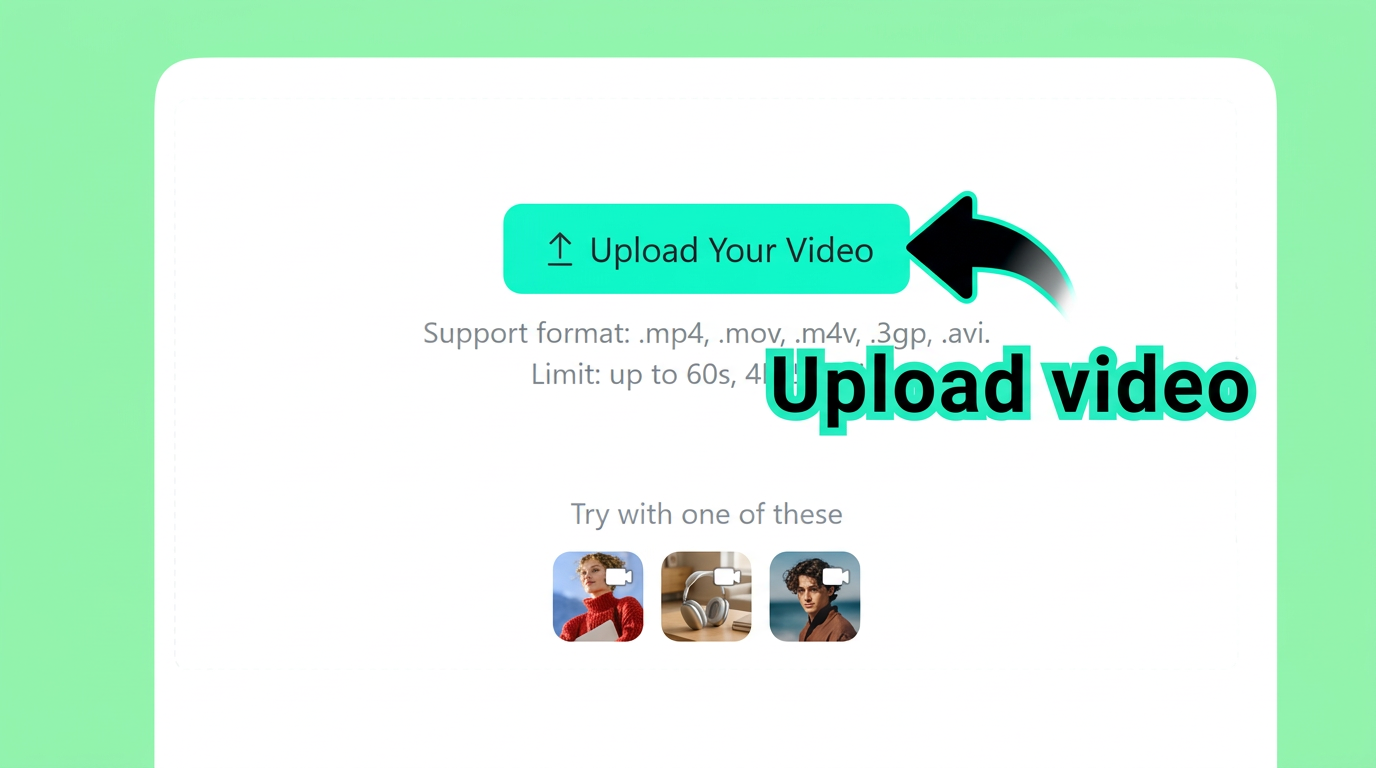
Step 1: Upload Your Anime Video
Head to insMind's video enhancer and click Upload Your Video. The tool supports all common formats including MP4, MOV, M4V, 3GP, and AVI.
You can upload virtually any anime content:
-
Old anime clips and episodes
-
Low-resolution anime downloads
-
AMV edits and fan compilations
-
Compressed streaming rips
Once uploaded, the AI automatically analyzes each frame to detect edges, textures, and character details.
Step 2: Choose the Target Resolution
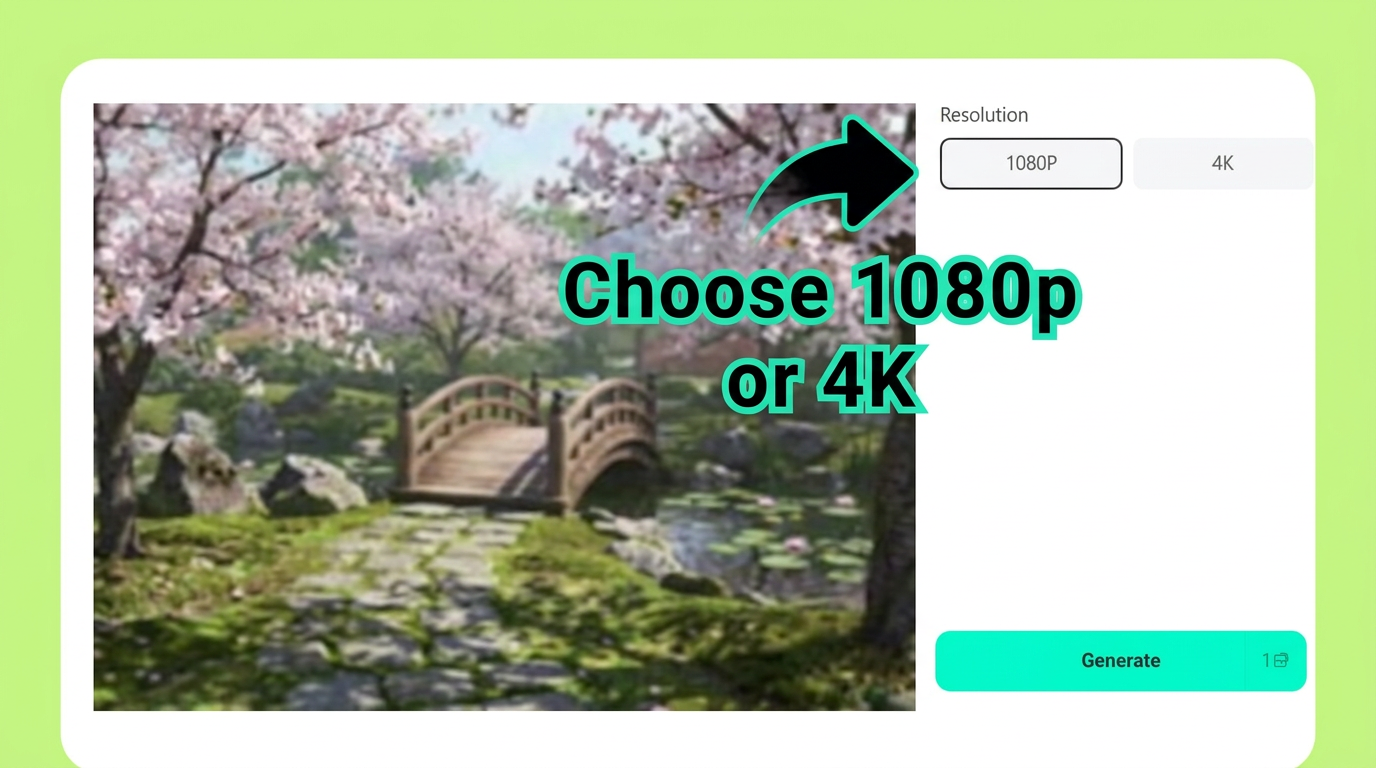
Select the output resolution that matches your needs:
-
1080p (Full HD) — ideal for social media uploads and casual viewing
-
4K (Ultra HD) — best for large screens, home theaters, and maximum quality
The AI enhancement model prepares the video for higher resolution while preserving anime line art, colors, and shading — so flat color regions stay clean and edges stay sharp.
Step 3: AI Automatically Enhances the Video
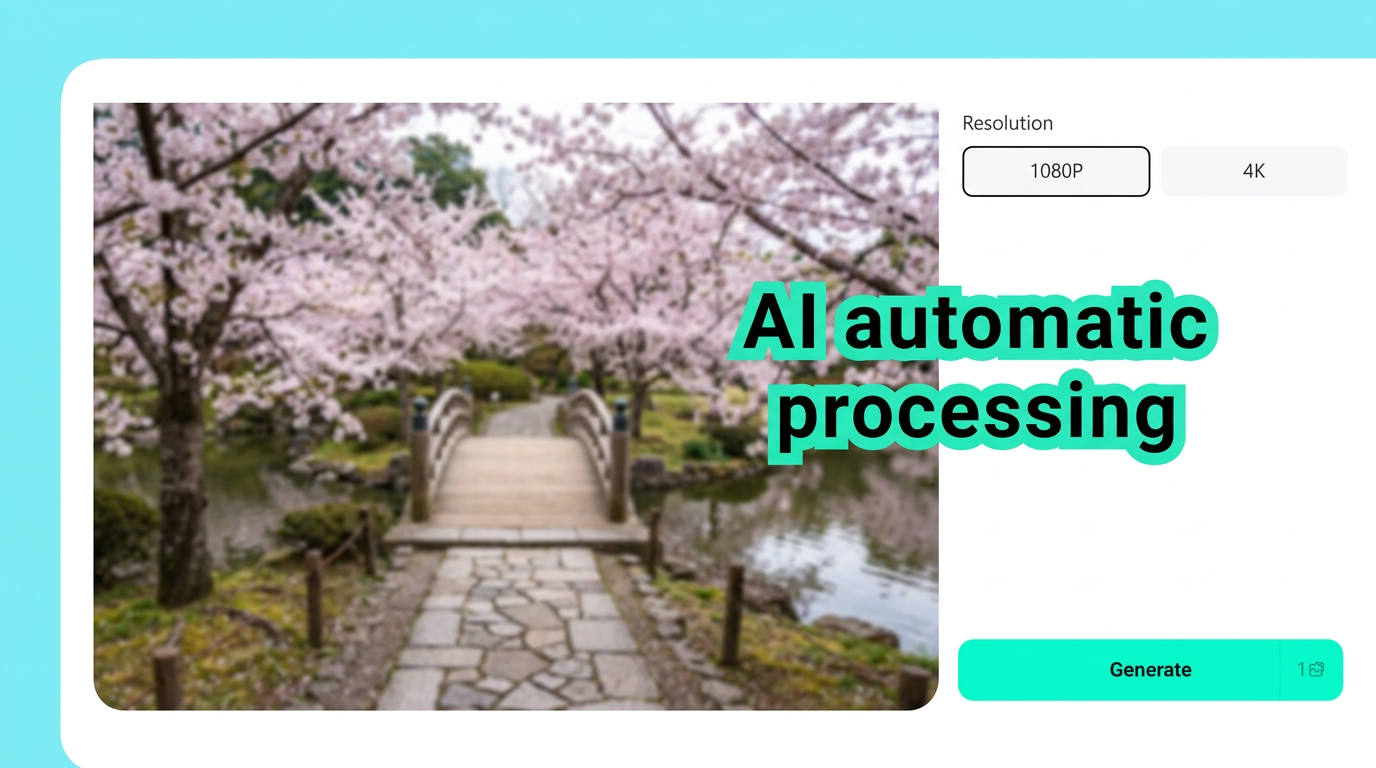
After selecting the resolution, click Generate and let the AI do its work. The system uses advanced upscaling algorithms to:
-
Reconstruct missing details in each frame
-
Sharpen anime outlines and character edges
-
Remove compression artifacts and blockiness
-
Improve color clarity and gradient smoothness
This process converts low-resolution anime into a clean, high-definition video — all automatically, with no manual editing required.
Step 4: Download the Upscaled Anime Video
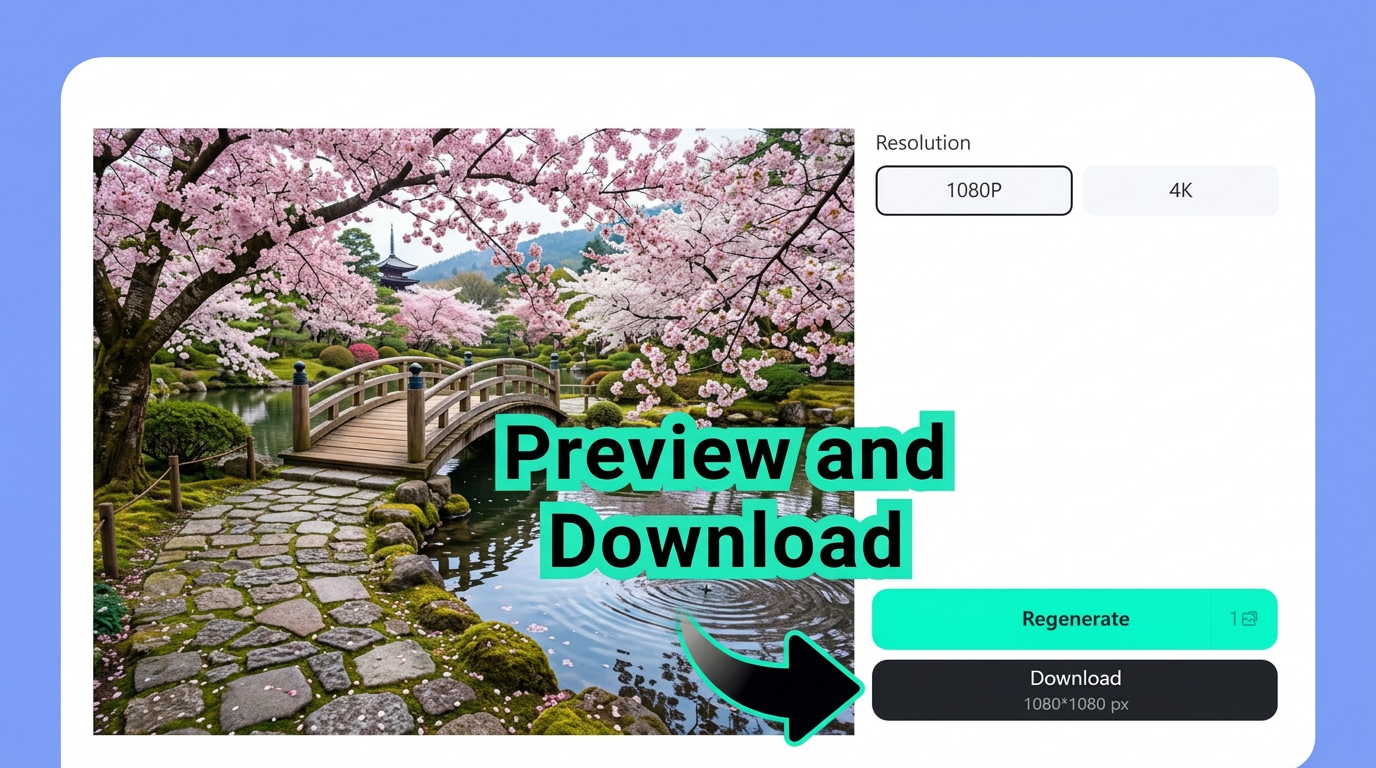
Once processing is complete, preview the enhanced video directly in your browser. Notice the difference — sharper lines, cleaner colors, and no more compression artifacts.
Click Download to save the upscaled video, or hit Regenerate if you want to try a different resolution. Your enhanced anime video is ready for:
-
Watching on 4K TVs and monitors
-
Uploading to YouTube or TikTok
-
Using as source material for AMVs and edits
-
Archiving in high quality for personal collections
Tips for the Best Anime Upscaling Results
Want to get the most out of AI anime upscaling? Keep these tips in mind:
Start with the best source you can find. AI upscaling works best when the input video has decent quality to begin with. A Blu-ray rip will upscale far better than a heavily compressed web stream. Always use the highest-quality source available.
Choose 4K for big screens, 1080p for social. If you're posting to Instagram or TikTok, 1080p is plenty — and the smaller file size makes uploading faster. Save 4K for content you'll watch on a large display or archive long-term.
Upscale before editing, not after. If you're creating an AMV or compilation, upscale your source clips first, then edit. This preserves the AI enhancement through your editing workflow.
Watch for over-sharpening on simple scenes. Some scenes with very minimal detail (solid color backgrounds, still frames) may look slightly different after upscaling. Preview before downloading to make sure the result looks natural.
Combine with other enhancement tools. For the best results, consider using insMind's HD video converter to optimize the format after upscaling, ensuring maximum compatibility across devices.
What Types of Anime Videos Can You Upscale?
Wondering what kinds of anime content benefit most from AI upscaling? Here's a breakdown:
Classic anime series (pre-2010). Shows like Naruto, Bleach, Dragon Ball Z, and Cowboy Bebop were originally produced in standard definition. AI upscaling can make these classics look dramatically better on modern screens.
Anime music videos (AMVs). Fan-made AMVs often use mixed-quality sources. Upscaling your clips before editing gives you a consistent, high-quality baseline.
Streaming downloads. Even episodes from Crunchyroll or Funimation can show compression artifacts. Upscaling cleans up the video for a smoother viewing experience.
Short clips and GIFs. Social media clips, reaction GIFs, and memes often get compressed multiple times. AI enhancement restores clarity. Use insMind's full AI video editor for additional touch-ups like trimming and formatting.
Anime movie scenes. Upscaling key scenes from anime films gives you wallpaper-quality video you can loop on a big display or use as ambient background content.
Frequently Asked Questions
Can AI really upscale anime video to 4K quality?
Yes. Modern AI upscalers use deep learning models trained specifically on anime content. They can reconstruct fine details like line art, hair strands, and background textures that traditional upscaling methods can't handle. The result is a significant visual improvement, especially from 480p or 720p sources.
Does AI upscaling change the anime art style?
No. Good AI anime upscalers are designed to preserve the original art style. They enhance resolution and remove artifacts without adding unwanted texture to flat color areas or altering the character design. The anime looks like itself — just sharper.
What video formats are supported for anime upscaling?
insMind supports all major video formats including MP4, MOV, M4V, 3GP, and AVI. Most anime videos — whether downloaded, screen recorded, or ripped from disc — will work without any conversion needed.
Is it free to upscale anime videos online?
insMind offers a free trial, You can enhance anime clips at no cost and upgrade for batch processing, longer videos, and 4K output. It's a great way to see the quality improvement before committing.
How long does it take to upscale an anime video to 4K?
Processing time depends on the video length and resolution jump. Short clips (under 30 seconds) typically process in under a minute. Longer videos may take a few minutes. The process is fully automated — just upload, choose your resolution, and let the AI handle everything.
Upscale Your Anime Videos Today
Ready to see your favorite anime in stunning 4K clarity? With insMind's AI anime video upscaler, you can transform blurry, low-resolution footage into crisp, vibrant video in just four simple steps. No downloads, no technical skills, no waiting.
Whether you're restoring classic series, polishing clips for social media, or building an HD anime collection, insMind makes it fast, easy, and free to get started.

Ryan Barnett
I'm a tech enthusiast and writer who loves exploring AI, digital tools, and the latest tech trends. I break down complex topics to make them simple and useful for everyone.


