
How to Create a Stranger Things Transition Video (Step-by-Step Guide)
Create Stranger Things Video Now

The Stranger Things world has a unique style that grabs your attention right away. Fans love dark skies, red and blue lightning, floating ash, twisted vines, and that spooky Upside Down vibe. This look is really popular for short videos, social media edits, cosplay shots, and dramatic photos. Creating this Stranger Things video effect before took hours using complicated tools like After Effects or Blender. However, simple AI tools make it much easier now.
insMind brings this style to life using AI to create images and videos. Anyone can turn a regular photo into a Stranger Things-style transition without needing expert editing skills. This is possible with tools like Nano Banana Pro (for dark, cinematic images) and Kling 2.5 (for motion effects).
If you want to make that Stranger Things transition, Upside Down effect tutorial, or AI-powered special effects in just minutes, this guide will show you exactly how to do it, step by step.
Table of Contents
- 01 Part 1: What Is the Stranger Things Transition Effect?
- 02 Part 2: How to Create a Stranger Things Transition Video Using AI on insMind?
- 03 Part 3: Why Use AI to Create Stranger Things Transitions?
- 04 Part 4: Stranger Things Prompts Library (Ready to Use)
- 05 Part 5: Best AI Models for Stranger Things VFX Transition (Comparison)
- 06 Part 6: Tips to Get the Best Stranger Things Effect
- 07 Part 7: Conclusion
Part 1: What Is the Stranger Things Transition Effect?
The Stranger Things transition effect shows creepy visuals with strong, moody colors. You might see red lightning flashing through dark clouds, thick fog covering empty streets, and vines wrapping around buildings like another world is breaking through. This look makes familiar places feel like something mysterious and powerful is taking over.
Before making this effect took a lot of work with layers, masks, and 3D tools. However, now AI can quickly turn one picture into two versions one normal and one Upside Down, and blend them together in a smooth and movie-like way.
This makes it easier for filmmakers and video editors alongside anyone who wants to turn simple photos into spooky and supernatural scenes.
Part 2: How to Create a Stranger Things Transition Video Using AI on insMind?
This easy guide will help you make the Upside Down transition in just a few minutes. All you need is a photo and a creative prompt with the right AI model for motion effects.
Step 1: Pick or Create Your Starting Image
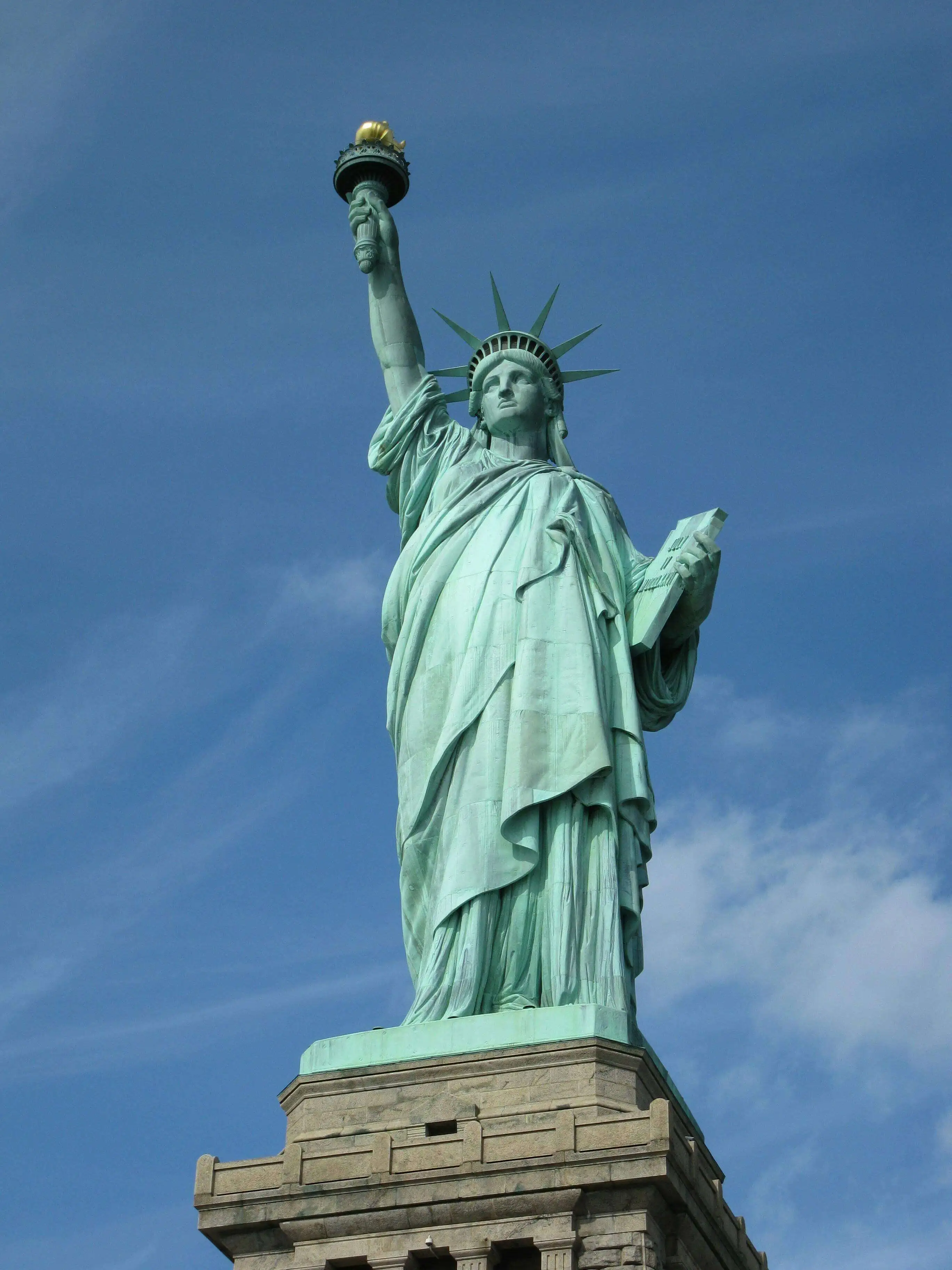
Start by choosing a clear and high quality photo. Pictures of buildings, monuments, empty streets, bridges, or landscapes work best. This is because the AI can easily recognize their shapes. Good options include city skylines, statues, open plazas, old houses, or scenic views.
If you don’t have a suitable photo, you can create one inside insMind using the Nano Banana Pro model. This model is great at adding strong details. This is especially for city and architecture scenes. You can use prompts like,
· Night city skyline with bright windows and cloudy sky
· Large bridge at dusk with street lights glowing
· Old European street at night with tall buildings
These prompts help create a clear, atmospheric base image to transform into the Upside Down look. When your image is ready, upload it to insMind. This will be the first frame of your transition.
Step 2: Make the Upside Down “Invasion” Image
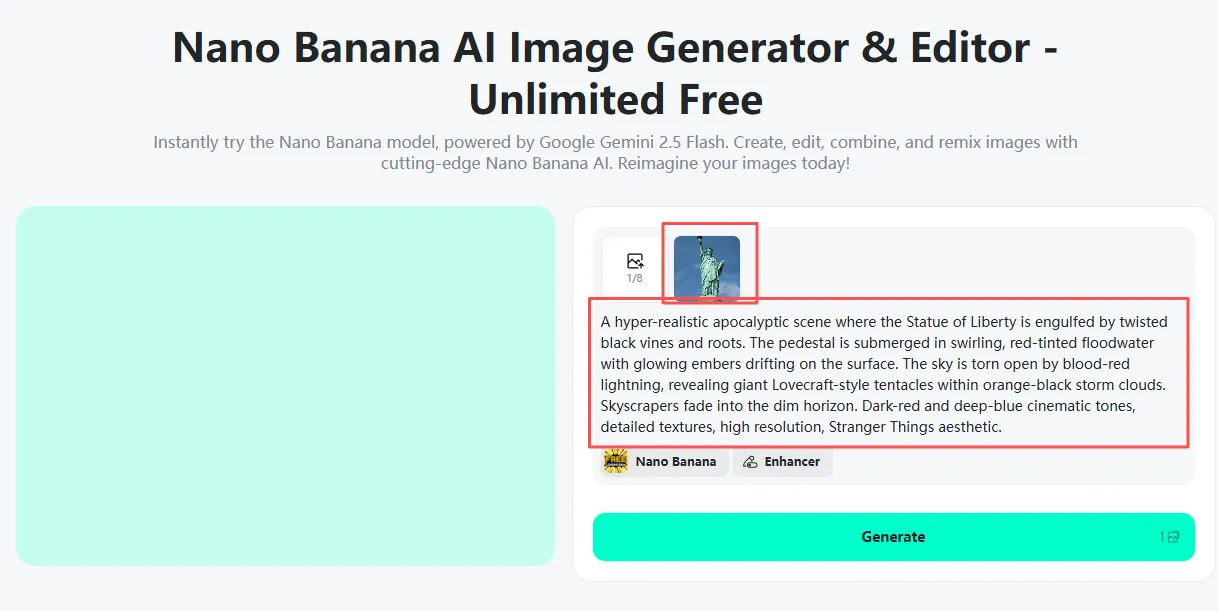
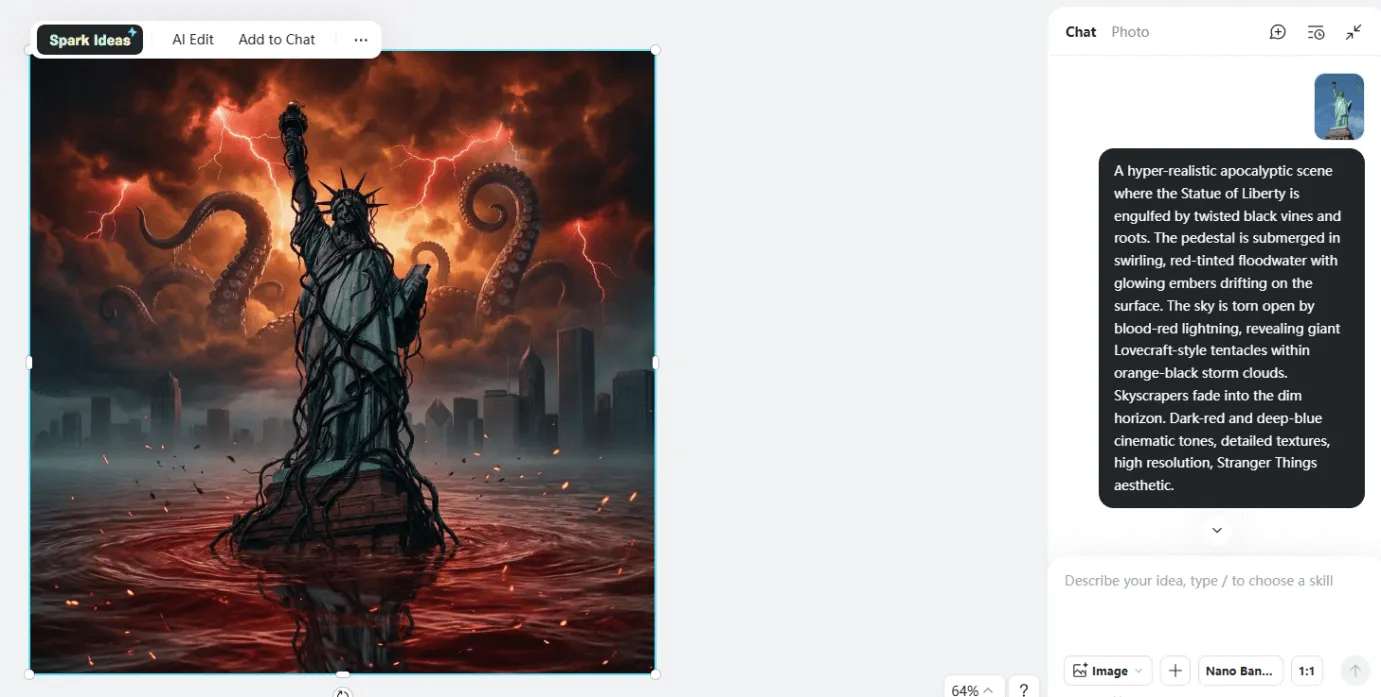
Now it is time to create the spooky corrupted version, the dark, Stranger Things inspired world. Use the Nano Banana Pro model to add creepy colors, twisted vines, fog, and a supernatural feel.
Here is an example prompt you can use or copy.
Sample Prompt for Upside Down Image:
A super-realistic apocalyptic scene where the Statue of Liberty is covered by twisted black vines and roots. The base is underwater with red-tinted floodwater and glowing embers floating on top. The sky is ripped open by blood-red lightning, showing giant tentacles inside orange-black storm clouds.
Skyscrapers disappear into the dark horizon. Deep red and blue cinematic colors, detailed textures, high resolution, Stranger Things style.
You can swap out the Statue of Liberty with whatever you want.
· Eiffel Tower
· Big Ben
· Your house
· A street scene
· A modern skyscraper
· A forest clearing
This new image will be Frame 2, the Upside Down version that appears in the final transition.
Step 3: Make the Stranger Things Transition Video
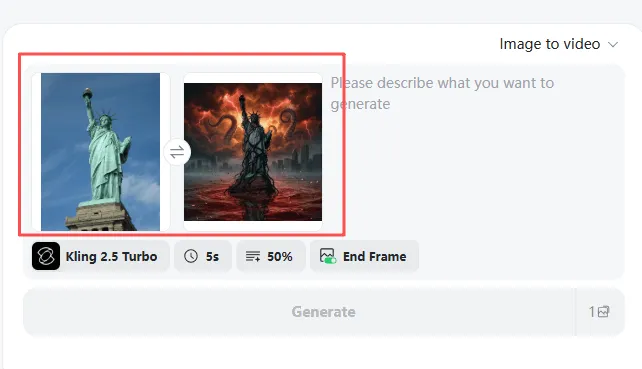
After you have both pictures ready, open the insMind AI Video Generator. This tool will mix the two images to create a smooth and movie like transformation.
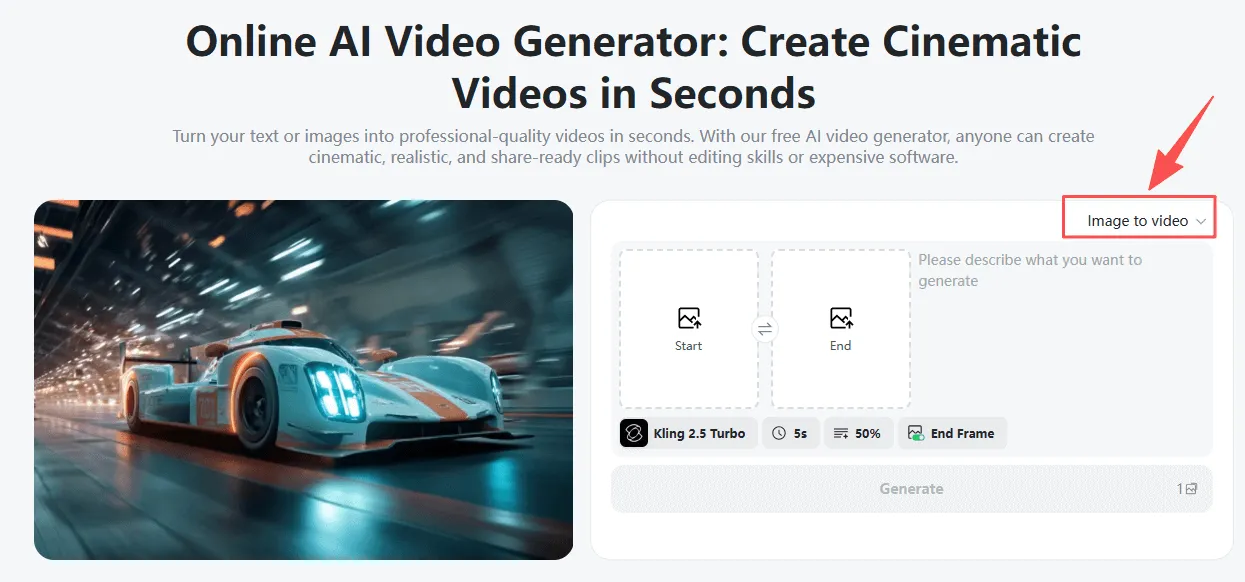
· Upload Frame 1: your normal photo
· Upload Frame 2: your Upside Down, spooky photo
The Start-End Frame Generator will blend these images together. This will be making it look like a mysterious force is changing the scene right before your eyes.
Pick a Video Model
The video model you choose will affect how the final motion looks.
· Kling 2.6, Kling 2.5 offers strong camera movements and realistic motion, making it perfect for spooky and supernatural effects. It is the best choice if you want to create the classic Stranger Things transition.
· On the other hand, Google Veo 3.1 gives smooth, gentle movement with a strong atmospheric feel. It works great for showing fog, storms, and floating particles. It will be adding a dreamy or mysterious vibe to your video.
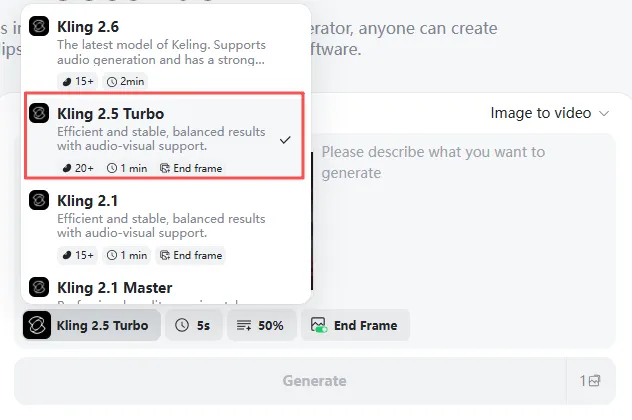
Choose the model that fits the mood you want for your transition.
Add a Prompt for Motion
Here is an easy example prompt you can use. Here we are taking statue of liberty as an example image.
A smooth circling camera moves around the Statue of Liberty. Then shift from the normal night scene (Image 1) to a dark, eerie world (Image 2) with red and blue lightning and swirling clouds. The camera stays at the same distance and angle. Add light mist, natural textures, and a soft supernatural glow as the statue changes into its darker form.
You can just replace the Statue of Liberty with your own subject to fit your picture.
Step 4: Create and Save Your Video
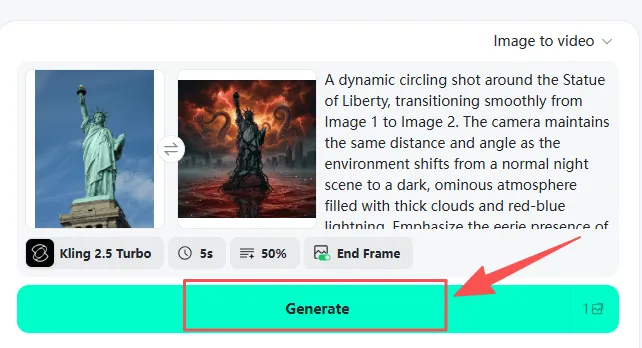
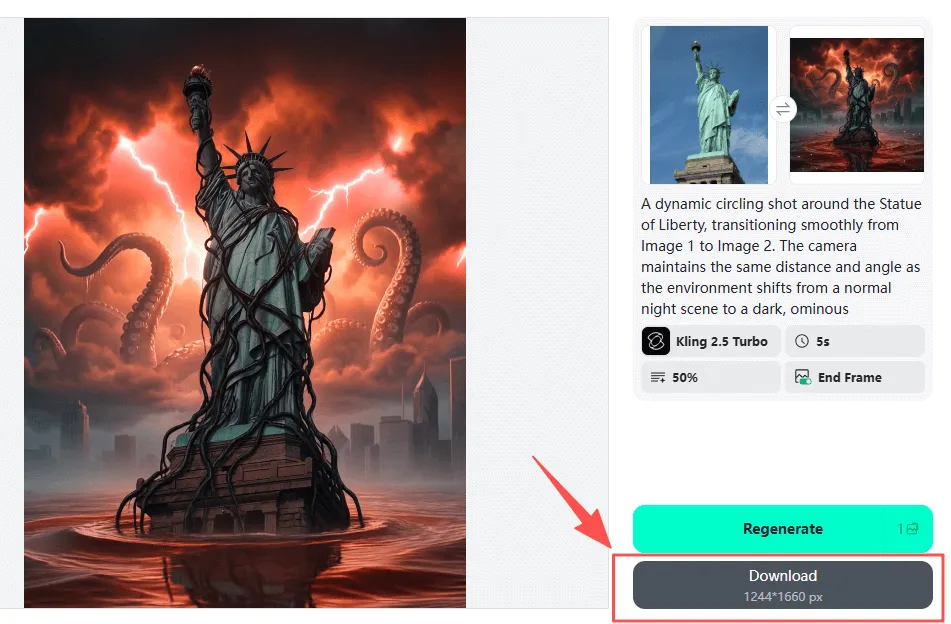
Click Generate, and the AI will combine your two images into a cool Stranger Things-style transformation. Watch the video and make any changes you want, like adjusting:
· Camera movement
· Contrast
· Speed
· Atmosphere
When you are happy with how it looks, download the video. It is ready to use for TikTok, YouTube Shorts, Instagram Reels, Film projects, Creative edits, and Cosplay transitions.
The whole process only takes a few minutes from start to finish.
Part 3: Why Use AI to Create Stranger Things Transitions?
Here are the reasons.
· You can create cinematic VFX shots without learning 3D programs or video editing software.
· Changing one prompt can create brand-new alternate worlds like stormy skies, alien cities, abandoned suburbs, glowing mountains, or strange ruins.
· The dramatic shift from normal to supernatural grabs attention instantly. This is making it ideal for short-form platforms.
Part 4: Stranger Things Prompts Library (Ready to Use)
Here are some prompt ideas written cleanly so users can copy and paste them into Nano Banana Pro or insMind.
1. A quiet city street at night turning into an Upside Down world covered in black vines, red lightning in the sky, swirling fog, dark shadows near broken windows, Stranger Things mood.
2. An old house in the forest shifting into a twisted dimension with floating ash, cracked walls, glowing red roots creeping across the roof, storm clouds above.
3. A calm bridge at dusk turning into an eerie world filled with red mist, broken concrete, glowing blue sparks along the cables, cinematic storm overhead.
4. A snowy mountain road changing into a dark dimension with black ice, faint red cracks glowing under the snow, and drifting fog covering the trees.
5. A shopping mall at night turning into an abandoned Upside Down scene with flickering lights, red fog, and tangled roots spreading across the floor.
6. A school hallway morphing into a supernatural zone with dark walls, floating embers, blue lightning outside the windows, and heavy fog.
Part 5: Best AI Models for Stranger Things VFX Transition (Comparison)
Have a look at this comparison table.
|
Model |
Strengths |
Best For |
|
Kling 2.5 |
Strong camera motion, realistic shifts |
Upside Down transitions, dramatic reveals |
|
Google Veo 3.1 |
Smooth movement, rich atmosphere |
Fog, storms, supernatural edits |
Part 6: Tips to Get the Best Stranger Things Effect
Here are simple methods to get cleaner results. These small choices can make a big difference in the final video.
· Pick darker photos for stronger contrast.
· Add fog, floating ash, or sparks inside your prompts.
· Keep camera motion slow for a dramatic reveal.
· Add red-blue lightning for the classic look.
· Use the same light angle in both images for a smooth match.
· Add light mist for extra texture.
Part 7: Conclusion
Creating Stranger Things transition does not require advanced editing tools anymore. With insMind, you can turn any location into the Upside Down using simple prompts, two images, and the right motion model.
Nano Banana Pro builds the dark alternate world. On the other hand, Kling 2.5 or Google Veo 3.1 brings the camera movement to life. In minutes, you will have a cinematic reveal ready for TikTok, YouTube Shorts, or your next creative project.
If you’re ready to test your ideas and build your own supernatural world, jump into insMind and start creating.

Sarah Michelle
I'm a freelance writer with a passion for editing and designing photos. Here at insMind, I strive to educate users on image creativity, photography, and enhancing product photos to help grow their businesses.


