


Bad color can make good footage look unfinished. A video may be sharp and well-framed, but if the white balance is off, the shadows look muddy, skin tones feel strange, or the whole scene looks dull, viewers notice immediately.
That is why AI video color correction is becoming a practical shortcut for creators, real estate teams, ecommerce brands, educators, and social media editors. Instead of adjusting every slider by hand, an AI video color correction tool can help fix dull colors, improve contrast, balance saturation, and make footage look cleaner in less time.
In this guide, you will compare the best AI video color correction tools for fast and easy video enhancement, learn when to use each option, and see how to correct video color with insMind using a simple prompt-based process.
Table of Contents
- 01 What Is AI Video Color Correction?
- 02 Best AI Video Color Correction Tools for Fast Enhancement
- 03 How to Correct Video Color with insMind
- 04 Common Video Color Problems AI Can Fix
- 05 Prompt Tips for Better AI Color Correction Video Results
- 06 FAQs About AI Video Color Correction
- 07 Fix Video Color Faster with AI
What Is AI Video Color Correction?
AI video color correction is the process of using artificial intelligence to improve the color balance, contrast, brightness, saturation, skin tone, and overall look of video footage. The goal is not always to create a dramatic style. Often, it is simply to make footage look natural, consistent, and easier to watch.
Traditional color correction usually involves manual tools such as curves, color wheels, scopes, exposure controls, and LUTs. AI video color correction tools work differently. You can describe what needs to change, choose an automatic enhancement option, or let the tool analyze the footage and suggest improvements.
For beginners, this matters. You may not know whether the problem is exposure, white balance, contrast, saturation, or shadow detail. With AI video color correction, you can describe the result you want in plain language, such as "make the footage brighter, fix dull colors, and keep the result natural."
Best AI Video Color Correction Tools for Fast Enhancement
The best AI video color correction tool depends on your editing style. Some tools are designed for fast automatic fixes. Others are stronger for professional grading, social video editing, or browser-based enhancement.
| Tool | Best For | How It Corrects Color |
|---|---|---|
| insMind | Prompt-based AI video color fixes | Upload video, describe correction, apply AI edit, download |
| Adobe Premiere Pro | Professional color correction and editing | Manual and assisted correction with advanced controls |
| DaVinci Resolve | Advanced color grading | Professional node-based grading and detailed color tools |
| VEED | Browser-based edits and social clips | Adjust, filter, subtitle, and export online |
| CapCut | Mobile-first social videos | Fast adjustments, filters, templates, and social exports |
1. insMind: Best for Fast Prompt-Based Video Color Correction
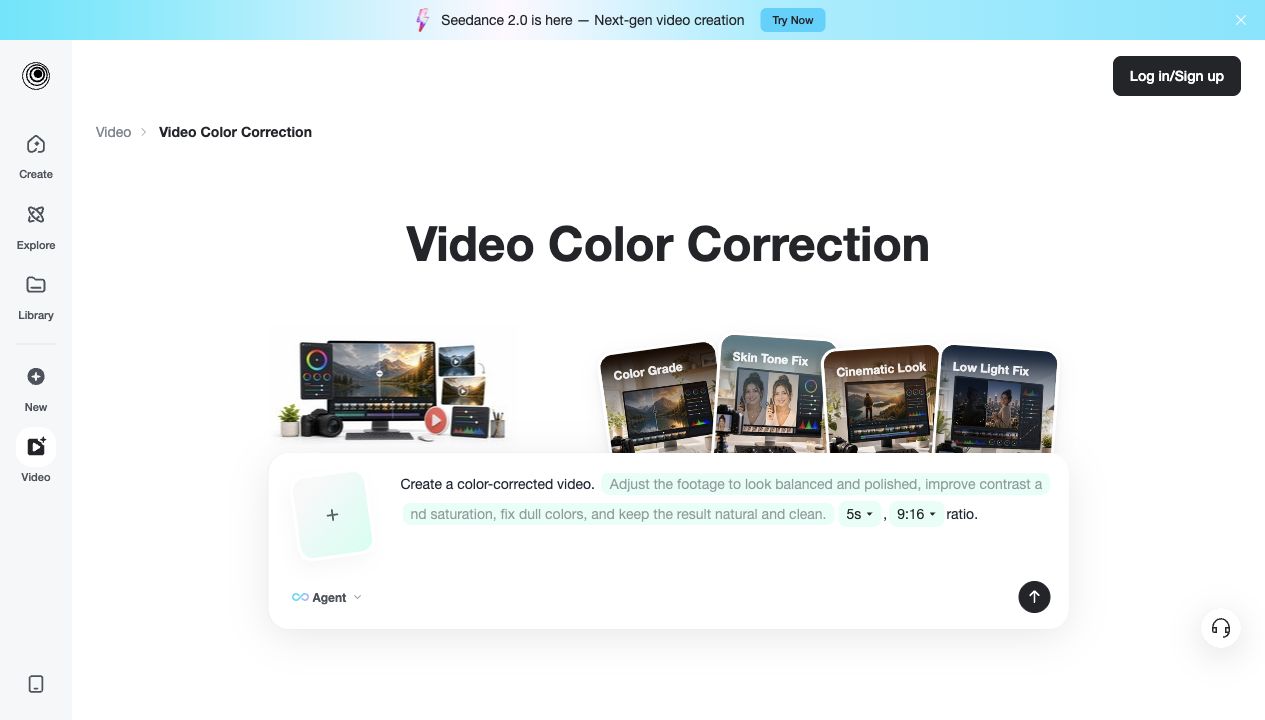
insMind is a strong fit when you want to correct video color with AI without learning a professional grading interface. Instead of managing complex panels, you can add your video and describe the correction you want: improve contrast, fix dull colors, make the footage brighter, balance saturation, or keep the final look natural.
This makes it practical for real estate videos, product clips, short ads, social posts, educational videos, travel footage, and beginner editing tasks. If your footage also needs clarity work, a video enhancer can help improve sharpness and overall watchability alongside color.
 Pros
Pros- Plain-language prompts for beginners
- Good for fast corrections when footage looks dull or unbalanced
- Useful for social clips, product videos, real estate footage, and quick edits
- Does not require professional color grading experience
Cons- Less manual control than professional grading suites
- Prompt quality still affects how precise the correction feels
2. Adobe Premiere Pro: Best for Professional Editors
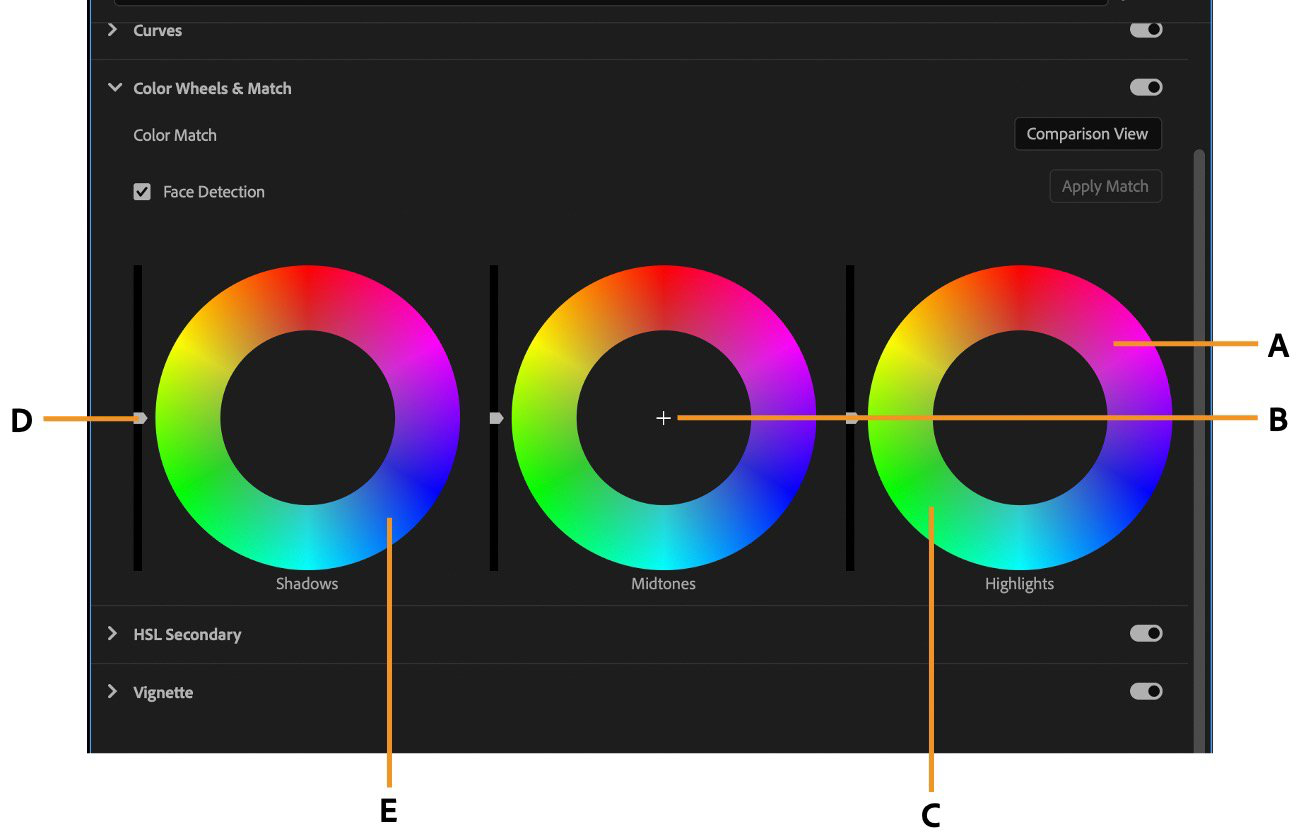
Adobe Premiere Pro is a strong choice for editors who need advanced timeline control, professional color tools, audio editing, captions, effects, and export management in one editor. It is better for teams that already know editing software and need detailed control over the final look.
Pros- Advanced editing and color correction controls
- Good fit for professional projects and complex edits
- Works well when color is only one part of a larger edit
Cons- Steeper learning curve for beginners
- Can be more than you need for a quick automatic video color correction task
3. DaVinci Resolve: Best for Advanced Color Grading
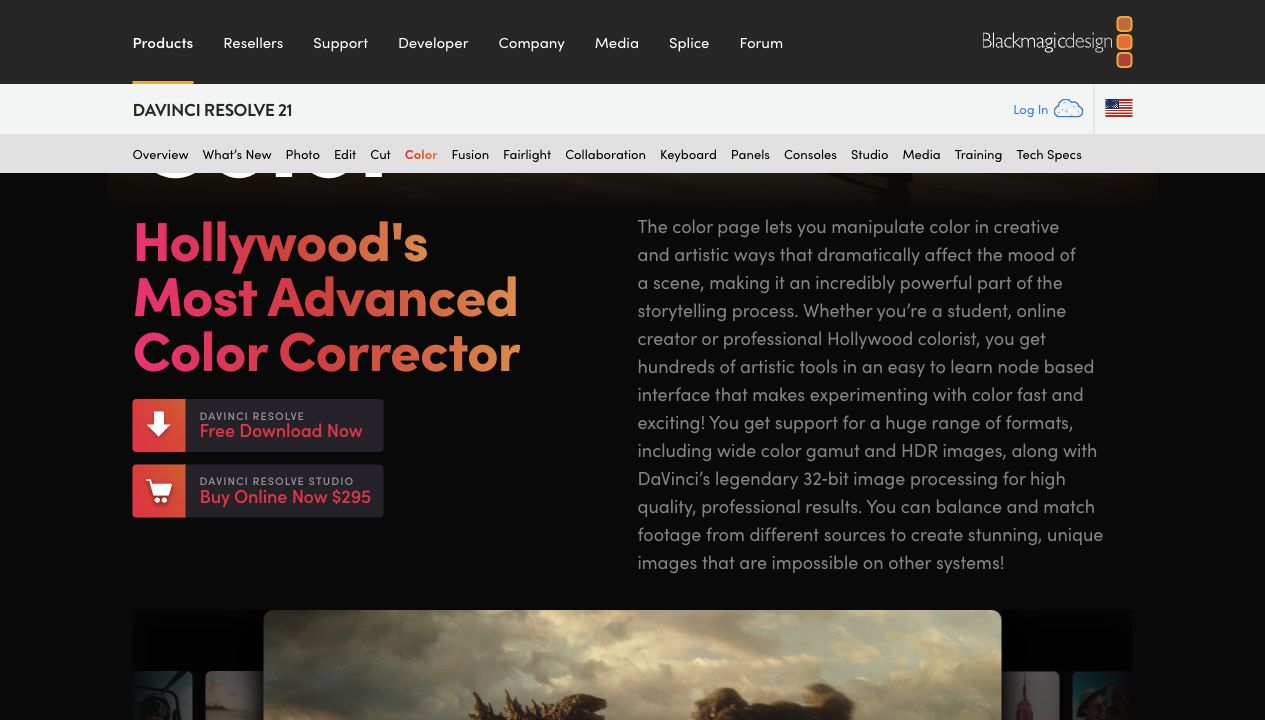
DaVinci Resolve is known for color grading. It is a strong option when you need detailed creative control, scene matching, cinematic looks, and professional finishing. For automatic video color correction, though, it may feel more advanced than a beginner needs.
Pros- Excellent for detailed grading and cinematic looks
- Strong tools for professional color grading
- Good for projects that need precise shot matching
Cons- Requires more learning and manual decision-making
- Not the quickest path for simple AI color fixes
4. VEED: Best for Online Color and Captions
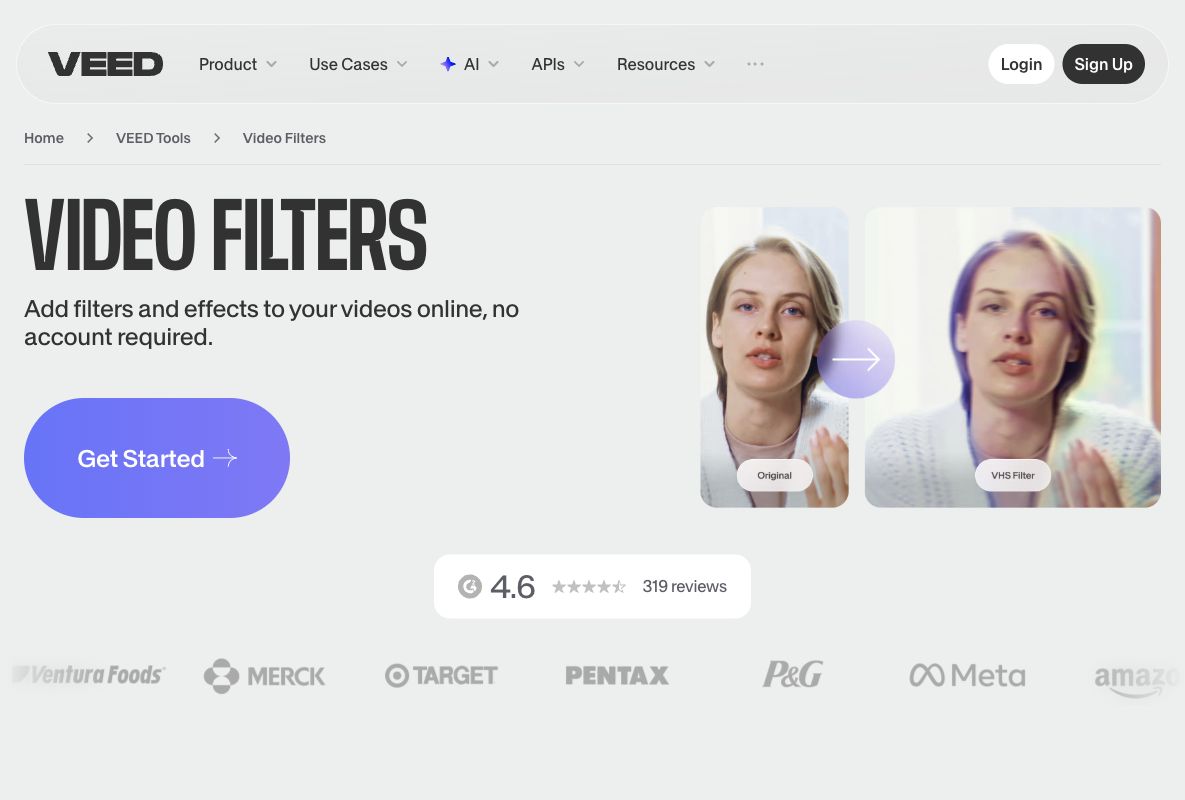
VEED is useful when you want an online video editor for quick changes, captions, filters, and social-ready exports. It can fit creators who want browser-based editing and do not want to open a desktop editor for every small video adjustment.
Pros- Browser-based editor is easy to access
- Useful for captions, subtitles, social clips, and quick edits
- Good when color correction is part of a broader online edit
Cons- May not provide the same depth as professional grading tools
- Best results still depend on the quality of the uploaded footage
5. CapCut: Best for Social Video Creators
CapCut is popular with short-form creators because it makes it easy to edit mobile videos, apply filters, add captions, use templates, and export content for TikTok, Reels, and Shorts. It is best when the goal is a fast social look rather than a detailed professional grade.
Pros- Fast editing for mobile-first content
- Useful filters, templates, captions, and social editing features
- Good for creators who want polished clips quickly
Cons- Filter-heavy results can look over-styled if used too aggressively
- Less suitable for detailed professional color matching
How to Correct Video Color with insMind
Want to fix video color without a complicated editing timeline? With insMind, the process is simple: add your video, enter a correction prompt, apply AI color correction, and download the finished result.
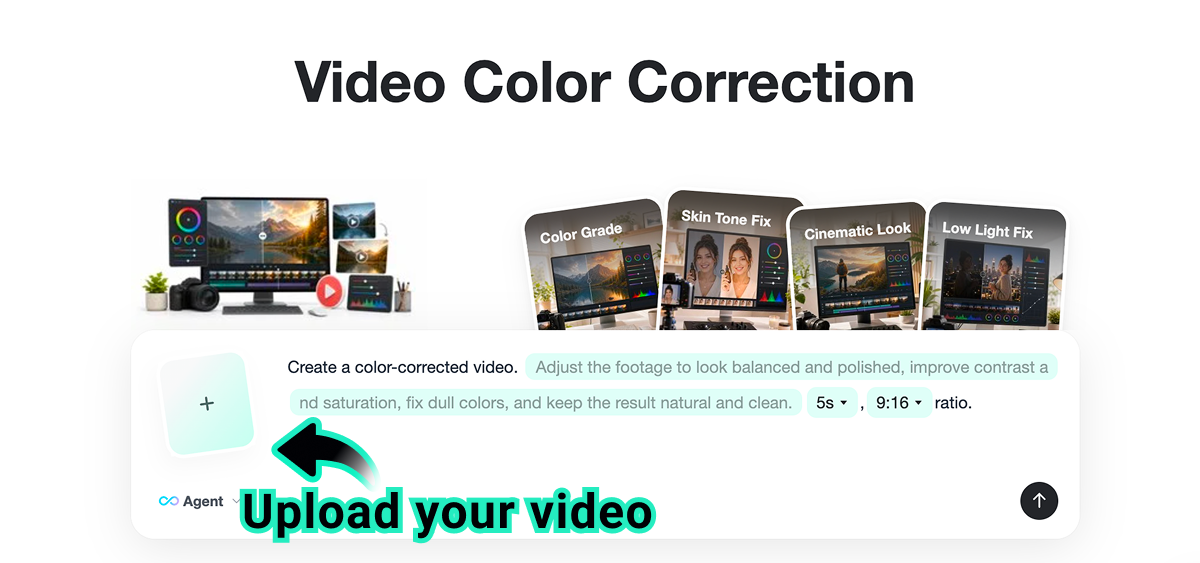
Step 1: Add Your Video
Start by uploading one video or multiple videos you want to correct. You can work on a single clip or add several clips when you need a consistent color look across a set of footage, such as a property tour, product series, social campaign, travel recap, or tutorial sequence.
Choose files where the main subject is clear. AI can improve the look, but better source footage gives the correction process more useful detail to work with.
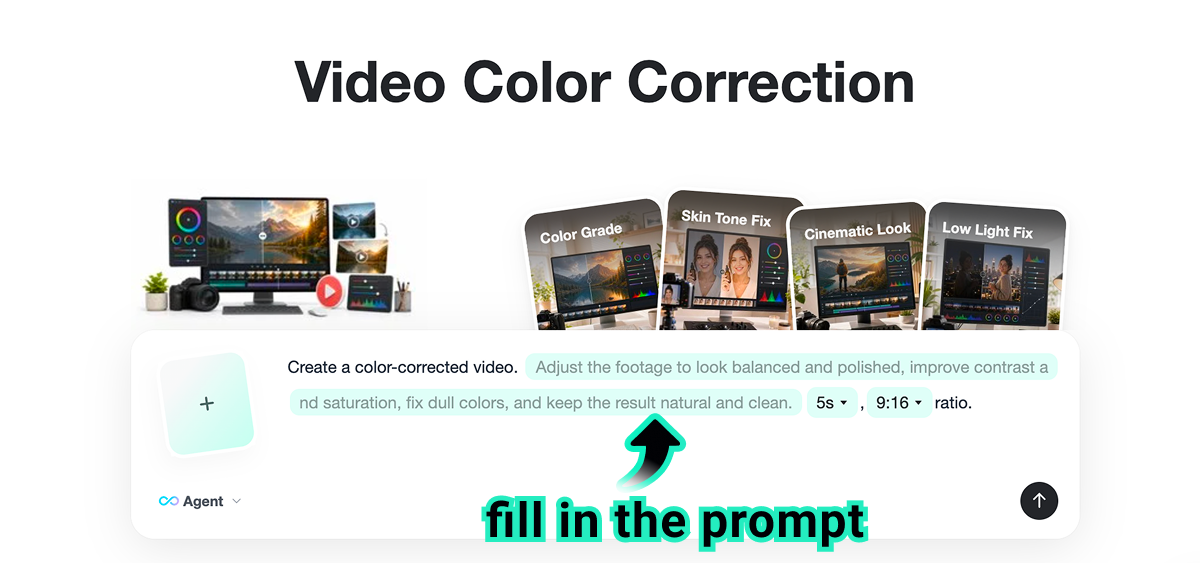
Step 2: Enter Your Correction Prompt
Next, describe the color correction you want. You can ask insMind to improve contrast, balance saturation, brighten the footage, fix dull colors, restore natural tones, or keep the result clean and realistic.
A practical prompt might be: Create a color-corrected video. Adjust the footage to look balanced and polished, improve contrast and saturation, fix dull colors, and keep the result natural and clean. This is clearer than simply saying "make it better."
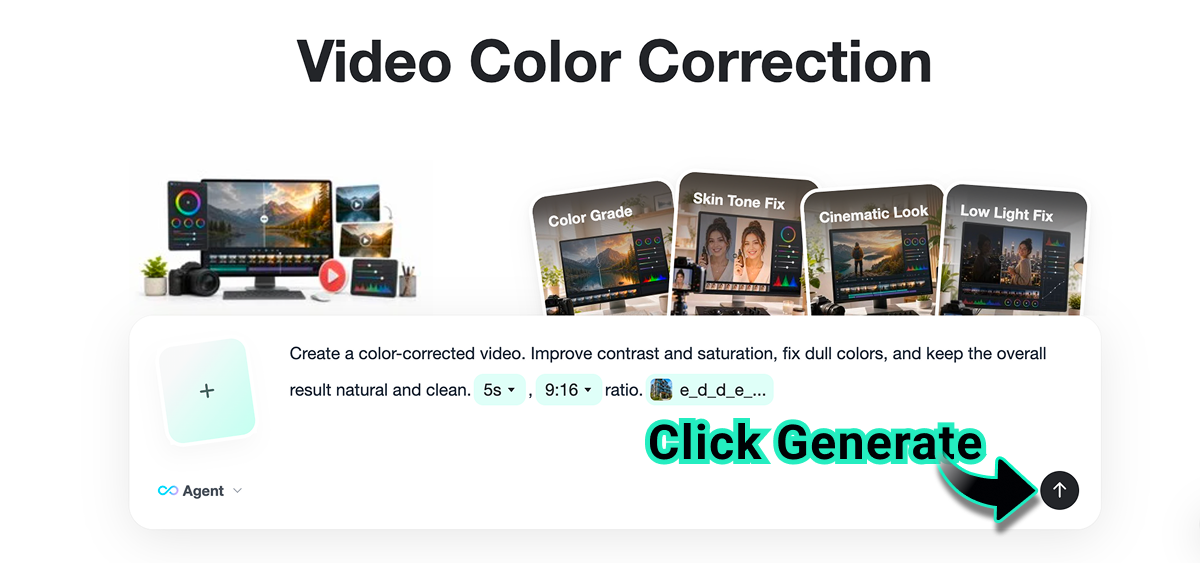
Step 3: Apply AI Color Correction
When your prompt is ready, apply the AI correction. The tool will process the video based on your instruction and create a cleaner, more balanced version.
If the output looks too strong, revise the prompt with phrases like "subtle," "natural," or "avoid over-saturation." If it still looks flat, ask for stronger contrast, brighter highlights, or richer color separation.
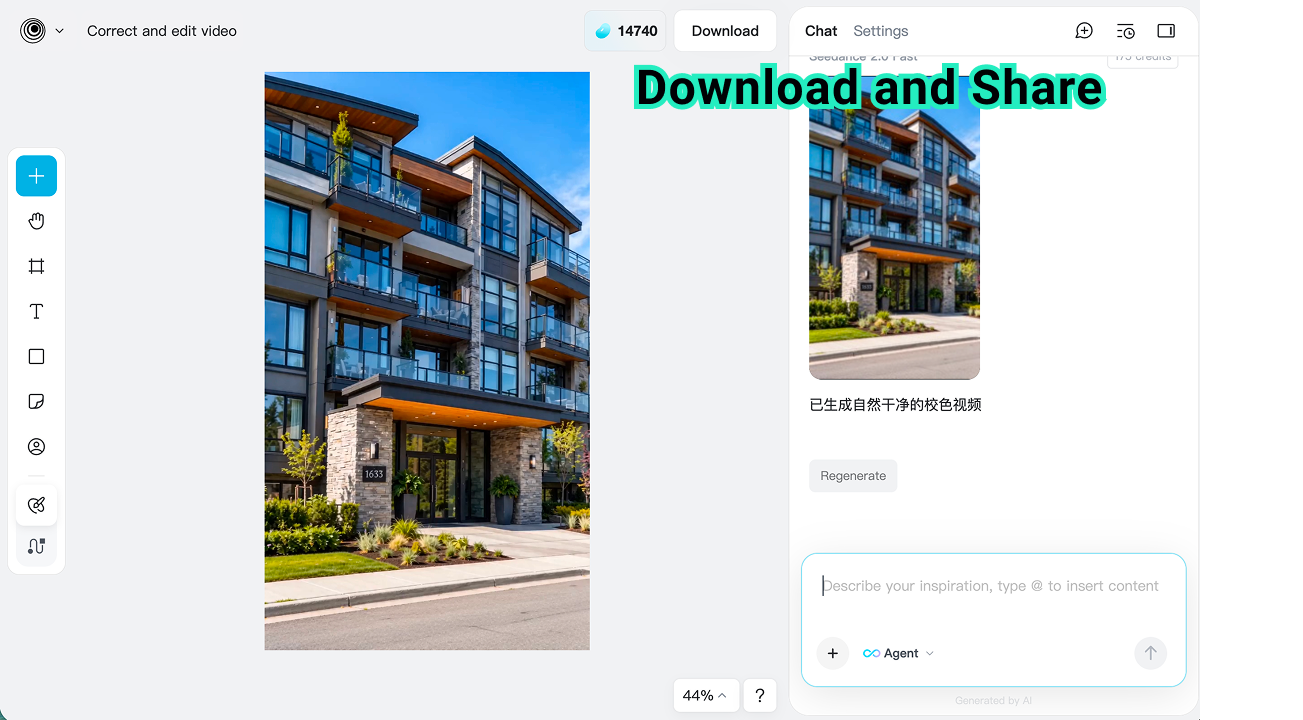
Step 4: Download and Use Anywhere
Preview the corrected result, then download the finished video. You can use it in property listings, product pages, social posts, presentations, ads, tutorials, or any channel where cleaner color makes the video look more polished.
If you are preparing the video for a larger social edit, an AI video editor can also help with follow-up adjustments after the color looks right.
Common Video Color Problems AI Can Fix
Not every color issue needs a full professional grade. Many everyday videos only need a clean correction pass. AI can be useful when the problem is obvious but you do not want to adjust every setting manually.
Copy the example prompt that matches your footage into insMind. For color cast, replace yellow with the dominant tint you see, such as blue or green.
| Problem | Example Prompt | Best For |
|---|---|---|
| Dull footage | Correct this video: improve contrast and saturation, fix dull colors, brighten the footage slightly, keep skin tones natural, and avoid an over-filtered look. | Real estate, product, travel, lifestyle clips |
| Low light | Correct this video: brighten the scene, lift shadow detail, reduce the muddy gray look, keep highlights natural, and avoid blown-out bright areas or harsh noise. | Indoor clips, evening footage, event videos |
| Color cast | Correct this video: fix the yellow color cast, restore clean whites, balance natural skin tones, and keep the result clean and realistic. | Office, home, store, and camera phone videos |
| Skin tone issues | Correct this video: balance skin tones naturally, improve overall color balance, keep faces realistic, and avoid heavy filters or over-saturation. | Talking heads, interviews, creator videos |
| Over-styled footage | Correct this video: reduce heavy color grading and filters, return the footage to a clean realistic look, keep contrast balanced, and avoid an over-stylized finish. | Repurposed clips, ads, brand videos |
Prompt Tips for Better AI Color Correction Video Results
A good correction prompt should describe both the problem and the desired finish. Avoid vague commands like "make it cinematic" unless you actually want a stylized look. For most business and social footage, clean and natural color performs better.
Name the color issue: dull colors, low contrast, yellow cast, blue cast, dark shadows, washed-out highlights, or unnatural skin tone.
Describe the finish: balanced, natural, clean, polished, bright, realistic, warm, or cinematic.
Set limits: ask the AI to avoid over-saturation, harsh contrast, or artificial filters.
Match the use case: real estate footage needs clean whites, product videos need accurate colors, and creator videos need natural skin tones.
If the video also looks soft or noisy, pair color work with a video upscaler so the final clip feels sharper as well as better balanced.
FAQs About AI Video Color Correction
What is the best AI video color correction tool?
The best tool depends on your needs. insMind is useful for fast prompt-based correction, while tools like Premiere Pro and DaVinci Resolve are better for advanced manual grading.
Is AI video color correction good for beginners?
Yes. Beginners can describe the correction in plain language instead of learning color wheels, curves, and scopes before getting a cleaner result.
Can I use AI color correction for real estate videos?
Yes. Real estate videos often benefit from cleaner whites, brighter interiors, richer exterior colors, and a balanced natural look that makes the property easier to view.
What prompt should I use to fix dull video color?
Try: improve contrast and saturation, brighten the footage slightly, fix dull colors, keep skin tones natural, and avoid an over-filtered look.
Is color correction the same as color grading?
Not exactly. Color correction fixes technical problems so footage looks balanced and natural. Color grading adds a creative look, such as cinematic warmth, dramatic contrast, or a specific brand style.
Fix Video Color Faster with AI
Good color makes video feel more trustworthy, polished, and watchable. Whether you are editing real estate footage, a product demo, a social clip, or a quick business video, AI can help you move from dull footage to a cleaner final result faster.
Start with one clear correction prompt, preview the result, and revise only what needs to change. With insMind, you can fix video color with AI, download the corrected video, and use it across the channels where visual quality matters most.

Ryan Barnett
I'm a freelance writer with a passion for editing and designing photos. Here at insMind, I strive to educate users on image creativity, photography, and enhancing product photos to help grow their businesses.
Keep reading

4 Best AI Video Tools for Multilingual Ads in 2026
Compare AI tools for localized video ads, lip sync, dubbing, and new market-specific creatives, plus a practical review checklist.

5 Best AI Video Generators for Marketing in 2026
Compare five AI video generators for product ads, presenter videos, cinematic clips, and campaign testing, with practical selection tips.

Dreamina AI Review: How Good Is It for Images and Videos?
Is Dreamina AI any good? Explore its image generator, video creation, AI avatars, strengths, limitations, and alternatives in this detailed review.

Flova AI Review: Is It Really Worth Using in 2026?
Is Flova AI worth using? Explore its video creation features, character consistency, pricing, limitations, and the best alternative for creators.

Higgsfield AI Review: What I Saw in a Studio Slide Demo
A close look at Higgsfield's Studio Slide image-to-video example: what happens to the subject, where the effect works, and where I'd be careful.

5 Best AI Voice Generators in 2026: Free & Paid Picks
Compare five leading AI voice generators for creators, marketers, podcasts, videos, and business narration.

Best Text to Speech Tools: 8 Picks for Natural AI Voices
Compare eight text to speech tools for natural AI voices, videos, learning, and business projects.

7 Best AI Avatar Makers in 2026: Top Tools Compared
Compare seven AI avatar makers for business, social, anime, and 3D profiles.

Best AI Audio Generators: 7 Tools for Voice Content in 2026
Compare seven AI audio generators for voice content, creative projects, and developer workflows.

Grok Imagine vs Veo: Which One Should You Use in 2026?
Compare Grok Imagine and Veo to choose the right AI video model for your workflow.

New Seedance 2.1 and Mini: Better Quality, Lower Price
Seedance 2.1 and Seedance 2.0 Mini updates, pricing, and insMind workflow.

Best AI Video Color Correction Tools for Fast Video Enhancement
Compare AI video color correction tools and fix video color online.

Top AI Highlight Video Maker Tools to Create Stunning Clips in 2026
Compare AI highlight video maker tools and create stunning clips with AI.

Make Your Vacation Photos Move with an AI Travel Video Maker
Turn travel photos into cinematic AI videos, Reels, and vacation clips.

How to Get More YouTube Subscribers for Free
Learn how to get more YouTube subscribers on YouTube for free with small-channel tactics, Shorts, thumbnails, playlists, analytics, and AI workflows.

How to Get More Views on YouTube: A Practical 2026 Growth Strategy
Learn how to get more views on YouTube with a practical strategy for topics, titles, thumbnails, Shorts, retention, analytics, and safer growth.

Best AI UGC Video Generator for TikTok Ads: Boost Engagement Fast
Step-by-step guide on Best AI UGC Video Generator for TikTok Ads: how it works, best practices, and how to do it free with insMind.

Seedance 2.0 vs Veo 3.1: Which AI Animation Tool Is Right for You?
Explore the strengths of Seedance 2.0 vs Veo 3.1 in animation, focusing on features, performance, and user experience.

Top 10 AI Meme Video Generators in 2026 (Free and Paid)
Compare the top 10 AI meme video generators for TikTok, Instagram Reels, and YouTube Shorts. Find the best free and paid tools to create viral meme videos with AI.

Best Seedance 2.0 Prompts: 5 Copy-Paste Examples for AI Video Creation
Discover 5 Seedance 2.0 prompt examples and learn how to create smoother, more cinematic AI videos with better control.

Seedance 2.0 Alternatives: 8 AI Video Models Worth Trying in 2026
Explore 8 Seedance 2.0 alternatives and learn how to choose the right AI video model for social content, ads, and storytelling.

Top 10 ID Card Maker Prompts to Create ID Cards Online
Discover the trending prompts to generate ID card photos.

How to Go Linve in Instagram (The Ultimate Guide in 2026)
Discover exactly how to do live video instagram broadcasts. We cover the setup steps, engagement tips, and how to use insMind AI to create stunning videos.

5 Hottest Nano Banana 2 Prompts to Create Stunning AI Images
Looking for the best Nano Banana 2 prompts? Discover 5 trending prompts and generate stunning AI images using insMind’s Nano Banana 2 AI Image Generator.

Nano Banana 2 vs Nano Banana Pro: Which AI Image Model Should You Use?
Discover the key differences between Nano Banana 2 and Nano Banana Pro. Compare features, pricing, and best use cases for each model.

AI Attractiveness Test: Discover Your Beauty Score with AI
Curious about your beauty score? Try the AI attractiveness test to analyze facial symmetry and proportions instantly using insMind’s AI tool.

Mocking SpongeBob Meme: Meaning, Origin, and How to Make It
Discover what the Mocking SpongeBob meme means, where it came from, why it went viral, and how to make your own version step by step.

Seedance 2.0 Review: Multimodal Control and Real-World Testing in 2026
Seedance 2.0 review with feature breakdown, pricing overview, and side-by-side comparison with Kling, Sora, Veo, and Wan AI video models.

Seedance 2.0 vs Kling 3.0: Which AI Video Generator Wins?
Seedance 2.0 or Kling 3.0 ? We compare both AI video generators on features, speed, and quality so you can pick the right model fast.

Is PixVerse AI Worth Using in 2026? Full Review, Pros & Cons Explained
An in-depth PixVerse AI review covering features, strengths, limitations, and how to use PixVerse on insMind for lower cost and more models.

30 Funny Text Meme Ideas That Will Make Anyone Laugh Instantly
Introduce 30 funny text meme ideas and learn how to generate meme images with insMind AI Image Generator.

Top 10 AI Discord Banner Ideas for Personalized Profiles
Your Discord banner sets the first impression. With AI Discord banner generator, you can create personalized banners in minutes.

Top 10 Discord Avatar Maker Ideas with AI
Your Discord profile picture is your personality. With AI avatar makers, you can create a unique avatar in seconds.

Top 10 Realistic Celebrity Selfie AI Prompts
Discover how celebrity AI image generators create realistic selfies. Learn how prompts turn photos into convincing celebrity-style images fast and easily.

Top 5 Local/Open-Source AI Image Generators in 2026
Discover the top 5 local/open-source AI image generators in 2026.

What Are Agent Skills? Everything You Need to Know
Introduce what are agent skills and how agent skills improve productivity.

Top 10 AI Collage Prompts for 3-Grid & 9-Grid Photos
Create professional 3-Grid and 9-Grid photo collages in seconds with our free AI generator. Upload images and let AI handle layout perfectly.

Top 10 Best AI Animation Tools in 2026 for Creators and Marketers
Discover the top AI animation tools in 2026, including text-to-video, image-to-video, and full AI video generators.

Top 10 AI Christmas Card Ideas for Custom Holiday Cards
Explore 10 AI-powered Christmas card ideas to create personalized holiday cards that feel festive, thoughtful, and easy to share with everyone.

Top 10 Christmas Elf AI Transformations to Try This Season
Create fun Christmas elf photos with AI. Turn yourself, family, kids, or pets into playful elves and share festive portraits this holiday season.

Top 10 Turn Me Into a Santa Ideas to Try This Christmas
Use AI to turn yourself into Santa this Christmas and create festive photos with a AI Santa Filter that are perfect for sharing, cards, and holiday laughs.

OpenArt Review: Honest Experience Using an AI Image Creator
Learn everything about OpenArt AI image generator in this article.

Kling O1 Prompt Bank: Everything you need to know
Learn everything about the Kling O1 Prompt Bank, including tips, examples, and AI video prompts.

Kling 2.6 Overview: Features, Benefits, and How to Use it Professionally
Explore Kling 2.6, the native audio-visual AI video model that creates videos with voice and sound in one seamless workflow.

50+ Hottest Nano Banana Pro Prompts for Viral Image Effects
Go through the guide to uncover the hottest list of Nano Banana Pro prompts to copy and use them as guided.

Nano Banana Pro vs. Seedream 4.0: How to Choose the Better One
Nano Banana 2 vs. Seedream 4.0? The clash between innovation and intelligence is outlined in the article below, with key differences and a guide on how to use it.

Black Friday Memes: The Funniest Internet Trend Taking Over Every Year
Explore the rise of Black Friday memes and learn how to create your own viral, funny posts with AI.

Zootopia Selfie: Turn Yourself into a Zootopia Character with AI
Transform your photo into a fun, animated Zootopia-style character instantly with AI.

Top 5 AI Video Generators in 2025: Create Stunning Videos with AI
Explore the best AI video generators of 2025 to create stunning, high-quality videos effortlessly. Learn more on insMind!

Top 5 Best Sora 2 AI Alternatives in 2025
Are you looking for some reliable Sora 2 AI alternatives? Here is a detailed guide with top 5 best Sora AI alternatives you can try in 2025.

Top Luma AI Alternatives for Video Creation
Are you searching for some reliable Luma AI alternatives that can generate high-quality AI videos? Here is a detailed guide that can help you.

Top 5 Hailuo AI Alternatives For Quality Video Generation
In this article, we'll provide you with the top 5 options for the best Hailuo AI Alternative so you can create your videos more quickly, easily, and with better quality.

Top 5 Veo 3 Alternatives: Best AI Video Generators You Can Try
Are you searching for the Veo 3 alternatives? Here is a guide with top 5 Veo 3 alternatives you can consider using according to your needs and budget.

Top 80 Attitude Captions for Instagram: Express your Personality
This article provides 80 powerful attitude captions to boost your Instagram engagement.

Nano Banana Tested, Complete Gemini 2.5 Flash Image Review
I have tested Nano Banana, and its AI image edits feel magical. Its realistic edits with consistency prove why it's the future of AI creativity.

Top 10 PixVerse AI Alternatives: Turn Image & Text to Amazing Videos
Top PixVerse AI alternatives for creating amazing videos from text or images, with insMind as the top pick.

Top 10 Kling AI Alternatives for Smarter AI Video Generation
Top 10 Kling AI alternatives for smarter, faster, and more accessible AI video generation.

Top 10 Best AI Art Generators in 2025: Features, Tips & Use Cases
Discover the best AI art generator tools for 2025

I Tested Higgsfield AI, Here is My Real Opinion
Higgsfield AI promises cinematic-level image and video creation. Read my hands-on review, test results, and verdict before you try it yourself.

Top 10 Most Popular Halloween PFP Ideas in 2025
Looking for an aesthetic Halloween PFP? Find the best spooky and fun ideas, plus tips to design eye‑catching profile pictures for the 2025 Halloween season.

5 Best Kling AI Alternatives for Fast HD Video Creation
Discover the best Kling AI alternative options for 2025. Ideal for creators needing fast, HD video generation without the hassle, and affordable for everyone.

Top 10 Female Anime Characters You Need to Know About
Explore the top 10 female anime characters, their charm, and learn how to turn yourself into a cute anime drawing with a reliable AI-powered tool.

Understand the Starbucks Logo Meaning and Get Inspired
If you don’t understand Starbucks logo meaning, read this article. It provides how it came to be and what makes it stand out from the other coffees.

Why a Red Logo Could Be the Perfect Choice for Your Brand?
If you are looking to expand your brand name, choose a red logo. This article highlights the different reasons why companies should go for it, and more.

Top 10 Trending Family Tattoo Ideas in 2025
Want to immortalize your family name or moments, but can't decide which one to get? Go through the top 10 family tattoo ideas in this article.

What Color is Mauve - Everything You Need to Know about Mauve
Learn what color mauve really is, its hex code, meaning, and how to style it.

10 Customizable Aesthetic Phone Wallpaper Ideas in 2025
Looking to upgrade your iPhone wallpaper aesthetic? Explore 10 customizable design ideas and learn how to create your stunning backgrounds using easy tools.

Best 10 Coverup Tattoo Ideas to Hide Regret with Style
Looking to hide or transform an old tattoo? Explore creative cover-up tattoo ideas, from floral designs to AI-powered previews, that help you turn ink into art.

Top 5 AI Pixel Art Generators in 2025: Instantly Make Pixel Art Online
Generate pixel art instantly with AI in 2025! Top 5 tools compared—insMind leads for speed and creativity.

Top 8 Kawaii Chibi Character Makers: Create Your Avatars
Are you looking for a good chibi maker to create the cutest avatars or stickers? Read this article to find the best 8 chibi avatar makers.

Top 5 AI Simpsons Character Generators: Transform Your Face into Yellow Toon Style
AI-powered Simpsons avatar maker: Instantly cartoonize any photo in classic yellow style!

Top 6 AI Tattoo Removal Tools: Erase Tattoos from Photos
Easily remove tattoos from any photo with the best AI tools. Fast, realistic, and perfect for clean edits.
![Top 5 AI Baby Podcast Generators in 2025 [Reviewed & Tested]](https://images.insmind.com/market-operations/market/side/9ed5a89e85ab457a9e8faace7bb25258/1750317475287.jpg?x-oss-process=image/resize,w_690,h_460,type_6/interlace,1,image/format,webp "Top 5 AI Baby Podcast Generators in 2025 [Reviewed & Tested]")
Top 5 AI Baby Podcast Generators in 2025 [Reviewed & Tested]
Discover the top 5 AI Baby Podcast generators and learn how they generate engaging content. Also, understand why this trend is all over social media.

10 Slimming Hairstyles for Round Faces—Try Them with AI!
Instantly try 10 slimming hairstyles for round faces using insMind's free AI tools. Discover flattering cuts that enhance your natural features.

Wolfcut: Details to Uncover Before You Decide a New Look
Choosing a Wolfcut becomes easier with face-based previews in real-time. Visualize your new hairstyle clearly and save results directly to your device.

20 Unique Trending Prom Hairstyles in 2025
Are you struggling to find the perfect prom hairstyle? Read this article and discover the top 20 prom hairstyles and trends that make a unique personality.

Embrace the Y3K Fashion with AI Tools
Discover Y3K fashion trends and create futuristic outfits with AI tools through any means of key aesthetic elements.

Virtual Hair Try-On: 5 Must-Have Styles of 2025 You Can Test Now
Preview 2025's trending hairstyles with virtual try-on tools before your salon visit. Try new looks online easily.

10 Best Baby Face Generators Online Free for Realistic Results
Explore lifelike baby predictions with best baby face generator online free. Upload photos, blend features, and simply see a glimpse of your future baby.

Try Before You Dye: Best Hair Color Try-On Tools in 2025
Discover top virtual hair color try-on apps for 2025. Find your perfect shade online—easy, fun, and free.

Top 5 Free Alternatives to GPT 4o Image Generation
Discover the top 5 free alternatives to GPT 4o for AI image generation. Explore tools to boost your creativity.

Top 10 Hair Color Trends 2025 for Men and Women
Discover 2025 hair color trends from dusty to bright skin tones. It is suitable for every hairstyle and season and perfect to refresh your look this year.

Top 25 Hair Trends of 2025: Styles to Look Out For!
Hair trends are always changing, and in 2025, fashion is at an all-time high. Here are the top 25 hair trends to study for the best and most unique look.

Top Ghibli AI Prompts to Create Fantasy-Style Images
Use these Ghibli-style prompts to create magical forests, cute characters, and fantasy cities. Learn how to use the insMind tool to bring your ideas to life.

Best Ghibli-Style Filters You Need to Try in 2025
Discover the best Studio Ghibli filter styles for photos and videos in 2025. Transform your content with dreamy, anime-inspired effects using insMind.

Ghibli vs. Pixar AI Styles: Find Out the Differences
Discover the trending Ghibli vs. Pixar AI art transformation, their differences, and how to use AI tools for the perfect transformation.

Top 5 Ghibli Style Image Generators in 2025
Looking for the best Ghibli AI image generator? We tested and reviewed the top 5 options—complete with pros and cons. Read on to find your perfect match!

Best Passport Photo Makers in 2025: Create Perfect ID Photos Online
Discover the best online passport photo makers of 2025. Create perfect ID photos quickly and easily.

5 Best Hairstyle Apps to Virtually Try New Haircuts and Colors
Want to try a new haircut without the risk? Discover the top 5 hairstyle apps that let you experiment with different haircuts, colors, and styles.

Top 5 Hair Color Apps to Try on Your New Look Virtually
Explore the top 5 hair color apps that let to try different shades and styles online to experiment with your look before making it a permanent change.

The Ultimate Guide to the Best 5 Discord Avatar Makers
Can't seem to find the idea avatar maker online? This article will offer the top 5 Discord avatar makers to make customized profile images on servers.

Pixelcut vs. Photoroom: Which One is Better?
Wondering which AI image editing tool is better? Compare Pixelcut vs. Photoroom in features, pricing, and find the best option for you.

Complete Walkthrough of Fooocus vs. Stable Diffusion
What is the best generator for an artist or professional? Read this article to find the best by looking at the Fooocus vs. Stable Diffusion comparison.

AIEase Review: Pros, Cons & A Smarter AI Editing Alternative
Go through an ultimate review to discover the pros, cons, and features of AIEase, and explore an AI-powered photo editor as a great alternative.

20+ Unique Valentine's Day Photo Ideas for Cherished Memories
Are you looking for Valentine's Day photo ideas to surprise your loved one? Explore this guide to learn the best options for crafting high-end images.

Unique Valentine's Day Gift Ideas for Creative Ways to Celebrate
Explore unique Valentine's Day gift ideas with insMind's unique digital gifts. Create custom gifts in just a few steps that will ultimately show you care.

Lemon8 vs. TikTok - What're the Differences?
Explore the Lemon8 vs. TikTok comparison, as well as their features and integration. Also, learn how an advanced editor can enhance your content creation.

A Must - Read! Lemon8 vs. Pinterest, Which One Is More Suitable for Your Content Sharing?
Which one is better, Lemon8 vs. Pinterest? Explore which platform is best for your sharing needs, find out the best photo editor for your content creation.

What is REDnote (Xiaohongshu) and Why Are TikTok Users Downloading It
Learn why TikTokers are going to Xiaohongshu, the alternative platform, as the ban approaches. Also, learn about a useful tool to create engaging images.

Discord Profile Picture Size and How to Make The Perfect Discord Profile Picture
Do you want to have a unique presence on Discord? Read this article and learn about the picture size and ways to create the best Discord profile picture.

Redbubble vs. Esty, Which Platform is Better for Sale
Which is right for you, Redbubble or Etsy? Explore the following informative article, and sort yourself related to Redbubble vs. Etsy queries.

Top 5 AI-Powered Christmas Card Maker
Discover 5 leading Christmas card makers to surprise your loved ones. Also, compare them regarding price, accuracy, and other terms to pick the best.

Top 10 Christmas Cards Ideas, Templates, and Wishes
Do you want to create the perfect Christmas card for your family and friends? Read this article to find the best 10 Christmas card ideas to get started.

An In-Depth Review of Reface AI: Features,Pricing,Prons &Cons
Are you thinking, "Is Reface AI worth the investment?" Check the article below, explore the expertise of Reface AI, and then find a cost-free solution.

Top 10 Profile Picture Ideas for Facebook, Instagram, Discord, TikTok and More
How can profile pictures be made more engaging? Run through the article below and reveal endless ideas for profile pictures to use on social media platforms.

Top 10 Creative Poster Ideas (With Ready-to-Use Templates)
Are you thinking about enhancing your poster design? Read the following article and expand your knowledge about top creative poster ideas.

How to Use Bing Image Creator to Uplift Your Creative Vision
Have you heard about Bing Image Creator? Read this article to learn how you can create stunning images using Microsoft Bing AI art generator.

Top 5 AI Clothing Model Tools to Save Your Cost and Time
Do you want to build your clothing brand but don't have the budget? Read this article to explore the best 5 AI clothing model tools and boost your brand.

5 Best Easy-to-use Online Photoshop Alternatives
Find Photoshop too complex to use? Discover the best free online alternatives to meet all your photo editing needs.

A Complete Overview of Lemon8: Features, Guide, & Insights into Its Popularity
What is Lemon8? How to create engaging posts on Lemon8? Read the article and learn everything about Lemon8, including its features, audience, guide, etc.

How to Effectively Use AI Generative Fill in Photoshop
Are you looking to discover the use of Photoshop AI generative fill? This article explores Photoshop AI in detail and its best alternative.

ThredUP vs. Poshmark - Which One is a Better E-Commerce Platform
Learn about the two best e-Commerce stores, ThredUP and Poshmark. This article will provide a complete guide on ThredUP vs. Poshmark.

Identifying the Differences Between Depop vs. Poshmark
Do you need to find the best e-Commerce store for your fashion needs? Go through this detailed guide on Depop vs. Poshmark to identify one.

What is AI Yearbook and How to Make One with AI
Are you looking to recreate your yearbook photos? Then, read this article to discover the best AI yearbook generators with comprehensive steps.

eBay Image Size and Requirements 2025 New Rules
Get informed about eBay image size and requirements for 2025 with our guide. Follow the new rules to improve your listings and attract more buyers effectively.

Finding the 10 Best Free Midjourney Alternatives - Complete Guide
Midjourney boasts the best-in-class AI integration. However, it is not the only application that offers realistic AI image generation. This article is ready to explore the ten best Midjourney alternatives.
![Exploring the 10 Best AI Photo Editors for Your Needs [2025]](https://images.insmind.com/market-operations/market/side/05ccfa0da4d64b43ba07065f731cf586/1724393978325.jpg?x-oss-process=image/resize,w_690,h_460,type_6/interlace,1,image/format,webp "Exploring the 10 Best AI Photo Editors for Your Needs [2025]")
Exploring the 10 Best AI Photo Editors for Your Needs [2025]
Want to make your images visually attractive? Read this guide to learn about the best AI photo editors providing features to create high-quality content.

The Best 5 Fotor Alternatives - The Ultimate List 2025
Looking for Fotor alternatives? This article will explore the five best applications to replace Fotor. Each application is unique in its features and performance. Compare our top picks in the comparison chart!

Top 5 AI Tools for Graphic Design
Do you want to uncover the best AI tool for designing? Discover the top 5 AI tools for graphic design that can boost creativity and streamline the design.

Facebook Profile Picture Size Guide: Make the Most of it
Optimize your online presence with insMind's Facebook Profile Picture Resizer. This guide ensures your picture is perfectly sized for maximum impact and engagement.

Top 100 Sad Bio Ideas for Instagram You Must Try
Discover 100 poignant Instagram bio ideas for a touch of melancholy. Express your deepest emotions with these creative and relatable snippets.

Top 5 Tools To Mix and Blend Images With AI Online
Looking for the right tool to mix multiple images with AI? Read this article to learn about the top 5 photo mixers and how to use them efficiently.

Free Online WhatsApp DP Converter without Losing Quality
Discover the best free online WhatsApp DP converter that preserves image quality, and learn how to convert your profile pictures with this top-rated tool.

The 5 Best Free AI Image Upscaler of 2025 - Complete Review
Finding the Free AI image upscaler? Our top pick is insMind- the AI genius for image enhancement. Fix your photos with AI within minutes.

50+ Best Birthday Wishes/Quotes/Messages for Grandson
Discover heartfelt and creative birthday wishes for your grandson by reading this article. You will find over 50 unique messages to make his special day memorable.

Say Your Love: 50+ Daughter-in-Law Birthday Wishes
Are you looking for heartfelt daughter-in-law birthday wishes? From sweet to funny, find the perfect message to celebrate her special day.

Uncover the 100+ AI Image Prompt Ideas for AI Art
Want to generate AI images for your campaign? Find out how makers use AI to create stunning campaigns with 100+ AI generator image prompt ideas for free.

Ultimate AI Image Generator Without Login: 3 Must-Try Tools
Do you want to create stunning visuals using advanced AI? Discover the best AI image generator without login or restrictions in this guide.

10 Twitter Bio Ideas in 2025 with Examples
Powerful Twitter bios turn account visitors into followers, and eventually followers into sales. Check out these resources and tips we've compiled to learn how to create an effective and interesting Twitter profile.

100+ Facebook Bio Ideas For You
Having a bio for Facebook is crucial for growing your social media following. See these 100+ Facebook bios ideas that complement both your personality and your brand.

Top 10 Best Free AI Image Generators From Text
Which AI image generator is the best? We study several factors, evaluate the advantages and disadvantages, and create a list of the top free AI image generators.

Top 10 AI Photo Effects Taking 2025 by Storm
Are you interested in transforming your pictures into stunning visuals using AI? Go through this guide to learn about the trending AI photo effects.

Top 5 Free Photo Collage Makers & Step-by-Step Guide
Looking for easy ways to create stunning photo collages? Explore the top free online photo collage makers and transform your photos effortlessly.

Explore Top 5 Free Mac Photo Editors for Professional Output
Do you want to upgrade the visual outlook of your dull photographs? Try these free Mac photo editors to improve the way your images look.

The Ultimate Guide to AI Photo Trend for Social Media
Are you interested in knowing about the famous AI photo trend on social media? Read this guide, which explains everything about it and the trending photo AI app.

Canva vs. Photoshop: What is the Best for Photo Editing?
The Canva vs. Photoshop debate continues among photo editors over which is the best. Discover which is the best photo editor for your needs.

Exploring the Meaning, History, Symbolism, and Code of Scarlet Color
Are you interested in learning about the famous scarlet color? Check out this guide to learn insights about it and how you can use this color in your photos.

Top 5 AI Selfie Generators to Turn Your Selfies Extraordinary
Do you want to make your selfie stunning effortlessly? Here are the top 5 free AI selfie generators that can help you.

Everything You Need to Know about the NYCxDESIGN 2025
If you're looking to join the NYCxDesign 2025 event and showcase your creativity, here is everything you need to know about the event.

6 Best Photoroom Alternatives You Can Try in 2025
Are you looking for a better and free Photoroom alternative? Read about the top 6 Photoroom similar apps to select the best photo editor.

GPT-4o vs GPT-4: Which One is Better?
Find everything you need to know about GPT-4o, including the comparison between GPT-4o and GPT-4.

10 Must-Try Canva Alternatives for Stunning Graphic Design
Looking for canva alternatives? Check out our top 10 picks!