


Kling O1 has quickly become one of the most popular AI video tools. It mixes motion, style, character change and scene transitions. It helps creators make smooth and cinematic videos without needing complicated editing software. On insMind, Kling O1 works as an all in one tool that turns short text, images or both into dynamic and lively clips. With clear prompts your videos can look polished and full of expression.
This guide will show you how Kling O1 works on insMind, take you through each step and give plenty of prompt ideas for storytelling scenes, creative transitions, character shots, product videos, action clips, landscapes and more.
Table of Contents
Part 1. What Is Kling O1?
Kling O1 is an AI model that creates motion between images or turns text into scenes with smooth camera moves, clean transitions and strong visual depth. It’s great for making short videos for social media, ads, concepts, vlogs or presentations. Instead of animating frame by frame, Kling O1 predicts how a scene should move and change. That is why giving clear details about motion, mood and direction helps get better results.
insMind makes Kling O1 easy to use by adding a simple interface. You can create videos in minutes using just text, pictures or both. There is no need for complicated editing like keyframes or masking. The AI handles all the hard work for you.
Part 2. How to Use Kling O1 on insMind (Step-by-Step)
Here is how to use Kling 01 on insMind.
Step 1: Upload Your Input
Enter Your Text or Script (Text-to-Video)
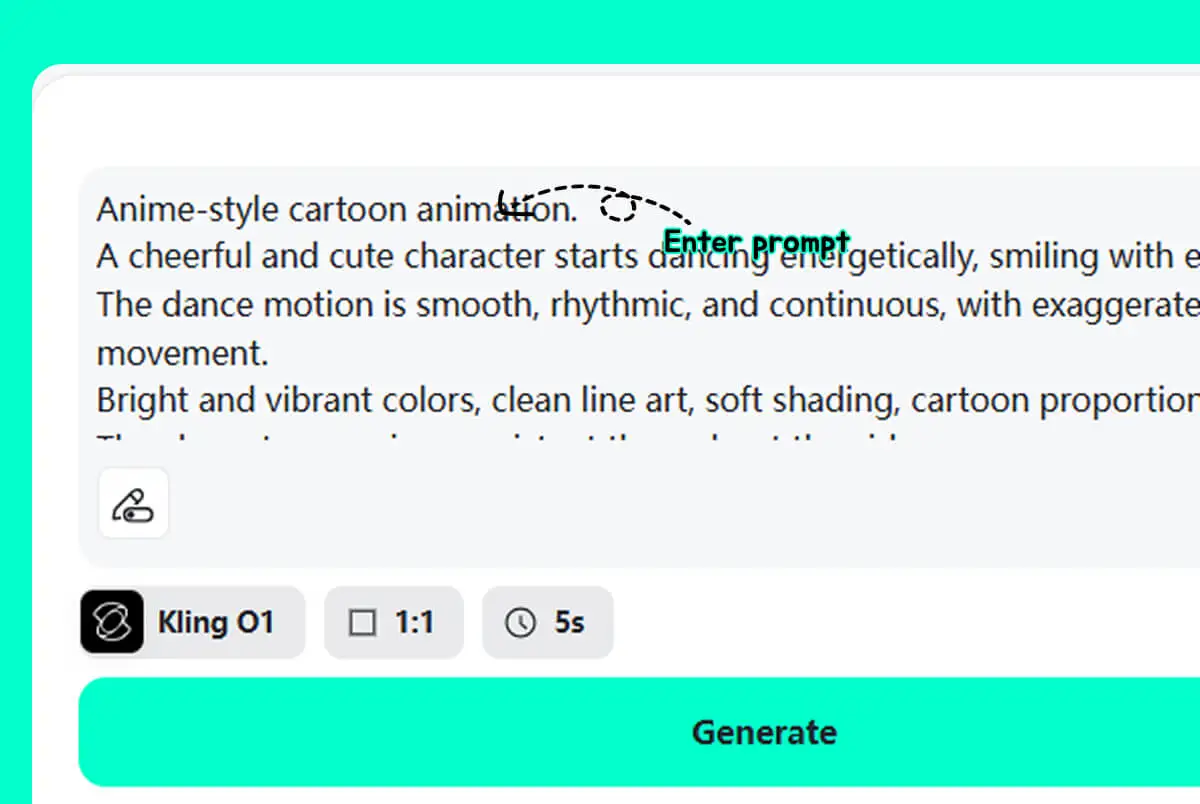
Type a short prompt, scene description, or full script to guide your AI video. The text-to-video generator interprets your words to create motion, actions, and storytelling automatically.
Upload a Photo (Image-to-Video)
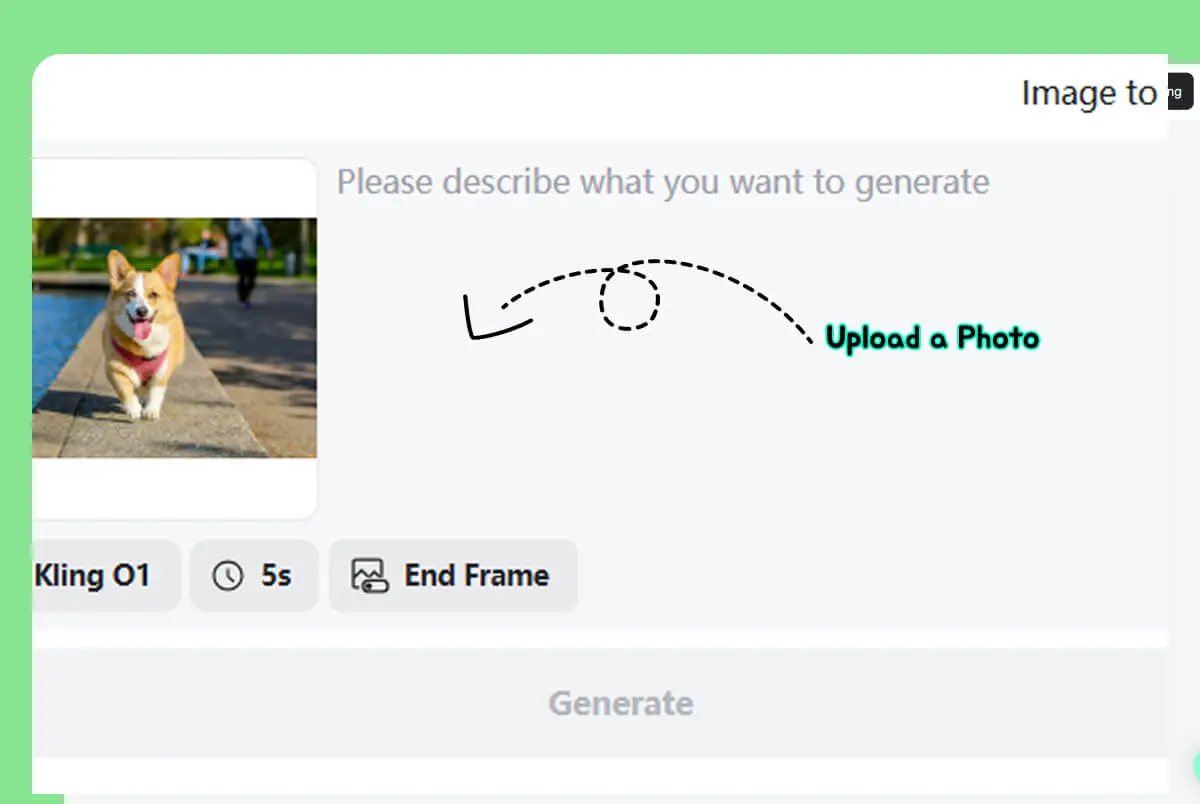
Upload a single image to define your subject’s appearance, style, or character. The image-to-video AI transforms your photo into a dynamic animated video based on your input.
Upload Two Photos for Start–End Video Generator
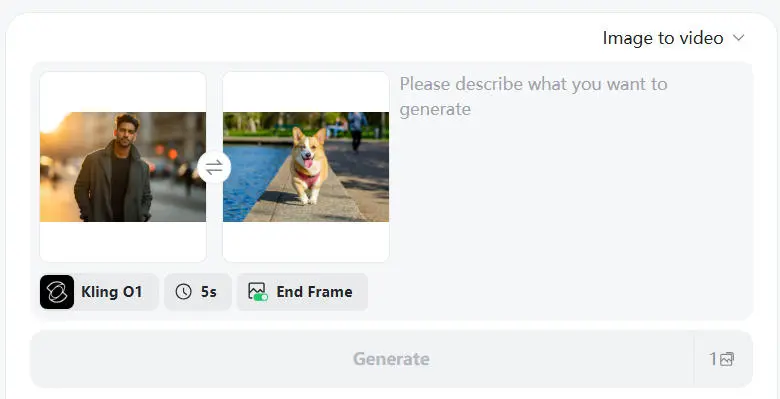
Choose two images as the starting and ending frames. The start-end frame video generator uses these to create smooth transitions and controlled camera movements between the frames.Switch to “Video Edit” to Upload a Video
Switch to Video Edit mode
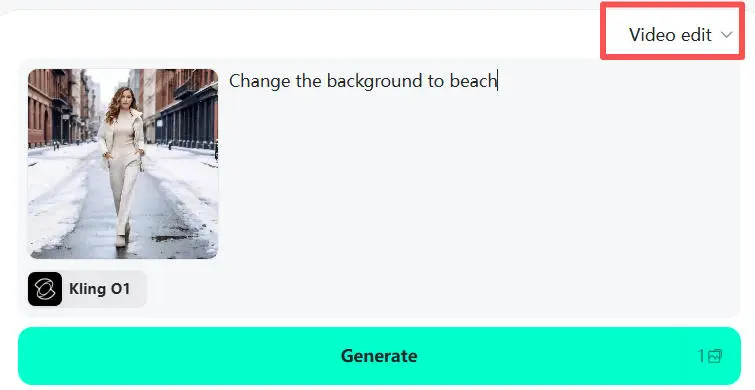
Upload an existing video and modify it using AI-powered prompts.
Step 2: Adjust the Video Settings
Next, pick how long you want your video to be. Most people choose between 3 and 10 seconds depending on how much movement they want. Then, decide the shape of the video such as square for regular posts, tall for stories or reels or wide for presentations.
You can also select the video quality to fit where you will share it. These settings make sure your video looks great wherever you post it.
Step 3: Generate and Edit
Click the generate button to create your first video. When it’s ready, use the editing tools to fix anything you want to change. You can swap characters, remove unwanted objects, change the camera angle or completely restyle the scene.
The controls are simple and easy to use and there will be no need to deal with complicated layers or tracking.
Step 4: Preview and Download
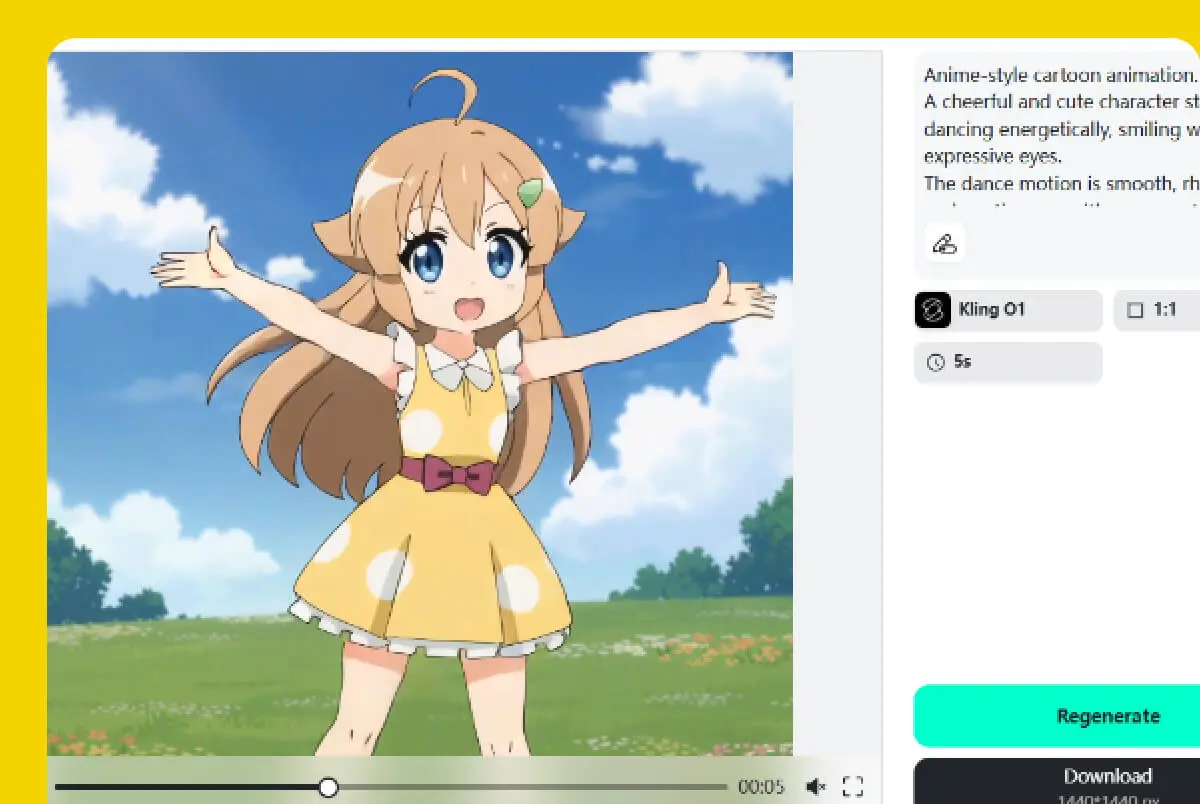
Watch the full preview to check the timing, movement, and overall feel. Make any small changes if needed. When you are happy with your video, download it in HD.
You can use it for social media posts, stories, presentations, ads, or any creative project. Don’t forget to save your work so you can come back later and try different styles or lengths.
Part 3. Kling O1 Prompt Bank
Here are some easy and natural prompts you can use right away in insMind. They are written clearly and ready to help your videos stand out.
1. Storytelling Prompts
· A traveler walking alone across a foggy desert at sunrise. The camera slowly moves to the side as warm light shapes the sand dunes. A soft breeze lifts the sand, long shadows stretch across the ground, creating a quiet, cinematic feel.
· A young girl opens a glowing book in an old library. The camera slowly zooms in. Dust floats in the air, shelves stretch into the dark and soft magical light shines on her face.
· Two friends sit at a rooftop café at night. The camera gently circles around them. Neon lights reflect on their glasses, a light breeze moves their clothes and the city skyline glows in the distance.
2. Character Scenes
· A man stands by a window with city lights behind him. The camera slowly moves upward. The wind brushes his coat, faint reflections show on the glass and the mood is calm and quiet at night.
· A warrior in fantasy armor holds a sword. The camera moves from the ground up to his head. Sparks float in the air, cold forest mist is in the background and the motion moves gently forward.
· A happy kid runs through a park. The camera follows from behind at a low angle. Leaves swirl around, morning sunlight shines through the trees, and the movement feels lively and fun.
3. Multi Input Scene Transformation (Using Several References)
Add a small crowd around the main character to create natural background movement and soft chatter. Change the setting to a foggy early morning harbor with ships, dim lights, and drifting mist. Blend everything smoothly to make the scene feel fuller, with gentle motion and depth.
4. Character Design & Visual Identity Swaps
Change the whole video to look like clay animation, with handmade textures, soft fingerprints on characters, and stop-motion style movements.
Swap the original character for two knights in medieval armor, keeping the same energy and timing.
Another option is to switch the scene to a bold retro comic style with thick outlines, dotted patterns, and lively expressions.
5. Background + Mood Overhaul
Change the setting to a desert checkpoint with heat waves in the distance and a gentle wind blowing sand around.
Make the background a deep forest tunnel with vines creeping in, cool lighting and soft echoes far away.
Turn the scene into a busy marketplace at sunset, glowing with warm lantern light, soft dust in the air and people walking behind the main character.
Move the scene to a calm fishing pier with boats floating and gentle waves.
Switch the view to a futuristic station floating above the clouds, with glowing air lanes and drifting drones.
6. Full Environment Replacement
Replace the background with a peaceful mountain village, showing wooden cabins, slow moving clouds, and morning mist.
Change the environment to an underwater viewing deck with soft blue light, fish swimming by, and tiny particles floating.
Make the weather a windy sandstorm with swirling dust and low visibility.
7. Style Shift & Creative Makeover
Change the scene to a glowing festival street with lanterns, slowly falling confetti, and warm evening lights.
· Turn the look into soft, dreamy watercolor art with flowing brush strokes and gentle colors.
· Make the video black-and-white with a classic noir feel, using long shadows and strong contrasts.
· Switch to a hand-drawn pencil style with sketchy lines and light shading.
Cleanup, Removal & Scene Adjustments
· Remove all props around the main character to create a clean, empty background.
· Adjust the lighting and colors to match a bright, sunny beach.
· Add a big dust cloud behind the character, like something heavy just landed nearby.
· Include glowing lanterns floating upward in the background.
· Remove the main character completely, leaving just the environment.
· These prompts help you change the style and clean up your scenes easily!
Part 4. Final Thoughts
Kling O1 gives creators a simple way to make smooth, stylish videos using only short text, images, or both. With the right prompts, you can build scenes that feel lively, cinematic, or atmospheric without touching heavy editing tools.
insMind AI Video Generator adds an easy workflow for building, adjusting, and exporting your clips in minutes
I am the Chief Editor of insMind. I provide tips and skills to help users design better photos with insMind, whether for e-commerce, social media, or any other use.


![5 Best AI Kissing Video Generators of 2025 [Tested]](https://images.insmind.com/market-operations/market/side/8b445afb685e4957b11238f3ebad2b2b/1756093193517.jpg?x-oss-process=image/resize,w_690,h_460,type_6/interlace,1,image/format,webp "5 Best AI Kissing Video Generators of 2025 [Tested]")


![Top 5 AI Baby Podcast Generators in 2025 [Reviewed & Tested]](https://images.insmind.com/market-operations/market/side/9ed5a89e85ab457a9e8faace7bb25258/1750317475287.jpg?x-oss-process=image/resize,w_690,h_460,type_6/interlace,1,image/format,webp "Top 5 AI Baby Podcast Generators in 2025 [Reviewed & Tested]")


![Exploring the 10 Best AI Photo Editors for Your Needs [2025]](https://images.insmind.com/market-operations/market/side/05ccfa0da4d64b43ba07065f731cf586/1724393978325.jpg?x-oss-process=image/resize,w_690,h_460,type_6/interlace,1,image/format,webp "Exploring the 10 Best AI Photo Editors for Your Needs [2025]")


![Top 10 Face Swap Apps to Enhance Your Photo [Online, iOS, Android, Windows, Mac]](https://images.insmind.com/market-operations/market/side/e604368a99ee4a0fbf045e5dd42dca41/1723095740207.jpg?x-oss-process=image/resize,w_690,h_460,type_6/interlace,1,image/format,webp "Top 10 Face Swap Apps to Enhance Your Photo [Online, iOS, Android, Windows, Mac]")


