


AI video creation is improving fast. However, most tools still make you do animation, voiceovers, sound effects, and syncing in separate steps. Kling 2.6 changes all that. It is the first AI model that creates videos, character voices, background sounds, and effects all at once. You need no extra editing or matching audio later. Just one smooth process from start to finish.
With insMind, you can use Kling AI 2.6 to make short scenes, animated clips, demos, skits, or storytelling videos with natural sounding voices and perfectly timed motion. Whether you want quick TikTok videos or longer multi scene stories, this tool makes video creation much easier and faster.
Table of Contents
Part 1. What Makes Kling 2.6 Different?
Here are the key Kling 2.6 features which makes it different.
All-in-One Audio-Visual Output
Most AI video makers only create the visuals and you have to add sound separately. Kling 2.6 does everything at the same time.
· Builds the scene and character speech
· Adds spoken lines
· Includes background ambiance and sounds
· Adds small sound effects
· Matches the timing between movement and speech
Instead of using different tools for each step, Kling AI 2.6 delivers a complete video with synced audio in one go. This makes it a great choice for storytellers, teachers, creators and brands who want fully finished videos without extra software hassle.
Emotion-Controlled Speech
One of the coolest features of Kling 2.6 video model is how it lets you control how your characters speak. You can tell the AI to make them sound calm and serious, excited and energetic, slow and thoughtful, or even dramatic and expressive.
It can also speak softly like a whisper or loudly with strong reactions. Kling AI video model adds a lot of personality to your characters. This makes Kling 2.6 perfect for marketing videos, explainers, animated shorts, or social stories where the emotion really matters.
Realistic Motion + Audio Timing
Many AI video tools have a problem where the character’s mouth and movements don’t match the speech. Kling 2.6 fixes this by syncing body movements, lip-sync, and gestures perfectly with the spoken words.
Your characters will move naturally with the tone of their voice, pause at the right times, and use gestures that fit what they are saying. Kling 2.6 audio video makes the scenes feel much more real and alive especially when there is a lot of talking.
Multi-Character Support
Kling 2.6 can manage several characters speaking in the same video. You can give each character their own voice style, mood, and speaking speed. The background sounds mix well with their lines, and the AI keeps everything synced smoothly without voices overlapping.
This makes Kling 2.6 great for skits, mock interviews, role-play videos, storytelling with multiple characters, and animated podcasts or group discussions.
Perfect for Many Types of Videos
Kling 2.6 is very flexible and works well for lots of creative projects. People use it to make short films, storytelling videos, demo scenes, classroom explainers, character-driven content, TikTok stories, animated presentations, game dialogue samples, comedy skits, and podcast visuals.
Part 2. How Kling 2.6 Works on insMind?
insMind uses Kling 2.6 as a complete audio visual tool that brings your ideas to life with voices, movement and background sounds already built in.
All-in-One Audio-Visual Process
You can start with just text, an image, or a detailed description. Kling 2.6 creates everything for you, including.
· The visuals
· Character voices
· Background sounds
· Sound effects
· Scene motion
There is no need to use other editors or add audio by yourself. When the video is done, it is ready to watch or share.
Two Easy Ways to Create
insMind lets you use Kling 2.6 in two simple ways
Text to Video
Just write your script, directions, mood, and audio notes. The AI text to video generator powered by Kling 2.6 automatically transforms your text into a complete animated video with synchronized voices, sound effects, and ambient audio—no editing required.
Image to Video
Upload a picture, and the model will animate it for you. The image to video generator animates your image with realistic motion, voice, and background sounds based on your prompt. This photo to video AI workflow is ideal for character portraits, product images, mascots, illustrations, and branded visuals.
Part 3. How to Use Kling 2.6 on insMind (Step-by-Step)
Step 1: Upload Your Input
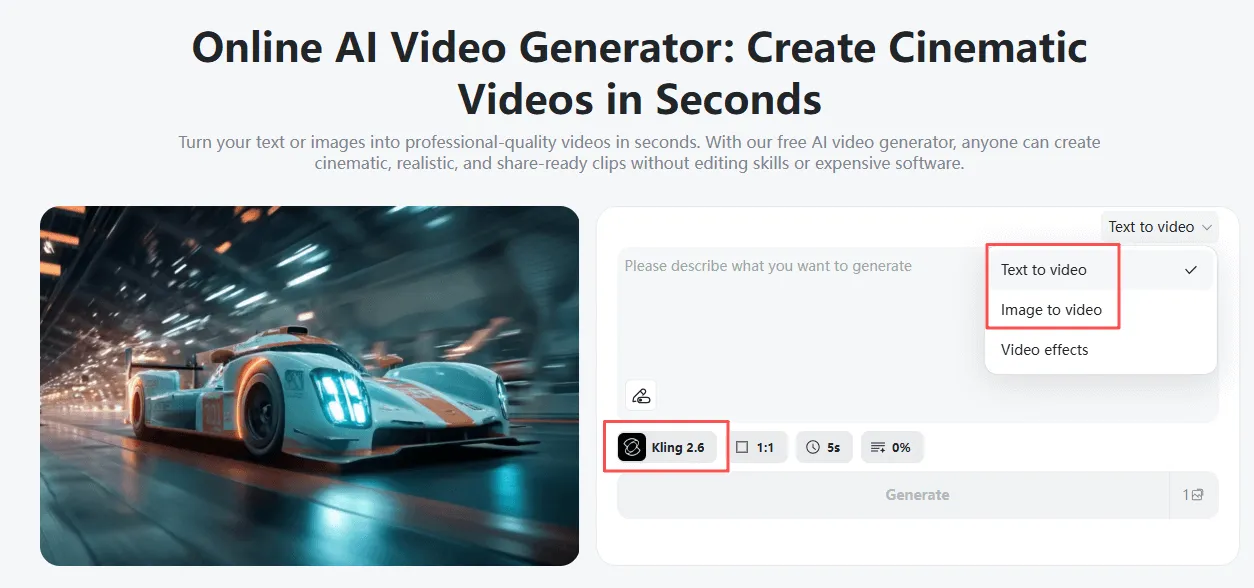
Start by picking what you want your video to be based on. This could be a block of text, a short scene description, a full script, or one or more images. Whether you are a beginner or experienced creator, this is an easy way to get started. Text helps to guide the AI while images give it a clear idea of what the characters or setting should look like.
Step 2: Add Dialogue, Narration, or Sound Instructions
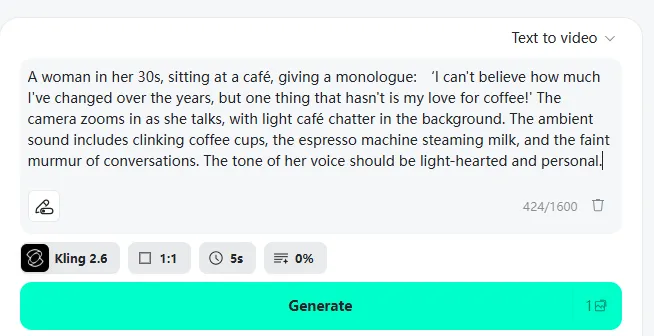
This is where Kling 2.6 really shines. You can describe almost every audio detail you want in your video.
Voice and Character Speech
Tell the AI what each character should say, who is speaking, and how they should sound. You can specify accents, vocal styles, emotions, and pacing like slow, fast, or steady. You can also choose tones like calm, excited, whispering, angry, cheerful, or dramatic. This helps your characters feel real and match the mood of the scene.
Background and Setting Sounds
Add sounds that create the world around your characters, such as rain, city traffic, light wind, busy marketplaces, forest noises, underwater sounds, sci-fi hums, or magical atmospheres. These sounds make your scenes feel richer without needing extra editing.
Sound Effects
Include small but important sound details like footsteps, impacts, magic bursts, whooshes, metallic clangs, robot beeps, door creaks, or energy pulses. These little touches make your video more alive and exciting.
Music and Performance Options
You can also guide Kling 2.6 to add soft background music, humming, simple singing, rap rhythms, or light melodies that fit the mood. This is great for storytelling or character-focused videos.
Step 3: Generate the Video
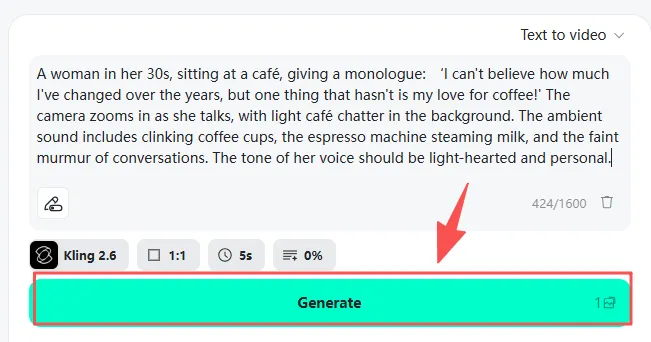
Just click the button to create your video. Kling 2.6 puts everything together in one go including visuals, movement, voice lines, character expressions, background sounds, and sound effects. It also perfectly syncs the motion with the speech. So, you don't have to do any manual editing or mixing.
Step 4: Preview and Download
Watch the video preview and make any changes if you want. When you're happy with it, download the finished video. You can easily share it on TikTok, Instagram, YouTube, your personal website, marketing pages, school projects, presentations, or storytelling videos.
insMind keeps the whole process simple. This is especially for anyone who doesn't want to deal with complicated editing software.
Part 4. Kling 2.6 Prompt Examples
Here are some easy-to-use prompt ideas to help you get started, written clearly and ready for search engines.
Dialogue Scene (Two Characters)
Two friends talking on a rooftop at sunset. Character A speaks calm and steady, while Character B sounds excited and cheerful. Add soft city sounds, a little wind, and natural hand movements that match their conversation. Make sure the lip-sync is smooth and the pacing feels real.
Narration + Atmosphere
A narrator tells the story of an old lighthouse by the sea. The voice is warm and slow, with gentle emphasis on important parts. Include sounds of ocean waves, distant seagulls, and a slight echo to match the open coastline.
Sci-Fi Action
A futuristic soldier runs through a glowing neon alley, giving urgent commands. The voice is sharp and fast. Add robotic footsteps, digital beeps, and a deep sci-fi background hum. The movement should feel tense and energetic.
Emotional Monologue
A character stands alone in a quiet room, delivering a thoughtful speech. The voice is soft and a little shaky, with long pauses. Add quiet indoor sounds and soft background music to match the mood.
Funny Character Skit
A cartoon mascot tells a silly joke with big, funny expressions. The voice is playful and full of energy. Add funny whooshes, light bouncing sounds, and colorful movements to match the humor.
Part 5. Frequently Asked Questions (FAQ)
Q1: How does Kling 2.6 work with both video and audio?
Kling 2.6 builds visuals, speech, motion, and sound in one unified process. It does not generate video first and audio later. Everything is created together so the timing stays accurate.
Q2: Can I adjust the voice tone or mood in Kling 2.6?
Yes, you can guide the AI to speak in many styles, including soft, excited, dramatic, slow, fast, calm, or intense. You can also choose accents, pacing, and emotional delivery.
Q3: How long does it take to generate a video with Kling 2.6?
Most clips are ready in a short amount of time, depending on video length and complexity. Short scenes usually finish quickly.
Q4: Can I use Kling 2.6 for commercial purposes?
Yes, insMind supports commercial usage for creators, brands, and businesses, as long as you follow the platform's licensing rules.
Q5: Is Kling 2.6 easy to use for beginners?
Yes. You only need to describe what you want. The model handles motion, voice, and sound automatically. This is making it easy even for users who have never edited video.
Part 6. Conclusion
Kling 2.6 makes AI video generator with sound is much easier to use. It creates visuals, voices, background sounds, and small audio effects all in one step. So, you don’t have to worry about syncing or editing later. Kling AI 2.6 helps you make fast, engaging videos that feel real and alive. This is true with its emotion-driven speech, natural movements, support for multiple characters, and perfect timing.
Whether you are creating short skits, educational videos, game scenes, or fun stories, Kling 2.6 on insMind gives you a quick and simple way to bring your ideas to life.

Sid Buckley
I'm a professional writer and amateur photographer, and I author insightful articles at insMind to help you integrate AI into compelling image creation.


![5 Best AI Kissing Video Generators of 2025 [Tested]](https://images.insmind.com/market-operations/market/side/8b445afb685e4957b11238f3ebad2b2b/1756093193517.jpg?x-oss-process=image/resize,w_690,h_460,type_6/interlace,1,image/format,webp "5 Best AI Kissing Video Generators of 2025 [Tested]")


![Top 5 AI Baby Podcast Generators in 2025 [Reviewed & Tested]](https://images.insmind.com/market-operations/market/side/9ed5a89e85ab457a9e8faace7bb25258/1750317475287.jpg?x-oss-process=image/resize,w_690,h_460,type_6/interlace,1,image/format,webp "Top 5 AI Baby Podcast Generators in 2025 [Reviewed & Tested]")


![Exploring the 10 Best AI Photo Editors for Your Needs [2025]](https://images.insmind.com/market-operations/market/side/05ccfa0da4d64b43ba07065f731cf586/1724393978325.jpg?x-oss-process=image/resize,w_690,h_460,type_6/interlace,1,image/format,webp "Exploring the 10 Best AI Photo Editors for Your Needs [2025]")


![Top 10 Face Swap Apps to Enhance Your Photo [Online, iOS, Android, Windows, Mac]](https://images.insmind.com/market-operations/market/side/e604368a99ee4a0fbf045e5dd42dca41/1723095740207.jpg?x-oss-process=image/resize,w_690,h_460,type_6/interlace,1,image/format,webp "Top 10 Face Swap Apps to Enhance Your Photo [Online, iOS, Android, Windows, Mac]")


