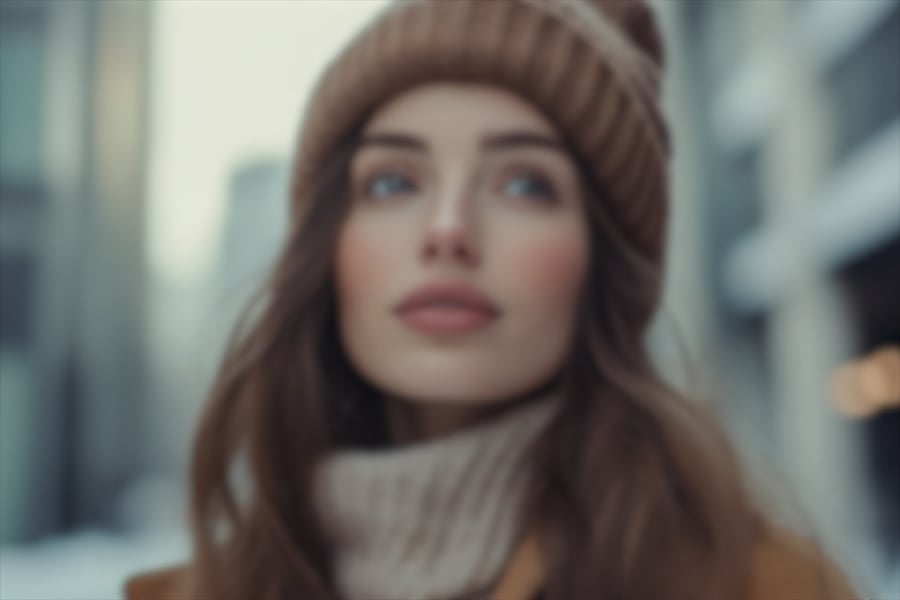
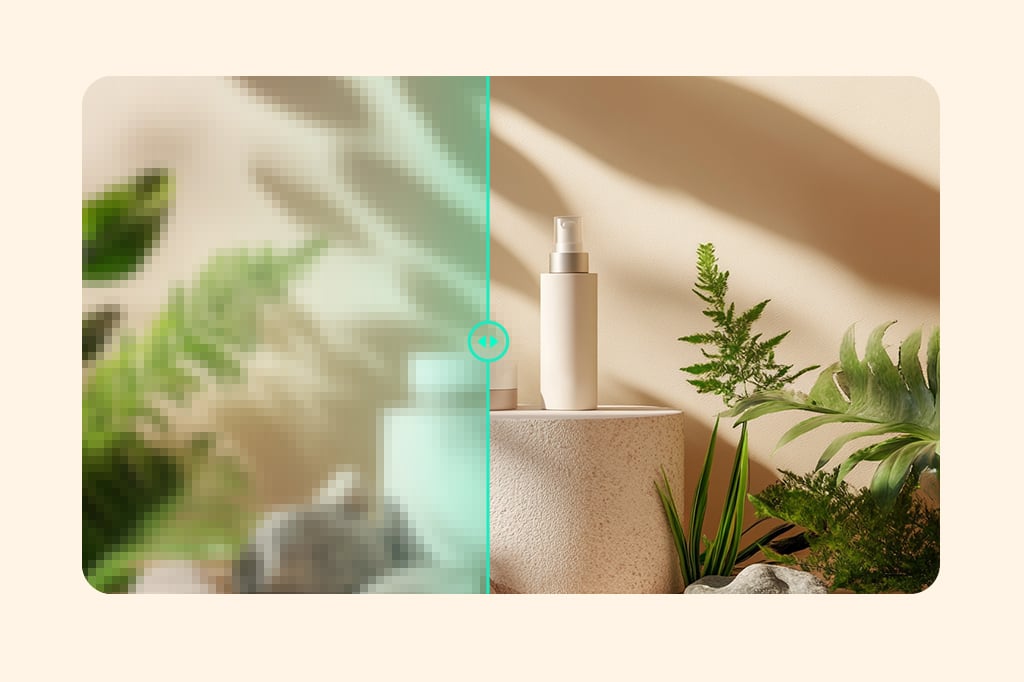
Use the unblur tool when a product photo looks soft, slightly out of focus, or compressed. It can help recover texture and edge clarity before you remove the background, add shadows, or build a product collage.

Unblur Image and Sharpen Photos Online
00:00
00:00
up to 30 images
Or drop image here, paste image or URLTry with one of these

00:00
00:00
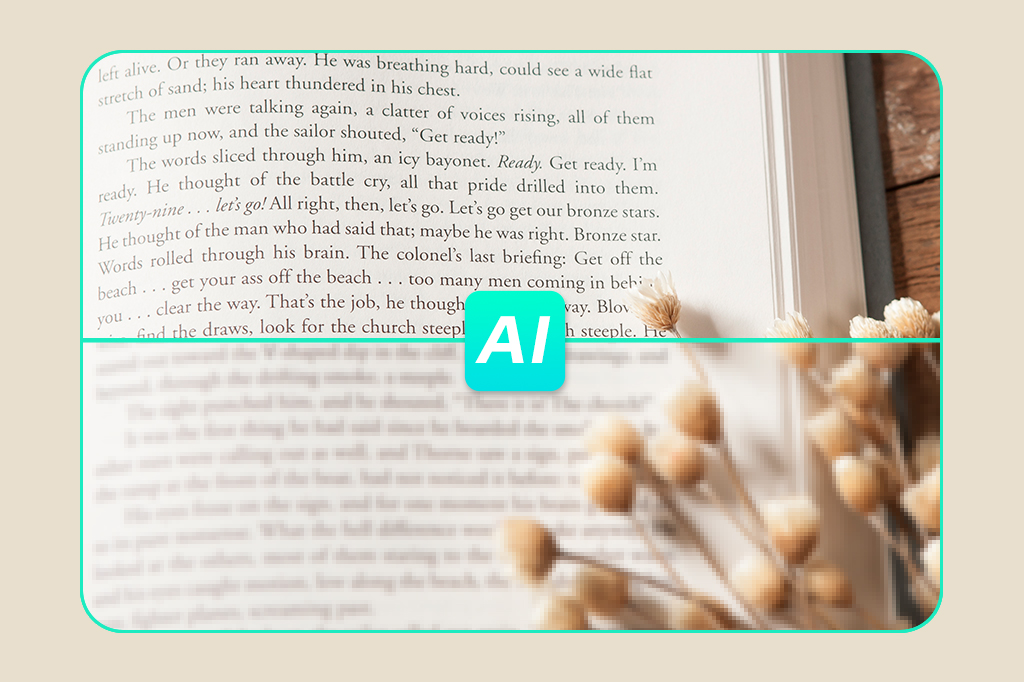
Make Blurry Text Easier to Read
Upload a screenshot, label, poster, or document photo when text looks fuzzy but is still visible. AI can improve letter edges, though tiny or completely unreadable text may still need a better source image.
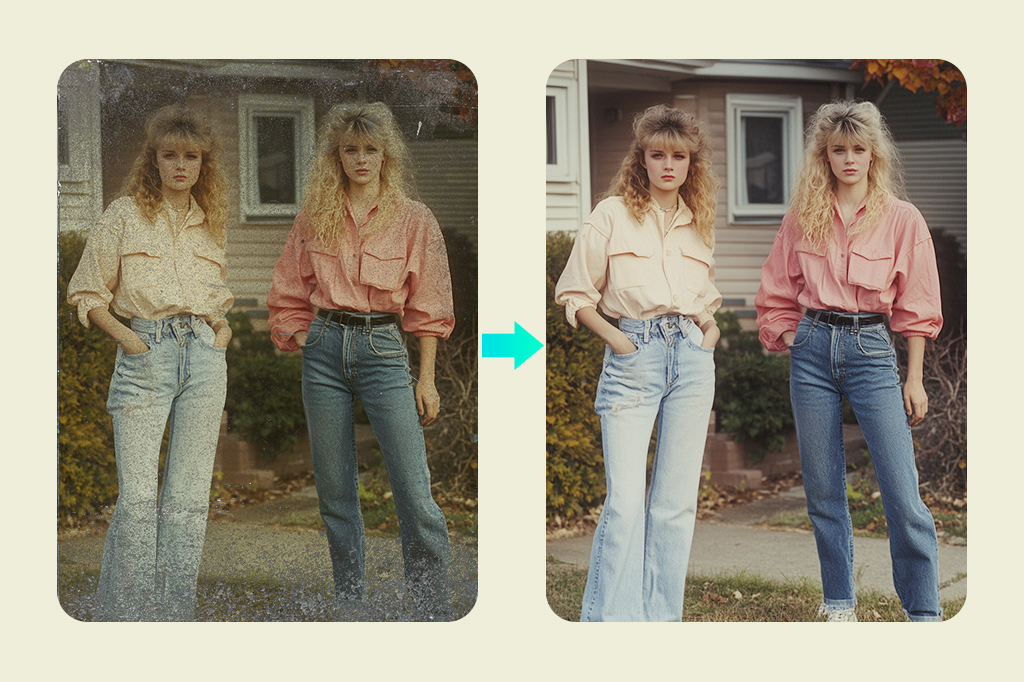
Clean Up Old and Soft Photos
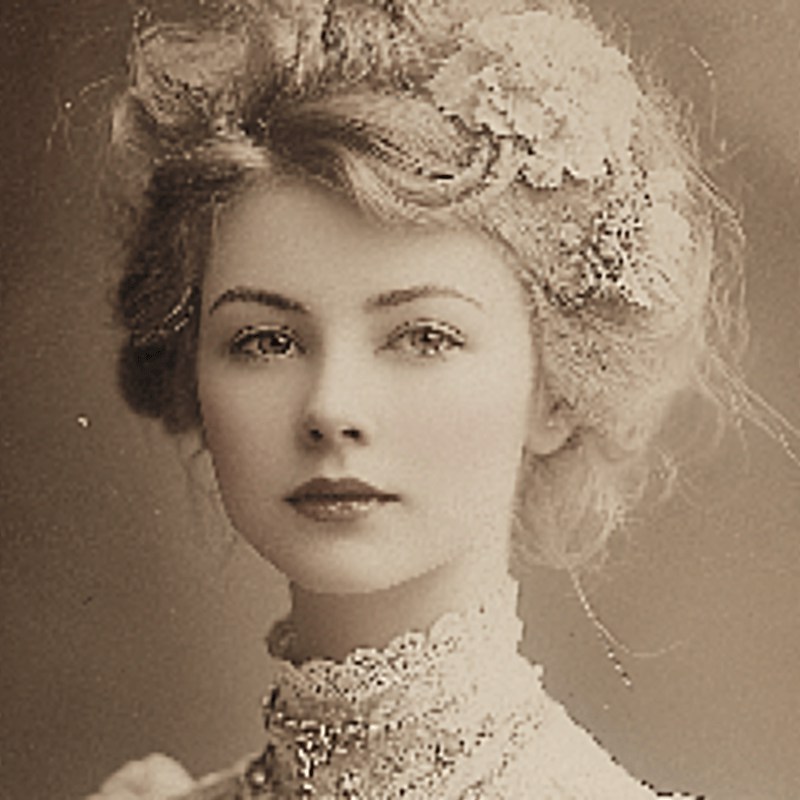
Bring more clarity to old family photos, scanned prints, and compressed memories. If the photo also has fading, scratches, or age damage, use AI photo restoration after checking the sharpened result.
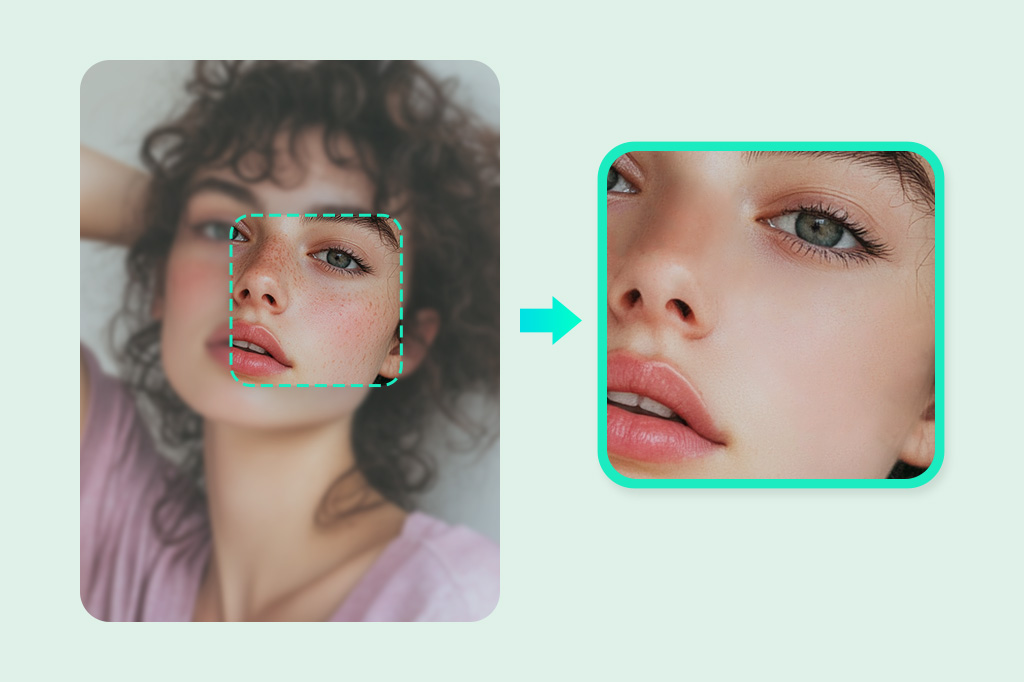
Sharpen Portraits and Profile Photos
Improve selfies, headshots, and profile photos when eyes, hair, or facial edges look soft. For identity photos or profile assets, review the face carefully so the final image still looks like the original person.
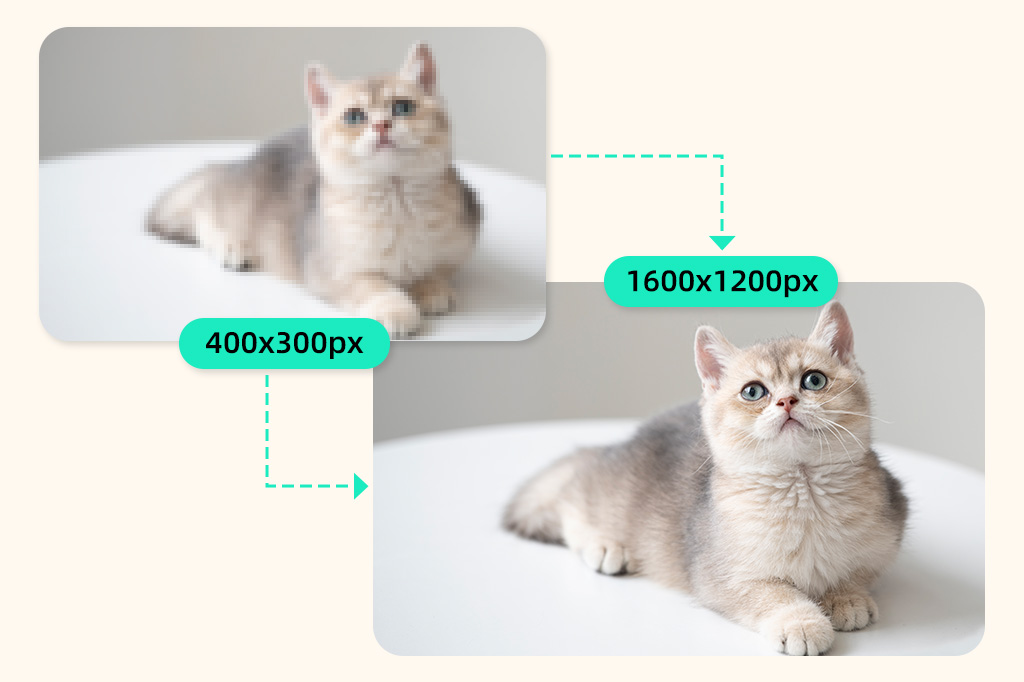
Unblur First, Then Increase Resolution
If a photo is both blurry and small, fix blur before you enlarge it. After sharpening, use increase image resolution or an upscaler when you need a larger export.
More Tools for Sharper Photo Edits
How to Unblur an Image Online
Use AI to sharpen a blurry photo, then check the details before you download.

1
1 Upload the blurry photo
Choose the photo you want to fix. A file where the subject, text, or product outline is still visible usually gives AI a better starting point.

2
2 Let AI sharpen the image
The tool analyzes soft edges, texture, and detail areas, then improves clarity automatically. Use batch upload when you need to process a similar set of photos.
3
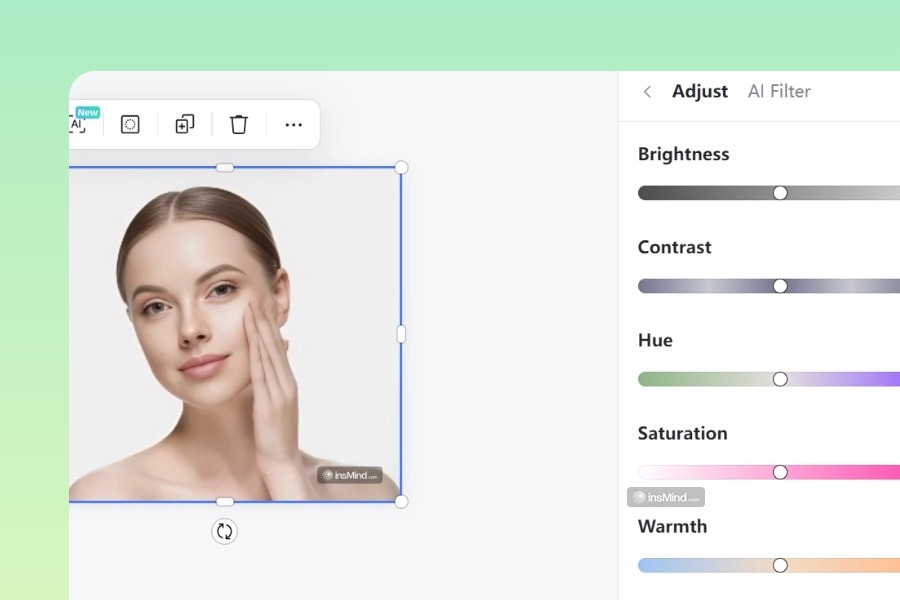
3 Check faces, text, and edges
Preview the result before downloading. If faces look over-smoothed, text still looks unclear, or edges show artifacts, try a cleaner source image or a lighter edit.

4
4 Download or keep editing
Save the sharpened image, or continue with restoration, background removal, resizing, or resolution enhancement when the photo needs another step.


Use AI Blur Removal for Real Photo Problems
Fix soft portraits, product shots, text images, and everyday photos without overpromising perfect recovery.
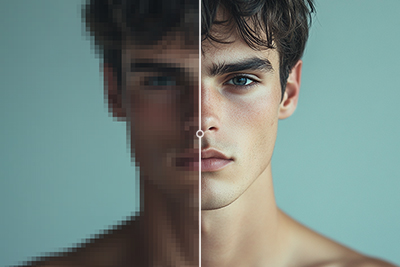
Portrait and Headshot Clarity
Sharpen soft portraits when the face is still recognizable. Check eyes, hair, skin texture, and facial edges before using the result for a profile, resume, or creator page.
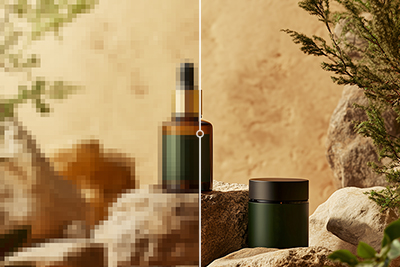
Product Detail Recovery
Improve a soft product image before publishing it in a store, ad, or catalog. Review labels, seams, material texture, and shadows so the item still looks accurate.
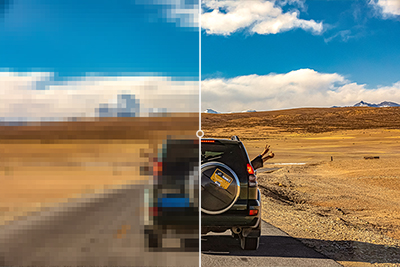
Everyday Photo Fixes
Rescue a phone photo affected by hand shake, focus issues, or compression. If the main subject is heavily smeared, AI can improve clarity but may not fully rebuild the missing detail.

Real Estate and Interior Photos
Sharpen room, exterior, or listing photos when blur hides lines and surface detail. Check windows, edges, and small signs before using the image in a listing.

Social Media and Creator Posts
Improve a slightly blurry post, thumbnail, or LinkedIn image before sharing. A clearer source helps the final upload survive platform compression.

Travel and Memory Photos
Fix a soft travel photo, family snapshot, or event image when you cannot retake it. Review faces and background details so the result stays natural.
Why Use insMind to Unblur Images

Detail-Aware Sharpening
insMind focuses on soft edges, visible texture, and subject detail, so a blurry photo can look clearer without needing manual sharpening controls.

Useful for Common Blur Types
Use it for mild focus blur, hand-shake softness, compressed images, old photos, product pictures, and profile shots. Very severe blur may still need a better source image.

Continue Editing After Unblur
After the photo is clearer, continue with restoration, resolution enhancement, background removal, or resizing depending on what the image needs next.
Frequently Asked Questions About Unblur Image
How Does The Blur Remover Work?


The tool analyzes soft edges and texture areas, then sharpens the image with AI. It works best when the subject is still recognizable and the blur is not so heavy that important detail is completely missing.
Can I unblur multiple images at once?
The page includes a batch edit option for processing up to 30 images. Availability can depend on the product state or account settings shown in the editor.
What Kinds Of Pictures Can I Fix?
You can use it on common photo tasks such as portraits, product images, screenshots, text photos, old pictures, and everyday phone shots. Results are usually better when the image has enough light and visible subject detail.
Will unblurring change my original photo?
No. The tool creates an enhanced version for download, so your original file is not overwritten. Still, review the result before publishing if the photo contains faces, text, or product details.
Can this tool fix severely blurred images?
It can improve many blurry images, but it cannot perfectly rebuild detail that is completely missing. For severe blur, try the clearest original file available and check the result closely before using it.
Will image quality be reduced after sharpening?
The goal is to improve clarity while keeping the image natural. If the result looks too sharp or artificial, use a better source file, try another pass carefully, or keep the less aggressive version.
More Tools for Sharper Photo Edits
After unblurring, remove backgrounds, resize, restore, or add product finishing touches.

AI Background
Generate or replace a background after the main photo is sharp enough to use.

Smart Resize
Resize a clearer photo for ads, social posts, marketplace images, or profile formats.

White Background
Add a clean white background to a sharpened product or profile image.

AI Shadows
Add realistic shadows after sharpening a product photo for a more finished studio look.

Transparent Background
Create a transparent background once the subject edges are clear enough.

Magic Eraser
Remove small distractions after unblurring if the clearer photo still needs cleanup.
"I've tested several options, but nothing beats this unblur image ai. It's fast, efficient, and the output quality is consistently top-tier. If you need to fix blurry photos without any hassle, I highly recommend giving this a try!"
@Samantha T