


You open an AI image tool, type a prompt with high expectations, and end up with visuals that don't match what you imagined. That gap between intent and output often comes down to how the prompt is written. With GPT Image 1.5, prompt structure, clarity, and descriptive balance play a major role in shaping results.
This article breaks down how GPT Image 1.5 interprets instructions, why certain wording influences composition and style, and how to guide the model more effectively. By understanding prompt mechanics and refinement techniques, you can consistently generate images that align closely with your creative vision.
Table of Contents
Part 1. Introduction to GPT Image 1.5 - What It Is?
GPT Image 1.5 is OpenAI's latest flagship AI image generation and editing model, designed to create and refine visuals directly from natural language prompts. It powers the new ChatGPT Images experience as well as the API version of the model, offering users faster, more accurate, and highly controllable image creation.
This generation emphasizes not just generating appealing images, but also understanding and executing detailed instructions, making it useful for a broad range of creative and professional workflows.
Key Features of GPT Image 1.5
- Faster Image Generation: GPT Image 1.5 generates images significantly faster than previous OpenAI image models, enabling rapid iteration.
- Advanced Image Editing: The model allows selective editing of specific regions within an image while preserving unaffected areas.
- Improved Instruction Understanding: GPT Image 1.5 better interprets complex, multi-layered prompts with multiple constraints. As a result, outputs align more closely with the intended structure and visual direction.
- High-Quality Text Rendering: The model is optimized to generate clearer and more accurate text inside images.
- Consistency Across Edits: GPT Image 1.5 maintains visual coherence, such as composition, lighting, and subject placement, during revisions.
Pricing Plans of GPT Image 1.5
|
Plan |
Pricing |
|
GPT-5.2 |
Input: $1.750/1M tokens Cached input: $0.175/1M tokens Output: $14.000/1M tokens |
|
GPT-5.2 Pro |
Input: $21.00/1M tokens Cached input: - Output: $168.00/1M tokens |
|
GPT-5 Mini |
Input: $0.250/1M tokens Cached input: $0.025/1M tokens Output: $2.000/1M tokens |
Evolution of GPT Image 1.5: Improvements Over Previous OpenAI Models
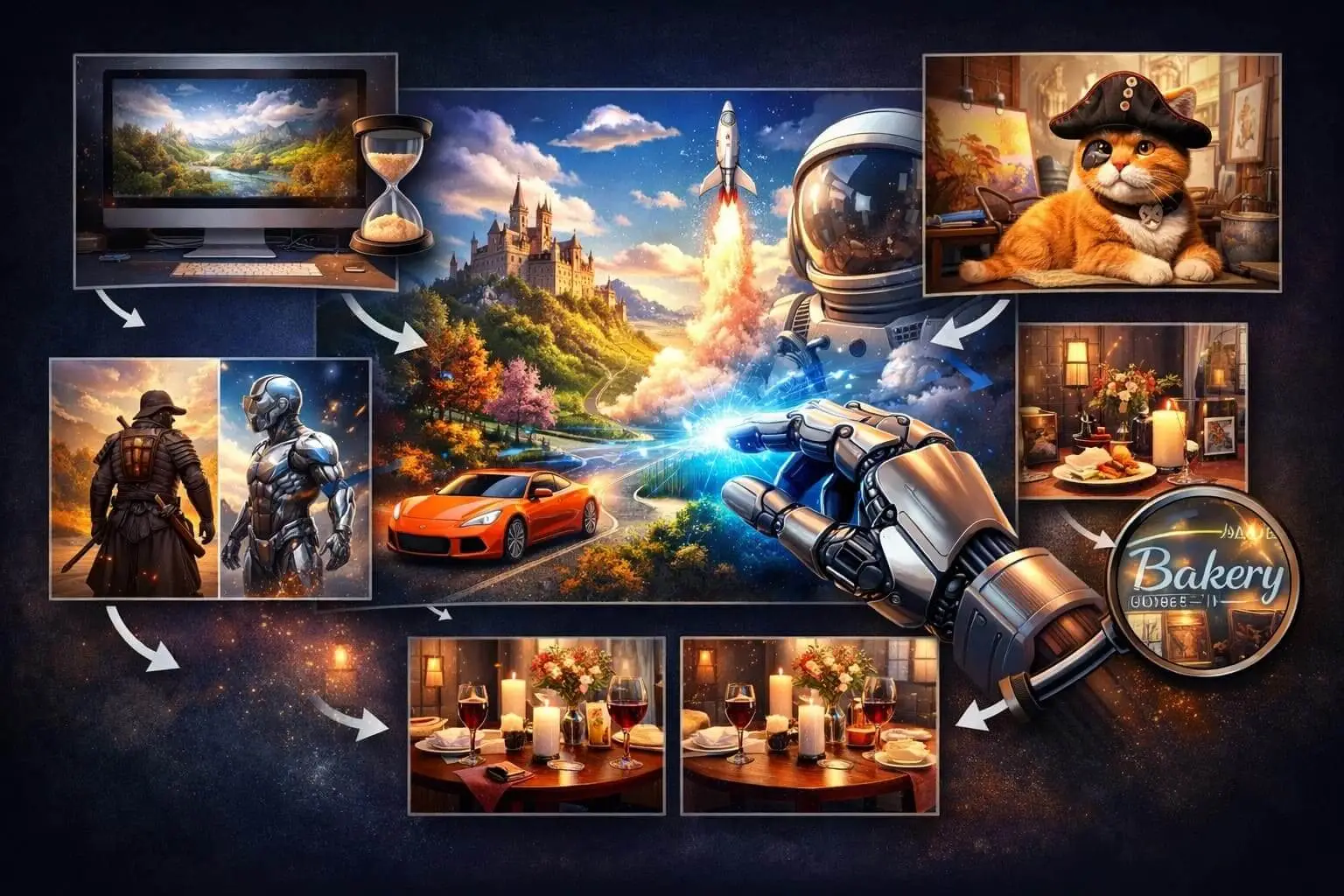
GPT Image 1.5 didn't arrive in isolation; it reflects a clear evolution in OpenAI's image-generation technology. Earlier models like DALL·E and the original GPT Image 1 prioritized novelty and basic generation capabilities, but users and developers pushed for faster outputs, greater edit control, and more reliable interpretation of complex instructions.
1. Tighter Instruction Following
GPT Image 1.5 significantly improves how closely the model adheres to user instructions compared with earlier generations. It interprets multi-step prompts more accurately, reducing the gap between what's requested and what's generated.
2. Enhanced Image-Editing Fidelity
Unlike prior models, GPT Image 1.5 can preserve composition, lighting, faces, and visual identity through successive edits. Where earlier versions might alter unrelated parts of an image, 1.5 focuses changes only where directed, reducing visual drift over multiple revisions.
3. Much Faster Generation and Lower Cost
Performance has been a major upgrade: GPT Image 1.5 can render images up to four times faster than its predecessor. At the same time, image generation and editing costs in the API are about 20% lower, making rapid iteration more practical for both creators and developers.
4. Better Text and Fine Detail Rendering
Earlier OpenAI models often struggled with dense text or small visual elements inside generated images. GPT Image 1.5 handles complex typography, signage, and fine details with higher accuracy, expanding its usefulness for diagrams and other text-rich visuals.
5. Dedicated Workspace and UX Enhancements
The introduction of a dedicated Images workspace inside ChatGPT marks a shift in how the model is delivered. With preset styles, prompt suggestions, and a sidebar workflow tailored for visual creation, GPT Image 1.5 offers a more intuitive environment than previous scattered or experimental interfaces.
Part 2. GPT Image 1.5 Prompt Basics: Structure, Subject, and Style
With the fundamentals in place, seeing how each prompt element works in practice makes its role much clearer.
Prompt Structure
A structured prompt organizes information, so the model understands priority and relationships between elements. For instance, a prompt like "A modern workspace, viewed from above, with a wooden desk, soft natural lighting, and minimal objects arranged neatly" clearly establishes the setting.
Subject Definition
The subject states exactly what the image should focus on, acting as the visual anchor. Specifying "a single red ceramic mug placed at the center of a clean white table" anchors the scene and prevents unnecessary elements from distracting the viewer.
Style and Visual Direction
Style instructions shape the overall appearance and emotional tone of the image. Instructions such as "Rendered in a soft, muted color palette with gentle shadows and a calm, minimalist aesthetic" guide GPT Image 1.5 to produce cohesive visuals.
Short vs. Detailed Prompts and Their Effects
Short Prompts
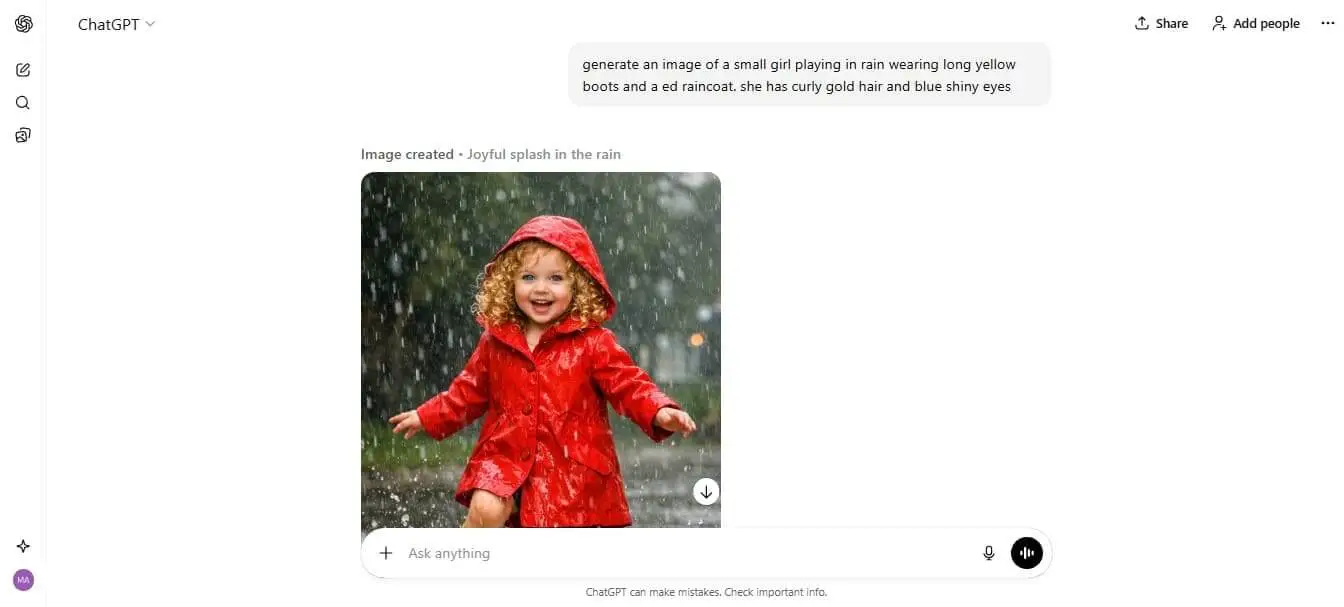
Short prompts are concise and often consist of a few words or a simple phrase, such as "sunset over mountains." They give GPT Image 1.5 broad creative freedom, which can produce unexpected or abstract results. However, they may also lead to inconsistencies, missing details, or outputs that don't fully match your intended vision.
Detailed Prompts
Detailed prompts provide explicit instructions about objects, composition, lighting, and style. For example, "A vivid sunset over snow-capped mountains, reflected in a calm lake and soft morning light" guides the model precisely. This ensures the generated image closely aligns with the desired scene, maintains coherence, and minimizes ambiguity.
Crafting Prompts That Work: Tips for GPT Image 1.5
Once you understand the basics of structure, subject, and style, refining your prompts can dramatically improve the quality and consistency of generated images. Here are some practical tips to elevate your GPT Image 1.5 prompts:
- Be Specific: Clearly define the main subject, setting, and objects in your prompt to avoid ambiguity and guide the model effectively.
- Avoid Vague Prompts: Do not rely on general terms like "nice scene" or "cool design" because they leave too much to interpretation; always use concrete descriptions.
- Use Descriptive Adjectives: Incorporate adjectives that describe texture, lighting, and color to help the model capture the intended visual tone.
- Include Perspective: Specify camera angles or viewpoints, such as "top-down" or "close-up," to control the composition of the generated image.
- Define the Mood: Add words that convey the emotional tone, like "serene", "dramatic", or "vibrant", to influence the overall feel of the image.
Part 3. 10 Advanced GPT Image 1.5 Prompts to Control Style and Composition
Taking your prompt skills to the next level allows for precise control over style, composition, and overall visual impact. Here are 10 advanced prompt examples demonstrating different ways to shape the output:
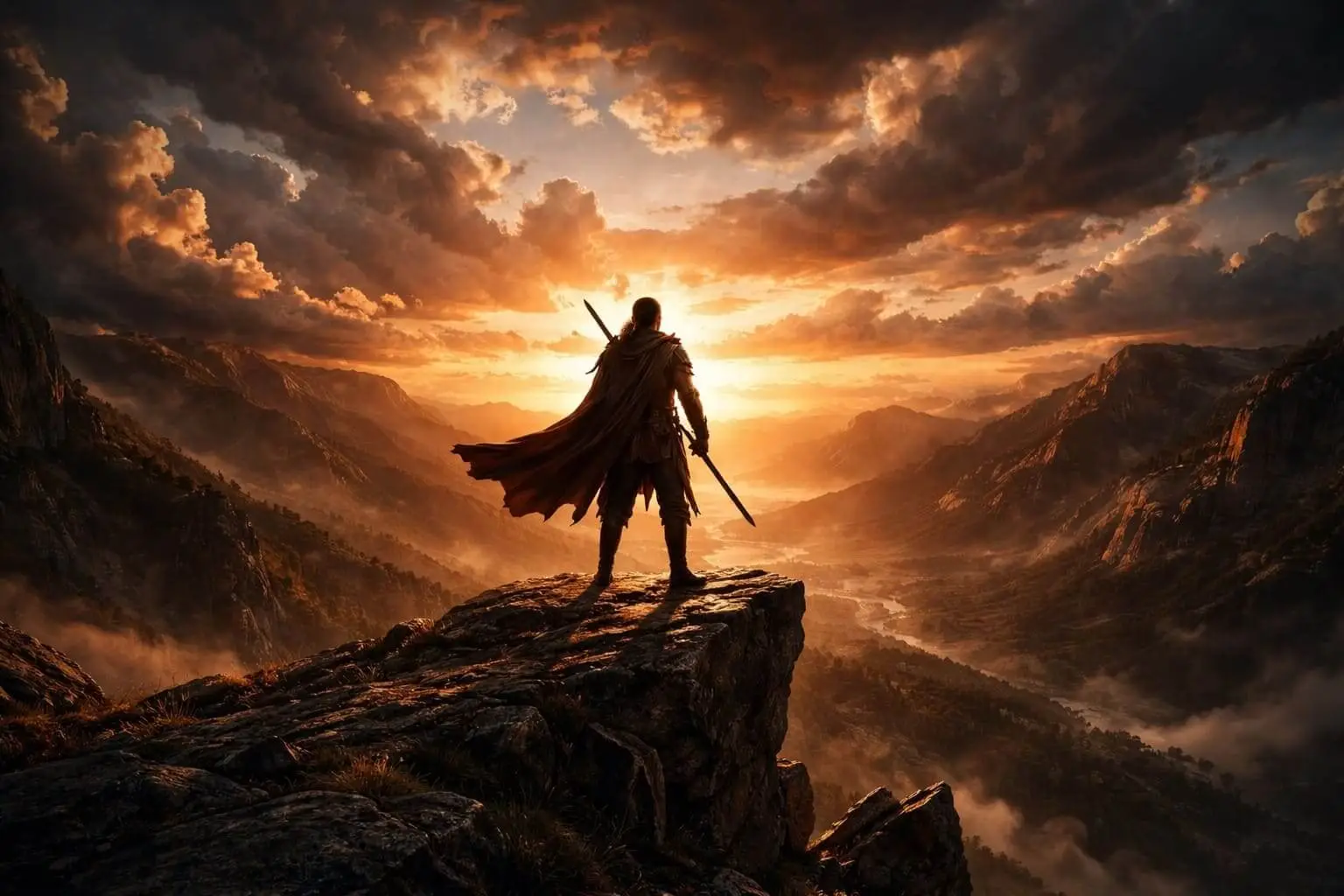
1. "Lone warrior standing on a cliff at sunset, dramatic shadows, wide-angle view, cinematic lighting, highly detailed clouds."
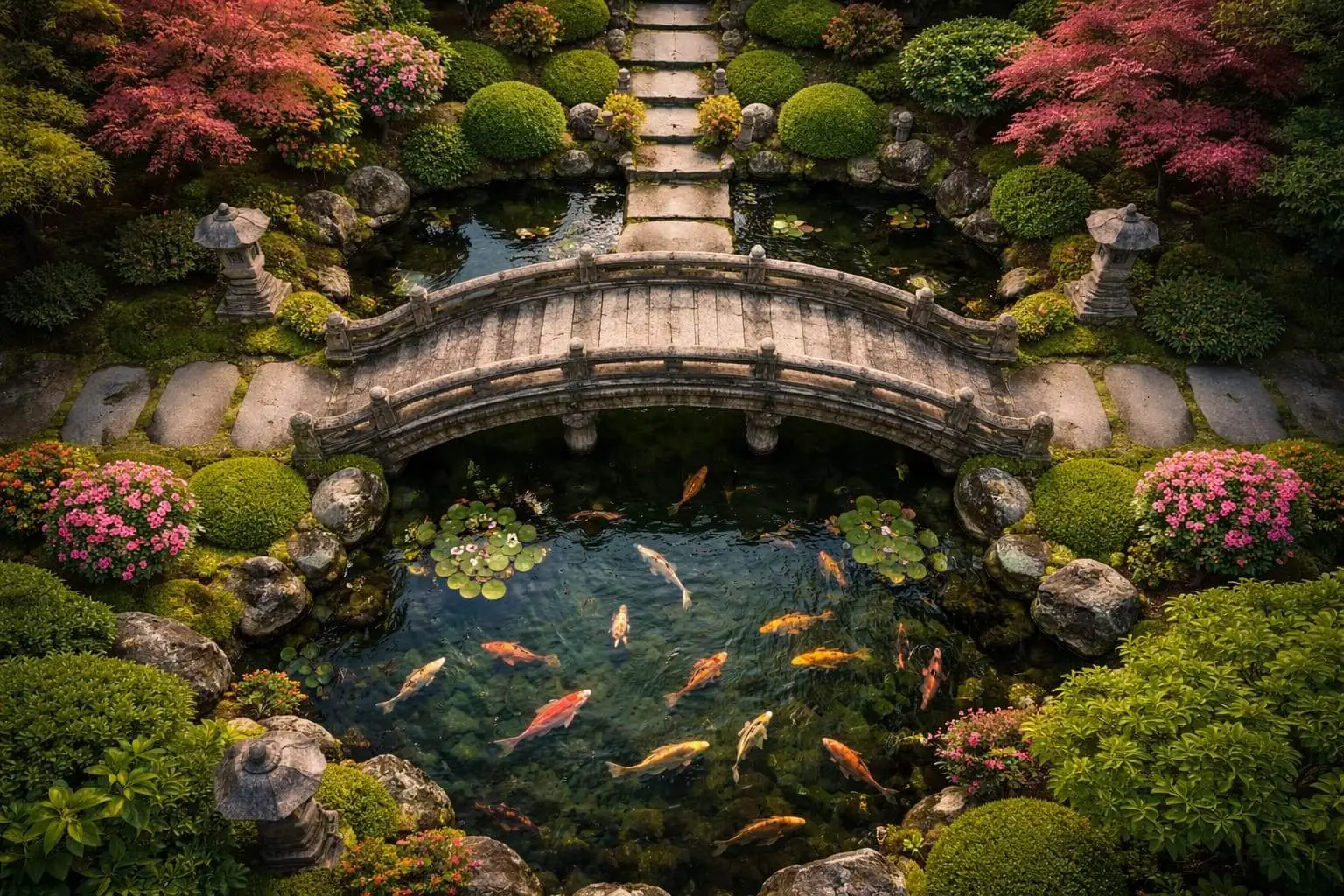
2. "Perfectly symmetrical Japanese garden with a stone bridge over a koi pond, top-down perspective, soft ambient lighting."
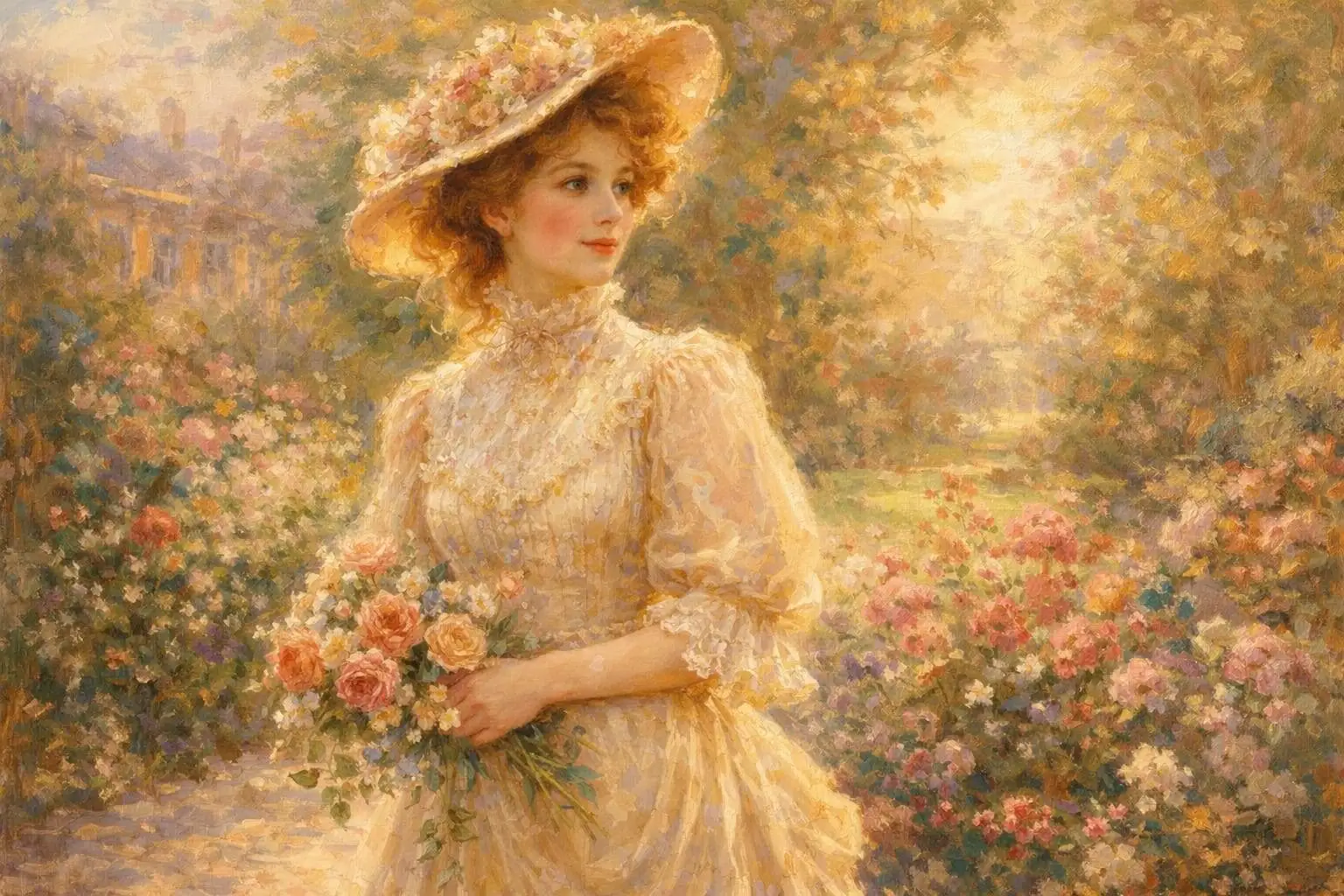
3. "Victorian-era woman in the style of impressionist painting, soft brush strokes, warm color palette."
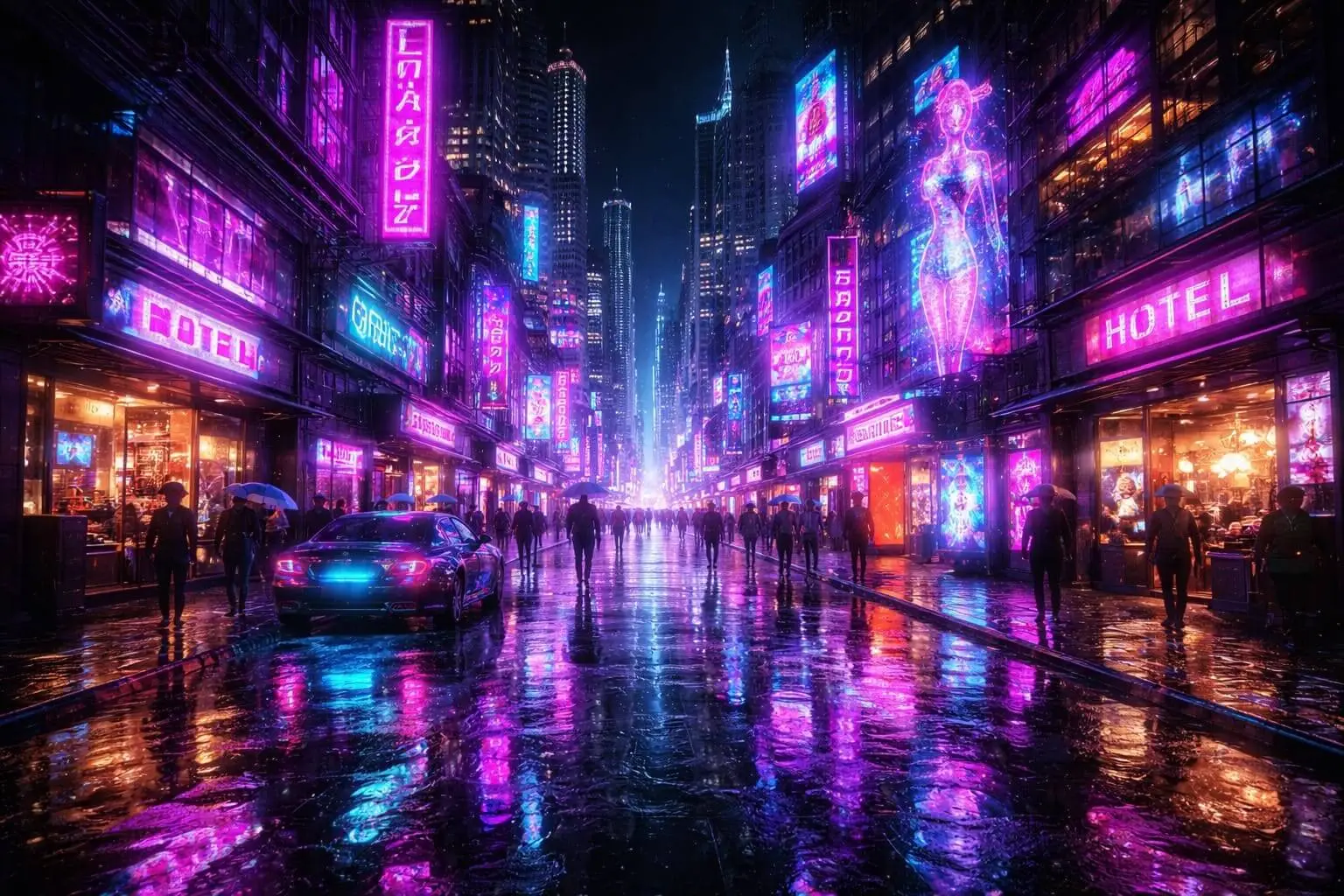
4. "Futuristic cityscape at night, neon lights reflecting on wet streets, dominated by purple and teal tones, high contrast."
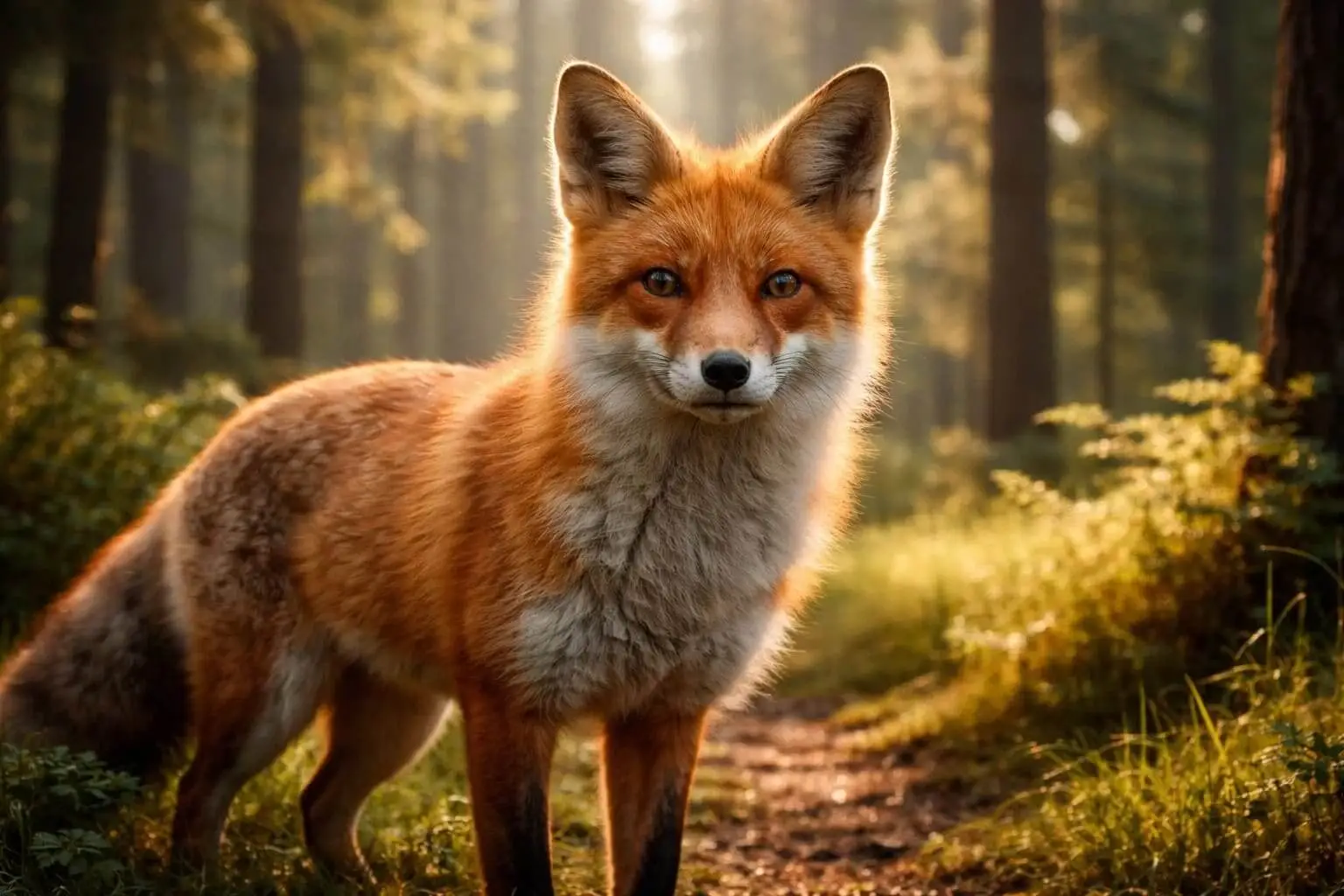
5. "Red fox in the foreground, detailed forest background slightly blurred, morning light filtering through trees."
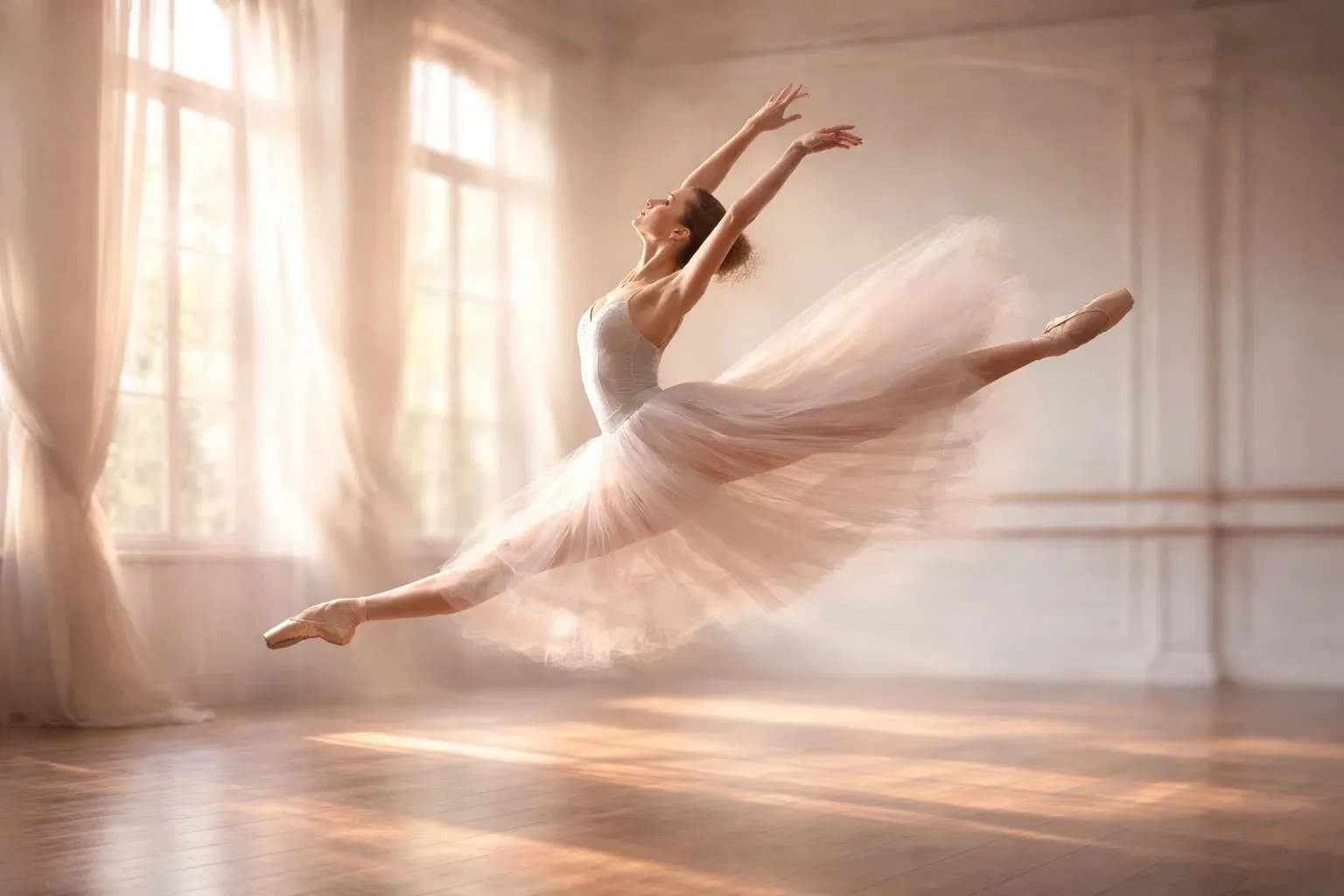
6. "Ballerina leaping mid-air in a sunlit studio, motion blur effect, soft pastel colors, elegant composition."
7. "Modern living room illuminated by sunlight and warm indoor lamps, realistic shadows, reflective surfaces, cozy atmosphere."

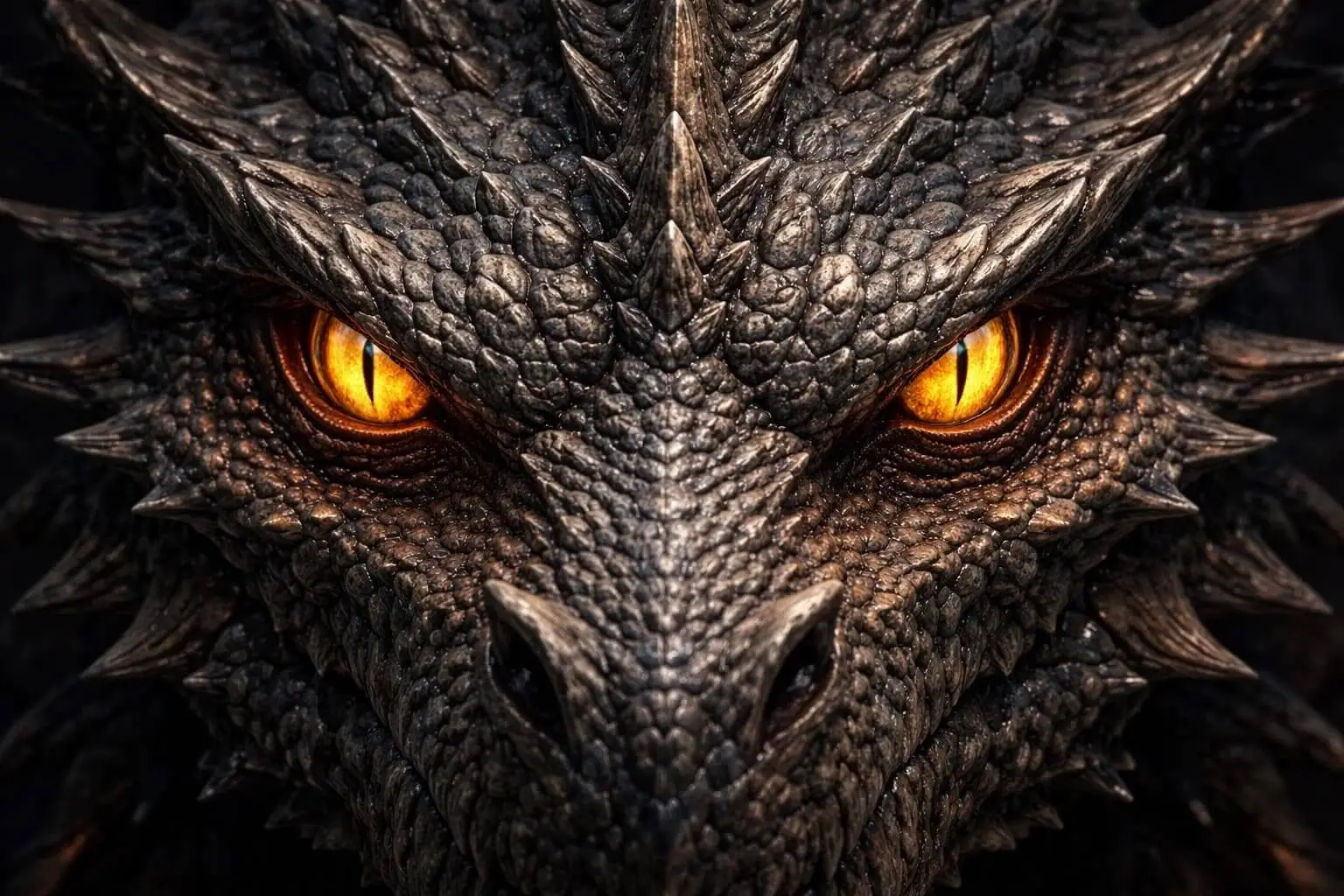
8. "Close-up of dragon's scaled skin, intricate textures, sharp focus on scales, mystical glowing eyes."
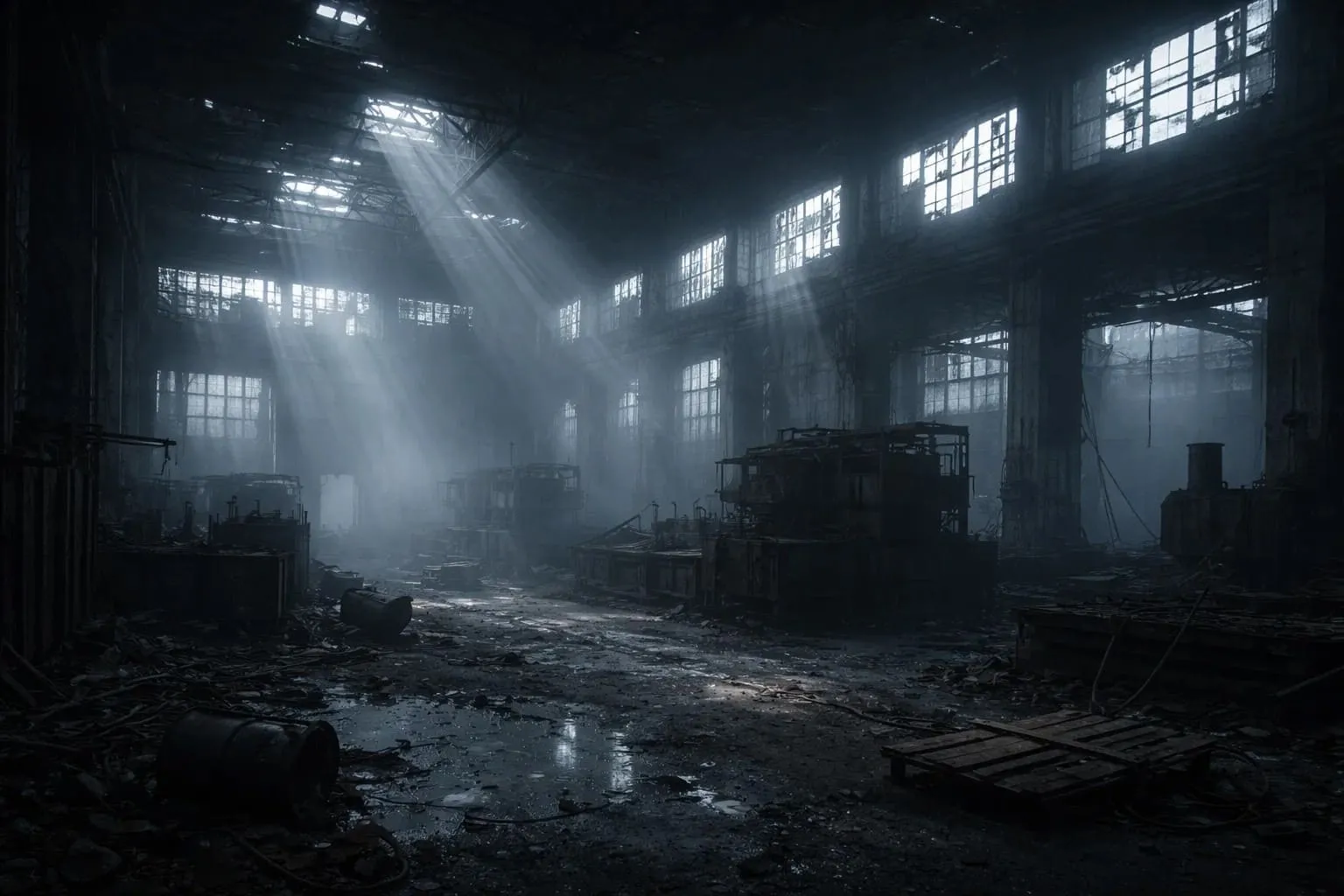
9. "Abandoned factory, foggy morning, muted colors, eerie atmosphere, rays of sunlight breaking through broken windows."
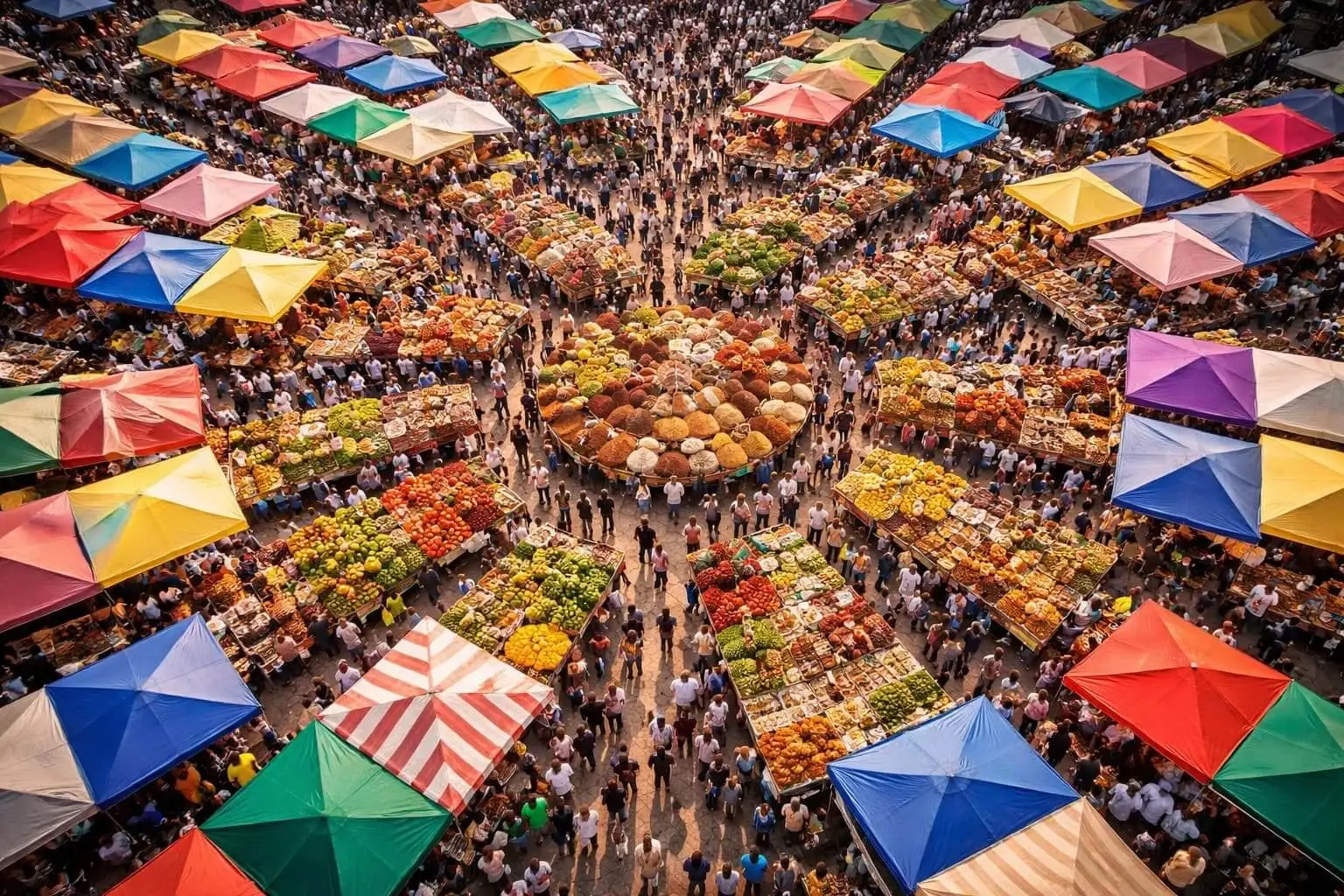
10. "Bustling marketplace, bird's-eye view, colorful stalls arranged in radial patterns, lively crowd scenes."
Part 4. 4 GPT Image 1.5 Prompt Errors That Lower Image Quality
Even small mistakes in prompts can reduce the quality of generated images. Here are common errors to avoid:
- Overly Long or Confusing Prompts: Too many details or complex phrasing can overwhelm the model and cause important elements to be missed.
- Contradictory Instruction: Conflicting directives, like "bright sunny sky with stormy clouds, lead to inconsistent outputs.
- Ignoring AI Limitations: Expecting impossible or highly intricate details can result in distorted or unrealistic visuals.
- Vague or Under-Specified Prompts: Lack of clear subjects, perspective, or style produces generic or unfocused results.
Part 5. Experience GPT Image 1.5 Like Never Before with insMind Tools
Creating professional-quality images from text prompts has never been easier, thanks to powerful AI tools that turn ideas into visuals in seconds. The insMind GPT Image Generator leverages advanced AI to deliver lifelike textures, natural lighting, and a wide range of artistic styles. It allows anyone, from beginners to professionals, to generate high-resolution visuals for personal projects or creative exploration.
For more precise control, the platform offers features that adjust composition, color, style, and texture effortlessly. With access to multiple AI models like GPT Image 1.5, Nano Banana, Z-Image Turbo, and Recraft, users can explore photorealistic images, vibrant character art, or vector-ready designs.
Key Features Offered by insMind
- Choose Aspect Ratio: Users can select the ideal aspect ratio to ensure images fit perfectly across different platforms and meet design requirements.
- Check Chat History: The chat history feature allows users to review previous prompts and outputs, making it easy to refine or recreate images.
- Add Reference Photos: Reference images can be uploaded to guide the AI toward a specific style, composition, or visual direction.
- Multiple Format Output: Images can be exported in multiple formats, enabling smooth use across web, print, and social media projects.
Steps for Generating Images with GPT Image 1.5 in InsMind
As discussed, insMind GPT Image Generator provides comprehensive image generation with text prompts for its users. Follow the steps provided next to learn how to use this tool:
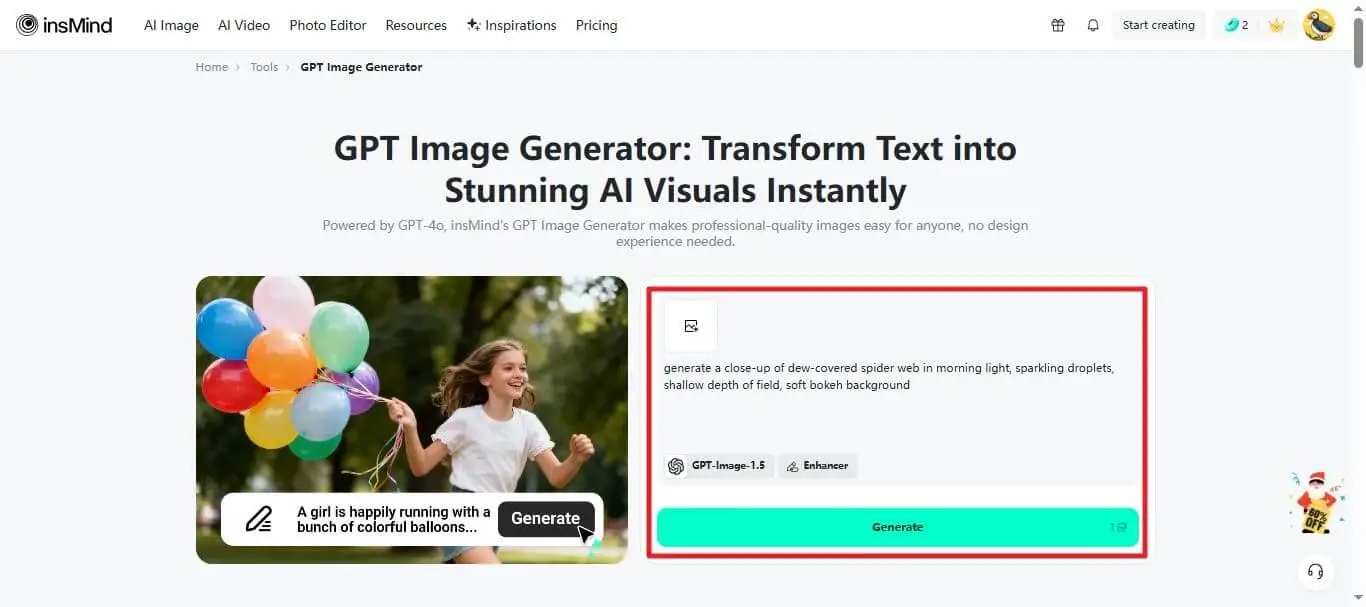
Step 1. Begin by Entering the Prompt
Once you have accessed the tool on your browser, input your prompt in the text field. Along with choosing the AI model as "GPT Image 1.5," you can also enable options such as the "Enhancer." Once done, hit the "Generate" button to execute the process.
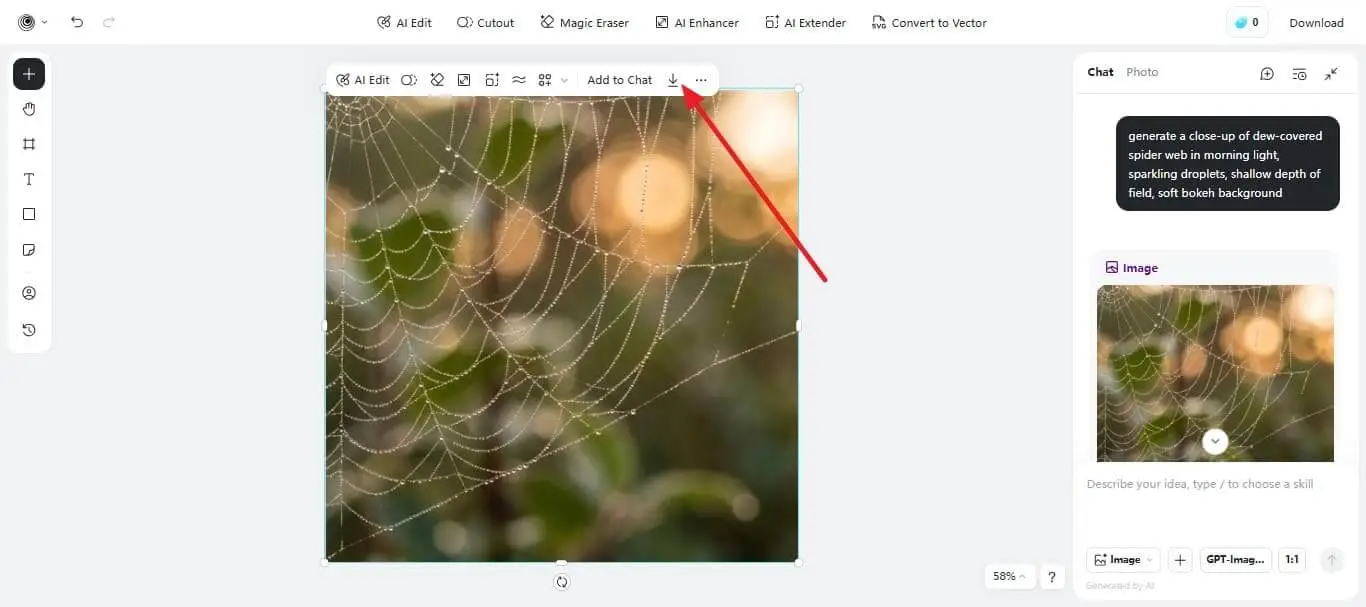
Step 2. Preview Results of GPT Image 1.5
In the following interface, you can modify the prompt by selecting the aspect ratio from the options provided. You can also add a reference image from your device to give an idea of your output. Once the image is generated, use the floating toolbar at the top of the picture to choose your "Download." Following this, it also allows modifying the results using the options on the toolbar.
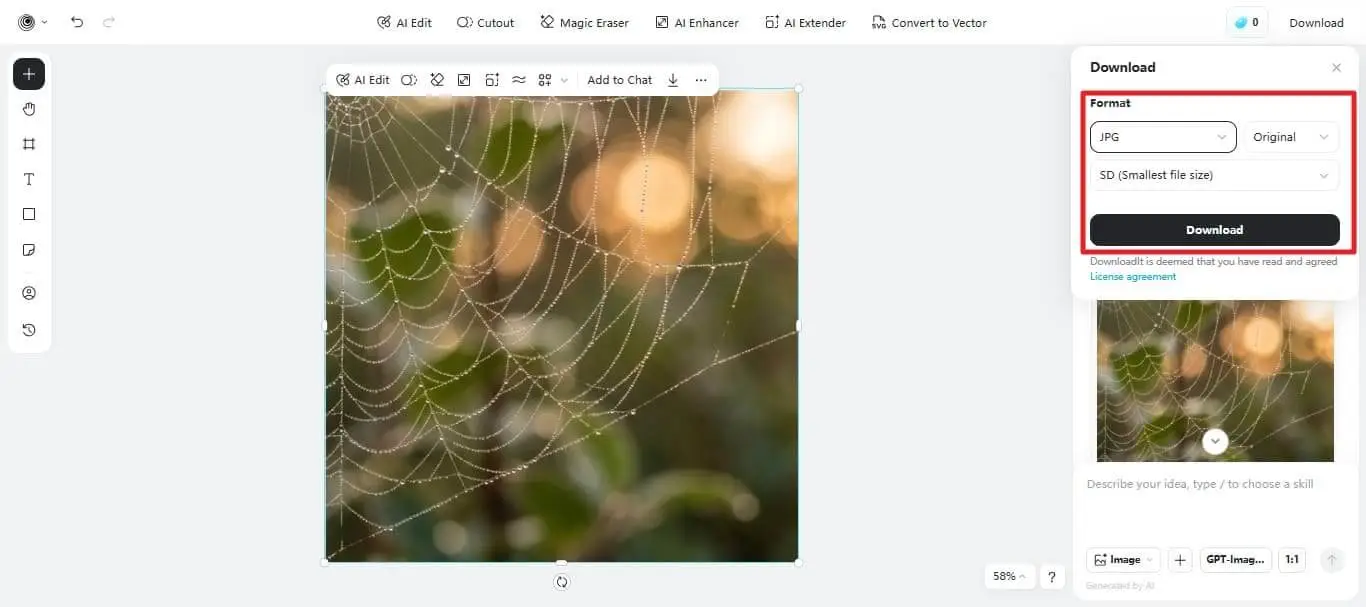
Step 3. Select Format and Download
On pressing the "Download" icon, select the appropriate format using the options available. Either choose "JPG" or "PNG" according to your preferences and hit the "Download" button to save.
Do you look forward to creating a perfect cover image for your next book? insMind GPT Image Generator allows you to create the best, most realistic version of an image in no time. With easy options for image creation, you can also edit the image in the best possible way.
Frequently Asked Questions
1. What is GPT Image 1.5 used for?
GPT Image 1.5 is used to generate and edit images from text prompts, offering better control over style, composition, and visual accuracy than earlier models.
2. How can I get better results with GPT Image 1.5 prompts?
Clear structure, specific subjects, and well-defined styles improve results, and tools like insMind simplify this process with guided controls and presets.
3. Can beginners use GPT Image 1.5 effectively?
Yes, beginners can achieve strong results, especially when using user-friendly platforms such as insMind, which removes technical complexity.
Conclusion
To sum it up, this article provided a complete guide on what GPT Image 1.5 is and how to use it. It also introduced an incredible tool, insMind, that integrates GPT Image 1.5 to generate images with text prompts. With a detailed understanding of the insMind GPT Image Generator, it surely is one of the most reliable tools that craft compelling images in no time.


